Migrate/Clone Windows Server 2016 to SSD Without Reinstalling
💛 Quick Navigation:
- Why move Windows Server 2016 to SSD?
- Best disk cloning software for Windows Server 2022/2019/2016
- How to transfer Windows Server 2016 from HDD to SSD effortlessly
- Conclusion
Why move Windows Server 2016 to SSD?
Upgrading to a solid state drive (SSD) is a popular choice for many users, as it outperforms hard disk drives (HDD) in various ways. With the advancement of SSD technology over the years, Microsoft has ensured that Windows Server 2016 is optimized for use with SSDs, making migration to an SSD the best way to enhance performance.
Transferring Windows Server 2016 to an SSD can be done in a more efficient way than a fresh installation. Instead of reinstalling the operating system and programs, you can clone the existing system to the SSD, preserving all installed applications and personal data. This approach saves time and effort, as you won't need to reinstall programs or manually copy files.
Unfortunately, the migration software for Windows Server has some limitations, but there is an alternative solution, Qiling Disk Master Server, which allows you to clone Windows Server 2016 to SSD without reinstalling the system, saving time and effort. This software provides a step-by-step guide to help users migrate their systems efficiently.
Best disk cloning software for Windows Server 2022/2019/2016
Qiling Disk Master Server is a powerful software that allows you to easily migrate Windows Server and PC operating systems to SSD, cloning the entire system, programs, and files with just a few mouse clicks, compatible with various Windows versions.
- With the ability to automatically adjust partition size, it works flawlessly when migrating system from a large HDD to a smaller SSD.
- Partition alignment is a technique that optimizes the placement of partitions on a storage device, such as an SSD, to improve performance during the migration process. By aligning partitions to the SSD's physical sectors, it can reduce the number of read and write operations, resulting in faster data transfer and improved overall system performance.
- With hot copy technology, you can use your computer without interruption during operation, allowing for continuous work.
- The software has a user-friendly interface that makes it easy for users to understand the migration process quickly and easily.
- This tool allows you to clone an MBR (Master Boot Record) disk to a GPT (GUID Partition Table) disk, or vice versa, while maintaining the bootability of the destination disk.
To try Qiling Disk Master Server, download and install it on your computer.
How to transfer Windows Server 2016 from HDD to SSD effortlessly
To clone Windows Server 2016 to an SSD, you'll need the Qiling Disk Master software and an SSD that's large enough to hold the data being transferred. This software allows you to choose from "System Clone", "Disk Clone", and "Partition Clone" options, giving you flexibility in deciding what to migrate to the SSD.
For IT technicians or small and medium-sized companies, Qiling Disk Master Technician Plus is a better choice as it allows deploying Windows Server 2016 on unlimited devices within one company, offering unlimited billable technical services to clients, and enabling the creation of a portable version by copying the installation directory.
To run Windows Server 2016 cloning disk to SSD, follow these steps. First, ensure you have a compatible SSD and the necessary software, such as Qiling Disk Master.
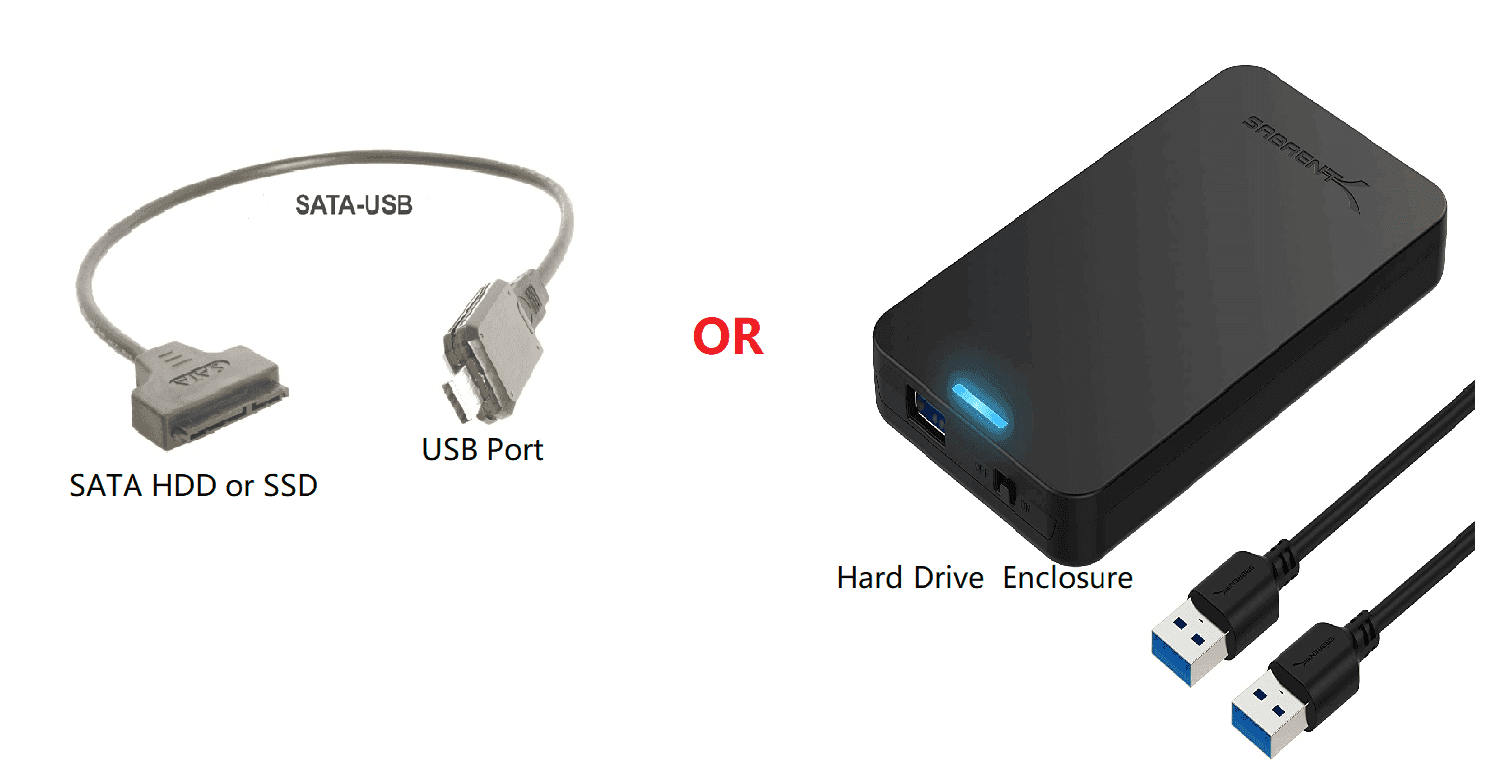
1. Connect the prepared SSD and be sure it can be detected.
2. Open Qiling Disk Master to see its main interface, and click "System Clone" under Clone tab for an OS migration, or "Disk Clone" to clone an entire hard drive to SSD.

3. The program will automatically select the source data to make a full system migration, so just click on the SSD to select the destination location, which can be unallocated space or a partition.

Tip: If the newly selected location is a partition, all data on it will be removed during cloning, so backup files as necessary.
4. After clicking "Next", the Operation Summary screen will appear. Here, select the option "SSD Alignment" to enhance the reading and writing speed of the SSD disk, and then click "Proceed" to continue the operation.

Notes:
◑ If the destination partition is larger than the original C drive, you can check "Make full use of disk space" to automatically add unallocated space to the target system drive during cloning.
◑ This software clones only used sectors on Windows Server 2016 hard drives by default, allowing larger HDDs to be cloned to smaller SSDs. However, users can opt to clone all sectors by enabling the "Sector by Sector Clone" option.
◑ Create a Windows Server 2016 bootable USB in advance, allowing you to boot your computer when it becomes unbootable. This can be a lifesaver in case of a critical system failure or when troubleshooting issues that prevent the system from booting normally.
Conclusion
Compared to a fresh installation, Qiling Disk Master Server is a better choice for migrating Windows Server 2016 to an SSD. It allows you to clone the Windows Server 2016 OS or the entire hard drive, preserving all data without the need for a reinstall. This software also makes it easy to migrate other versions of Windows Server, including 2003, 2008, 2012, 2019, and 2022, to an SSD.
Qiling Disk Master is a versatile software that not only allows for system cloning and migration, but also enables users to create system backup images for various Windows versions, including Windows Server 2016, and restore systems to different hardware configurations, making it a valuable tool for system maintenance and recovery.
Related Articles
- Migrate Windows Server 2016 to New Hardware Effortlessly (2 Ways)
You can successfully migrate Windows Server 2016 to new hardware with Windows Server Backup or a third-party migration tool. This article also helps to migrate Windows Server 2016 to 2019 or 2022. - How to Migrate to a New Server with Different Hardware Easily?
Learn how to Migrate to a New Server with Different Hardware Easily with clear steps, key checks, and practical tips. - Use Wbadmin in Windows Server 2016 for Backup and Recovery
This article will introduce you to 3 very classis examples of Windows Server 2016 wbadmin, which help you safely protect the system and data on it. For novices, try the easier way! - Windows Server 2016 Repaired with Command Prompt (Attached Tutorial)
This guide explains Windows Server 2016 Repaired with Command Prompt (Attached Tutorial) with clear steps, key checks, and practical tips. - Fix SSD Slow Boot on Windows 10 with 8 Effective Methods
Learn how to Fix SSD Slow Boot on Windows 10 with 8 Effective Methods with clear steps, key checks, and practical tips. - Transfer OEM Windows 10 & License to New Hard Drive in 4 Steps
As a matter of fact, you can easily transfer OEM Windows 10 to new hard drive. The OEM license is not transferable, but it's limited to different computer or you change the motherboard or CPU.
Products
Articles & Tutorials
- Data Recovery
- Data Backup
- File Recovery
- File Backup
- File synchronize
- System Backup and Restore
- Disk and Partition Clone
- Technical articles
- Disk Master Help
- Windows Deleted File and Disk Recovery Tutorials
- Windows File and Data Recovery Tutorials
- More Windows Tutorials for Install, Security, Files, and PC Tips
- Windows Boot, Repair, and Recovery Environment Tutorials
- Windows Backup Tutorials
- Windows Restore Tutorials
- Windows Clone and Migration Tutorials
- Windows Server Backup, Recovery, and Management Tutorials
- Windows Disk, Partition, and Storage Management Tutorials