Windows Server 2016 Repair Boot | 2 Effective Solutions
The issue: Windows Server 2016 won't boot
Windows Server 2016, the successor to Windows Server 2012 R2, features Nano server, which is an extremely compact variant that lacks a direct user interface, and supports Windows and Hyper-V containers, as well as secure boot capabilities for various systems, including Linux.

Some users encounter issues where their Windows Server 2016 won't boot after an update or displays errors such as "Windows failed to start. Status: 0xc000000e" following a full OS recovery. This problem can stem from damaged server boot files or system failures. If you're experiencing this issue, continue reading for solutions and guidance on running Windows Server 2016 recovery.
- How to repair Windows Server 2016 in two efficient ways
- Bonus tip: Windows Server 2016 system restore in GUI
How to repair Windows Server 2016 in two efficient ways
You can use the Bootrec.exe tool in the Windows Recovery Environment (RE) to resolve boot issues, or try to restore Windows Server 2016 from a backup if you had one before, depending on the cause of the problem. The Bootrec.exe tool and Windows Server 2016 restore from backup methods will be described in detail below.
Way 1. Windows Server 2016 repair with Bootrec.exe
This method applies to Windows Server 2016 repair boot:
1. To install Windows Server 2016, start by inserting the installation media into your computer. Once the media is inserted, reboot your computer and set it to boot from the media.
2. At the Windows Setup Dialog, set your appropriate settings and click Next.
3. Click Repair your Computer > Troubleshoot > Command Prompt.
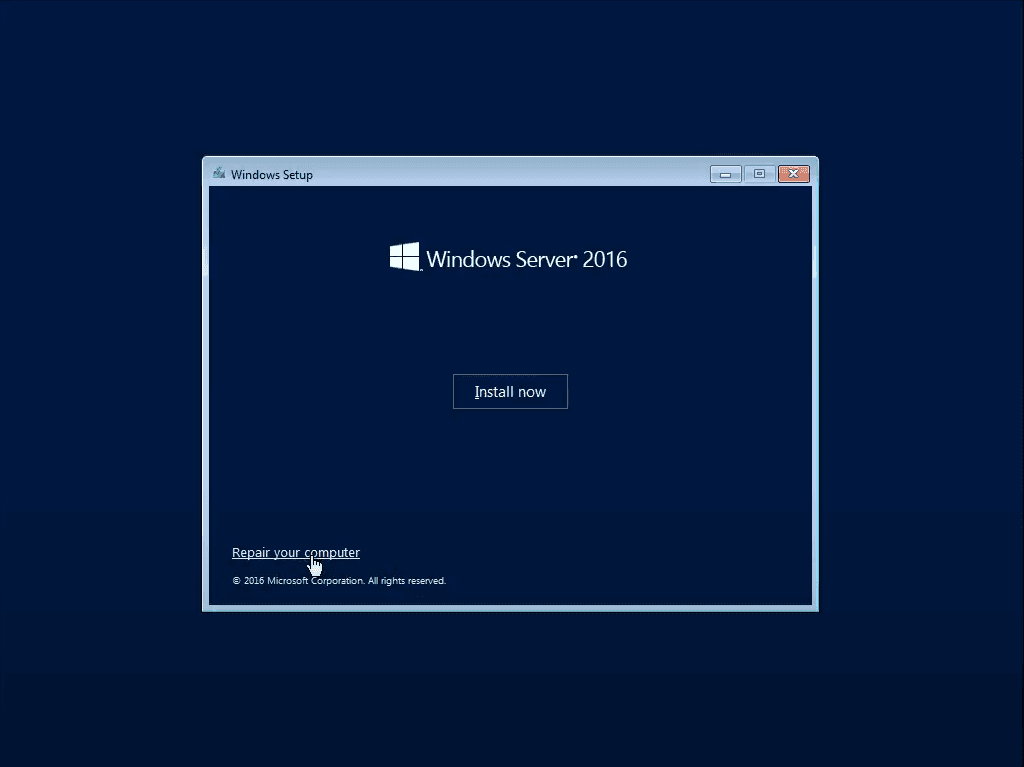
4. In Command Prompt, input following command lines and press Enter after each.
- bootrec /fixmbr
- bootrec /fixboot
- bootrec /rebuildbcd
- Press Y to confirm that you want to add the Windows installation to the Boot Configuration Database.
5. Exit Command Prompt and restart your computer.
Way 2. Windows Server 2016 recovery via Qiling Disk Master.exe
If the Windows Server 2016 boot issue is caused by system failures, Qiling Disk Master Server can help, especially designed for small and medium sized business, it is your total data protection and disaster recovery solution, providing automatic backup, instant recovery, and data protection features.
▶ Backup all kinds of data
The software offers four backup types, allowing you to create backups for the server system, whole disk, specific partitions, or individual files.
▶ Backup based on a schedule
It allows you to perform automatic backupsYou can set a backup task to run daily, weekly, monthly, or based on events such as user logon, user logoff, system startup, and system shutdown, among others.
▶ Delete obsolete backup versions
Qiling Disk Master is a wonderful backup disk space managerThe system can automatically delete old backups using its built-in deletion mechanisms.
▶ Flexible and quick restore
You can easily restore system, disks, partitions, or files from backup images created beforehand, either through graphical user interface (GUI) operations or command lines. This allows for quick recovery of lost data or system configurations, providing a convenient and efficient way to restore your system to a previous state.restore system to dissimilar hardware via "Universal Restore".
Before running a system restore:
- If you have a good backup habit and have already made a system backup via Qiling Disk Master, you can try Windows Server 2016 system restore in the following steps.
- If you haven't created a system backup using Qiling Disk Master, you might still be able to create one, but it would need to be done from another computer running the same Windows Server 2016 operating system. However, restoring your current computer from this backup would essentially revert its state to match the state of the other computer where the backup was created.
- You can use Qiling Disk Master's Check Image utility to verify if the system backup image is error-free and intact.
Now let's get straight to Windows Server 2016 repair:
1. To create bootable media with Qiling Disk Master on a computer that is functioning well, you can follow these steps: First, ensure the computer is turned on and the operating system is running smoothly. Next, insert a USB drive or CD/DVD into the computer, depending on the type of media you want to create.

2. To fix the boot problem, boot the computer from a bootable media and log in to see the Qiling Disk Master loaded. From there, go to Tools > Windows shell command to open the Command Prompt.
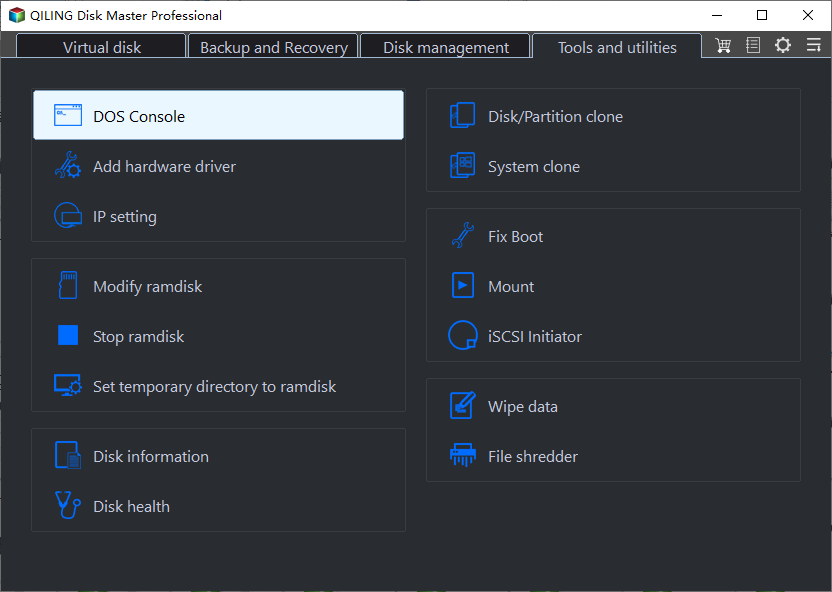
3. Navigate to the Qiling Disk Master installation directory on your computer by typing `cd C:\Program Files (x86)\Qiling Disk Master` and pressing Enter, replacing the path with the actual installation directory.
4. To restore the system backup, type `DiskMasterUI /r /t system /s "D:\systembackup\systembackup1.fvd" /d 2` in the command line and press Enter, replacing the path with your system backup image file and destination disk.
5. To exit the Command Prompt, type "exit" and press Enter. You can then restart your computer later.
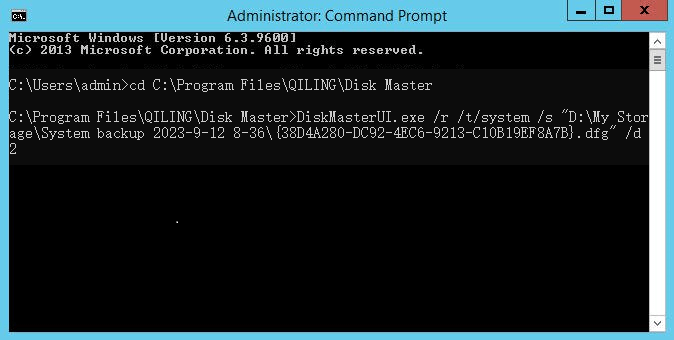
Note: The drive letters may change under Windows PE environment. To ensure accuracy, you can run DiskMasterUI with the /l option before Step 4 to list all disks on your computer. Then, to list partitions on a specific disk, type the disk number after running DiskMasterUI with the /l option, such as DiskMasterUI /l 0.
Bonus tip: Windows Server 2016 system restore in GUI
Users who prefer GUI operations to repair Windows Server 2016 can also use Qiling Disk Master Server, which can meet their demand.
Step 1. Create bootable media and boot from it as mentioned above.
Step 2. When you see Loaded Qiling Disk Master, select "Restore" on the left pane and check "Select Task" to display backup tasks.

Step 3. Select the system backup task in the list and click "Next".

Step 4. To restore a backup, select the desired backup type, either the entire backup or a specific part, and then click the "Next" button.

Step 5. Confirm the operations on the "Operation Summary" page and click the "Proceed" button.

Tips:
- When restoring your system using Qiling Disk Master, you may need to specify a new destination if the original system drive has changed in size or location since the initial backup was created. If not, the program will automatically detect and select the current default partition (usually C:) as the target for restoration. Alternatively, you can manually override this selection by ticking "Restore system to other location" in Step 4, allowing you to choose a different drive or storage device if needed.
- If the system backup image was created on a different computer, it's essential to enable Universal Restore during the restoration process to correctly configure and enable boot functionality for the restored operating system.
Verdict
When Windows Server 2016 fails to start, you can either run Bootrec.exe to fix startup issues or use Qiling Disk Master to restore the system, which can also clone the server setup onto an SSD for smoother upgrades and replacements.
You can protect unlimited PCs and servers within your company by using Qiling Disk Master Technician Plus, which also allows you to copy the installation directory for portable version creation.
Related Articles
- How to Create Windows Server 2016 Recovery Disk with Different Tool
Learn how to Create Windows Server 2016 Recovery Disk with Different Tool with clear steps, key checks, and practical tips. - How to Repair Windows Server 2008 R2/2012 R2 Using Command Prompt?
You will learn x ways to repair Windows Server 2008 R2 using command prompt and get your computer back normally. Also works for server 2012 R2/2016 R2/2019/2022. - How to Migrate Windows Server 2016 to New Hardware Effortlessly
You can successfully migrate Windows Server 2016 to new hardware with Windows Server Backup or a third-party migration tool. This article also helps to migrate Windows Server 2016 to 2019 or 2022. - Backup and Restore Windows 8.1 with/Without Built-in Tool [Full Guide]
We will introduce the built-in backup tools of Windows 8.1 in this article. You can also find the full guide to back up and restore Windows 8.1 with/without the built-in tools. We recommend you use Qiling Backup for its quick backup process and user-friendly interface. - How to Backup Files to pCloud on Windows 11/10/8/7🏆
Back up your files to pCloud easily with its user-friendly interface, saving space on your device. With its advanced features and quick functions, you can quickly and efficiently store your files in the cloud-based storage. - How to Backup Files to QNAP NAS (Quick & Easy)👍
For many QNAP NAS users, backing up files to their NAS can be a daunting task. Fortunately, there are three simple methods to complete this task, which can be learned from this post to ensure your important files are safely stored on your QNAP NAS.
Products
Articles & Tutorials
- Data Recovery
- Data Backup
- File Recovery
- File Backup
- File synchronize
- System Backup and Restore
- Disk and Partition Clone
- Technical articles
- Disk Master Help
- Windows Deleted File and Disk Recovery Tutorials
- Windows File and Data Recovery Tutorials
- More Windows Tutorials for Install, Security, Files, and PC Tips
- Windows Boot, Repair, and Recovery Environment Tutorials
- Windows Backup Tutorials
- Windows Restore Tutorials
- Windows Clone and Migration Tutorials
- Windows Server Backup, Recovery, and Management Tutorials
- Windows Disk, Partition, and Storage Management Tutorials