RAID 0 Drive Backup with 4 Simple Steps | Totally Free
Quick navigation:
- What is RAID 0?
- Need to Backup RAID to a Single Hard Drive
- What Is Best Free RAID 0 Drive Backup Software
- How to Safely Backup RAID 0 Drives
- Other Levels of RAID Drive
- In the End
What Is RAID 0?
RAID 0, also known as Striping, is a storage configuration that provides the highest level of performance. It disperses data across two or more hard disks uniformly, allowing for faster data access and transfer.
In a RAID 0 setup with two drives, data is striped across both disks. The first chunk of data is written to the first disk, the second chunk to the second disk, the third chunk back to the first disk, and the fourth chunk to the second disk, and so on.

RAID 0 is often used to improve disk performance or combine two small physical disks into a larger logical one. It can also be used to stripe multiple disks of different sizes together, with the total storage space determined by the size of the smallest disk. For example, combining a 300 GB disk with a 500 GB disk would result in a 600 GB RAID 0 array.
Need to Backup RAID to a Single Hard Drive
You're looking to create a RAID 0 array with two drives and then back up the combined data to a single, larger drive. This is a good approach to ensure data redundancy. To achieve this, you can set up your two drives in a RAID 0 configuration, which will stripe the data across both drives, effectively doubling the storage capacity. Then, you can use backup software to mirror the data to a third, larger drive, ensuring that you have a complete copy of your data in case one of the original drives fails. This setup provides both performance and redundancy benefits.
Raid 0 provides no data redundancy, making it not a backup. If one drive in the array is damaged, the entire data on the Raid 0 will be lost. This is because Raid 0 simply splits data across multiple drives, offering no redundancy or protection against drive failure.
If you have a RAID 0 setup, you should be aware that it's not possible to recover data if one of the drives fails. The best-case scenario is that you can recover some data from the working drive, but it's still essential to back up your RAID 0 drive to a single drive to ensure everything is protected. In this case, using a reliable free RAID 0 drive backup software is highly recommended.
What Is Best Free RAID 0 Drive Backup Software?
Considering the lack of data redundancy in RAID 0, it's essential to backup your RAID 0 drives, and Qiling Disk Master Standard, a top-rated free RAID backup software, can help. This tool offers several advantages, including the ability to backup RAID 0 drives.
- Protect everything on your RAID 0 hard drives: Qiling Disk Master supports backing up data from various storage devices, including RAID 0 disks, IDE, NVMe, SATA, SCSI, SSD, USB external disks, hardware RAID, and Network Attached Storage (NAS), as well as MBR and GPT disks.
- Schedule backup RAID 0 drive: It supports backing RAID 0 drives on a daily, weekly, and monthly schedule, and is often used with incremental backups to only save changed files.
- Save much disk space: The software supports various features by default, including normal compression, automatic splitting, and intelligent sector backup, which collectively help reduce the size of the backup image automatically.
To proceed, download and install the free RAID backup software on your computer. Next, connect the single drive to your computer and ensure it's recognized.
This software supports various Windows operating systems, including Windows 11, 10, 8, 7, XP, and Vista. For server users, Qiling Disk Master Server is a suitable alternative.
How to Safely Backup RAID 0 Drives
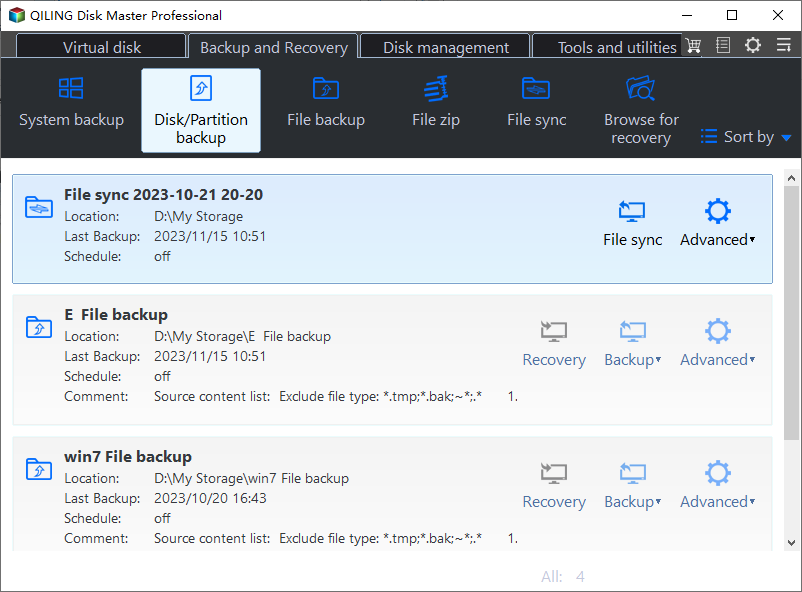
1. To perform a backup using Qiling Disk Master Standard, go to **Backup** > **Disk Backup**.
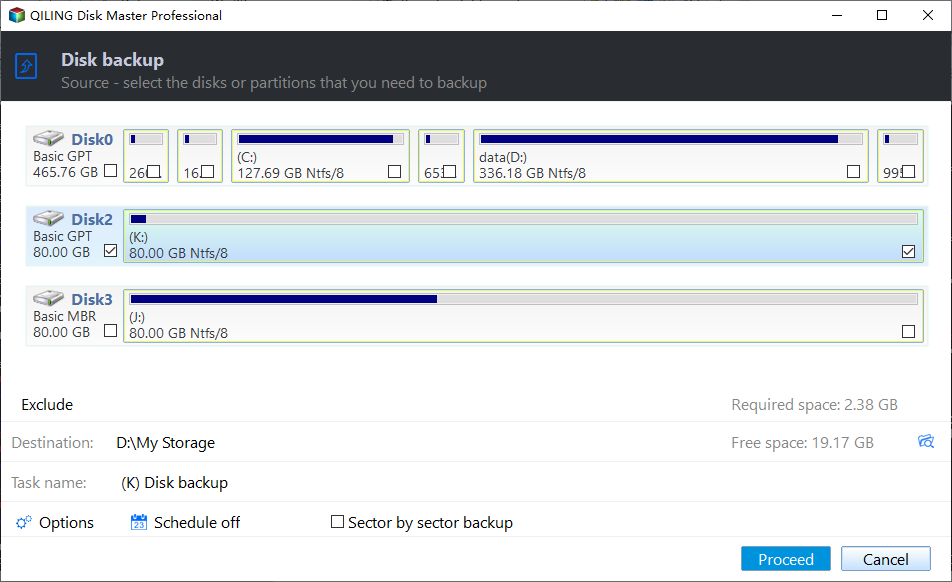
2. Click on the "Click + Disks" button, select the RAID 0 drive, and then click "Add to" to choose the RAID 0 as the source disk.
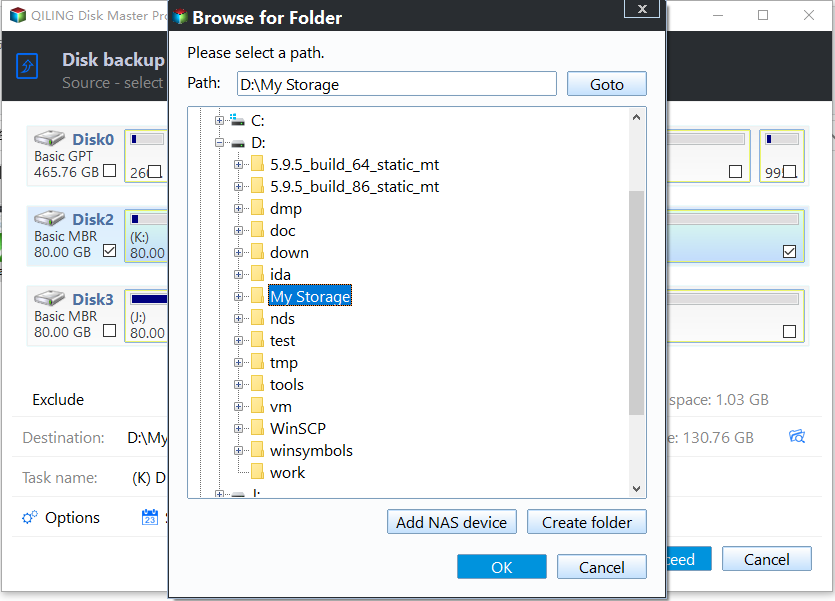
3. To receive the RAID 0 drive backup image file, choose the single drive where you want to save the backup.
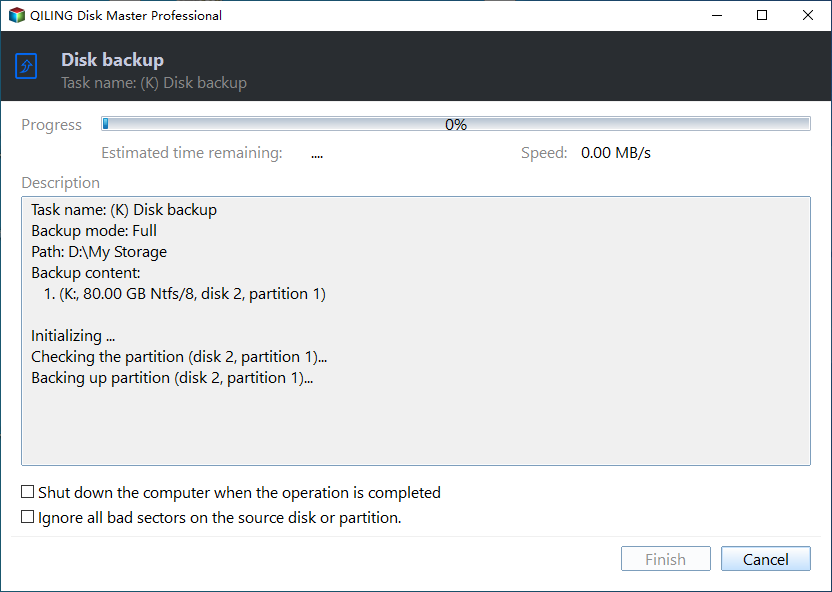
4. Press Proceed >> to backup RAID 0 disk safely.
Here are some optional settings you could specify before starting backup:
✍Options: It enables features such as commenting, compressing, splitting, and encrypting the disk backup image, as well as sending email notifications.
✍Schedule Backup: This option provides five automatic backup modes for RAID 0 data, including daily, weekly, monthly, event triggers, and USB plug-in, making it ideal for those who are too busy to manually backup their RAID 0 drives. Upgrading is recommended to access the last two modes.
✍Backup Scheme: This option allows for automatic deletion of old backup images, ensuring the backup destination always has enough space for new backups. It also enables the creation of incremental and differential backups, which only backup changed files.
When using RAID 0, all data is backed up safely, and if a drive fails, you can replace it with a new one and restore data to the new drive immediately. To recover data from a failed RAID 0 drive, follow these steps:
1. On the main page of Qiling Disk Master, select the "Restore" tab, and then choose "Select Image File".
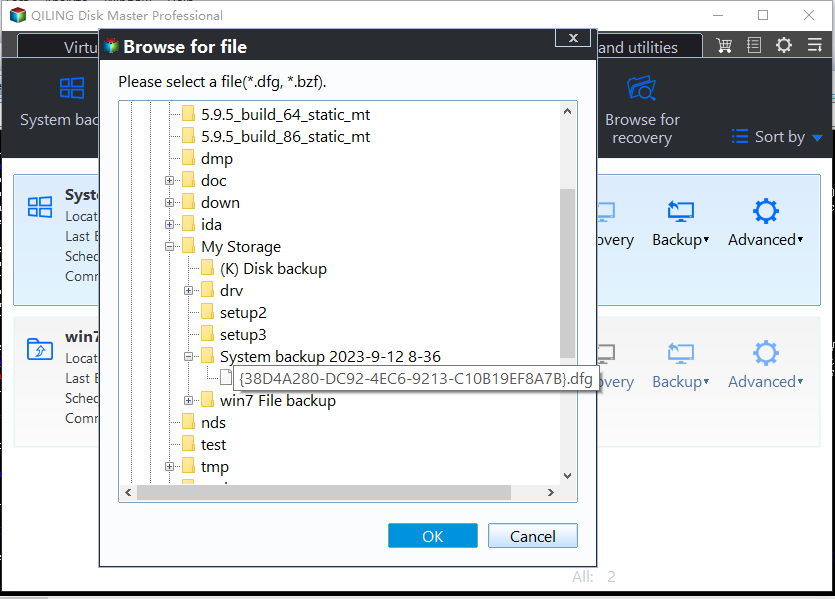
2. To restore a RAID 0 drive from a backup image file, locate the RAID 0 drive's backup image file, select the option to restore the entire disk, and choose the disk to restore from the list below, then click Next.
3. Choose the RAID 0 drive as destination.
4. Press Proceed >> to do RAID 0 drive recovery.
You can sync files to another safe location on a regular basis to protect your crucial data, or sync the data on the RAID 0 drive with the Real Time Sync feature, which is available in Qiling Disk Master Professional, to sync the changed or newly added part after the first full synchronization.
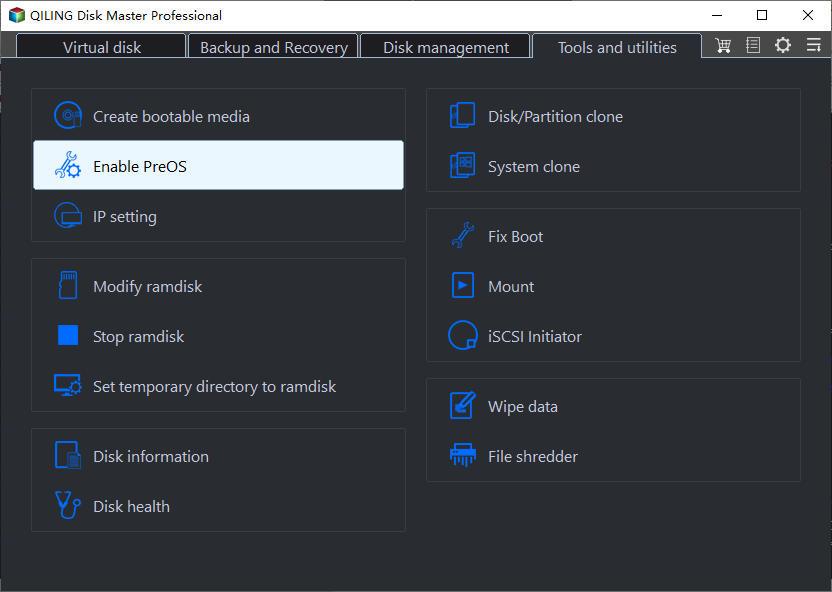
If your Windows computer won't boot, you can try booting it with a bootable disk or create a recovery environment on your computer in advance, which will help you boot successfully and enter the software interface.
Other Levels of RAID Drive
If you're not using RAID 0, you may want to consider other common RAID levels, such as RAID 1, RAID 5, or RAID 6, which offer redundancy and data protection, or RAID 10, which combines the benefits of RAID 1 and RAID 0. These levels can provide a balance between performance and data security, making them suitable for various applications and use cases.
- RAID 0, striping, at least 2 hard disks.
- RAID 1, also known as disk mirroring, is the most expensive type of disk array that requires at least two disks.
- RAID 5 is a RAID level that balances performance and redundancy, achieved through disk striping with parity.
- RAID 10, also known as RAID 1+0, is a type of disk array that combines the benefits of striping and mirroring. It requires a minimum of four hard disks, making it a more expensive option. However, it offers both high performance and high security, as data is both striped across multiple disks for speed and mirrored for redundancy. This makes it a popular choice for applications that require both high performance and low risk of data loss, such as databases and virtualization environments.
- RAID 50 is a combination of RAID 5 and RAID 0, requiring at least 6 drives.
In the End
Backing up a RAID 0 drive is not a difficult task, especially with the right software. Qiling Disk Master Standard is a reliable tool that allows you to backup your entire disk, specific partitions, or individual files, depending on your needs. It also offers additional features such as scheduling backups, incremental backups, and automatic cleanup methods.
If you're looking for an easier way to make an exact copy of a RAID 0 drive, you can consider cloning the RAID 0 drive. This method also applies to cloning a hard drive to a solid-state drive (HDD to SSD), migrating Windows 10 to an SSD without reinstalling, or converting a Master Boot Record (MBR) to a GUID Partition Table (GPT) disk or vice versa.
Related Articles
- Create Schedule Automatic Backup in Windows 10 [3 Ways Included]
You can easily create schedule automatic backup in Windows 10 with the help of Backup and Restore (Windows 7), File History and Qiling Disk Master Standard. - 4 Steps to Perform Disk Backup for Windows 10 [FREE]
You will learn two practical ways to create disk backup for Windows. If you want to simply backup important files, this article also helps. - Backup and Restore with Windows 10 Backup Utility (3 Ways)
This article is written for Windows 10 users who want to backup and restore OS, programs, and personal files in order to transfer files or protect data.
Products
Articles & Tutorials
- Data Recovery
- Data Backup
- File Recovery
- File Backup
- File synchronize
- System Backup and Restore
- Disk and Partition Clone
- Technical articles
- Disk Master Help
- Windows Deleted File and Disk Recovery Tutorials
- Windows File and Data Recovery Tutorials
- More Windows Tutorials for Install, Security, Files, and PC Tips
- Windows Boot, Repair, and Recovery Environment Tutorials
- Windows Backup Tutorials
- Windows Restore Tutorials
- Windows Clone and Migration Tutorials
- Windows Server Backup, Recovery, and Management Tutorials
- Windows Disk, Partition, and Storage Management Tutorials