Lenovo OneKey Recovery: The Program Cannot Restore the System Partition
Lenovo OneKey Recovery may report that it cannot restore the system partition because its structure is incorrect. The factory recovery process can depend on the original disk layout, recovery files, and partition attributes. Resizing partitions, replacing a disk, or reinstalling Windows can change that layout.
This message is not an instruction to delete and recreate partitions at random. First determine what changed and protect the current files.
Identify the recovery system and what changed
- Record the full error text, Lenovo model, and whether you are using the original disk, a clone, or a replacement drive.
- Note any recent conversion between MBR and GPT, partition resizing, or clean installation. These changes may be relevant even if Windows still starts.
- If Windows opens, inspect Disk Management and photograph the entire disk layout. Avoid changing drive letters or partition types during this inspection.
- Confirm whether the original recovery image is still present and whether you have model-specific recovery media. A similarly named folder is not proof of an intact factory image.
A recovery partition on one Lenovo model may not match another. Instructions that blindly run set id=12 are not a universal fix and are inappropriate for GPT partition types.
Use a recovery route that matches the available image
For an intact original layout, use the model's documented OneKey or Novo-button procedure. Read its restore scope before proceeding: a factory restoration can remove applications and personal files.
If the original recovery layout or image is missing, obtain the supported recovery media for the exact Lenovo model. Recreating a partition with a guessed size does not regenerate the manufacturer's recovery files.
If only Windows startup is broken, try Windows Startup Repair before factory recovery. If Windows remains usable, export current files first. A clean installation is a separate fallback that requires drivers, licensing, and a plan to restore personal data.
Restore a compatible Qiling backup instead
This alternative requires an existing Qiling backup image created before the failure. Qiling Disk Master cannot be assumed to restore Lenovo's proprietary factory image. Use the program that created the image.
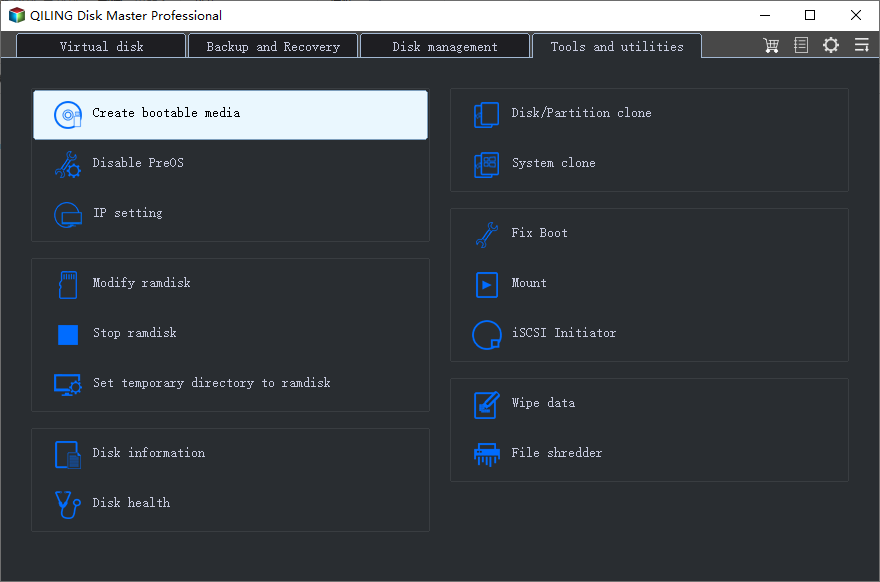
Preparation. Save files changed since the backup. Prepare compatible Qiling bootable media on a working computer, connect the image storage, and start the Lenovo PC from that media in the appropriate firmware mode.
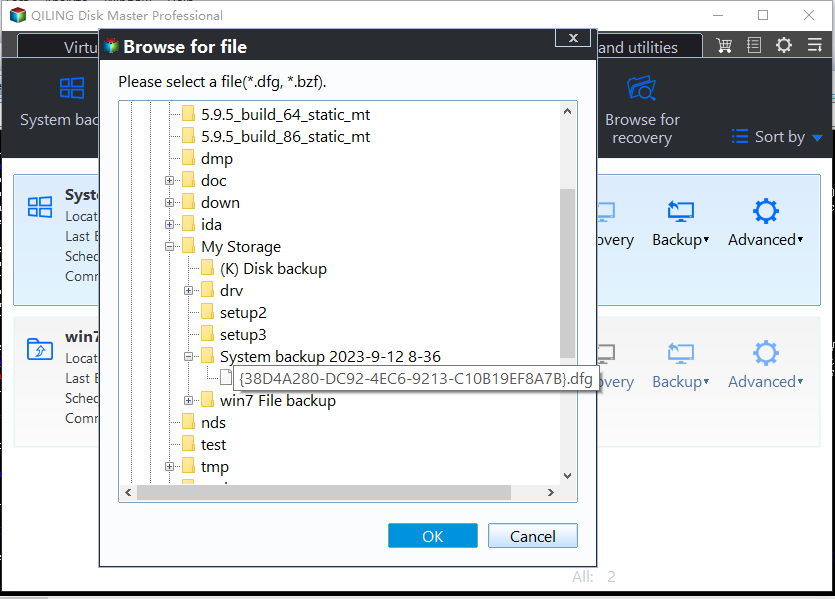
Step 1. Open the restore function and select the backup image. Check its creation date and source computer.
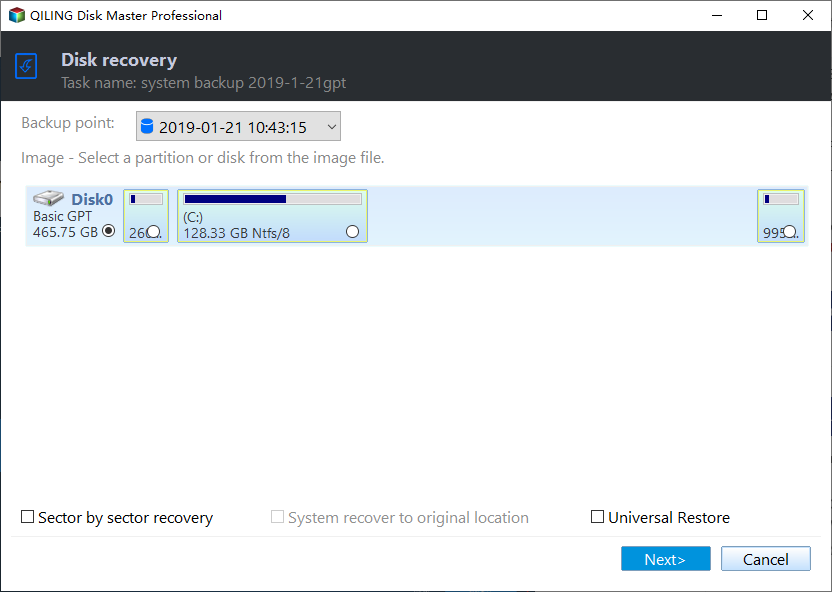
Step 2. Choose the backed-up disk or system-related partitions required by your recovery plan. If restoring a whole disk, confirm that this is intended before continuing.
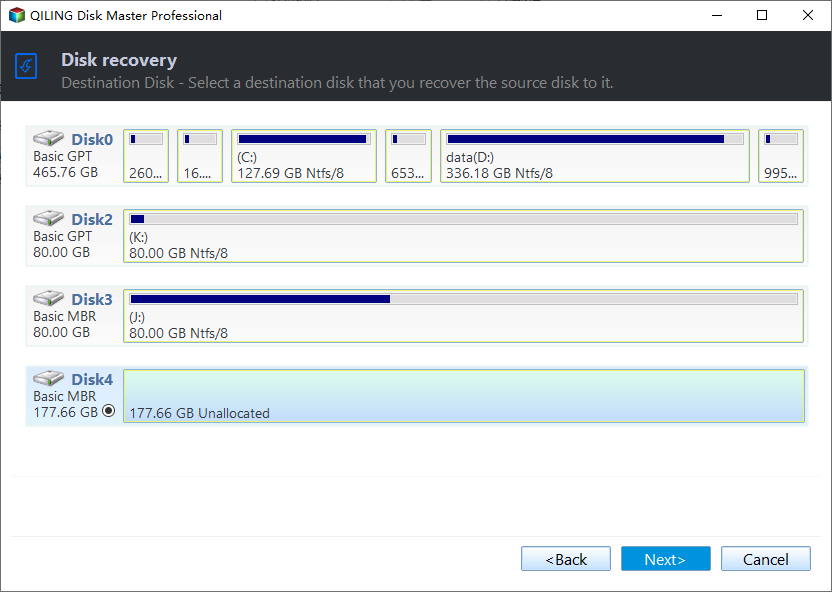
Step 3. Select the Lenovo destination disk by capacity and layout. The selected destination data will be overwritten; the external drive holding the image must not be chosen.
Step 4. Review the restore layout and click Proceed. Keep power connected. When complete, remove the recovery media and test startup from the restored disk.
If there is no suitable image, do not present these steps as an available restore solution. Preserve readable files and use supported Lenovo or Windows installation media instead.
Prepare a separate backup after recovery
Once Windows works again, create an independent backup rather than relying entirely on the factory partition. Qiling Disk Master provides a disk/partition backup workflow for preserving the current layout.
- Connect another physical drive and choose Backup and Recovery > Disk/Partition backup.
- Select the Windows disk and its required boot partitions directly in the disk list.
- Select the separate drive as the image destination, review the selection, and click Proceed.
- Keep compatible bootable recovery media and verify that it can see both the backup and internal storage without starting a restore.
Check Windows startup, user files, and hardware drivers before considering the recovery complete.
Related Articles
- Create a Windows Recovery Plan
Prepare recovery resources while the system is healthy. - Lenovo Yoga Factory Reset
Review model-specific reset preparation before using factory recovery.
Products
Articles & Tutorials
- Data Recovery
- Data Backup
- File Recovery
- File Backup
- File synchronize
- System Backup and Restore
- Disk and Partition Clone
- Technical articles
- Disk Master Help
- Windows Deleted File and Disk Recovery Tutorials
- Windows File and Data Recovery Tutorials
- More Windows Tutorials for Install, Security, Files, and PC Tips
- Windows Boot, Repair, and Recovery Environment Tutorials
- Windows Backup Tutorials
- Windows Restore Tutorials
- Windows Clone and Migration Tutorials
- Windows Server Backup, Recovery, and Management Tutorials
- Windows Disk, Partition, and Storage Management Tutorials