How to Back Up Windows 11 to an External Drive
An external drive is a practical backup target for Windows 11 because it can be unplugged after backup and protected from system failure.
Background and causes
You can use File History for personal files, Backup and Restore for a system image, or backup software for scheduled system and file backups.
- Confirm the exact disk, partition, drive letter, file system, and capacity before changing anything.
- Recover or back up important files before formatting, deleting, converting, or recreating partitions.
- For boot-related changes, check BIOS/UEFI mode and boot order before editing disk layout.
Use Windows built-in tools
Connect the external drive, enable File History for libraries and desktop files, or open Backup and Restore to create a system image.
Use Qiling tools for guided steps
 Qiling Disk Master
Create a Windows backup to an external drive before repairs or migration.
Step 1. Connect the external drive, open Qiling Disk Master, and choose the backup type.
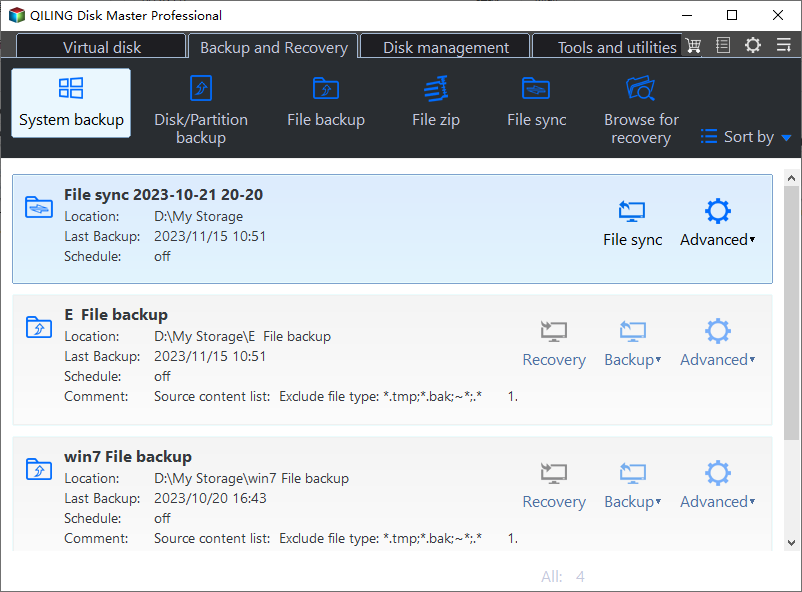
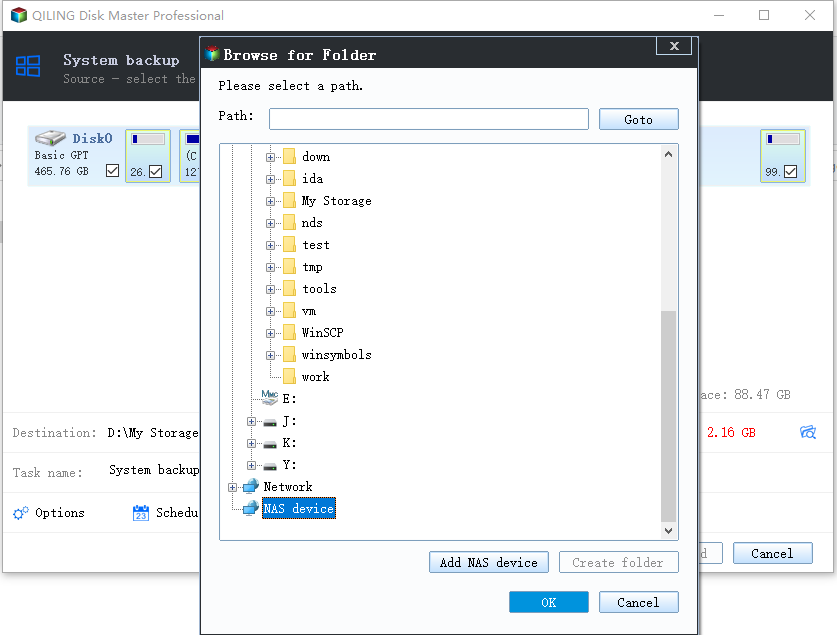
Step 2. Select the source and choose the external drive as the destination.
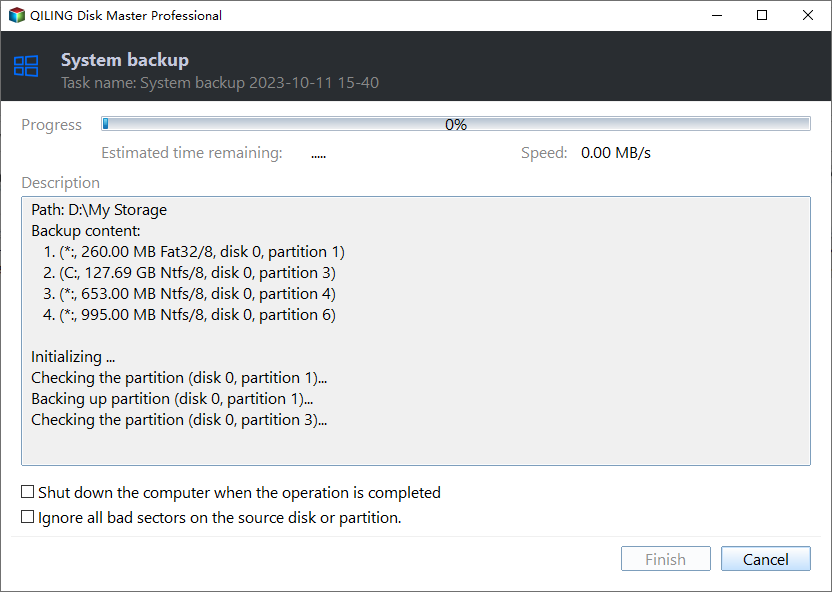
Step 3. Review the task and click Start Backup.
Check the result
Open the backup destination and confirm backup files exist. Create recovery media if the backup is meant for disaster recovery.
Related Articles
-
Backup to External Hard Drive
Back up Windows files or the system before major disk changes. -
Backup Laptop Windows 10
Create file and system backups for Windows laptops.
Products
Articles & Tutorials
- Data Recovery
- Data Backup
- File Recovery
- File Backup
- File synchronize
- System Backup and Restore
- Disk and Partition Clone
- Technical articles
- Disk Master Help
- Windows Deleted File and Disk Recovery Tutorials
- Windows File and Data Recovery Tutorials
- More Windows Tutorials for Install, Security, Files, and PC Tips
- Windows Boot, Repair, and Recovery Environment Tutorials
- Windows Backup Tutorials
- Windows Restore Tutorials
- Windows Clone and Migration Tutorials
- Windows Server Backup, Recovery, and Management Tutorials
- Windows Disk, Partition, and Storage Management Tutorials