How to Partition a 3TB Hard Drive in Windows
Why a 3TB disk may show only 2TB
An MBR disk can address about 2TB of usable space. If a 3TB hard drive is initialized as MBR, Windows may leave the remaining capacity unallocated and unusable. To use the whole disk, initialize or convert it to GPT.
Before partitioning the 3TB drive
- Back up existing files before converting disk style.
- Use GPT for data disks larger than 2TB.
- Use UEFI boot mode if the 3TB disk will be used as a system disk.
- Do not delete partitions unless the data has been saved elsewhere.
Method 1. Initialize the new 3TB disk as GPT
Step 1. Press Win + X and open Disk Management.
Step 2. When Windows asks to initialize the disk, select GPT (GUID Partition Table).
Step 3. Right-click the unallocated space and choose New Simple Volume.
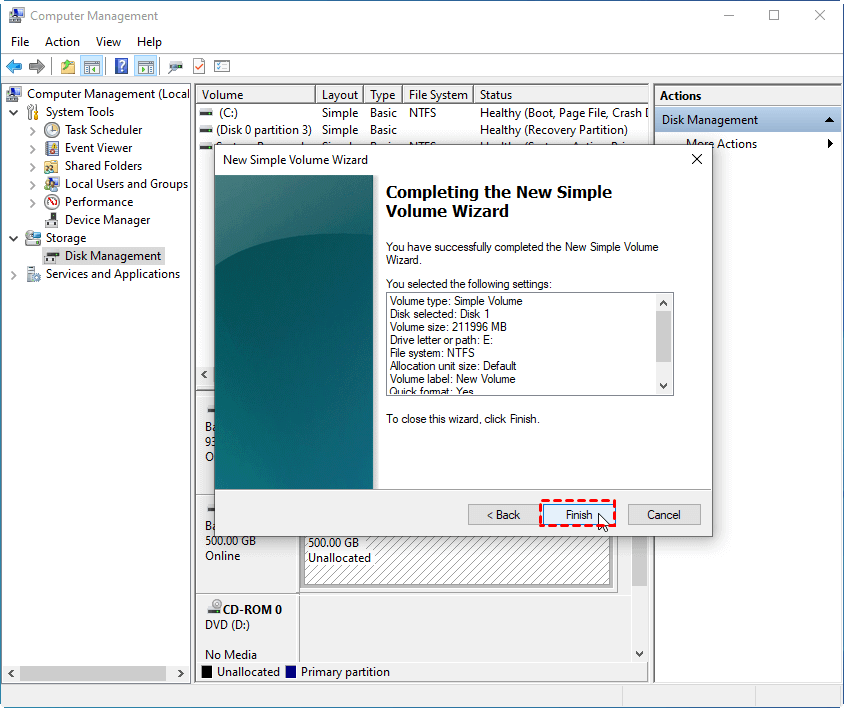
Step 4. Enter the volume size, assign a drive letter, format it as NTFS, and finish the wizard.
Method 2. Convert an MBR 3TB disk to GPT
If the disk already contains partitions, back up the data first. Disk Management can only convert an empty MBR disk to GPT.
Step 1. Move important files to another disk.
Step 2. Delete all volumes on the 3TB disk in Disk Management.
Step 3. Right-click the disk label and choose Convert to GPT Disk.
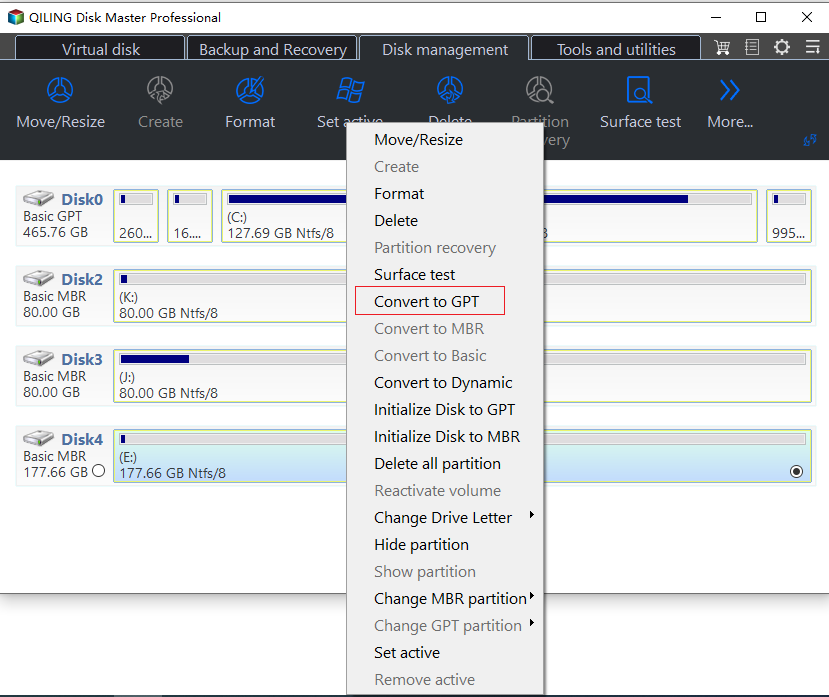
Method 3. Create partitions after conversion
 Qiling Disk Master
Qiling Disk Master helps create, resize, and manage partitions on large GPT disks with a clearer preview before applying changes.
Step 1. Open Qiling Disk Master and locate the 3TB disk by its capacity. Confirm it is initialized as GPT and that the area you select is unallocated space on the correct disk.
Step 2. Right-click the unallocated space and choose Create Partition.
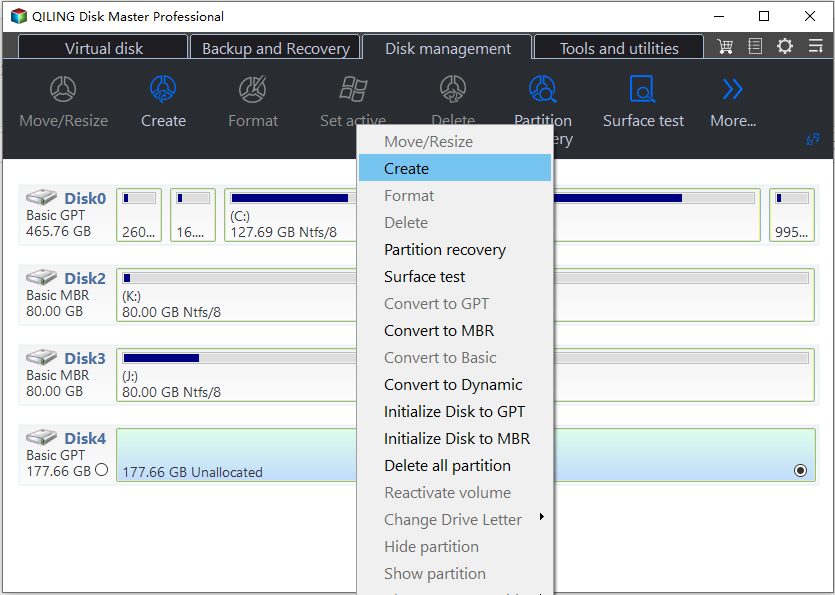
Step 3. Enter the size for the first partition, choose a drive letter, file system, and clear label. Use NTFS for Windows storage; select exFAT only when the drive must be shared with other supported devices.
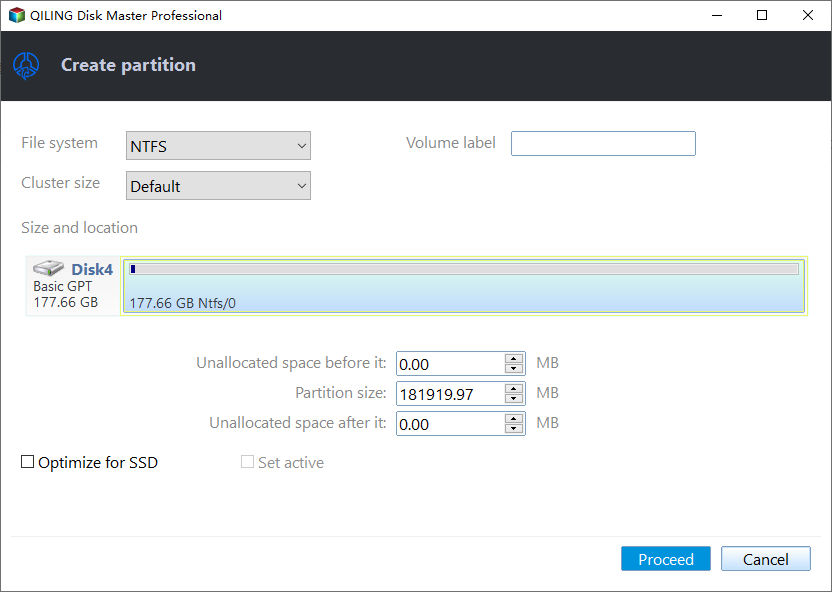
Step 4. Repeat the operation on the remaining unallocated space if you need separate partitions for backup, media, or work files. Keep enough free capacity in each partition for future data.
Step 5. Review the disk map to make sure the new partitions are on the 3TB GPT disk, then click Proceed to apply the pending operations.
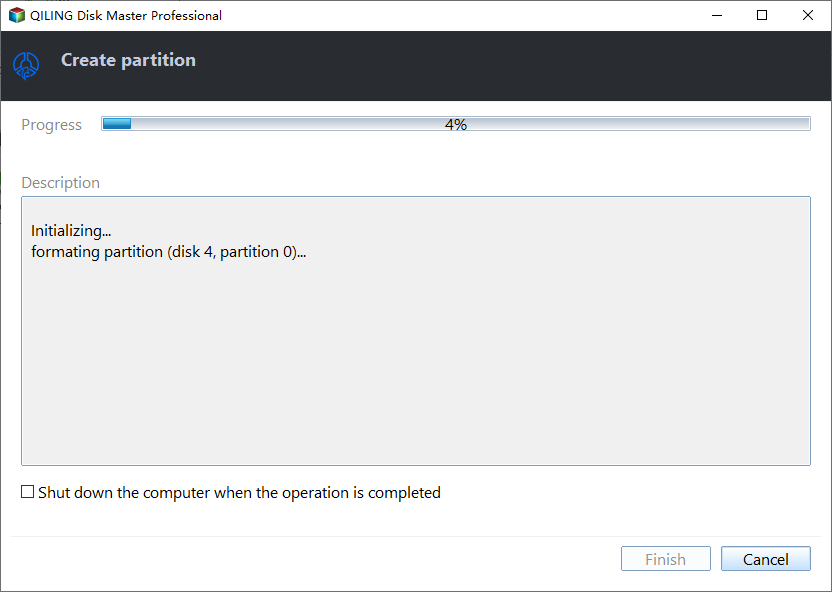
Step 6. Open File Explorer after the task finishes, check each new drive letter and capacity, and copy data to the appropriate partition.
Conclusion
To partition a 3TB hard drive correctly, use GPT. Initialize a new disk as GPT from the start, or back up and convert an existing MBR disk before creating partitions.
Related Articles
-
Convert to MBR Disk Option Not Available: Fixes and Alternatives
Prepare an MBR disk for GPT conversion so Windows can use the full capacity of a 3TB drive. -
How to Convert External Hard Drive to GPT without Data Loss?
Learn when GPT is needed and how to prepare an external hard drive before conversion. -
How to Allocate Unallocated Disk Space to C Drive in Windows 7, 8, 10?
Use unallocated disk space more effectively by extending or creating partitions. -
How to Create Partition with Qiling Disk Master?
Create new partitions with a previewable workflow before applying changes.
Products
Articles & Tutorials
- Data Recovery
- Data Backup
- File Recovery
- File Backup
- File synchronize
- System Backup and Restore
- Disk and Partition Clone
- Technical articles
- Disk Master Help
- Windows Deleted File and Disk Recovery Tutorials
- Windows File and Data Recovery Tutorials
- More Windows Tutorials for Install, Security, Files, and PC Tips
- Windows Boot, Repair, and Recovery Environment Tutorials
- Windows Backup Tutorials
- Windows Restore Tutorials
- Windows Clone and Migration Tutorials
- Windows Server Backup, Recovery, and Management Tutorials
- Windows Disk, Partition, and Storage Management Tutorials