How to: Solve Samsung Data Migration Cloning Failed 00001 [ffffffff]
- Samsung Data Migration reports cloning failed 00001[ffffffff]
- How to fix Samsung Data Migration cloning failed error?
- Alternative to Samsung Data Migration software
- Wrap things up
Samsung Data Migration reports cloning failed 00001[ffffffff]
You're trying to clone a 500GB hard drive to a 250GB Samsung SSD using Samsung Data Migration software, but getting an error message. This is likely due to the destination drive being too small to hold the entire contents of the source drive. To resolve this, you'll need to either delete some files from the source drive to make it smaller, or use a different cloning software that can split the clone process into multiple sessions. Alternatively, you can also consider purchasing a larger SSD to accommodate the full contents of your hard drive. I can help you explore these options if you'd like.
How to fix Samsung Data Migration cloning failed error?
If you're experiencing the Samsung Data Migration cloning failed 00001[ffffffff] error, it can be challenging to pinpoint the exact cause. However, you can try some basic troubleshooting steps, such as checking the source and destination drive connections, ensuring the drives are not faulty, and verifying that the cloning software is up-to-date.
1. Delete all unnecessary data and uninstall needless applications on the original hard drive, and if it's an HDD, defragment it.
2. Run a chkdsk on both the source hard drive and the target Samsung SSD to check for any bad sectors on either drive.
3. To decrypt a BitLocker encrypted source hard drive before cloning, go to Control Panel > System and Security > BitLocker Drive Encryption, locate the drive you want to decrypt, and click Turn off BitLocker. After cloning, you can choose to encrypt it.
4. To clone successfully, you may need to temporarily disable your antivirus software to see if it resolves the issue, and then re-enable it afterwards.
5. Reboot your computer and shrink or extend system drive.
Alternative to Samsung Data Migration software
If you're having trouble migrating data from your old hard drive to a Samsung SSD using Qiling Disk Master, you might want to try employing another data migration tool or cloning your hard drive directly to the Samsung SSD. Qiling Disk Master Professional is highly recommended for this task, offering several key benefits, including its ability to clone hard drives, SSDs, and other storage devices with high efficiency and accuracy. Qiling Disk Master Professional is a popular choice among users due to its user-friendly interface and robust features.
✔ It can clone BitLocker-encrypted hard drive without unlocking through the sector-by-sector clone method.
✔ The software allows you to align SSD partitions, which can improve SSD performance during the cloning process.
✔ It can clone a hard drive to a Samsung SSD or other SSDs from various brands.
A detailed guide on cloning hard drive to Samsung SSD
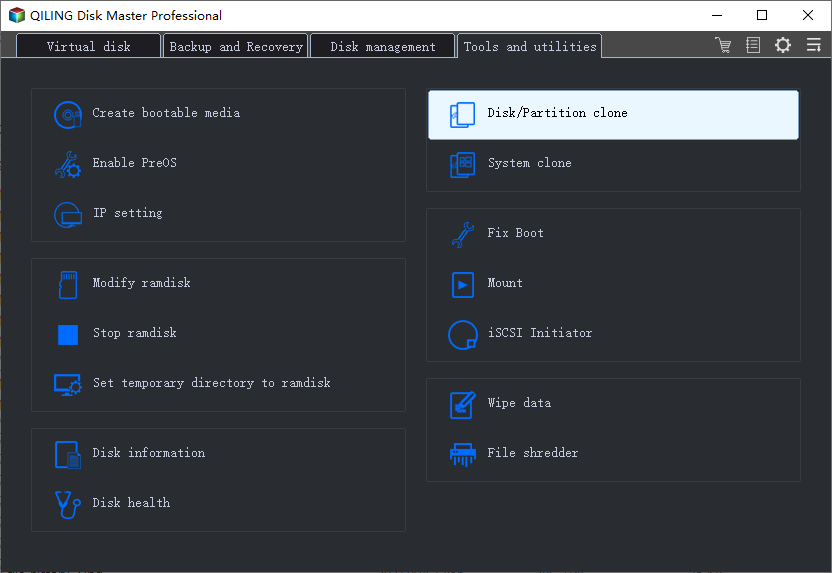
To clone a hard drive, first download Qiling Disk Master, then connect your Samsung SSD to a Windows-based computer and ensure it's detected. Next, follow the software's instructions to use it to clone your hard drive.
Step 1. Install and run Qiling Disk Master. In the main interface, click Clone in the top toolbar and select Clone Disk.
Step 2. It has selected Disk 1 as the source disk by default. You can choose your destination disk (here is Disk 2), tick the box before "Optimize the performance of SSD".
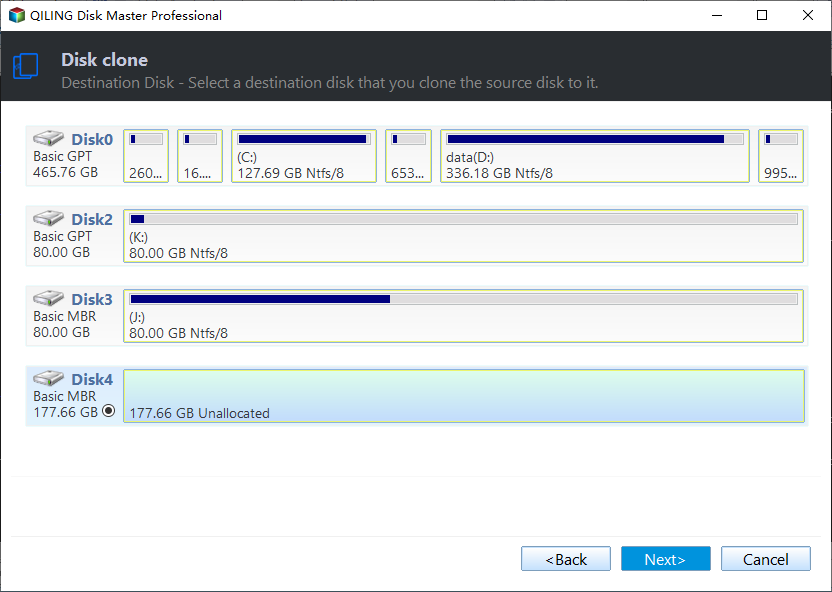
PS.: If the target disk is a hard disk drive, do not check "Optimize the performance of SSD" because it's not applicable to hard disk drives.
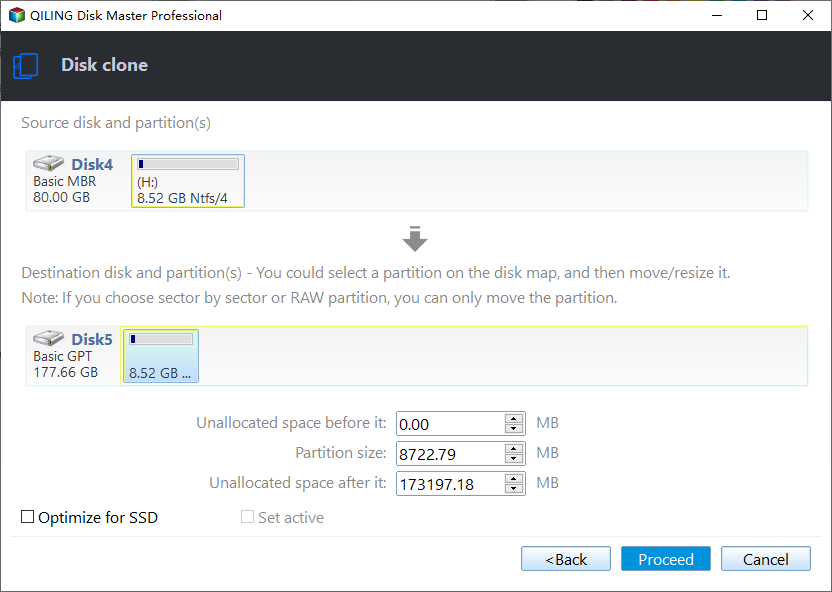
Step 3. If you're cloning a hard drive to a smaller disk, the "Clone without resizing partition" option won't work, so you'll need to edit the partition size on the target disk instead.
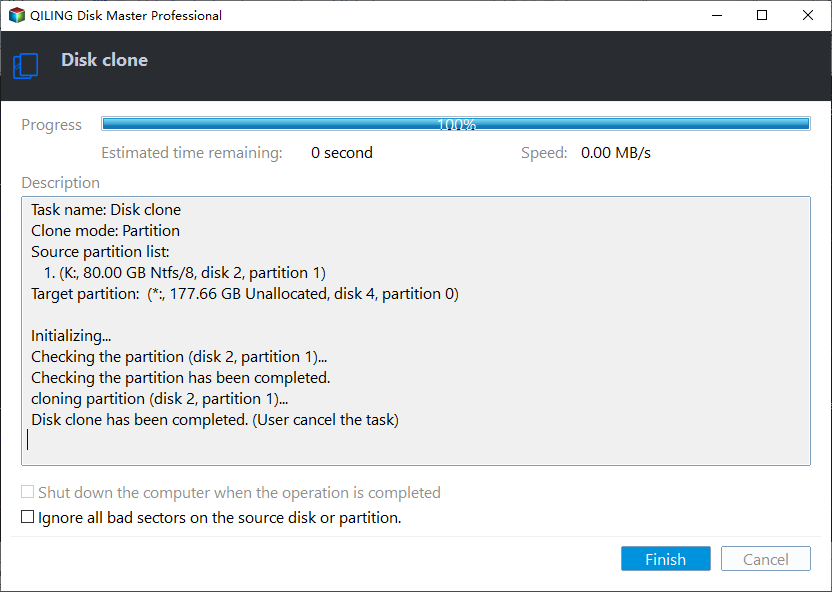
Step 4. You can preview the result of the operation in this window and click Proceed if you are satisfied with it.
- ★Tips:
- Clone Disk Quickly The method requires that the capacity of the target disk not smaller than the used space on the source disk, and the Sector-by-Sector Clone method demands that the size of the destination hard drive larger than or equal to the size of the source disk.
- All data will be erased on the destination hard drive, so backup necessary files before this process.
- Qiling Disk Master allows you to migrate OS-related partitions only, extend the C drive, split partitions, format a 64GB USB to FAT32, and perform other disk-related operations.
Wrap things up
When Samsung Data Migration cloning fails and displays the error "00001 [ffffffff]", you can try the suggested methods to resolve the issue. Alternatively, you can consider using a different software to complete the cloning process.
Related Articles
- Full Guide | HP Omen 15-ce0xx RAM and SSD Upgrade
This article shares HP Omen 15-ce0xx RAM upgrade tutorial and offers a guide to upgrading your SSD for better performance. - Full Guide: Migrate Windows/Mac OS from Slow HDD to Fast SSD Drives
Migrate Windows or Mac OS from a slow hard drive to a faster SSD with cloning preparation and post-migration checks. - How to Mirror a Hard Drive to SSD without Losing Data [2 Ways]
Learn how to mirror a hard drive to external hard drive (HDD or SSD) easily in Windows 7, 8, 8.1, 10, 11 with the best hard disk cloning software - Qiling Disk Master. - Freeware: Move C Drive to Larger Disk Without Reinstalling Windows
When you need to move C drive to larger disk, you can use the best software: Qiling Disk Master Professional. It is able to help you transfer operating system drive to a large hard disk and boot from it successfully without reinstalling everything. - [Solved]: Laptop Slow After Windows 11 Update
Fix a slow laptop after a Windows 11 update by checking startup items, disk space, drivers, and system performance settings. - 2 Easy Ways to Migrate Windows 11 to a New Computer
Transfer Windows 11 to a new computer with two migration methods and checks for bootability, apps, and personal files.
Products
Articles & Tutorials
- Data Recovery
- Data Backup
- File Recovery
- File Backup
- File synchronize
- System Backup and Restore
- Disk and Partition Clone
- Technical articles
- Disk Master Help
- Windows Deleted File and Disk Recovery Tutorials
- Windows File and Data Recovery Tutorials
- More Windows Tutorials for Install, Security, Files, and PC Tips
- Windows Boot, Repair, and Recovery Environment Tutorials
- Windows Backup Tutorials
- Windows Restore Tutorials
- Windows Clone and Migration Tutorials
- Windows Server Backup, Recovery, and Management Tutorials
- Windows Disk, Partition, and Storage Management Tutorials