Windows Black Screen with Cursor After Login
Why Windows shows black screen after login
A black screen with cursor after login often means Windows starts but the desktop shell, display driver, startup program, or user profile fails to load. The computer may still respond to keyboard shortcuts even when the desktop is invisible.
Method 1. Restart Windows Explorer
Step 1. Press Ctrl + Shift + Esc to open Task Manager.
Step 2. Click File > Run new task.
Step 3. Type explorer.exe and press Enter.
Step 4. If the desktop appears, disable recently added startup programs and restart the PC.
Method 2. Boot into Safe Mode
Step 1. Hold Shift while clicking Restart, or force Windows Recovery Environment after failed starts.
Step 2. Go to Troubleshoot > Advanced options > Startup Settings.
Step 3. Press F4 for Safe Mode.
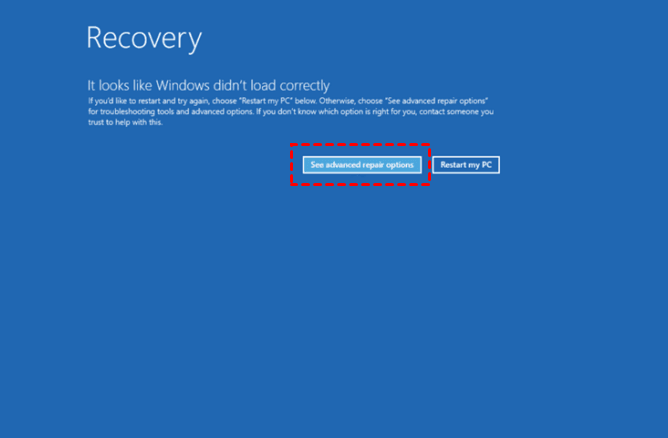
Step 4. In Safe Mode, uninstall recent display drivers, updates, or applications.
Method 3. Repair system files
Step 1. Open Command Prompt as administrator from Task Manager or recovery mode.
Step 2. Run:
sfc /scannow
DISM /Online /Cleanup-Image /RestoreHealth
Step 3. Restart and check whether the desktop loads.
Back up files before deeper repair
 Qiling Disk Master
If Windows is unstable, create a backup or bootable media with Qiling Disk Master before reset, restore, or reinstall operations.
Step 1. If the desktop stays visible long enough, connect an external drive and copy urgent files from Desktop, Documents, Downloads, and other personal folders. Keep the destination separate from the Windows system disk.
Step 2. Open Qiling Disk Master, select Backup, and choose System Backup to include the partitions required to start Windows.
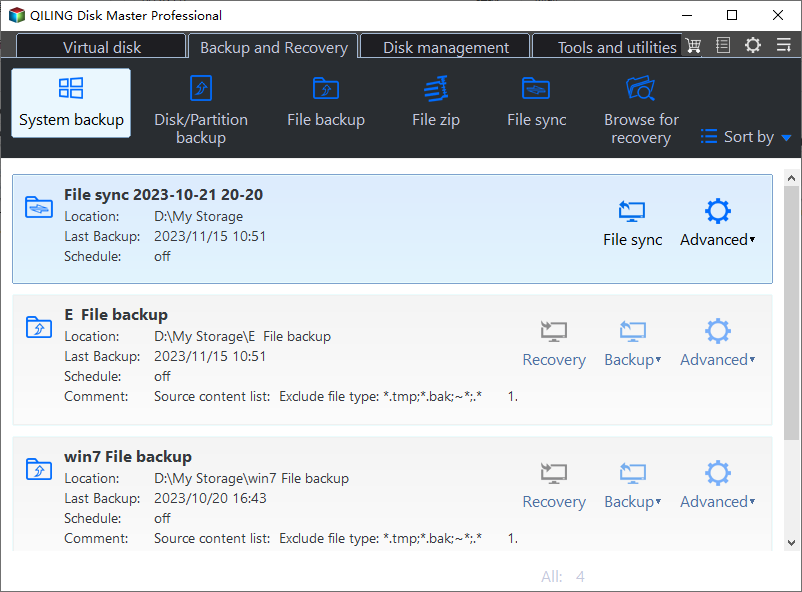
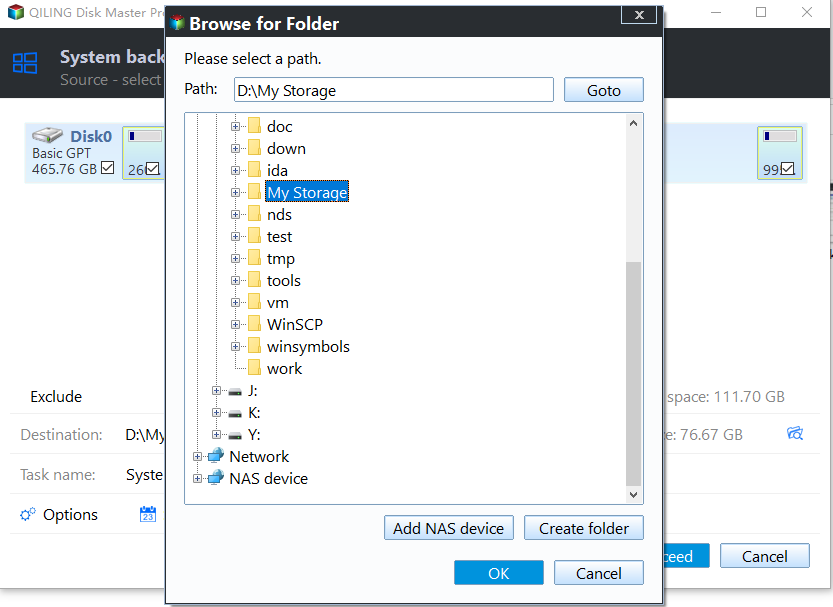
Step 3. Select the external drive as the backup destination, review the system partitions selected by the program, and click Proceed.
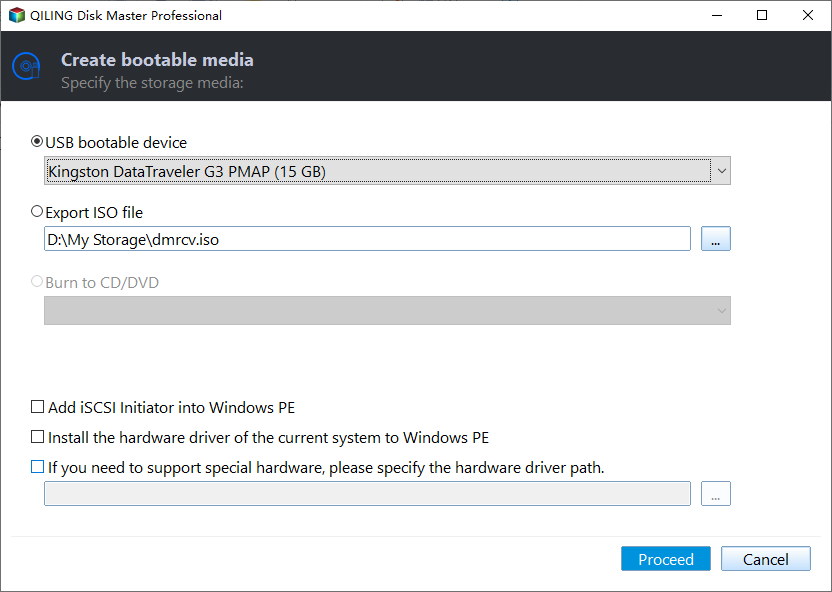
Step 4. Create bootable media on a USB drive while Windows is still accessible. Use it to start the computer if the black screen becomes worse after repair attempts.
Step 5. After the backup completes, continue with System Restore, Reset this PC, or reinstall steps. Retain the backup until Windows starts normally and your files have been checked.
Conclusion
Windows black screen with cursor after login is often repairable. Start with Explorer, Safe Mode, and system file checks, then protect data before advanced recovery.
Related Articles
- [Solved] Black Screen After Cloning Disk
Fix boot and display issues that appear after cloning a disk. - Fix Guide of Recovery Blue Screen on Windows 10
Troubleshoot serious startup errors and recovery screens in Windows. - BOOTMGR Is Missing? Fix It Easily in Windows 7/8/10/11
Repair startup errors when Windows reaches boot files but cannot load normally. - Fix Boot BCD Error in Windows 7 Without CD
Prepare boot repair media and backup options for Windows startup failures. - Lenovo Laptop Black Screen on Startup in Windows 11
Fix Lenovo laptop black screen on Windows 11 startup by checking display, power, drivers, boot repair, and file backup.
Products
Articles & Tutorials
- Data Recovery
- Data Backup
- File Recovery
- File Backup
- File synchronize
- System Backup and Restore
- Disk and Partition Clone
- Technical articles
- Disk Master Help
- Windows Deleted File and Disk Recovery Tutorials
- Windows File and Data Recovery Tutorials
- More Windows Tutorials for Install, Security, Files, and PC Tips
- Windows Boot, Repair, and Recovery Environment Tutorials
- Windows Backup Tutorials
- Windows Restore Tutorials
- Windows Clone and Migration Tutorials
- Windows Server Backup, Recovery, and Management Tutorials
- Windows Disk, Partition, and Storage Management Tutorials