Backup EFI System Partition for Protection | 2 Free Ways
Content of this article:
- Need to backup EFI system partition?
- How to backup EFI system partition effectively
- You ask I answer: About EFI system partition
- Wrapping things up
Need to backup EFI system partition
The EFI system partition (ESP) is a partition on a UEFI-based computer that contains the bootloader and device driver files.
The UEFI firmware loads boot files from the ESP when starting the computer, and if the partition is lost, missing, or corrupted, the computer becomes unbootable.
Backing up the EFI system partition is crucial to prevent data loss in case of unexpected events. This backup allows you to restore the EFI system partition and ensure your computer functions properly.
How to backup EFI system partition effectively
You can create a system image with a system backup software, which includes all system partitions, including the EFI system partition, system partition, etc. This can serve as double insurance for your system in case of computer failure. To choose a suitable backup software, consider factors such as ease of use, compatibility, and features. Some popular options include Qiling Backup. These tools can help you create a system image and ensure your computer's EFI system partition is backed up.
Microsoft provides a built-in tool, Backup and Restore (Windows 7), to create a system image backup, but it's not maintained in Windows 10 and 11, increasing the security risk of system backup.
In view of this, it's suggested to backup EFI system partition with a worry-free backup software, Qiling Disk Master Standard, which supports backing up Windows 10 system with daily, weekly, or monthly frequency without human intervention, allowing you to keep multiple backups if scheduled.

Way 1: Backup EFI system partition for Windows with Qiling Disk Master
Here you will use "System Backup" feature in Qiling Disk Master Standard to backup EFI system partition as well as system partition, which is an automatic process to reduce human error and offers additional useful features.
❤ To add an extra layer of security to your backup image, you can encrypt it, making it more difficult for unauthorized individuals to access your data.
❤ To address the capacity issue, you can compress the backup image to a smaller size or opt for a backup that only saves changed files, such as an incremental backup.
❤ For time-This software allows you to set a schedule for automatic backups, such as daily, weekly, or monthly, which will run without requiring any human intervention, ensuring your data is safely backed up at regular intervals.
❤ To meet different needs, you can create a partition backup, disk backup, or file backup, depending on your requirements. Additionally, you can clone a hard drive to a larger or smaller size, offering flexibility in backup and cloning options.
To backup the EFI system partition, you will need to use a specialized software that can handle the specific requirements of the EFI partition. One such software is the Qiling Disk Master which can be downloaded and installed on your computer. This software is designed to safely backup the EFI partition, which is essential for maintaining the integrity of your system.
This software is compatible with Windows 11, 10, 8, 7, XP, and Vista. If you're using a server computer, you may want to try the Qiling Disk Master Server, which offers a $100 discount for one server computer.
Step 1. Launch Qiling Disk Master and click Backup > System Backup.

Step 2. The system partition and boot-related partition(s) are automatically selected, with the EFI system partition chosen by default for UEFI-based computers. Next, a backup path is selected, allowing for backup to an external hard drive, USB drive, or cloud drive such as Google Drive.

Step 3. Set scheduled backup settings to ensure all data, including changed files on the system partition, are backed up. Click "Schedule Backup" and select one or more settings, such as the default daily incremental backup.

Notes:
❤ If the backup time is during off-peak hours, mark the option to wake the computer to run scheduled tasks 2 minutes before the task starts.
❤ If your target drive is a USB drive, it's suggested to use the "USB plug in" feature, which will automatically backup system to the USB flash drive when it's detected.
Step 4. Back to the main page and click Proceed.
When the process is complete, you will have a complete system image containing the operating system, EFI system partition, installed programs, and personal data. Additionally, if you have set up a scheduled backup task, the system will create six incremental backups.
To avoid backup disk full issues, it's recommended to enable the Backup Scheme, which automatically deletes backup files after a certain period or quantity, giving you 3 options: by quantity, by time, or by daily/weekly/monthly intervals. You can upgrade now with a 5% discount for one computer.

Incremental and differential backups have different recovery requirements. Incremental backups have a high requirement for recovery, whereas differential backups are much easier. For a detailed comparison between the two, you can refer to my previous article: Incremental or Differential Backup.
In addition to the initial setup, you can still enable email notifications to confirm when the backup task is complete. Furthermore, you can customize the backup process by commenting, splitting, compressing the backup image, or selecting a specific backup mode.
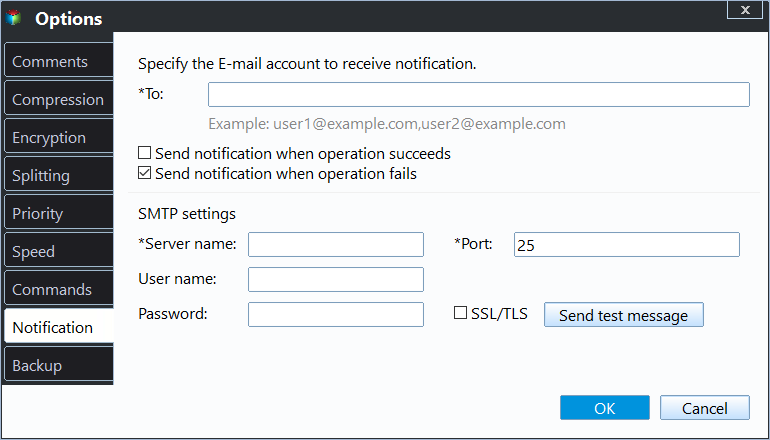
If you have a system backup, you can easily restore the system image from an external hard drive at any time when the EFI system partition is lost or system crash.
If your Windows computer won't boot, you can try booting it with a bootable disk or create a recovery environment to enter the software interface. If you don't have a bootable disk, you can create a recovery environment in advance to boot your computer successfully.

Way 2: Perform Windows backup EFI system partition with Backup and Restore
To perform a Windows backup of the EFI system partition using Backup and Restore (Windows 7), follow these steps:
Step 1. To backup and restore in Windows 10, type "Backup and Restore" in the search box and select it from the start menu list.
The entrance of this software may appear slightly different across various systems.
❤ For Windows 8/10, type "backup settings" and select "Go to Backup and Restore (Windows 7)" in the next window.
❤ To access the Backup and Restore (Windows 7) feature in Windows 11, go to the Control Panel and select the Backup and Restore (Windows 7) option under the System and Security link.
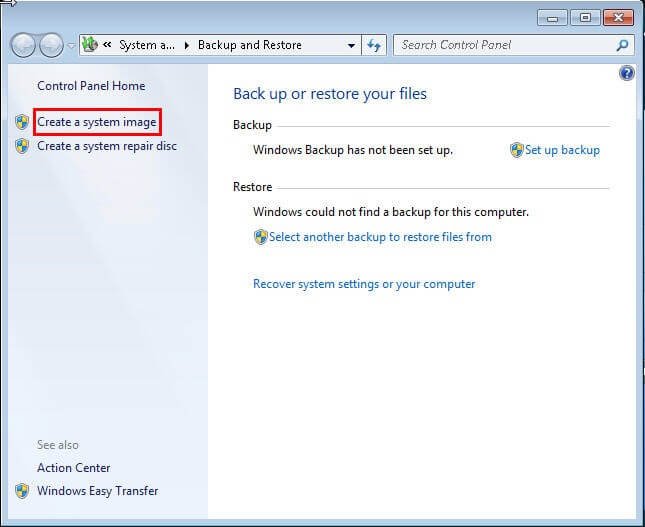
Step 2. Click Create a system image.
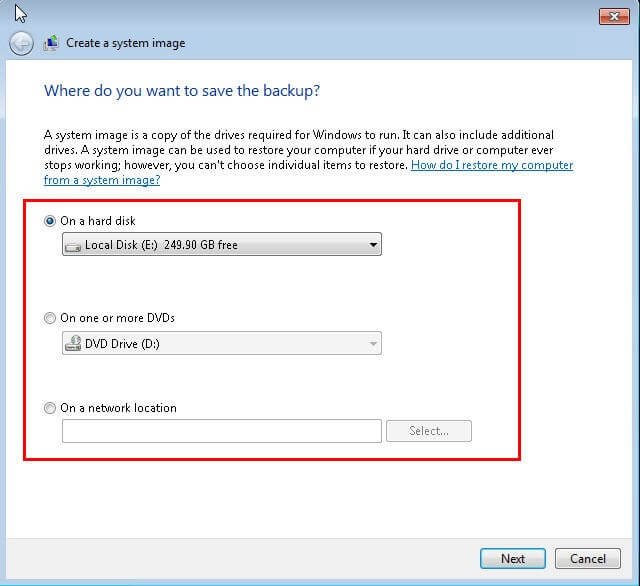
Step 3. To save the backup, click on Save As and select the desired location, such as a USB drive, external hard drive, or cloud storage service like Google Drive or Dropbox. Then, click Next.
Step 4. To confirm the backup settings, click on "Proceed" after verifying the backed up items, including the "C:)(System)" and "EFI System Partition" sections.
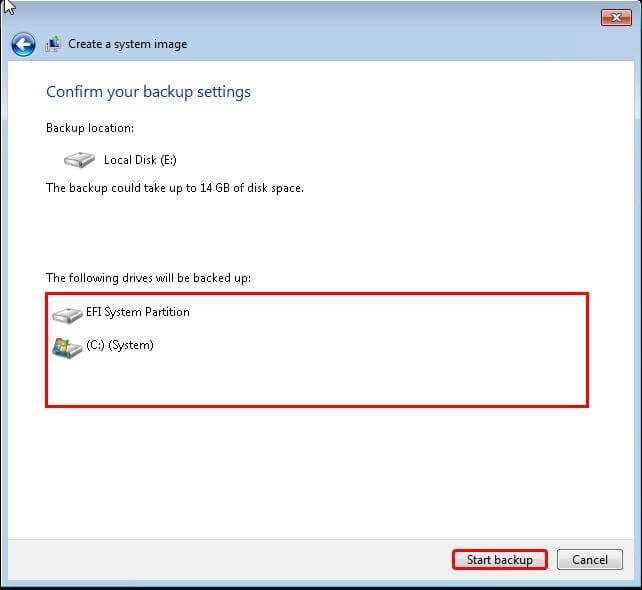
This process will take dozens of minutes, depending on the amount of data in the partition and the disk's writing and reading speed.
Tips on backup failed:
Some users experience an error during the EFI system partition backup process.
1. Windows Backup failed to get an exclusive lock on the EFI system partition (ESP).
The files saved on ESP are being occupied by another program, so you need to disable security software that protects system files. If that doesn't work, you can try a clean boot.
2. There was a failure in preparing the backup image of one of the volumes in the backup set (0x807800C5).
If you're getting an error message saying the specified backup disk cannot be found, it's likely due to previous backup files. To resolve this, simply locate and delete the WindowsImageBackup folder. If you want to save the previous backup, you can move it to a different location. This should allow you to create a new EFI system backup without any issues.
You can try methods mentioned in the each backup failed error. Also, sometimes, you need to repair EFI bootloader. Below are the detailed steps:
Step 1. Boot your computer from installation media. If you don't have it, you can create a recovery disk and then boot from it.
Step 2. In the Windows Setup window, click "Repair your computer". Then, select "Troubleshoot" > "Advanced Options" > "Command Prompt".
Step 3. Type "diskpart" and hit "Enter" to open this command tool.
Step 4. You can use the following commands to find the EFI system partition and verify if it's using FA32 file system. Then, set a drive letter for it.
- sel disk 0 (If there is one more disk, you need to type "list disk" to find the disk containing EFI system partition first.)
- list vol
- sel vol n (n refers to the number of the EFI system partition)
- assign letter=m (You can change m to any drive letter you want.)
- exit
Step 5. Type the following commands to repair boot record and hit "Enter".
- cd /d m:\EFI\Microsoft\Boot\
- bootrec /FixBoot
Step 6. Type "ren BCD BCD.old" to backup the old BCD file.
Step 7. To recreate the EFI system partition, type the command `bcdboot c:\Windows /l en-us /s [boot letter]:` in the command prompt, replacing `[boot letter]` with the drive letter of the disk you are currently booting from. This will recreate the EFI system partition.
You ask I answer: About EFI system partition
Q: Is EFI and UEFI the same?
UEFI and EFI are not identical. UEFI is a newer BIOS firmware interface, but it still allows Legacy BIOS booting in most systems. In contrast, EFI is a partition used to store UEFI boot files.
Q: Does EFI partition have to be first?
There is no restriction on where to put the first partition, but it's a good idea to put it in the first partition because it's less likely to be affected by any repartition operation, such as resizing the system partition.
Q: Is it safe to delete EFI System Partition?
The EFI system partition contains boot files that are essential for starting Windows, and deleting it will prevent the computer from booting. It is also necessary for creating an EFI partition, and its absence can cause boot issues when migrating the operating system.
Wrapping things up
Backing up the EFI system partition, which contains your computer's boot files, is crucial to prevent unbootability in case of accidental deletion or loss, and a free backup software can be used for this purpose.
Both Windows built-Using the built-in tool or a third-party backup software like Qiling Disk Master can help you backup the EFI system partition without costing a cent. However, the built-in tool is error-prone and may result in errors like "backup failed EFI system partition". If you're looking for an easier solution, Qiling Disk Master is a reliable choice.
It's one of the most useful backup software, believe me, just download it to have a try! Simple, strong compatibility, and feature-rich.
Related Articles
- Clone EFI Partition in Windows 10/8/7 for Free
- Fix System Image Restore Fails Because of EFI/BIOS
- Solved: One of The Volumes Specified for Backup Is Invalid
- Best Way to Backup OST File in Outlook 365 [2022]
In this post, we will tell you what is the OST file. We will provide the full guide on how to back up OST files on Windows. You can try Qiling Backup to back up and recover your OST files. - Best Freeware to Create Sector by Sector Backup
Creating a sector-by-sector backup is a crucial process that allows you to restore your data in its entirety, even if you need to recover a single sector. - Top 3 Ways for Server Backup to Cloud: Effective, Secure, Simple
This guide explains Top 3 Ways for Server Backup to Cloud: Effective, Secure, Simple with clear steps, key checks, and practical tips.
Products
Articles & Tutorials
- Data Recovery
- Data Backup
- File Recovery
- File Backup
- File synchronize
- System Backup and Restore
- Disk and Partition Clone
- Technical articles
- Disk Master Help
- Windows Deleted File and Disk Recovery Tutorials
- Windows File and Data Recovery Tutorials
- More Windows Tutorials for Install, Security, Files, and PC Tips
- Windows Boot, Repair, and Recovery Environment Tutorials
- Windows Backup Tutorials
- Windows Restore Tutorials
- Windows Clone and Migration Tutorials
- Windows Server Backup, Recovery, and Management Tutorials
- Windows Disk, Partition, and Storage Management Tutorials