How to Clone EFI Partition to Another Drive [Windows 11/10]
Why clone EFI partition
An EFI system partition, or ESP, is a partition on a computer's hard drive or solid state drive used by UEFI firmware, allowing for both GPT and MBR partitioned disks to be supported.
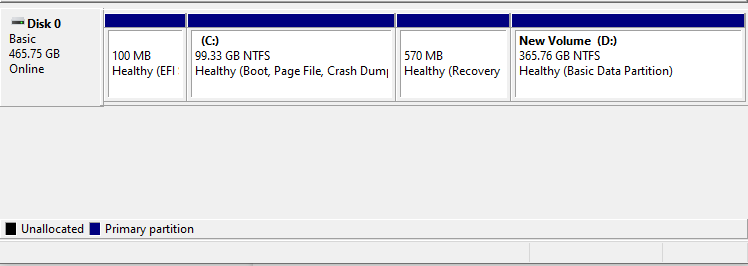
Windows boot files are stored in EFI partition. When a computer is started, the UEFI firmware loads the files stored on the ESP and begins installing the operating system and various utilities. If the EFI partition is deleted by mistake or becomes corrupted, Windows will fail to boot, which is why it is hidden and cannot be deleted with Windows running. The EFI partition can be seen at the beginning of the hard drive when opening Disk Management.
Preparations of cloning EFI system partition
To copy the hidden ESP to another drive, first, you need to prepare by creating a bootable USB drive, then boot from it, and access the command line interface. Next, you can use the `dd` command to copy the ESP from the current drive to the new drive.
1. Prepare the target device for ESP cloning
- You typically don't clone just the EFI partition, but rather the entire operating system or disk that contains the ESP. So, your target disk should have enough space to hold the size of the existing data.
- Install the target drive to your computer and ensure it can be detected. If your computer lacks an extra slot, you may need to connect it via an adapter or enclosure.
- Please make a backup of any important data on the target drive before cloning. This will ensure that you don't lose any valuable information during the cloning process.
2. Clean your source hard drive
- It's recommended to delete any unwanted data on the source drive before cloning to ensure a clean and efficient cloning process.
- Uninstalling unnecessary apps can free up storage space and declutter your device, making it run more smoothly and efficiently.
3. Pick an effective cloning software
Cloning a computer's operating system, whether it's Windows 11, 10, 8.1/8, 7, or Vista/XP, is not a standard feature that comes with the operating system itself. While you can find some backup features, the cloning functionality is always missing. To clone an EFI partition, you still need a bootable cloning software that fully supports UEFI.
I recommend Qiling Disk Master Professional, a software that works well on all Windows OS, allowing you to clone the operating system, entire disk, or specified partition.
Clonezilla supports both MBR/Legacy BIOS and GPT/UEFI disks, and its SSD Alignment feature helps accelerate the target SSD. Additionally, you can use the Edit Partitions feature to clone and resize hard drives, allowing you to allocate unused space and fully utilize disk capacity.
Download the free demo to experience the cloning features:
The Professional edition works on all Windows Client OS, but if you're running Windows Server, try the Server edition instead.
4. Make the partition style compatible with the boot mode.
The partition style of a disk should be compatible with the computer's boot mode: MBR for Legacy BIOS and GPT for UEFI. Qiling Disk Master allows cloning MBR to GPT or GPT to MBR without conversion, but you may need to convert the partition style of the target drive based on the circumstances. To check the current partition style of a disk, you can use Qiling Disk Master.
- Press Win + R to open the Run window
- Type "diskmgmt.msc" and hit OK to open disk management
- Right-click the disk you want to check and click "Properties"
- Then, select "Volume" tab to check the "Partition style"

How to move EFI partition to another disk via cloning
Qiling Disk Master offers three cloning options: System Clone, Disk Clone, and Partition Clone. While Partition Clone can be used to clone a single partition, it's recommended to use System Clone or Disk Clone due to potential boot issues.
Here's a step-by-step guide to clone a disk with EFI partition.
Step 1. Launch the EFI partition clone tool to set it up.
In the Home screen, click "Clone" and select "Partition Clone" to clone the entire disk, or choose "System Clone" to clone just the operating system.

Step 2. Select the source and target disk respectively.
Select the disk with the EFI system partition as the source, and choose a destination disk with enough space to clone the existing data.

Step 3. Confirm the operation and start cloning.
To start the EFI partition clone, click "Proceed" after which you can also make use of other features.
✍Sector By Sector Clone - The command you're referring to is likely "copy all sectors" or a similar command in a disk management tool or operating system. This command copies all sectors of a disk, including blank sectors and logically bad sectors, to another location.
✍When cloning an EFI partition to a solid-state drive (SSD), it's essential to check the SSD alignment option to optimize the SSD's reading and writing performance, as well as prolong its lifespan.
✍Edit Partitions - This feature allows you to manage disk space and make the most efficient use of the capacity of the target disk. You have four options:
- Copy without resizing partitions : It will not resize the partition size.
- Add unused space to all partitions Reallocate the unallocated space on the target disk to each partition.
- Manually adjust partition size Extend unallocated space to any partition on the target disk you want. This will allow you to utilize the available space on the disk and allocate it to a specific partition, effectively increasing its size.
- Convert the destination disk... Convert the partition style of the target disk to match the source disk's style. This ensures compatibility between the two disks.

Step 4. Boot from the cloned disk (optional).
To copy the EFI partition to another drive and use it as the primary drive, you'll need to follow these steps. First, identify the drive containing the EFI partition you want to copy, then create a new partition on the target drive to match the size and type of the EFI partition.
After cloning your PC's hard drive, shut down the computer and swap the old hard drive with the new cloned one. Turn the PC back on and if it boots up into Windows properly, it means the cloning was successful and the EFI partition was successfully moved to the new drive.
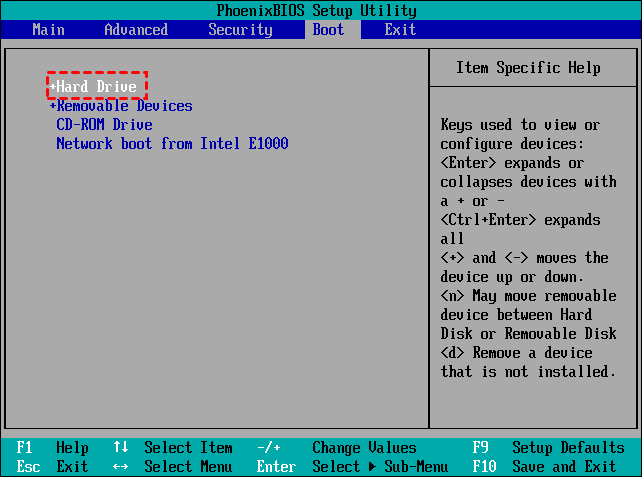
If your computer has multiple slots, you can connect the old hard drive as an additional storage device. Just make sure the new drive is set as the first boot option in the BIOS/UEFI settings, which can be accessed by pressing a specific key like Del, F2, or F10.
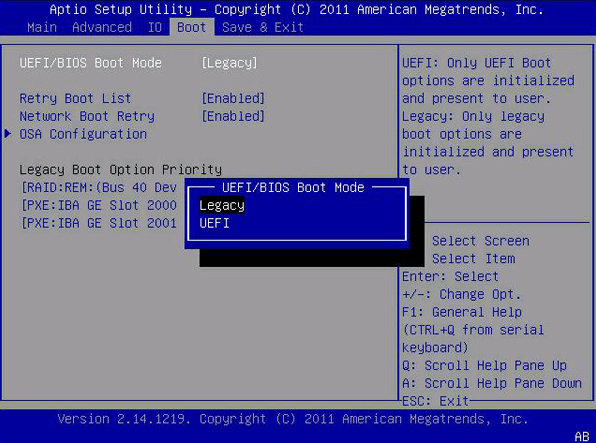
When installing a new operating system, ensure that the boot mode is compatible with the partition style of your disk. This means using Legacy BIOS for Master Boot Record (MBR) partitions and UEFI for GUID Partition Table (GPT) partitions.
Conclusion
You can easily copy the EFI partition to another disk using Qiling Disk Master, making it a great tool for both backup and migration purposes. This process allows you to transfer your operating system, including the hidden ESP, to a new disk securely and efficiently. By using Qiling Disk Master, you can ensure a seamless transition of your operating system and data to a new disk, making it ideal for upgrading or replacing your current disk.
Qiling Disk Master is a cloning and imaging software that allows users to clone EFI partitions and create an image backup of the EFI system partition, providing an additional layer of protection.
Related Articles
- Backup EFI System Partition for Protection | 2 Free Ways
You never know when you will need the EFI system partition, for example, mistake deletion, so the best way is to back up EFI system partition ahead of time. - How to Restore EFI Partition in Windows 10 Simply?
Learn how to Restore EFI Partition in Windows 10 Simply with clear steps, key checks, and practical tips. - Fix System Image Restore Fails Because of EFI/BIOS
Learn how to Fix System Image Restore Fails Because of EFI/BIOS with clear steps, key checks, and practical tips. - How to Clone GPT UEFI Disk to SSD and Make It Bootable
Learn how to Clone GPT UEFI Disk to SSD and Make It Bootable with clear steps, key checks, and practical tips. - How to Fix Cloned Drive Won't Boot Windows 11 Easily (5 Ways)
This article provides you with five solutions about your cloned drive won't boot windows 11, including a built-in tool as well as a reliable third-party software - Qiling Disk Master. - Cloning 1TB HDD to 500GB SSD Samsung and Making It Bootable
This article illustrates one more powerful SSD cloning software and the steps of cloning 1TB HDD to 500GB SSD Samsung without boot issues. Get them now!
Products
Articles & Tutorials
- Data Recovery
- Data Backup
- File Recovery
- File Backup
- File synchronize
- System Backup and Restore
- Disk and Partition Clone
- Technical articles
- Disk Master Help
- Windows Deleted File and Disk Recovery Tutorials
- Windows File and Data Recovery Tutorials
- More Windows Tutorials for Install, Security, Files, and PC Tips
- Windows Boot, Repair, and Recovery Environment Tutorials
- Windows Backup Tutorials
- Windows Restore Tutorials
- Windows Clone and Migration Tutorials
- Windows Server Backup, Recovery, and Management Tutorials
- Windows Disk, Partition, and Storage Management Tutorials