Backup Files on Seagate External Hard Drive Automatically
- Why backup files to Seagate external hard drive?
- How to backup files on Seagate external hard drive
- Way 1: Backup files to Seagate external hard drive with Seagate Dashboard
- Way 2: Backup files on Seagate external hard drive with third-party software
- Way 3: Backup files using Seagate external hard drive with built-in tool
- Seagate external hard drive not showing up problem
- Solutions to Seagate external hard drive not showing up
- Way 1: Check the connection and try a different USB port
- Way 2: Show hidden device
- Way 3: Assign drive letter for Seagate external hard drive
- Way 4: Fix corrupted or damaged MBR
- Conclusion
Why backup files to Seagate external hard drive?
There are two main reasons to backup files on a Seagate external hard drive. Firstly, it provides a safeguard against data loss due to hardware failure, accidental deletion, or other unforeseen events. Secondly, it allows for easy and efficient recovery of important files, making it a crucial step in maintaining data integrity and peace of mind.
- The file backup ensures the security of your precious data. Computer users can minimize the risk of data loss by backing up files to an external hard drive, such as a Seagate Backup Plus, to protect against system crashes, disk failures, viruses, and ransomware.
- The external hard drive is very portable to take. You may want to save commonly used files to a portable storage device, such as a Seagate external hard drive, to have access to them anywhere.
How to backup files on Seagate external hard drive
You can use Seagate auto backup software to easily and quickly backup files using your Seagate external hard drive. Three such software options are available, which will be discussed in this part. Let's take a closer look at them.
- Way 1: Backup files to Seagate external hard drive with Seagate Dashboard
- Way 2: Backup files on Seagate external hard drive with third-party software
- Way 3: Backup files using Seagate external hard drive with built-in tool
Way 1: Backup files to Seagate external hard drive with Seagate Dashboard
To backup files on your Seagate external hard drive, use the Seagate Dashboard software, which comes with Seagate Backup Plus or Seagate Center. Connect your Seagate external hard drive, such as Seagate Backup Plus, and ensure it's recognized. Then, follow the steps to complete the backup process.
Step 1. Access Seagate external hard drive in Windows Explorer and double-click the Seagate Dashboard Installer.exe to install this software
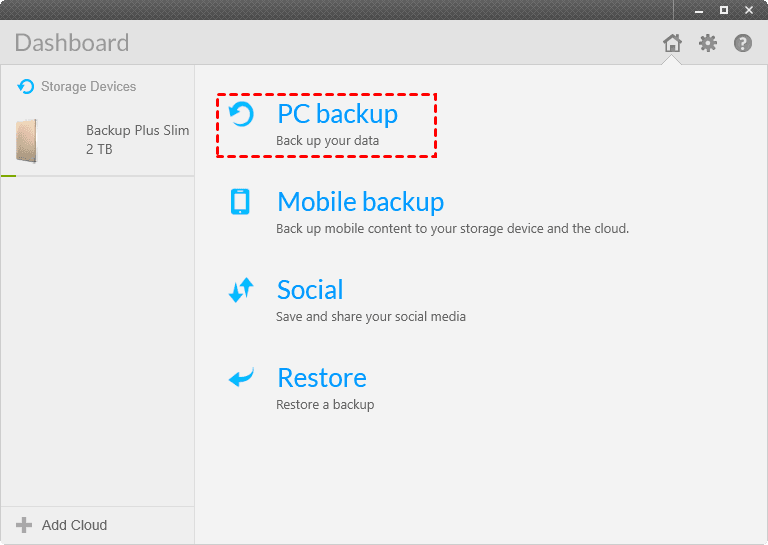
Step 2. Launch Seagate Dashboard and then select PC Backup on the home page.
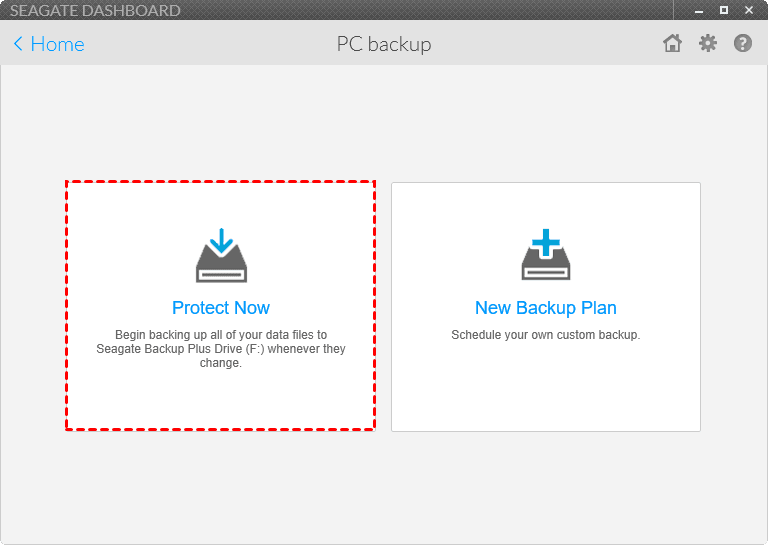
Step 3. Then, click Protect Now and Back up Now to backup your files.
Tips:
- To automate this task, click on "New Backup Plan" instead, which supports various backup frequencies, including snapshot, hourly, daily, weekly, monthly, and continuous backups.
- To backup files to the cloud using Seagate Dashboard, you need to add the cloud drive you want to store files on by clicking "Add Cloud" in Step 2.
If you're looking to backup files to a Seagate external hard drive, you're in luck. To do so, simply connect your Seagate external hard drive to your computer, and then follow the on-screen instructions to complete the backup process. However, some users may be unsure about when the backup is complete, or how to view and delete backup files on their Seagate Backup Plus. If this is the case for you, don't worry - just check out the additional information available to clarify these points.
# When Seagate backup is complete: The backup process will display a green progress bar and percentage, and once the task is complete, both indicators will be removed.
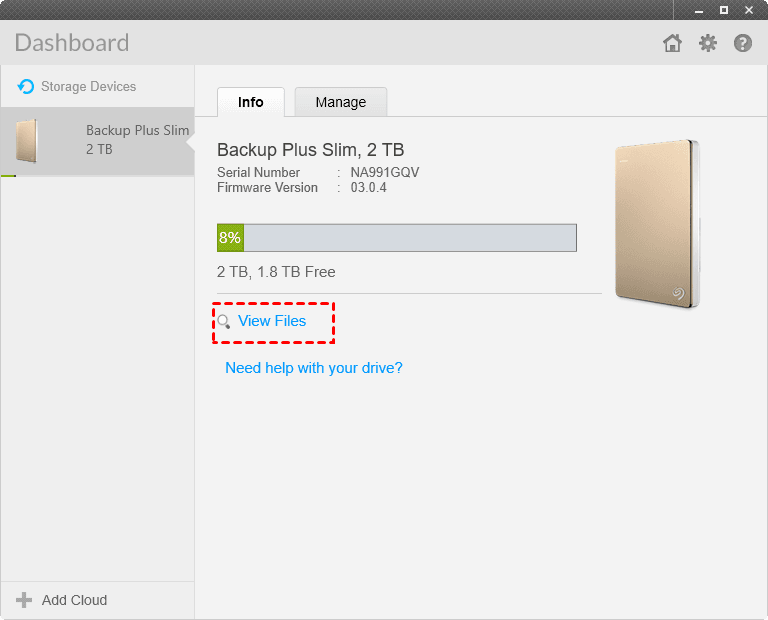
# view files on Seagate Dashboard: To access the target path of the Seagate BackupPlus, open the Seagate Dashboard, select the BackupPlus, click on "Info" and then "View Files" to navigate to the target path.
# View files on Seagate Backup Plus: To check the backed up files, go to the backup drive, open the "Backup" folder with your PC name, navigate to the "C" folder, then "Users", followed by your username, and finally "Documents". From there, you can double-click on the files to verify their contents.
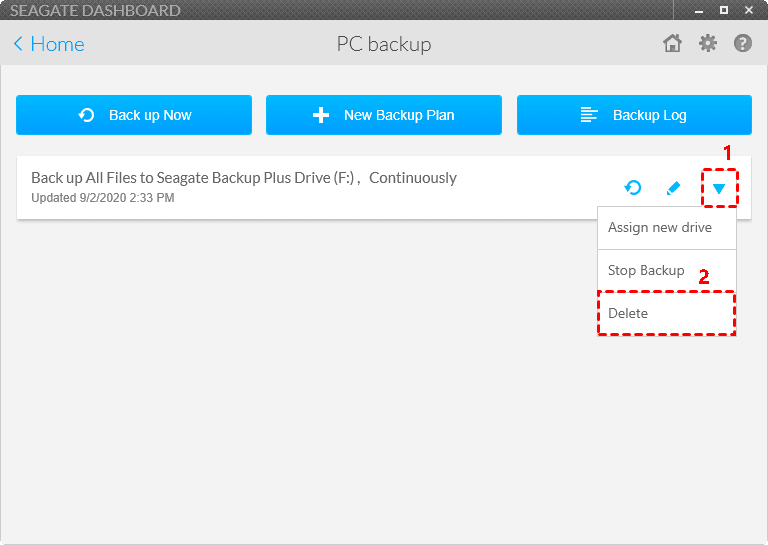
# Delete backup files from seagate external hard drive: On the home page, select PC Backup and then Backup task, and click the drop-down menu.
 If you're deleting a Seagate automatic backup plan, select the box next to "Delete backed up files" before clicking "Delete" to confirm the deletion of all backups. For other tasks, simply select the box next to "Delete" and confirm the deletion. Be aware that this will permanently remove all data associated with the task.
Way 2: Backup files on Seagate external hard drive with third-party software
To backup files on a Seagate external hard drive, you can use the third-party software Qiling Disk Master Professional. This tool allows you to complete the file backup process in simple steps and makes it automatic, saving disk usage with its various features.
Now, please download this software and install it on your computer. And connect the Seagate Backup Plus to your computer as well.
(PS: This version only applies to Windows 11/10/8/7/XP/Vista. If you are currently using server computer, try Qiling Disk Master Server.)
Step 1. Launch Qiling Disk Master Professional. Then, click Backup and File Backup to summon the next window

Step 2. Select files on your local computer and choose the Seagate Backup Plus drive as the destination.

Tips:
- To back up files with a specific file extension, click on "Filter settings" and choose to include or exclude only certain file extensions.
- This software allows users to back up files not only to external hard drives but also to cloud storage services like Google Drive, Dropbox, OneDrive, network drives, and NAS devices.
Step 3. Confirm the operation and click Proceed to create a full backup and then 6 incremental backups on the Seagate external hard drive.
👉 After creating a file backup, you may want to view files on the Seagate backup drive for an integrity check, which can be done using the software's Explore Image feature.
You will be asked to select a backup image and time point, then a path to save it, and just follow the prompts. After that, you can check your files in the selected path.
More advanced backup features in this software
The Schedule Backup feature allows for automatic backup tasks to be run continuously for data protection, with 5 options available under the Schedule Backup feature.
- Daily: The frequency of backups can be set to vary based on how often the backed up files or folders change. Options include running every 1 hour in a day, weekly, or monthly, with the choice depending on the frequency of changes.
- Event triggers: It provides four event triggers, including system startup, system shutdown, user logon, and user log off, with system shutdown being the most commonly used option.
- USB plug in: This feature allows files to be automatically copied from a USB drive when it's connected, eliminating the need to manually connect the drive before a scheduled task starts.

Backup Scheme: This feature helps resolve backup disk full issues by allowing you to save disk space in two ways: by backing up only changed files, which reduces the amount of data stored, and by deleting old backup images automatically, which frees up space on the disk.
►To backup only changed files: you can use either incremental or differential backup methods. For more information on the differences between these two methods, click here to learn about the differences between incremental and differential backup.
►To delete backup files: you can choose from three automatic backup cleanup methods: By quantity, By time, or By daily/weekly/monthly. The safest method is By daily/weekly/monthly, which deletes backups in a hierarchical way, retaining them for as long as possible.

Note: You can set both of them during the backup process. However, if you already have a file backup, you can still manually set them in the Home tab.
- To schedule a backup task, navigate to the Home tab, click on the three-bar icon, and select Schedule.
- You will see the Schedule window, where you can enable it and select the scheduled settings you want.
- To set cleanup methods, go to the Backup Scheme tab and select the desired cleanup methods.
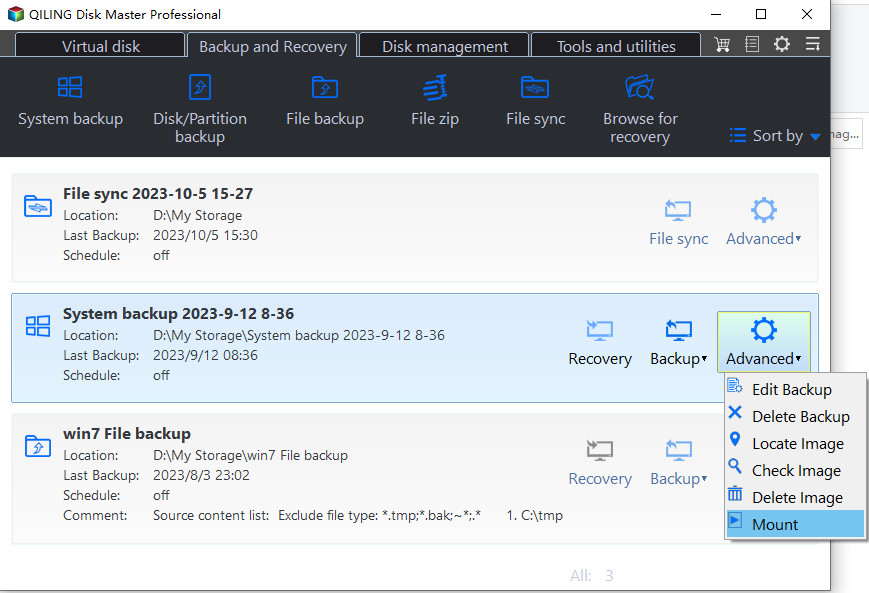
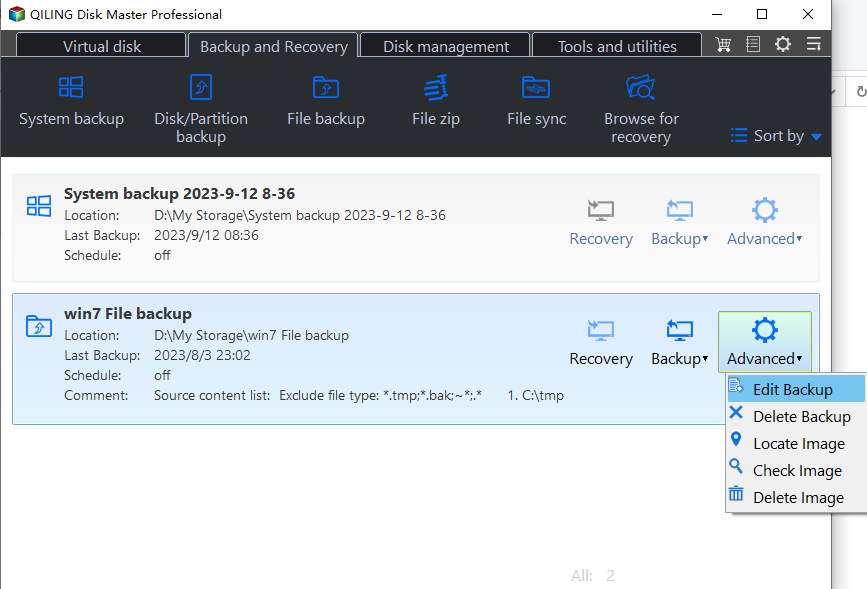
Select Edit Backup, then click Backup Scheme, enable it and choose a cleanup method.
Way 3: Backup files using Seagate external hard drive with built-in tool
The Seagate Backup Plus is a reliable external hard drive compatible with both Windows and Mac, offering capacities up to 8TB. Its fast speed makes it an ideal choice for backing up files. To use it on Windows 7/8/10/11, you can follow the steps to backup your files.
Step 1. To install the Seagate Backup Plus drive on your computer, connect it via an adapter. Once connected, click "Use this drive for backup" under the AutoPlay window, and wait for Windows Backup to start.
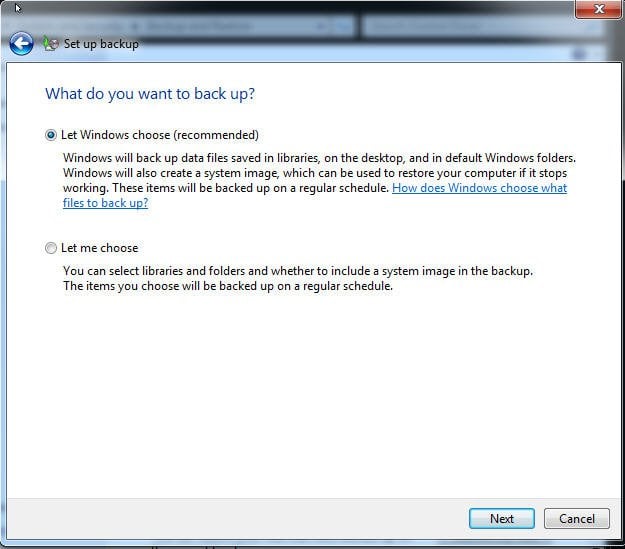
Step 2. To back up files in Windows, select "Let Windows choose" to automatically back up files in libraries, on the desktop, and in default Windows folders, then click "Next". Alternatively, select "Let me choose" to manually select specific files or folders to back up.
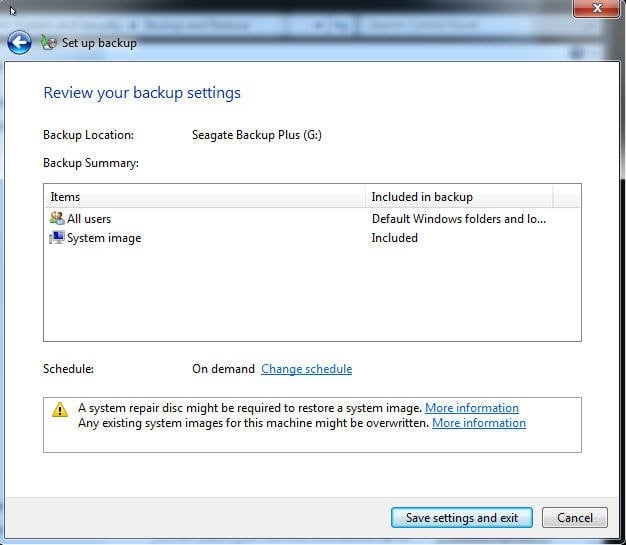
Step 3. To change the default schedule setting, click "Change schedule". Review your backup settings, then click "Save settings and run Backup" to complete the process. Wait until you see a confirmation prompt like "Windows Backup has completed successfully".
The Backup and Restore utility in Windows 7 is a helpful tool that allows you to backup files and the system, as long as you have a compatible external hard drive. However, it has some limitations, such as not being able to encrypt and compress backup images, and not supporting differential backup.
Seagate external hard drive not showing up problem
"I have some precious pictures, files, videos, etc on my computer that truly need to be backed up! Thus, I bought Seagate Backup Plus. It's said this is a backup drive. But it does not show as a backup drive when I plug it into my Windows 10. What's wrong?"

The Seagate external hard drive not showing up issue is likely due to a connection issue or outdated disk driver, corrupted USB port, or MBR. To resolve this, try updating the disk driver, checking for corrupted files, and ensuring the USB port is functioning properly. Additionally, you can try reformatting the MBR or using a different USB port. If none of these solutions work, consider using a different external hard drive or seeking further assistance from a professional.
Solutions to Seagate external hard drive not showing up
If your Seagate external hard drive is not showing up to backup files, there are several solutions to try. The issue is often caused by a USB port problem or a failure of the external hard drive itself, but other uncommon reasons may also be at play.
Way 1: Check the connection and try a different USB port
A common reason for a Seagate external hard drive not working is that it's connected to a faulty or loose USB port. Try reconnecting it or plugging it into a different USB port to see if it resolves the issue.
If your Seagate external hard drive is not being recognized by your computer, try replacing the USB cable you use to connect it. This is the final step to troubleshoot the issue.
Way 2: Show hidden device
If the first method doesn't work, you can still try to show hidden devices by using the "Show hidden device" option. Some users have reported success with this method.
Step 1. Press "Windows + R" button and then type "devmgmt.msc" in the Run window. Press "Enter" to open Device Manager.
Step 2. Click the "View" button and select "Show hidden devices".

Step 3. Check if there are any entry with grey. Right -click it and select "Uninstall". Then, reboot your computer.
Way 3: Assign drive letter for Seagate external hard drive
Step 1. Press "Win + X" and select "Disk Management" in the pop-up window.
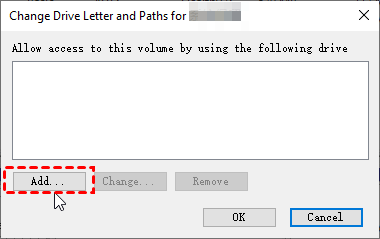
Step 2. Select the disk, right-click it and select " Change Drive Letter and Paths".
Step 3. Click "Add" or "Change" button, select a drive letter and click "OK".
Way 4: Fix corrupted or damaged MBR
If the Seagate external hard drive shows as an unknown and not initialized disk in Disk Management, it might be caused by damaged MBR. You can try to fix MBR in the recovery environment.
Step 1. Restart your computer to recovery environment, you have two ways in the following:
# 1: Force start: To resolve the issue, restart your computer and immediately press and hold the power button to force a shutdown as soon as the Windows logo appears. Repeat this process 2-4 times, which should display the boot options.
#2: Use installation disc: To access Windows 10 boot options, boot the computer from the installation disc, click "Repair your computer" and then "Troubleshoot".
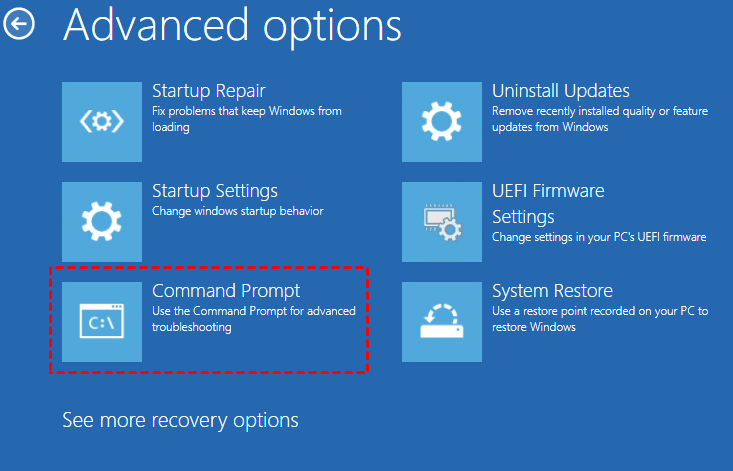
Step 2. Select "Command Prompt" in the "Advanced options" screen.
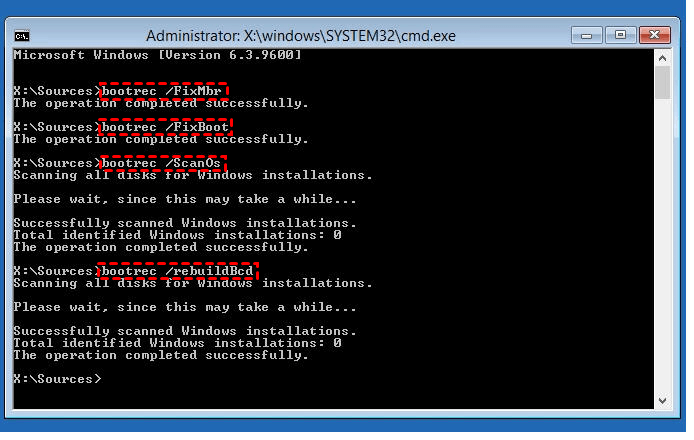
Step 3. Type "bootrec.exe" and press Enter to see available options, then select and run each option individually, such as bootrec /fixmbr, bootrec /fixboot, bootrec /scanos, and bootrec /rebuildbcd.
Conclusion
With the methods in this article, you can easily backup files on a Seagate external hard drive. If you want to manage backup tasks and images with ease, consider using Qiling Disk Master software, which allows you to set up scheduled backups with just a few clicks and save disk space without any configuration.
You can choose the features you want to use, keeping the default options or more advanced features like incremental and differential backups, and setting automatic backup cleanup.
Besides being a disk cloning software, it can also be used to replace an HDD with an SSD, and more. Download the software to learn more.
Related Articles
- Download Powerful Seagate Hard Drive Backup Software
Read this article to learn three auto Seagate hard drive backup software to backup data to Seagate external hard drive safely and easily according to the following text. It could save you from the trouble of finding backup solutions and try complex instructions. - Best Seagate Dashboard Alternative - Qiling Disk Master Freeware
Read this post to learn about Seagate Dashboard and fix its problems. You should try one of the easy-to-use and free Seagate Dashboard alternatives if it's not working. It helps you find the best way to perform backup, restore and disk cloning. - Seagate Dashboard Not Working in Windows 10/8/7 – Fixed
This article is written for users like you who want to fix Seagate Dashboard not working. Here are 4 situations with related solutions. Also,you can choose an alternative way. - Quickly Create Seagate DiscWizard Image Backup with Simple Steps
This article introduces you to Seagate DiscWizard and how to create Seagate DiscWizard image backup and recovery in detail. Scroll down below to learn everything you want to know. - Free Software to Backup Files to External Drive Automatically
Learn more about Backup and Restore, File History, Qiling Disk Master and pick one among them to automatically backup files to external hard drive. - Quick Guide to Windows Complete PC Restore in Windows Vista
If you want to know what Windows Complete PC Restore is and how to restore Windows after creating a Windows backup, this article will guide you with detailed steps.
Products
Articles & Tutorials
- Data Recovery
- Data Backup
- File Recovery
- File Backup
- File synchronize
- System Backup and Restore
- Disk and Partition Clone
- Technical articles
- Disk Master Help
- Windows Deleted File and Disk Recovery Tutorials
- Windows File and Data Recovery Tutorials
- More Windows Tutorials for Install, Security, Files, and PC Tips
- Windows Boot, Repair, and Recovery Environment Tutorials
- Windows Backup Tutorials
- Windows Restore Tutorials
- Windows Clone and Migration Tutorials
- Windows Server Backup, Recovery, and Management Tutorials
- Windows Disk, Partition, and Storage Management Tutorials