Backup Only New Files to External Hard Drive in Windows 10(2 Ways)
Need to Backup Only Newer or Changed Files to External Hard Drive
Backup only for files newer than a certain date?
You can use the `--since` option with the `rsync` command to backup only files that are newer than a certain date. For example, to backup files that are newer than 2 days ago, you can use the command `rsync -avz --since=2d /source/folder/ /destination/folder/`. This will only copy files that have been modified in the last 2 days. You can adjust the time period by changing the number after `--since`, e.g. `--since=1w` for 1 week or `--since=1m` for 1 month.
To save only the files that are newer than the most recent full backup, you can use the "robocopy" command in Windows, or the "rsync" command in Linux/macOS. Both commands can compare the timestamps of files on both drives and copy only the newer ones. For example, you can use the following command in Windows: `robocopy "D:\Source" "D:\Destination" /mov /minage:2023-03-01` (replace "D:\Source" and "D:\Destination" with your actual drive paths, and "2023-03-01" with the date of your most recent full backup). This will move all files from the source drive to the destination drive that are newer than March 1st, 2023.
- Question from Acronis Forum
You can only backup new or changed files to an external hard drive in Windows, which can save time and disk space. There are two methods to achieve this.
How Do I Backup Only New or Changed Files in Windows 10
To backup only new files to an external hard drive, you'll need to understand some basic backup methods, such as full backup, incremental backup, or differential backup. This will help you determine the best approach for your specific needs. Once you've chosen a method, you can proceed with the backup process, ensuring that only new files are copied to the external hard drive.
A full backup is a complete backup of all files on a designated hard drive, requiring a larger disk capacity and being time-consuming, but providing the best protection, serving as the basis for incremental and differential backups.
An incremental backup is a backup of all changed files since the last full or incremental backup, requiring less time and storage space than a full backup.
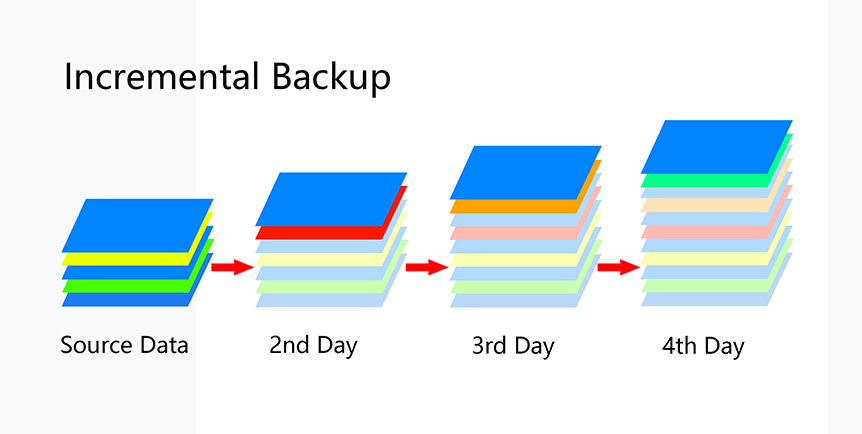
Differential backup stores only new or changed files since the last full backup, providing high security, using less time and storage space.
If you want to backup only new or changed files in Windows 10, you can try the incremental or differential backup method, which will copy only new files to an external hard drive.
Copy Only New or Modified Files with Backup and Restore (Windows 7)
To create a scheduled backup plan using Windows' built-in Backup and Restore tool, you can follow these steps:
- Connect the external hard drive to the computer where you want to store your backup, ensuring it has sufficient storage space.
- Press the Windows key + S, type "Control Panel" in the search box, and click the top result to open the Control Panel.
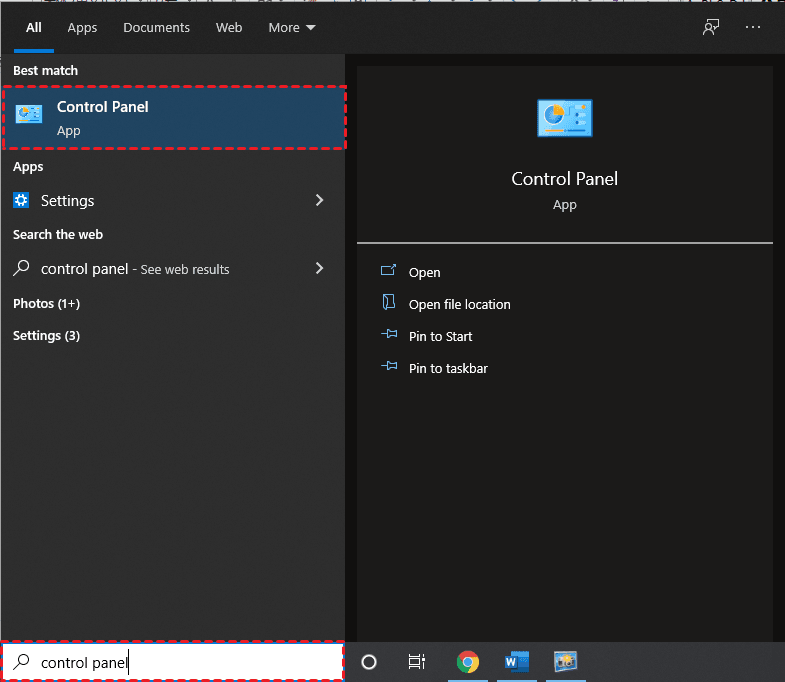
- Click "Backup and Restore (Windows 7)" to open it.

- On the right panel, click "Set up backup".
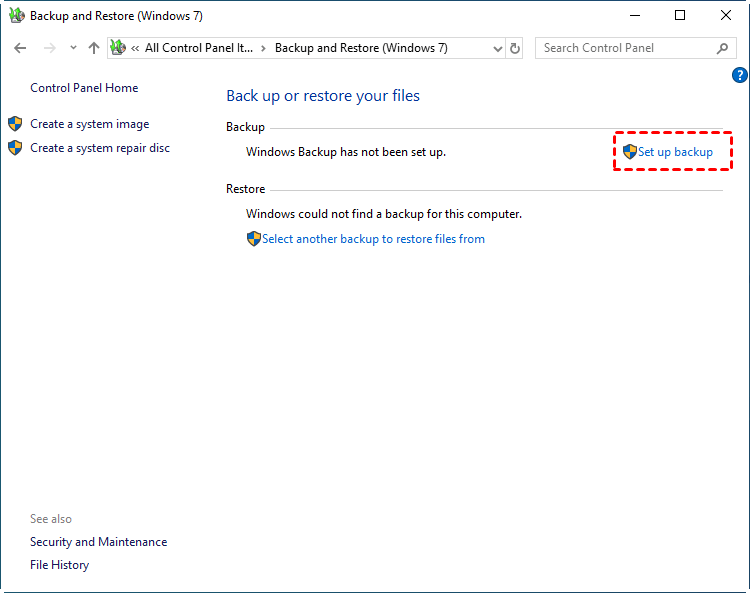
- Select the connected external hard drive, and click Next.
- Tick "Let me choose" and click Next.
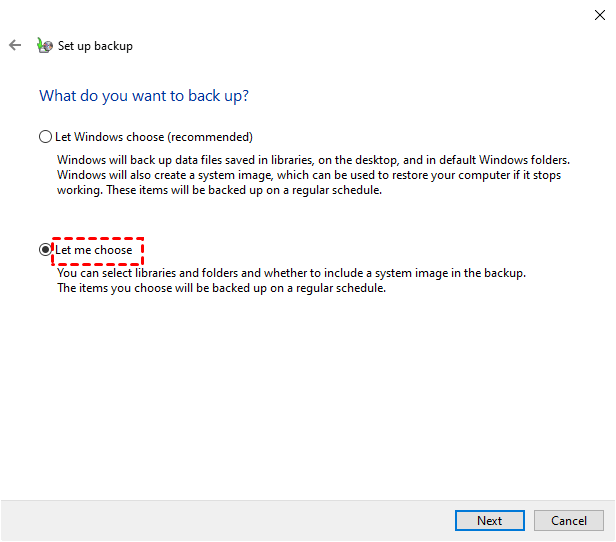
- Check the files or folders you want to backup and click Next to proceed with the backup process.
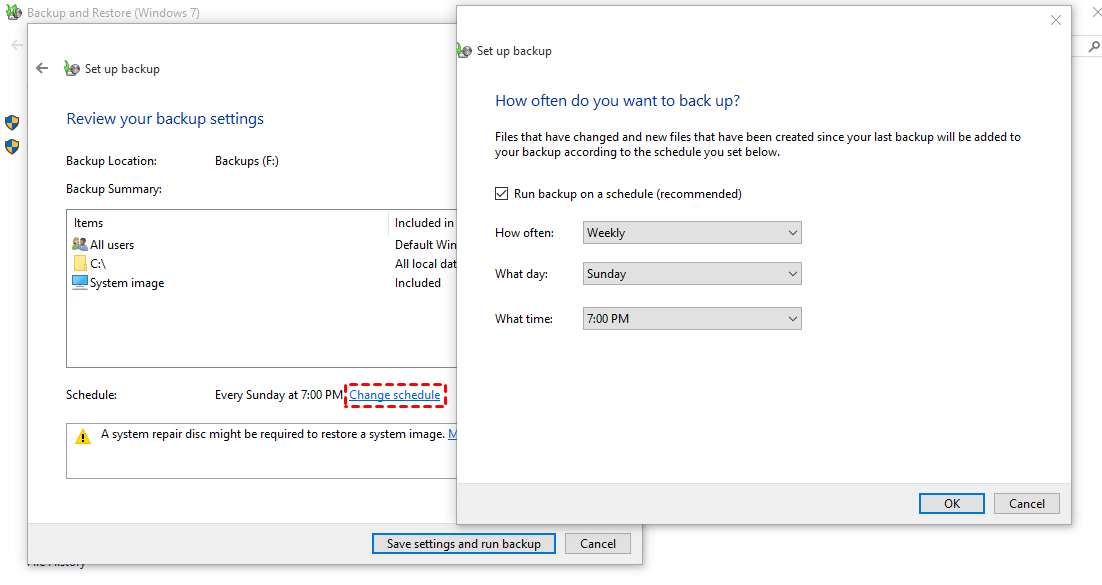
- To review and adjust your backup settings, click on the "Change Schedule" button in the bottom right corner. Then, select the desired backup frequency, day, and time. Once you've made your changes, click "Save settings and run backup" to confirm and initiate the backup process.
Files that have changed or were newly created since your last backup will be included in your backup, based on the schedule you have set.
Copy New Files to External Hard Drive in Windows 10 with Qiling Disk Master
If you're not familiar with Windows' built-in backup tool, using it might lead to backup failures. A better approach is to use a different method that's easier and safer.
Qiling Disk Master Standard is a professional backup and restore software for Windows editions, allowing free full and incremental backups, and advanced differential backup, with an option to copy only new or modified files.
To backup only new files to an external hard drive, you can use Qiling Disk Master Standard. First, download and install the software on your computer. If you're a server user, you may want to try Qiling Disk Master Server instead. With Qiling Disk Master Standard, you can easily backup new files to your external hard drive, making it a convenient tool for maintaining your digital files.
Step 1. Connect your external hard drive with computer and make sure it can be accessible.
Step 2. Launch this freeware, click Backup -> File Backup.

Step 3. Select "Files" or "Folder" that you want to backup.

Step 4. To store the file backup image, click the box below the arrow and select the connected external hard drive as the storage location, or choose to store it on a local drive, cloud drive, NAS device, or USB drive.

Step 5. To schedule a backup, click "Schedule Backup" in the lower left corner of the program. In the pop-up window, you can set the backup schedule to daily, weekly, monthly, or event triggers, and even USB plug-in.

Step 6. The backup scheme is set to incremental by default, which means only new or changed files will be backed up. Click OK to proceed.
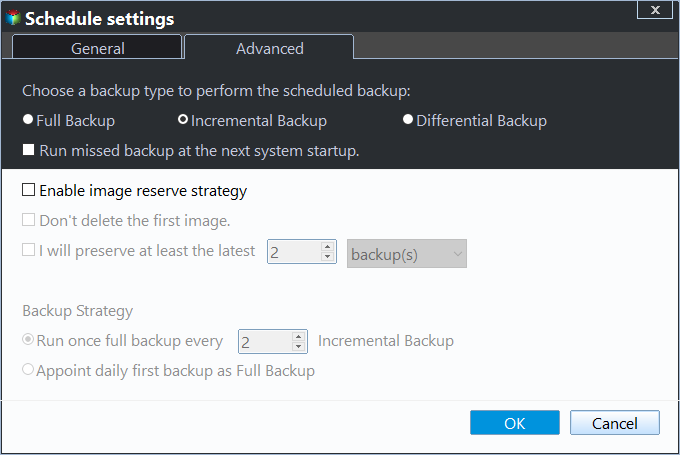
More options (only supported in Professional or higher editions):
★ Differential Backup: This feature creates a backup of changed files based on the last full backup, eliminating the need for multiple full backups and differential backups. It simplifies the backup process to just one full backup and any subsequent differential backups.
★ Enable Automatic Backup Cleanup: The old backup will be automatically deleted to free up disk space. You have three options: the easiest one is by quantity, while the safest is by daily/weekly/monthly, which saves the latest incremental or differential backup and all full backups.
Step 7. To launch the daily schedule backup, click Proceed after setting up the daily schedule backup to backup new or changed files.

To Sum Up
You can easily backup only new files to an external hard drive in two ways. The first method is to use the backup software that comes with Windows, but a simpler and more suitable option for novices is to use a professional backup tool like Qiling Disk Master.
You can use File Sync to easily sync changed files from the source directory to the destination directory. Additionally, if you're experiencing the OneDrive sync pending problem, this software can help you solve it.
Related Articles
- Copy Only Newer Files: XCopy or Robocopy vs Easier Ways
You can use Xcopy or Robocopy copy only newer files without problems by learning its syntax, options, and commonly used examples. In addition, you still can use GUI-based file sync or backup software. - Easily Backup Files to External Hard Drive in Windows 10/8/7
This guide explains Easily Backup Files to External Hard Drive in Windows 10/8/7 with clear steps, key checks, and practical tips. - How to Only Backup Changed Files Per Day Automatically
This article tells you how to only backup changed files per day automatically with a free backup tool. It helps you create incremental/differential backup instead of full backup. - How Do I Create and Use Windows Restore Point in Windows 10/8/7 [Beginners' Guide]
This guide explains How Do I Create and Use Windows Restore Point in Windows 10/8/7 with clear steps, key checks, and practical tips. - Troubleshoot | Lenovo One Key Recovery Partition Has Damaged
I cannot access Lenovo OneKey Recovery after resizing my partition, saying "onekey recovery partition has damaged so do not launch the main application". Be relax and see this article. - How to Choose One Key Recovery Software
Learn how to Choose One Key Recovery Software with clear steps, key checks, and practical tips.
Products
Articles & Tutorials
- Data Recovery
- Data Backup
- File Recovery
- File Backup
- File synchronize
- System Backup and Restore
- Disk and Partition Clone
- Technical articles
- Disk Master Help
- Windows Deleted File and Disk Recovery Tutorials
- Windows File and Data Recovery Tutorials
- More Windows Tutorials for Install, Security, Files, and PC Tips
- Windows Boot, Repair, and Recovery Environment Tutorials
- Windows Backup Tutorials
- Windows Restore Tutorials
- Windows Clone and Migration Tutorials
- Windows Server Backup, Recovery, and Management Tutorials
- Windows Disk, Partition, and Storage Management Tutorials