ASUS TUF Gaming A15 SSD Upgrade – Replace or Add a New SSD
- Introduction to ASUS TUFGaming A15
- Is ASUS TUF A15 upgradable?
- Preparations for ASUS TUF add SSD or replace one
- Step-by-step guide to finish ASUS TUF gaming A15 upgrade SSD
- Install the new SSD to ASUS TUF A15
- Transfer all data from old SSD to new one without data loss
- Boot from the newly cloned SSD
- Bottom line
Introduction to ASUS TUFGaming A15
The ASUS TUF Gaming A15 is a powerful gaming laptop featuring the latest AMD Ryzen processors and NVidia graphics cards, paired with a 15.6-inch IPS display that boasts a smooth 144Hz refresh rate, ideal for seamless and responsive gameplay.
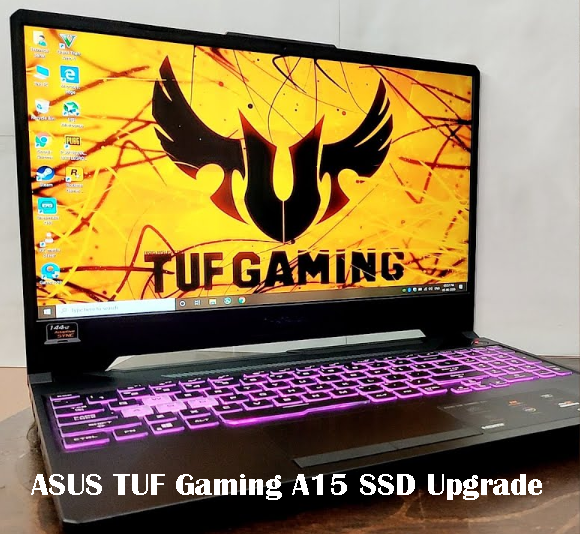
Upgrading the storage on your ASUS TUF A15 with an SSD can improve system responsiveness, reduce power consumption, heat generation, weight, and noise, with faster boot, loading, and transfer times.
Is ASUS TUF A15 upgradable?
The ASUS TUF Gaming A15 is an upgradeable laptop, allowing users to enhance its performance by upgrading the RAM and SSD, with a maximum supported RAM of 32GB.
The ASUS TUF A15 laptop features two M. 2 slots for SSDs, with one pre-installed and the other available for upgrade, located on the motherboard.
This configuration offers flexibility and security for users who want to upgrade their storage, and I'll guide you through the process of upgrading the ASUS TUF A15 SSD in the following part of this article.
Preparations for ASUS TUF add SSD or replace one
Before upgrading to a Solid-To upgrade your Solid-State Drive (SSD), you'll need a screwdriver, a Torx driver, a plastic spudger, a Phillips head screwdriver, a USB cable, and a power cord to safely disassemble your laptop or desktop and access the SSD.
- A screwdriver and an anti-static wristband (optional but recommended)
- A new SSD that suit your laptop
- A cloning software is used to transfer all data from the old SSD to the new one, making a duplicate of the old drive and allowing the user to transfer all files, programs, and settings to the new drive, making the transition seamless and hassle-free.
To upgrade the SSD of your ASUS TUF Gaming A15, begin by preparing the necessary tools, including a screwdriver and a Torx T5 driver. Then, shut down your laptop and unplug it from the power source.
Step-by-step guide to finish ASUS TUF gaming A15 upgrade SSD
- Install the new SSD to ASUS TUF A15
- To transfer all data from an old SSD to a new one without any loss, connect both SSDs to your computer using USB enclosures or adapters. Then, use the built-in Windows tool 'Disk Management' or a third-party software like Qiling Disk Master to clone the old SSD to the new one. This will ensure that all data, including files, programs, and settings, are successfully transferred to the new SSD.
- Boot from the newly cloned SSD
Install the new SSD to ASUS TUF A15
1. Turn off the laptop, unplug it, and remove the screws on the bottom cover by flipping it over.
2. Remove the bottom cover of the device, locate the M.2 slot, and take out the screw holding the SSD in place. Then, carefully pull the SSD out of the slot.
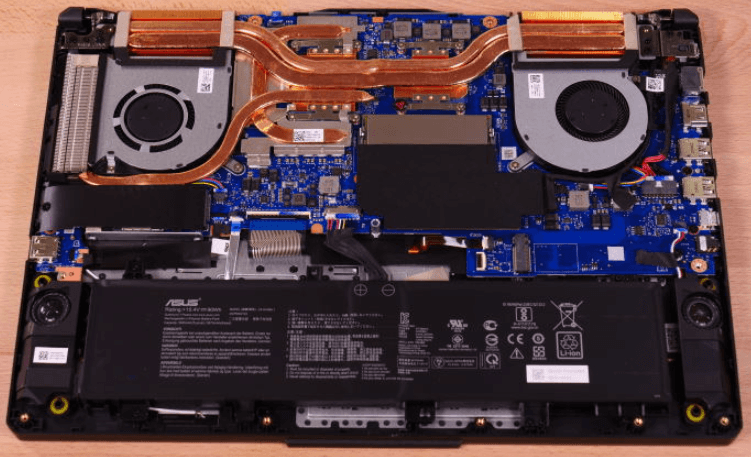
3. To upgrade the SSD, insert the new SSD into the M.2 slot and secure it with the screw, then reattach the bottom cover and screw it back in place.
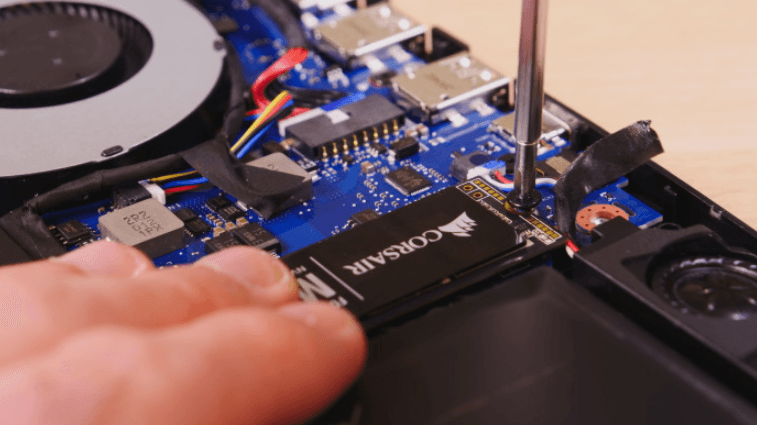
4. Turn on the laptop and check if the new SSD is detected. If not, verify the connections and ensure the SSD is properly seated.
Transfer all data from old SSD to new one without data loss
To transfer data from an old SSD to a new one without reinstalling Windows or other programs, use professional SSD cloning software to securely transfer the data, eliminating the need to reinstall Windows or other programs.
✍Replacing the old SSD in an ASUS TUF A15 laptop with a new one can be done securely using this tool, transferring the operating system, system reserved partition or efi partition, installed programs, and personal data from Windows 11/10/8/7/XP/Vista to the new SSD. The process also optimizes the new SSD's performance using the SSD Alignment feature.
To avoid data loss, download Qiling Disk Master and carefully follow its instructions to transfer data from your old SSD to the new one. This will ensure a smooth transition and prevent any data from being lost in the process.
✐Tip: Before upgrading your SSD, ensure you back up important files to a safe location as the cloning process will overwrite all data on the SSD.
Step 1. Launch Qiling Disk Master Professional, navigate to the Tools tab and choose Disk Clone or System Clone to migrate your OS.

Step 2. Select your current ASUS SSD as the source directory, and click Next.

Step 3. Select the new SSD as the cloning destination, with the intelligent cloning technology, you can clone a larger drive to a smaller SSD by clicking Next.

Step 4. Preview the information of your source SSD and destination SSD, then click Proceed. Wait for the process to complete, and finally click Finish.

👣 Notes:
✎ This feature will clone all sectors, including unused sectors, from the old SSD to the new SSD.
✎ Cloning the Master Boot Record (MBR) to a GUID Partition Table (GPT) disk or vice versa allows for the transfer of data without any loss, making it a useful process for various purposes.
Boot from the newly cloned SSD
👉 If you swap out the old SSD with a new one, your ASUS laptop will automatically boot up with the new SSD after a simple restart.
👉 To keep the old SSD as a secondary storage device, simply restart your computer, enter the BIOS, and set the new SSD as the first boot option. This allows you to use the new SSD as the primary drive while still keeping the old one available for secondary storage.

Bottom line
Upgrading the SSD on your ASUS TUF A15 laptop is a simple process that can greatly improve its performance by allowing you to download and store more games, apps, and files, making it a great way to breathe new life into your laptop.
Qiling Disk Master is a useful tool that allows data transfer from an old SSD to a new one, and also offers features like large file transfer between PCs and creating a portable Windows 10 USB drive.
Related Articles
- Quick Answer: Replace ASUS Laptop Hard Drive with SSD
You will get the ultimate guide to replacing ASUS laptop hard drive with an SSD and you don't need to reinstall Windows 7, 8, 10, 11, etc. - How to Use ASUS System Recovery Partition for Factory Reset
In this article, you will get how to factory reset your computer with ASUS recovery partition in Windows 7/8/10. Here are x ways, you could try it according to your situation. - Hard Drive Making Clicking Noise Every Few Seconds - Why & What to Do
If your hard drive is making clicking noises every few seconds, it may be a sign of hardware issues on your computer. Fortunately, there are steps you can take to address the problem and potentially save your data from a hard drive failure. - Hard Drive Making Noise When Not In Use - How to Fix?🔥
If your hard drive is making noise when not in use, it may be a sign that it needs attention. In this case, it's essential to investigate the issue to prevent potential data loss. - How to Migrate Windows 11 to Larger SSD Without Losing Anything
To migrate or clone Windows 11 to a larger new SSD, you'll need to attach the SSD to your computer, then use a cloning software to copy the entire Windows 11 OS, including all installed programs and files, to the new SSD. - Top 5 Best PC Clone Software Free Download🔥
If you are looking for PC clone software to create clones, you are in the right place. In this post, we will show you the top 5 PC clone software and what you need to consider before choosing the tool.
Products
Articles & Tutorials
- Data Recovery
- Data Backup
- File Recovery
- File Backup
- File synchronize
- System Backup and Restore
- Disk and Partition Clone
- Technical articles
- Disk Master Help
- Windows Deleted File and Disk Recovery Tutorials
- Windows File and Data Recovery Tutorials
- More Windows Tutorials for Install, Security, Files, and PC Tips
- Windows Boot, Repair, and Recovery Environment Tutorials
- Windows Backup Tutorials
- Windows Restore Tutorials
- Windows Clone and Migration Tutorials
- Windows Server Backup, Recovery, and Management Tutorials
- Windows Disk, Partition, and Storage Management Tutorials