How to Use ASUS System Recovery Partition for Factory Reset
- User case
- How to access ASUS system recovery partition and restore computer
- Method 1: Access recovery partition with F9
- Method 2: Access recovery partition with installation disc
- Method 3: Restore ASUS laptop with default reset option
- How to factory reset ASUS laptop in Windows 10/11 without losing data
- Wrapping things up
User case
How do I use Asus recovery partition?
Hey everyone. Recently, my ASUS laptop (Windows 10) get a little slow, so I decide to reinstall system. Before that, I know my PC has a system recovery partition, which could factory reset my ASUS laptop Windows 10. So, I try to get my recovery partition via F9, but ASUS recovery key F9 does not work. How do I access the recovery partition and restore my laptop? Thanks.
- Question from EightForums
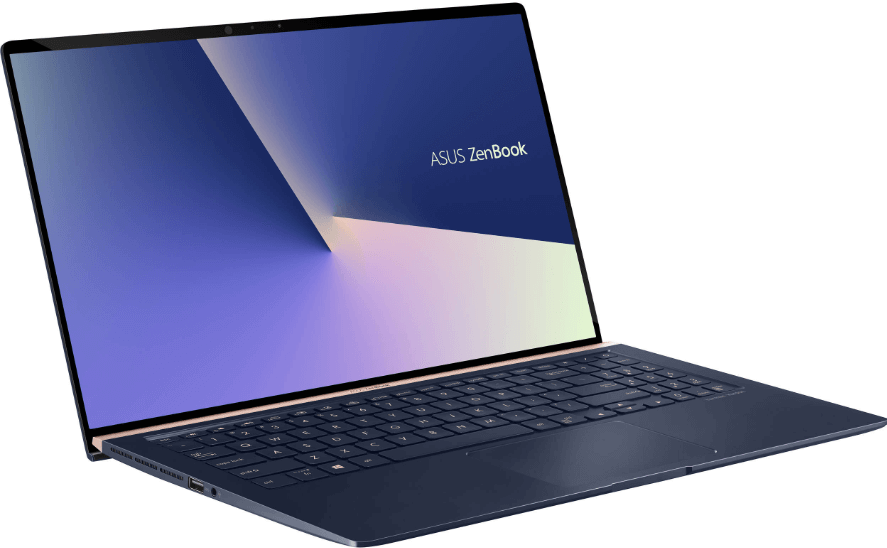
ASUS has a hidden recovery partition, also known as the ASUS system recovery partition, which contains a recovery image of the factory defaults. This partition can be saved to various media, such as DVD, CD, or USB drives, and is often referred to as the ASUS system recovery disk or disc, or ASUS recovery drive.
Anyway, you can use these recovery media to restore your computer to its original condition. It provides you with 3 different ways to access the system recovery partition. If the ASUS system recovery partition F9 does not work, you still can try installation disc and the default reset option. I'll introduce all of them below. Please follow one of them.
How to access ASUS system recovery partition and restore computer
- Method 1: Access recovery partition with F9
- Method 2: Access recovery partition with installation disc
- Method 3: Restore ASUS laptop with default reset option
Method 1: Access recovery partition with F9
If you can still use the F9 key, try using the ASUS recovery key in Windows 10 to create a recovery drive. This method is a good option if you can still access the F9 key.
1. Power on your computer, press the F9 key immediately when the Asus logo appears.
2. Select "Windows Setup[EMS Enabled]", language and click Next.
3. Click Next when the ASUS Preload Wizard screen appears.
4. Select the "Recover Windows to first partition only" option and click Next.
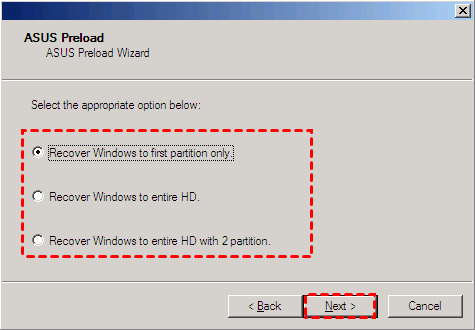
✎The first option will only delete the first partition, affecting the rest, while the other options will delete all partitions, with the last option creating 2 partitions, C: and D:.
5. Afterward, follow the steps in the wizard.
Method 2: Access recovery partition with installation disc
1. Insert your installation disc in the disk tray and restart your computer, then press ESC during booting, select CD/DVD and hit Enter.
2. To start the system restoration, click OK twice on the pop-up window and follow the on-screen instructions. This will initiate the process and guide you through the necessary steps to restore your system to its previous state.
To factory reset your ASUS laptop, follow the steps for your specific operating system. The process may vary slightly depending on the OS, so you can search for "factory reset ASUS laptop" along with your operating system (e.g.
Method 3: Restore ASUS laptop with default reset option
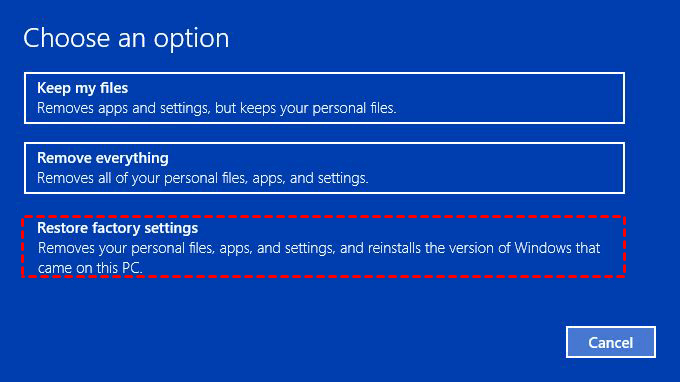
1. Go to Start, then Settings, then Update & Security, then Recovery, and finally Get started. From there, select Restore factory settings in the Choose an option window.
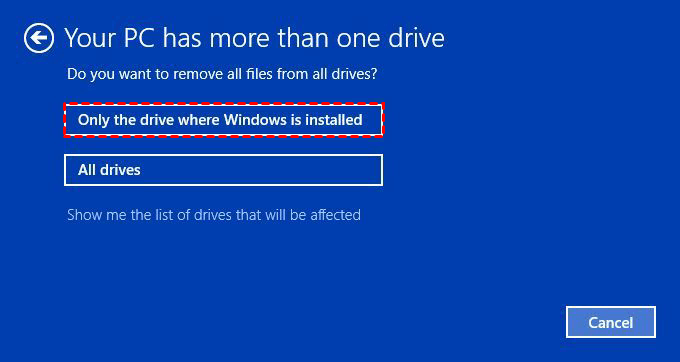
2. Decide to wipe the drive where Windows is installed or all the drives and click Next.
3. You can choose to either remove your files or remove files and clean the drive, then click Next.
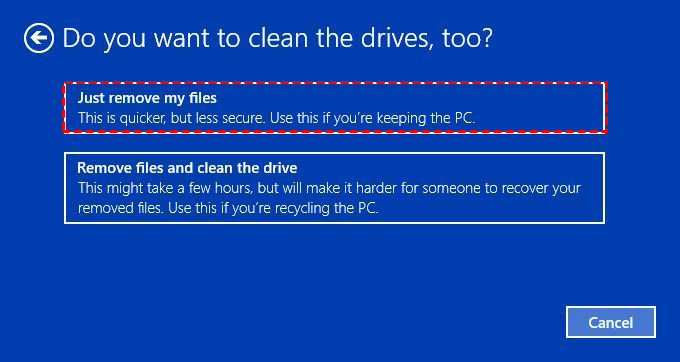
4. When you see the "Ready to reset this PC" window, click Reset and wait until the process is finished.
How to factory reset ASUS laptop in Windows 10/11 without losing data
If you need to factory reset your ASUS laptop, there are several methods you can try, but they may result in varying levels of data loss. However, if you're looking for an alternative that doesn't involve significant data loss, you can consider using a software like Qiling Disk Master. This tool can help you reset your laptop without deleting all your files, making it a more appealing option if you're not comfortable with the other methods.
This tool allows you to create a bootable recovery partition that contains a copy of your entire system, including the operating system, programs, and data. It also enables you to schedule regular backups of your system, keeping a record of daily, weekly, or monthly changes. This feature is compatible with various computer brands, including ASUS, Lenovo, HP, and others.
The recovery partition allows you to restore your ASUS laptop or factory reset a Lenovo desktop, especially when it's unbootable, by using the "F11" or "A" key at startup or selecting the boot menu. This includes everything backed up at the time of recovery.
Step 1. To restore ASUS to factory default settings, download Qiling Disk Master and use it to create a recovery partition. This is a prerequisite for the image backup that will be used for the restoration process.

✎ To create a recovery partition on a new hard drive, tick the "Backup system to other location" option during the backup process. This allows you to create a recovery partition on the new hard drive.
Step 2. Launch this software and click OneKey System Recovery.
Step 3. If you back up system to Qiling Disk Master partition, select the first option and click Next. Otherwise, select the second option, click Browse, and choose the created backup image.

Step 4. Confirm that you want to restore your computer to factory settings and click Proceed.

Another helpful way to restore system while keep data safe:
Besides Qiling Disk Master, various backup software can help you restore your system without data loss, such as Qiling Disk Master Standard. You can create a system backup with it, and it's recommended to set up a scheduled backup to ensure your system is always up-to-date and recoverable.
To factory reset or restore a system image to a new hard drive, go to the Restore tab, select a backup image and destination path, then click Proceed. Alternatively, use the Recovery Environment tool in Qiling Disk Master to perform the process without booting Windows.

Wrapping things up
ASUS system recovery partition allows you to factory reset your laptop in Windows 7/8/10/11, reverting it to its original state. However, this process will erase some or all of your data, so be sure to back up any important files before proceeding.
To avoid losing data, it's recommended to back up everything on the system partition using a reliable backup software like Qiling Disk Master. This way, if your computer becomes slow and you need to restore the system, you won't lose any data. For more advanced users, the Technician or Customization edition may be a better option.
Related Articles
- Asus Recovery Partition Missing? |Complete Solutions
You can choose to fix Asus Recovery Partition missing by recreating a new one and this article offers you two effective methods. - Fixed: ASUS Recovery Partition Not Working
Fix ASUS recovery partition not working with clear steps to check the recovery environment, restore boot options, or use an alternative recovery method. - How to Create ASUS Recovery Disk in Windows 10 Efficiently
ASUS recovery disk is very useful when you're having problems with your computer. Learn how to create one in Windows 10 efficiently from this page. - How to Set Up a Server to Server File Transfer Successfully
Copying files from one server to another is a fairly frequent task that system administrators face. Learn how to do it using Qiling Disk Master. - How to Backup Outlook PST Files [2022 Complete Tutorial]
Learn how to Backup Outlook PST Files with clear steps, key checks, and practical tips. - 2 Ways: How to Backup Partition to Image File for Free
Backing up a partition to image files can provide peace of mind by ensuring all data is safely stored. In the event of a disaster, you can restore the partition by using a reliable Windows partition backup software like Qiling Disk Master to back up the partition to an image file.
Products
Articles & Tutorials
- Data Recovery
- Data Backup
- File Recovery
- File Backup
- File synchronize
- System Backup and Restore
- Disk and Partition Clone
- Technical articles
- Disk Master Help
- Windows Deleted File and Disk Recovery Tutorials
- Windows File and Data Recovery Tutorials
- More Windows Tutorials for Install, Security, Files, and PC Tips
- Windows Boot, Repair, and Recovery Environment Tutorials
- Windows Backup Tutorials
- Windows Restore Tutorials
- Windows Clone and Migration Tutorials
- Windows Server Backup, Recovery, and Management Tutorials
- Windows Disk, Partition, and Storage Management Tutorials