How to Clone Bootable CompactFlash Card (Video Inside)
Quick Navigation:
- What is a bootable CompactFlash card?
- Why should you clone CF card?
- The tool you’ll need - A bootable CF card duplicator
- How do you clone bootable CompactFlash card in Windows 11/10/8/7?
- Conclusion
What is a bootable CompactFlash card?
CompactFlash (CF) is a successful early memory card format, first specified by SanDisk and later adopted by other manufacturers. Now primarily used in higher-end digital cameras, CF cards employ flash memory technology to store data, retaining it even when powered off due to their non-volatile nature.
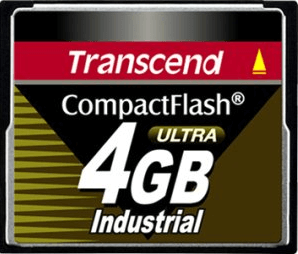
A bootable CompactFlash card is a CF card with a built-in operating system that allows you to boot your computer in case of boot errors or system crashes, making recovery possible.
Why should you clone CF card?
You can clone a CompactFlash card for various reasons, including creating a backup of your current configuration, duplicating a working setup for another system, or even creating a master image to deploy to multiple devices. This process allows you to preserve your existing settings and applications, saving you time and effort in reconfiguring a new system or device. By cloning your CompactFlash card, you can ensure continuity and consistency across your systems, making it a valuable tool for system administrators, IT professionals, and individuals who manage multiple devices.
◈ Make a backup. Although flash memory is non-volatile, it's harder to recover data on a CF card than on a mechanical hard disk if data corruption or loss occurs. It's wise to copy a bootable CompactFlash card to another location as a backup.
◈ Upgrade to a larger CF card. If a CompactFlash card is running out of space, you can upgrade to a larger one by cloning the current card, which allows you to transfer all data and settings to the new card.
To clone a bootable CompactFlash card in Windows, you can use a tool like Rufus or a USB drive cloning software. This process involves creating a bootable USB drive, accessing the CF card's contents, and then copying the data to the USB drive. The resulting USB drive can then be used as a clone of the original CF card.
The tool you’ll need - A bootable CF card duplicator
To clone a bootable CompactFlash card, you need a powerful bootable CF card copier. Qiling Disk Master Professional is a specialized disk cloning software that can also perform advanced backup and restore operations.
◑ Clone features
This software offers a range of features, including system, disk, and partition cloning, which allows you to migrate your operating system to a solid-state drive (SSD), clone a smaller drive to a larger one, and even copy Ext4 partitions.
◑ Backup & Restore features
It has system/disk/partition/file backup & restore functions, allowing you to restore your system to different hardware without boot errors, even on a new computer.
You can clone a bootable CompactFlash card using one of the following methods.
To clone a bootable CF card to another card using the Disk Clone feature, you can directly clone the contents of the original card to the target card, ensuring that the bootable information is also transferred. This method allows for an exact replica of the original card to be created on the target card, preserving all data, settings, and bootability.
To restore a CF card from an image file, you can use the Disk Backup and Disk Restore features. First, create an image of your CF card using a tool like CF Card Image Tool or a similar software. This will create a file that contains a copy of the entire CF card, including all its data.
In addition, this tool has a user-friendly interface. Anyone, even a newbie, can complete the clone job without effort. As method 1 is easier and quicker than method 2, I'll show you how to clone a bootable CF card via method 1 below.
How do you clone bootable CompactFlash card in Windows 11/10/8/7?
Things to do before cloning
- To make Windows boot smoothly from a cloned CF card, prepare another CF card, preferably an industrial one.
- Prepare two CF card readers.
- Before cloning the target card, back up any important files to prevent them from being overwritten during the cloning process.
Steps to copy one bootable CompactFlash card to another
Step 1. Insert the bootable CF card and the target CF card into card readers directly connected to your computer, then install and run CF card cloning software - Qiling Disk Master. Click "Clone" on the left pane and select "Disk Clone" to proceed.

Step 2. Select the bootable CF card as the source disk and click "Next".
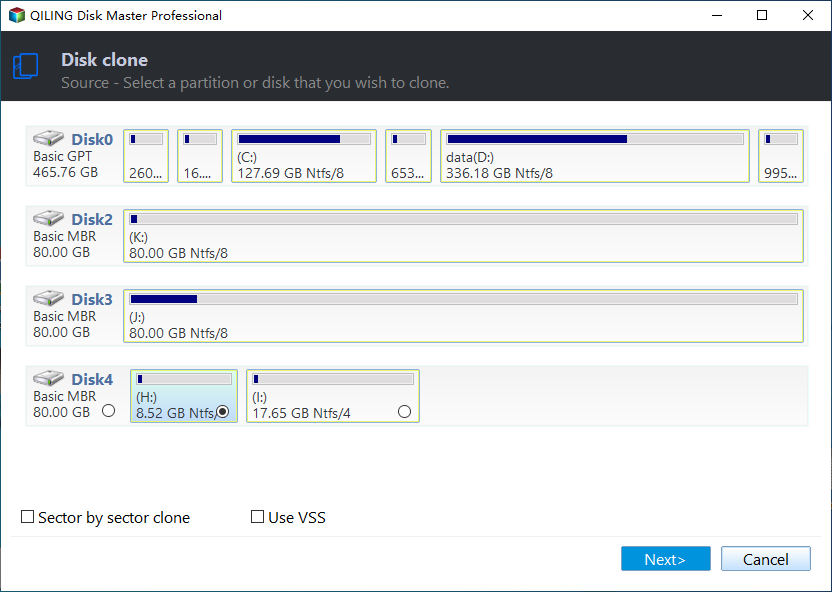
Step 3. Select the destination CF card where you plan to store the cloned data and click on "Next".

Step 4. Confirm the source and destination disk information, then click "Proceed" to start cloning the CF card.

💛 Related Tips:
>> SSD Alignment: If you're cloning a hard drive to an SSD, use this option to improve SSD performance.
>> Sector By Sector Clone: The cloning process will copy every sector on your bootable CF card, including unused ones, which can take longer and use up more storage space.
>> This tool allows users to resize partition size and convert the disk type of the destination disk if it differs from the source disk. It also offers options to add unused space to all partitions or manually adjust partition size to avoid leaving unallocated space on the larger card.
- Copy without resizing partitions: It will not resize the partition size.
- Add unused space to all partitions: The diskpart command will reallocate the unallocated space to each partition of the target disk, appropriate for the disk size.
- Manually adjust partition size: You can extend unallocated space to any partition on the destination disk you want.
- Convert the destination disk from MBR to GPT: If the destination disk has a different partition style than the source disk, it's helpful to convert the partition style of the destination disk.
Conclusion
Qiling Disk Master is a versatile tool that can help you clone a bootable CompactFlash card with ease, and it supports all brands of hard drives or SSDs, regardless of size or model. This means you can use it to clone a hard drive to a larger drive, clone a large HDD to a smaller SSD, or even clone Windows 10 to an NVMe drive. Additionally, it's a powerful file sync tool that enables you to run bidirectional sync, making it a great utility to have in your toolkit. Give it a try!
Related Articles
- Clone SD Card with Free Memory Card Cloning Software in Windows
- Backup Your Memory Card with Free Software
- Get the Best Bit Copy Software for Free!
- How to Solve Outlook Not Syncing with Gmail[2023 Tutorial]
Learn the key steps, checks, and practical tips for Clone SD Card with Free Memory Card Cloning Software in Windows Backup Your Memory Card with Free Software Get the Best Bit Copy Software for Free! How to Solve Outlook Not Syncing with Gmail. - Clone Hard Drive to Larger Drive Safely and Easily
With Qiling Disk Master Professional, you can easily clone hard drive to larger drive in Windows 11, 10, 8, 7 and you don't need to reinstall Windows operating system and other applications from scratch. - How to Clone Hard Drive to SanDisk SSD in Windows 10/11
This post introduces the best SanDisk cloing software that can help you clone hard drive to SanDisk SSD in Windows 11, 10, 8, 7 efficiently.
Products
Articles & Tutorials
- Data Recovery
- Data Backup
- File Recovery
- File Backup
- File synchronize
- System Backup and Restore
- Disk and Partition Clone
- Technical articles
- Disk Master Help
- Windows Deleted File and Disk Recovery Tutorials
- Windows File and Data Recovery Tutorials
- More Windows Tutorials for Install, Security, Files, and PC Tips
- Windows Boot, Repair, and Recovery Environment Tutorials
- Windows Backup Tutorials
- Windows Restore Tutorials
- Windows Clone and Migration Tutorials
- Windows Server Backup, Recovery, and Management Tutorials
- Windows Disk, Partition, and Storage Management Tutorials