Upgrade SD Card with Free Memory Card Cloning Software
Quick Navigation:
- Why upgrade SD card with free memory card cloning software?
- Free memory card cloning software for upgrade
- Upgrade SD card with free memory card cloning software step by step
- Final words
Why upgrade SD card with free memory card cloning software?
A Secure Digital (SD) card is a non-volatile memory card used in portable devices like mobile phones, digital cameras, music players, and personal computers to store data such as music, videos, photos, contacts, and important files.
Some users want to clone their SD card to a larger one to avoid low space warnings or store more content, while others want to clone it to a smaller one for improved running speed or security. This is because there are four SD card families (SDSC, SDHC, SDXC, and SDIO) with different speeds, capacities, and compatibilities.
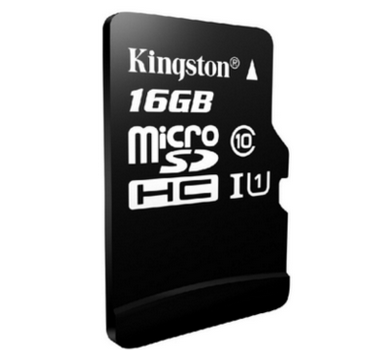
To upgrade an SD card, users can simply copy and paste all data from the old card to a new one, but this method can be time-consuming and may miss important files. A more efficient way is to use free memory card cloning software to easily and quickly transfer all data from the old card to the new one.
Free memory card cloning software for upgrade
Upgrading an SD card can be easily done with the help of a free SD card cloning utility, such as Qiling Disk Master Standard. This software allows you to clone everything on the SD card and copy them to another one in simple steps, providing several advantages in the process.
- Two cloning methods: Clone the entire SD card with "Disk Clone" or clone specific partitions on it with "Partition Clone".
- Intelligent Clone It enables cloning only used sectors from an old SD card to a new one, making it feasible to transfer a large SD card to a smaller one.
- Sector by Sector Clone (optional) allows you to clone an SD card to a larger SD card, including all sectors of the old SD card, resulting in the same partition layout on the destination.
- File systems like FAT, FAT32, NTFS, EXT2, and others are supported.
- Windows 10/8/7/XP/Vista are supported.
In addition, investing in the advanced version of Qiling Disk Master Standard can unlock more useful features, such as the ability to edit partition sizes on larger cards, preventing unallocated space after cloning.
This tool allows you to clone an SD card in Windows 7, Windows 8, Windows 10, etc. by downloading and running it on your computer.
Upgrade SD card with free memory card cloning software step by step
Preparation for SD card upgrade:
- Insert the both SD cards with SD card reader in your computer and be sure it's recognized.
- If you're using a larger SD card or smaller card for cloning, make sure to back up any important files on the target card beforehand, as the cloning process will overwrite all data on the target card.
To upgrade your SD card with free memory card cloning software, start by downloading a freeware that can clone your SD card. Then, follow the steps to clone your SD card, which typically involves selecting the source and target SD cards, and the software will do the rest.
Step 1. Launch Qiling Disk Master Standard, then click "Clone" > "Disk Clone" in order.

Step 2. Select the current SD card as the source disk and click Next.

Step 3. To proceed, select the new SD card as the destination disk and click Next, which supports both larger and smaller cards.

Step 4. Customize your setting and click Proceed to upgrade SD card.
If you want to clone an SD card to a larger card with everything, check the "Sector by Sector Clone" feature.
If you're cloning an SD card to a smaller one, make sure the "Sector by Sector Clone" option is unchecked, which will only copy the used sectors from the original card.
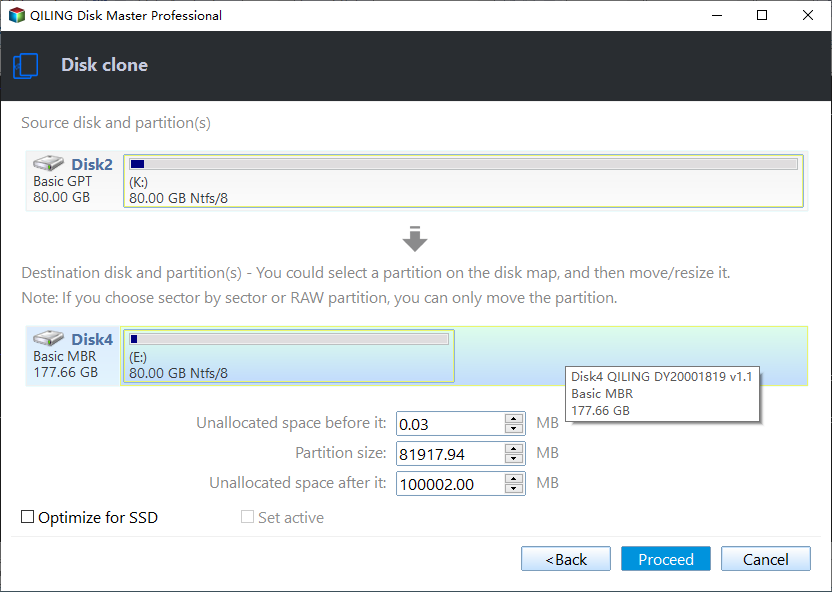
Step 5. Wait until the process 100% complete and click Finish.
Tips:
- SSD Alignment: If you clone an SD card to an SSD, check the option to improve SSD's performance.
- This software can also be used to clone SD cards, including cloning navigation SD cards, Raspberry Pi SD cards, bootable SD cards, and more.
Final words
Upgrading an SD card is a breeze with free memory card cloning software like Qiling Disk Master Standard. This tool allows you to easily copy the contents of an SD card to a larger or smaller card in just a few simple steps, making it a convenient solution for cloning navigation SD cards, Raspberry Pi SD cards, and more. Additionally, it's a great way to create an image of your SD card for added security.
This software can be used to upgrade a hard drive, for example, replacing a laptop's HDD with an SSD, cloning an NVMe drive to another NVMe drive, or copying data from one SSD to another.
Related Articles
- How to Backup SD Card to Computer and Protect Security
- How to Transfer Data from microSD Card to Laptop Easily
- Quick Solutions to Micro SD Card Not Detected in Windows 10
- How to Recover Deleted Files After Upgrading to Windows 11
If you've recently upgraded to Windows 11 and are having problems finding files, read this tutorial and see how to recover deleted files after Windows 11 upgrade. You can recover lost files on Windows 11 with data recovery software, restore files from backups and previous versions. - Samsung Data Migration Stuck at 0% While Cloning SSD [100% Working]
Samsung Data Migration (SDM) is a software that helps users transfer data from an old hard drive to a new one. However, sometimes it may get stuck at 0, causing frustration and delays. - Samsung SSD Clone Not Booting - How to Fix 🔥
If you're experiencing issues with a cloned Samsung SSD not booting, Qiling's ultimate guide offers effective solutions to fix the problem. Additionally, Qiling Disk Copy, a top-rated Samsung SSD cloning tool, can help you clone an SSD seamlessly.
Products
Articles & Tutorials
- Data Recovery
- Data Backup
- File Recovery
- File Backup
- File synchronize
- System Backup and Restore
- Disk and Partition Clone
- Technical articles
- Disk Master Help
- Windows Deleted File and Disk Recovery Tutorials
- Windows File and Data Recovery Tutorials
- More Windows Tutorials for Install, Security, Files, and PC Tips
- Windows Boot, Repair, and Recovery Environment Tutorials
- Windows Backup Tutorials
- Windows Restore Tutorials
- Windows Clone and Migration Tutorials
- Windows Server Backup, Recovery, and Management Tutorials
- Windows Disk, Partition, and Storage Management Tutorials