Micro SD Card Not Detected in Windows 10: 4 Fixes + 1 Tip
- The issue: micro SD card not detected in Windows 10
- How to repair undetected micro SD card in Windows 10 easily
- Solution 1: clean SD card and reader
- Solution 2: enable SD card reader
- Solution 3: update/reinstall SD card driver
- Solution 4: run hardware and device troubleshooter
- Bonus tip: backup micro SD card to avoid data loss
- Verdict
The issue: micro SD card not detected in Windows 10
Micro SD cards are commonly used in portable devices like smartphones and MP3 players, and can also be used on PCs to transfer files. However, some users may experience issues with their SD cards not being detected in Windows 10, especially after upgrading to the operating system.
"After upgrading to the free Windows 10 (from 8? - don't think it was 8.1) it doesn't seem to recognize any SD card. It gives NO error messages. It has worked for about a minute twice but that is all, then it goes away. I have tried MANY times. I use this everyday so what can I do to fix this? Thank You!"
How does this happen and how to fix it? Please read on.
How to repair undetected micro SD card in Windows 10 easily
The issue of micro SD card not detected in Windows 10 can be caused by different reasons, so it's best to check if the problem is with the micro SD card or the computer by connecting it to another computer or another SD card to the same computer.
👉 If the micro SD card is not being recognized by Windows, it's possible that the SD card is in the wrong format. To resolve this, you can format the SD card to a universal FAT32 format using an SD card formatter tool. Before doing so, make sure to back up any important files on the card to prevent data loss. This should allow the SD card to be detected by Windows.
👉 1) Check the power cord and ensure it's securely plugged into both the computer and the wall outlet. 2) Try restarting the computer in safe mode.
• Solution 1: clean SD card and reader
• Solution 2: enable SD card reader
• Solution 3: update/reinstall SD card driver
• Solution 4: run hardware and device troubleshooter
• To avoid data loss, it's a good idea to backup your micro SD card. This will ensure that your files and data are safe and can be easily recovered if something goes wrong.
Solution 1: clean SD card and reader
The cause of Windows 10 not reading SD card or SD card reader not working issue can be as simple as a dirty SD card or a dusty SD card reader. To resolve this, clean your SD card and SD card reader with a small dental floss brush and CO (electronic) cleaner. This should help restore functionality.
Solution 2: enable SD card reader
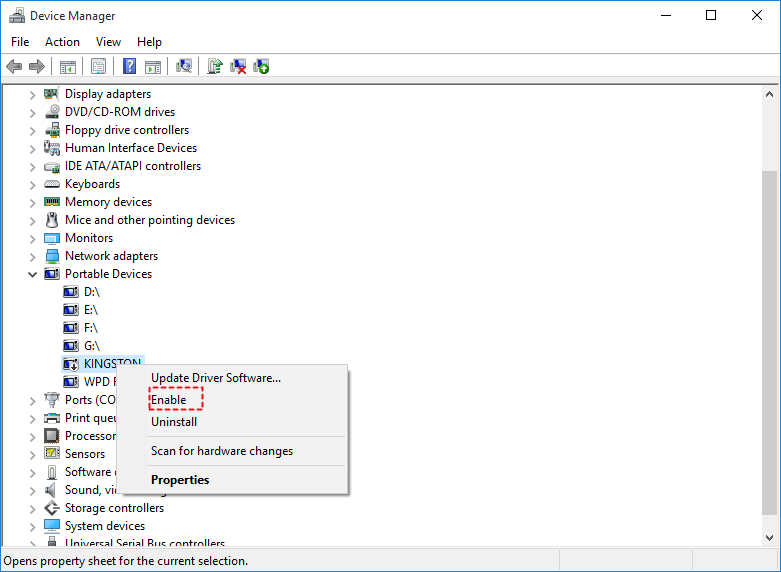
A disabled SD card reader can prevent your SD card from being detected on your PC. To resolve this, you can check and enable the SD card reader by following these steps:
1. Right click on the Start icon and select Device Manager.
2. Find your micro SD card and right click on it.
If the SD card reader is already enabled, you won't see the "Enable" button, instead, it will show "Disable". In this case, you don't need to do anything else.
>> If not, select the option "Enable". Then, Windows 10 could detect your micro SD card normally.
Solution 3: update/reinstall SD card driver
When updating Windows 10, all device drivers are automatically updated. However, if you still experience issues with a device, you can manually update or reinstall the driver to resolve the problem.
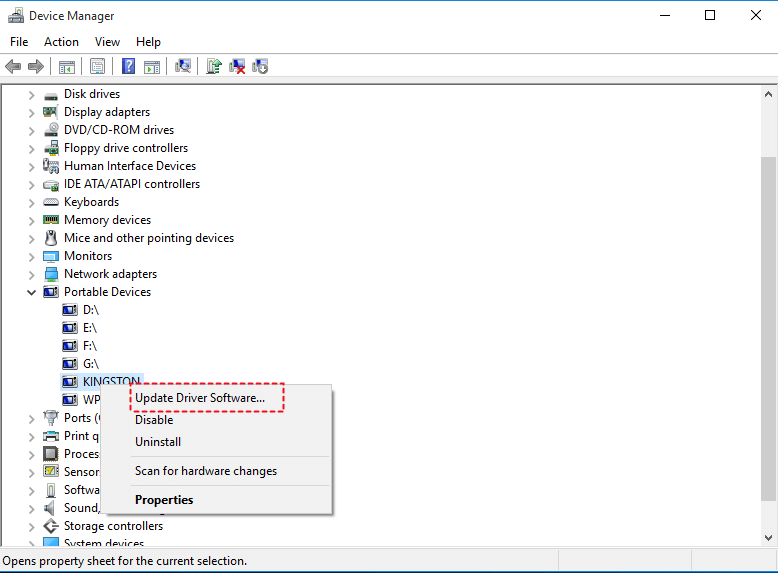
1. In the Device Manager, find your micro SD card, right-click it, and select "Update Driver Software".
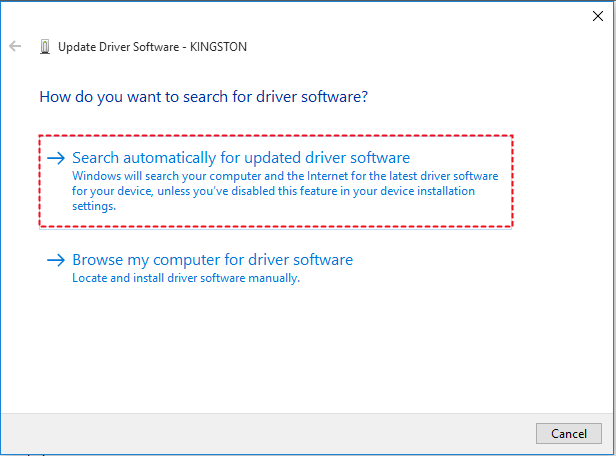
2. Select "Search automatically for updated driver software" in the pop-up window, and if no updates are found, visit the manufacturer's website to search for and install the latest driver.
3. If the driver update doesn't work, try uninstalling the micro SD card driver by right-clicking on it and selecting "Uninstall". Restart your computer, and Windows will reinstall the driver automatically.
Solution 4: run hardware and device troubleshooter
Troubleshooter is a built-To repair an undetected micro SD card in Windows 10, you can use the built-in Troubleshooter tool. This tool can help identify and fix issues with your micro SD card, making it detectable again. To access the Troubleshooter, go to Settings > Update & Security > Troubleshoot, and then select the "Other troubleshooters" option.
1. To access the Troubleshooting feature, tap the Search button on the taskbar and type "troubleshooting" in the search box, then click on Troubleshooting to open it.
2. Click Configure a device under Hardware and Sound.
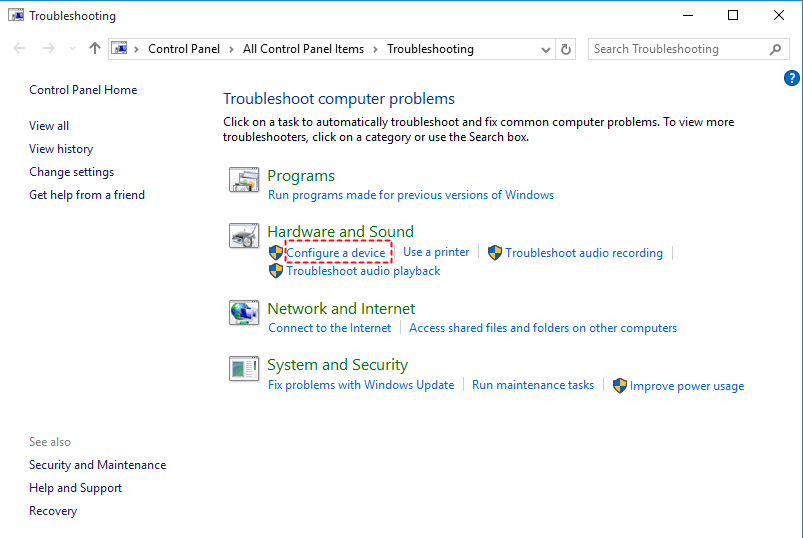
3. Click Next in the pop-up window. Windows will start detecting problems and fix the problems it finds automatically.
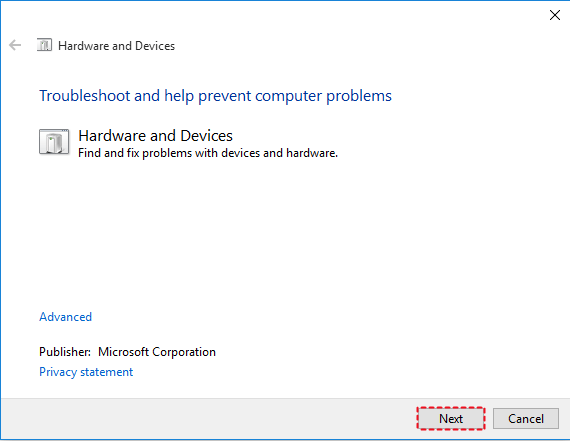
4. Close Troubleshooter and check if the micro SD card is detected now.
Bonus tip: backup micro SD card to avoid data loss
The issue of a micro SD card not being detected in Windows 10 often occurs after a Windows upgrade or update. To prevent this, it's a good idea to regularly back up your system, allowing you to restore it to its normal state if your computer falls into a state where it can't detect drives. This can help minimize the impact of any issues that may arise.
If your computer is not detecting your SD card, you may need to resort to advanced troubleshooting steps. However, if there's no big deal with your computer, it's suggested to create a backup for your SD card first to avoid losing any important data. You can use a free backup software to backup your SD card, which can help you feel free to repair the issue without worrying about data loss.
❤ Disk BackupThe app helps you backup all the data on the SD card.
❤ File BackupThis feature allows you to selectively backup specific files or folders on the SD card, excluding items you don't want to back up, unlike the Disk Backup feature.
❤ Schedule Backup: It allows you to schedule a backup task to run on a daily, weekly, or monthly basis.
❤ Incremental BackupIt can selectively back up only changed files since the last backup, reducing the burden of limited disk space caused by accumulated backups.
To create a scheduled file backup in Windows 10 via Qiling Disk Master, follow these steps:
1. To install Qiling Disk Master, download the software and follow the on-screen wizard to complete the installation process, which should take a short time.
2. Launch Qiling Disk Master. Click on "Backup" and select "File Backup".

3. Select the files or folder you want to backup on the SD card, and choose the destination path on another SD card to store the backup files.

4. To schedule a backup, click on "Schedule Backup" at the bottom of the screen. In the pop-up window, select the frequency of the task to run by choosing from Daily, Weekly, Monthly, Event triggers, or USB plug in modes, and then click "OK".

Notes:
>> OptionsYou can enable email notifications, adjust the compression level for the backup image file, and choose between intelligent sector backup and sector-by-sector backup.
>> Backup SchemeThis software will automatically delete old image files to free up disk space, a feature available in paid versions.
5. Confirm the operation and click "Proceed".
Verdict
You can easily solve the problem of a micro SD card not being detected in Windows 10 using the solutions provided in this article, which also apply to fixing micro SD card not detected in Windows 7.
If you're experiencing issues with Paragon Migrate OS to SSD or Samsung Data Migration, you can use Qiling Disk Master as an alternative to protect your data and system on the SD card. This can also help you recover your SD card easily in case of other problems. Additionally, Qiling Disk Master can be used as a safeguard against data loss due to these migration tools getting stuck. By using it, you can quickly protect your data and avoid potential issues.
Related Articles
- Quick Fix: SD Card Copy Hangs While Copying Files to Computer
This guide explains Quick Fix: SD Card Copy Hangs While Copying Files to Computer with clear steps, key checks, and practical tips. - The Directory Name Is Invalid in Windows 7/8/10 – Fixed
In this article, you are going to learn what "the directory name is invalid" error is and how to fix it accordingly. Details are below. - Easiest Way to Run Bit Copy of an SD Card in Windows
This guide explains Easiest Way to Run Bit Copy of an SD Card in Windows with clear steps, key checks, and practical tips. - What Is WannaCry Ransomware Attacks 2017?
WannaCry Ransomware attack 2017 causes huge losses, not only money, but also important data. You definitely don't want to experience this or similar error again, learn more and take precautions. - Quick Solutions to Micro SD Card Not Detected in Windows 10
This guide explains Quick Solutions to Micro SD Card Not Detected in Windows 10 with clear steps, key checks, and practical tips. - Move User Profile to Another Drive in Windows 10 Easily
Learn how to Move User Profile to Another Drive in Windows 10 Easily with clear steps, key checks, and practical tips.
Products
Articles & Tutorials
- Data Recovery
- Data Backup
- File Recovery
- File Backup
- File synchronize
- System Backup and Restore
- Disk and Partition Clone
- Technical articles
- Disk Master Help
- Windows Deleted File and Disk Recovery Tutorials
- Windows File and Data Recovery Tutorials
- More Windows Tutorials for Install, Security, Files, and PC Tips
- Windows Boot, Repair, and Recovery Environment Tutorials
- Windows Backup Tutorials
- Windows Restore Tutorials
- Windows Clone and Migration Tutorials
- Windows Server Backup, Recovery, and Management Tutorials
- Windows Disk, Partition, and Storage Management Tutorials