How to Clone Bootable USB Drive to Another USB Drive [Full Guide]
Help! Can I clone bootable USB drive to another USB drive?
Your friend can clone a bootable USB drive to another USB drive using a tool like Clonezilla or a USB cloning software. This process involves making an exact copy of the original drive, including its bootable and operating system partitions, to the target drive. This way, if the original drive fails, he can simply swap it with the clone and have the same development environment up and running.
A bootable USB drive is a portable storage device that can be used to start a computer and load an operating system or software.
When a computer is turned on, it loads an operating system from a storage device, such as a hard drive or USB drive. A bootable USB drive allows users to load an operating system or software from the USB drive, rather than the internal hard drive, which can be useful for installing new operating systems, repairing damaged ones, or running diagnostic tools. To create a bootable USB drive, you need to use special software or tools to format the drive and copy necessary files onto it.
Windows To Go is a feature in Windows that allows you to create a portable version of Windows that can be booted on any computer, creating a Windows workspace.
Why clone bootable USB drive to another USB drive?
You need to clone a bootable USB drive when you have multiple computers that need the same operating system installation, or when you need to create a backup of your bootable USB drive in case the original one gets damaged or lost.
✦ Creating a backup: If you have important files or a working operating system on a bootable USB drive, creating a clone of it can serve as a backup in case the original drive gets damaged or lost, protecting your data and ensuring you can recover your system if needed.
✦ Sharing the contents: Cloning a bootable USB drive to another drive allows you to share its contents with others by transferring all files and settings in one go, rather than individually transferring each file.
✦ Quick setup: Cloning a bootable USB drive allows you to quickly set up multiple computers with the same operating system and software by duplicating the same configuration. This can be useful for setting up multiple computers with the same setup.
✦ Upgrading to a larger drive: If you have a bootable USB drive running out of space, cloning it to a larger drive can provide more storage space without requiring a full reinstall of the operating system and software.
Cloning a bootable USB drive is a more efficient way to create a new one, but it requires a professional tool to avoid corrupted programs or a failed operating system boot. This method ensures the cloned USB boots properly, saving time and effort.
What is the best way to clone bootable USB?
Although Windows has a built-Windows Image Backup is a tool that can be used to clone a bootable USB drive to another USB drive, but the process is complicated and may not be suitable for all users.
To make the process successful and easy, you can try Qiling Disk Master Professional, which is fully compatible with all editions of Windows. It features a "Disk Clone Wizard" that can copy a bootable USB drive to another USB in a Windows PC, providing two clone methods to clone all sectors or only used sectors to another device, ensuring a complete clone without data missing and successful boot after clone.
In addition to cloning bootable USB, this tool can also be used to clone SD cards, SSDs, HDDs, and other devices. Its capabilities extend to recovering lost or deleted data, as well as restoring lost partitions, if any data is lost on the USB.
Tip: Qiling Disk Master Professional is compatible with Windows 11/10/8.1/8/7 and allows copying bootable USB drives to another USB drive, while Qiling Disk Master Server is required for this functionality in Windows Server environments.
How to clone bootable USB drive to another USB drive with it
Qiling Disk Master Professional can precisely clone a bootable USB stick by copying all contents, including hidden or protected data, master boot record, and slack space, onto another USB drive. To copy a bootable USB to another USB in Windows 10 using Qiling Disk Master Professional, I will provide a detailed guide.
Step 1. Insert two USB drives and make sure they can be detected by your computer.
Step 2. To clone a disk using Qiling Disk Master, simply install and launch the software, then click on the "Clone" option in the main interface and select "Clone Disk" from the available options.

Step 3. Select the hard disk that you need to clone as the source disk and click "Next".

Step 4. Select the destination disk to store the data on the source disk, and then click "Next".

Step 5. To start the cloning process, select the source and destination disks in the window that appears next. If you want to clone the entire disk, you can leave the options as they are.

Here, you can also adjust the partition size on the destination disk or tick "4k alignment" to improve the reading and writing speed of SSD if the target disk is an SSD drive.
Step 6. To start cloning the hard drive, click "Apply" and "Proceed" in the main interface. This will initiate the cloning process.

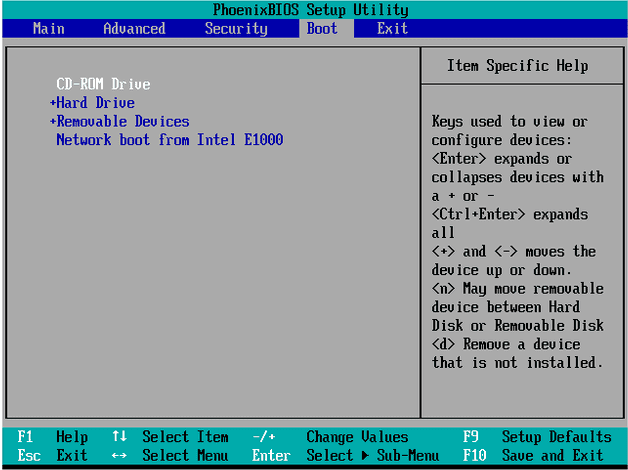
After completing the 7 steps, shut down your computer and boot from the media. Press F12/DEL to enter the BIOS settings interface, and change the boot order in the Boot option.
Summary
Cloning a bootable USB drive to another USB drive creates an exact replica of the original drive's content, including the operating system and files, useful for backup or transferring an entire setup to another device.
To clone a bootable USB drive, users need a reliable cloning tool or software that can copy the original drive's contents to the new USB drive. A popular option is Qiling Disk Master Professional, which can guide users through the cloning process once installed and the original and new USB drives are connected to the computer.
The time it takes to clone a bootable USB drive depends on the drive size and computer/USB port speed. Once complete, the new drive can be safely ejected and tested to ensure it's an exact copy that's bootable.
Related Articles
- How to Transfer Windows 10 to a USB Flash Drive?
Follow this guide to Transfer Windows 10 to a USB Flash Drive?, with backup options, storage tips, and recovery precautions. - Clone Windows 7/8/10 to USB Drive for Portable Windows Workspace
- Two Ways to Make SanDisk USB Flash Drive Bootable
Learn how to make your SanDisk USB flash drive like Extreme and Cruzer bootable step by step in Windows 7/10/8.1/8 using bootable USB maker software and DiskPart. - Create Image from USB Drive with Best USB Cloning Software
Making an image of your USB drive is crucial to duplicate it and keep your data safe. This article guides you through the process of creating an image of your USB drive using Qiling Disk Copy, a useful tool for achieving this. - Clone HDD to OCZ SSD with Free Clone Software
Learn how to Clone HDD to OCZ SSD with Free Clone Software with clear steps, key checks, and practical tips. - Successfully Clone HDD to SSD Including Recovery Partition
Qiling Disk Master, as a professional disk clone software, is able to clone HDD to SSD including recovery partition successfully.
Products
Articles & Tutorials
- Data Recovery
- Data Backup
- File Recovery
- File Backup
- File synchronize
- System Backup and Restore
- Disk and Partition Clone
- Technical articles
- Disk Master Help
- Windows Deleted File and Disk Recovery Tutorials
- Windows File and Data Recovery Tutorials
- More Windows Tutorials for Install, Security, Files, and PC Tips
- Windows Boot, Repair, and Recovery Environment Tutorials
- Windows Backup Tutorials
- Windows Restore Tutorials
- Windows Clone and Migration Tutorials
- Windows Server Backup, Recovery, and Management Tutorials
- Windows Disk, Partition, and Storage Management Tutorials