Top 2 Ways to Clone Dell Laptop Hard Drive (No Reinstalling OS)
When to clone Dell laptop hard drive?
Dell laptops, desktops and tablets are favored by many users due to their innovative design and superior computing experience. However, some users may encounter issues despite the excellent performance of the original hard drives.
Case 1: To transfer your data and OS to the new SSD, you can use a cloning software like Qiling to create an exact copy of your existing hard drive onto the new SSD. Alternatively, you can also use a USB drive to transfer your data manually. Once the transfer is complete, you can remove your existing hard drive and replace it with the new SSD, and your laptop should be ready to go.
Case 2: Here's a simple way to clone your current drive to a new larger SATA drive: you can use the built-in Windows 10 feature called "Backup and Restore" or a third-party cloning software like Qiling Disk Master. These tools can create a bit-for-bit copy of your current drive, including the OS, programs, and data, onto the new drive. Simply connect the new drive to your laptop, run the cloning software, select the current drive as the source and the new drive as the target, and let the software do the rest. Once the cloning process is complete, you can swap the drives and your laptop should boot up with the new drive as the primary drive, with all your files, programs, and settings intact.
Cloning a Dell laptop hard drive is necessary when you want to replace the HDD with an SSD or a larger drive. It's also a good idea to have a cloned drive as a backup in case the current hard drive fails. To clone your Dell hard drive safely and efficiently, please read on.

How to clone a Dell laptop hard drive in Windows 11/10/8/7
Here are the top two ways to clone a Dell laptop hard drive in Windows 11/10/8/7: you can use a cloning software like Qiling Disk Master to clone to a Samsung SSD.
Method 1: Clone Dell hard drive to SSD using specific cloning software
Although Dell doesn't provide users with Dell hard drive cloning software, some SSD manufacturers offer disk cloning software to help users upgrade HDD to SSD, such as VisionTek USB 3.0 Universal SSD Installation Kit, Samsung Data Migration and so on. Samsung Data Migration, for example, allows users to clone their Dell laptop hard drive to a Samsung SSD, making it a convenient option for those looking to upgrade their storage.
1. Connect the Samsung SSD to your computer and ensure it is recognized. Download and run Samsung Data Migration, which will clone your existing drive to the new one.
2. The drive with the OS installed will automatically be selected as the Source Drive. Select the Samsung SSD as the Target Drive, and if it's not visible, click Refresh and try again.
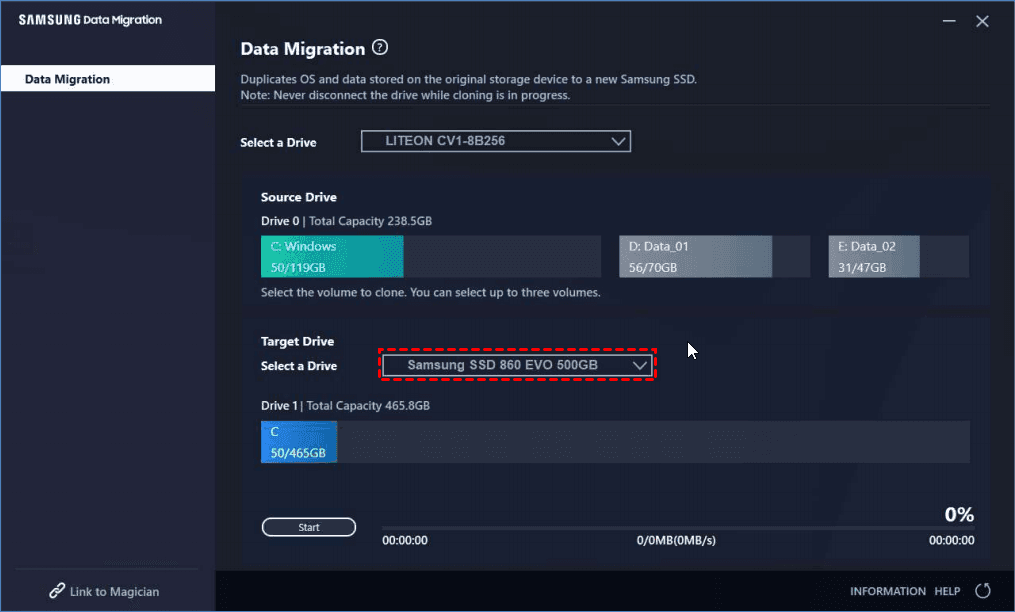
3. You can choose up to two additional volumes to clone besides the C: volume.
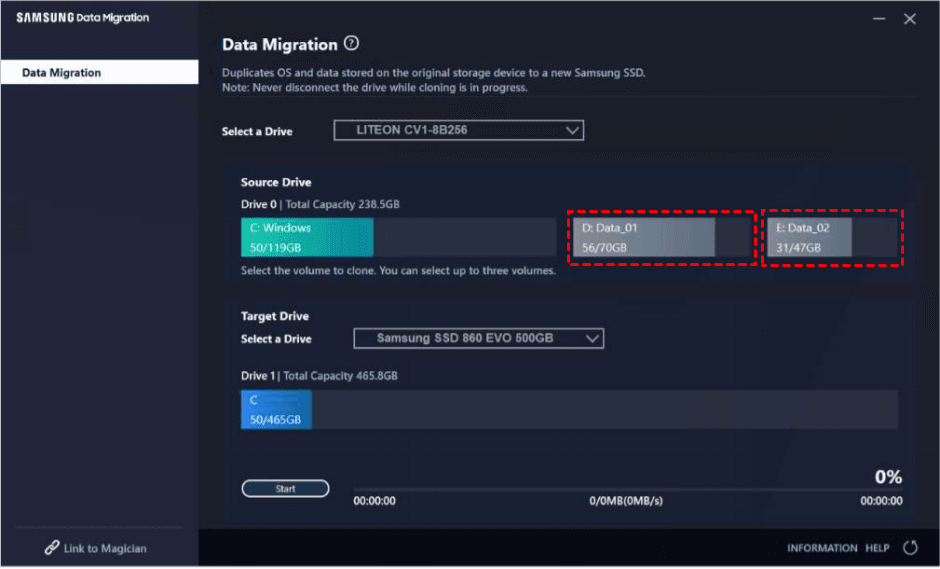
4. To start the migration process, click on the "Start" button. After the cloning process is complete, the computer will automatically shut down within 20 seconds. Replace the old hard drive with the new Samsung SSD, and your system and data will be restored instantly.
While Samsung Data Migration and other manufacturer-specific utilities can be useful, they can sometimes fail to clone data successfully, resulting in errors such as "cloning failed" or "cannot change source disk". Furthermore, these utilities are limited to supporting SSDs from the same manufacturer, which can be a drawback. Fortunately, there are cloning software options available that can accommodate all types of SSDs, regardless of manufacturer.
Method 2: Clone Dell hard drive to SSD via an all-around cloning tool
Qiling Disk Master Professional, the best disk cloning software, is here to assist you.
- With the Disk Clone feature, you can copy old hard drives to SSDs of all common brands, including Samsung, Crucial, PNY, WD, etc. Additionally, you can copy a specific partition using Partition Clone.
- This software offers an option called SSD Alignment, which helps improve the reading and writing speed of the destination SSD, making it more pleasant for users.
- All Windows PC operating systems like Windows 11/10/8.1/8/7/Vista/XP are supported.
💜 Preparations:
▶ Backup files on the target disk if you still need them, as the target disk will be completely overwritten during the cloning process.
▶ Free download Qiling Disk Master and install it.
💜 Detailed steps to clone Dell laptop hard drive to an SSD:
Step 1. Connect the target SSD to your computer and ensure it is detected. Then, launch Qiling Disk Master, click on the left pane and select "Disk Clone".

✎ Note: To clone an operating system to a destination SSD, you can use the System Clone feature.
Step 2. Select the current hard drive as the source disk and click "Next".

Step 3. Connect your destination SSD to your computer, then select it and click "Next" in the software.

Step 4. To optimize the destination SSD's performance, tick the box labeled "SSD Alignment" and confirm the operation by clicking "Proceed".

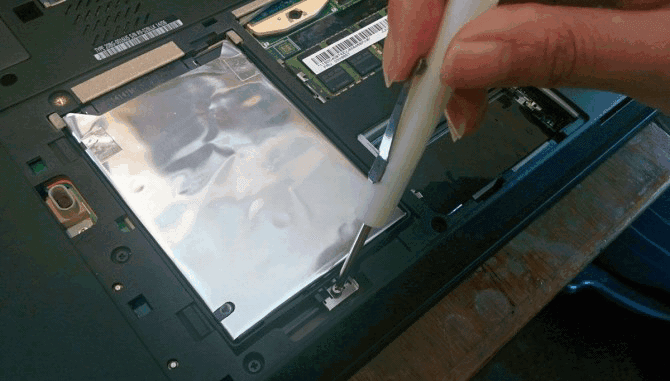
Step 5. Replace the current hard drive with the cloned SSD, removing the original hard drive using a Phillips #0 screwdriver.
Common clone issues and the fixes
Qiling Disk Master offers two additional clone options apart from SSD Alignment: Sector by sector clone, which copies all sectors including blank ones, and Edit Partitions, which allows adjusting the partition size on the destination disk, and also helps resolve issues such as incorrect partition size and loss of data after cloning.
#1: The cloned drive not showing full capacity.
To prevent the default partition layout on the destination disk, you can click "Edit Partitions" and choose to resize the partition size while cloning.
👉 Add unused space to all partitions: The command will redistribute the unallocated space to each partition of the target disk, taking into account the disk size.

👉 Manually adjust partition size: This software enables you to expand unallocated space to any partition on the destination disk as desired.
#2: The cloned drive not bootable after cloning.
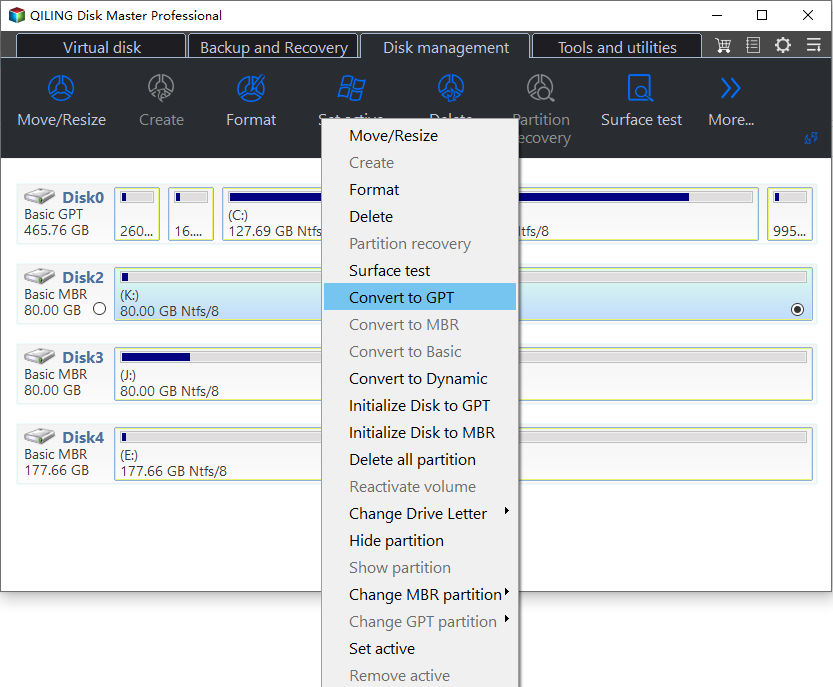
When cloning a hard drive, one common issue is that the destination and source disks have different partition styles. To resolve this, check the option to convert the destination disk from MBR (GPT) to GPT (MBR). This ensures both disks have the same partition style, allowing the cloning process to complete successfully.
🌟 Bonus tip: how to check disk partition style
To determine the partition style of your disks, you can check them in Disk Management. You can follow the overall steps below to do so.
- To open Disk Management, press Win + R to open the Run window, then type diskmgmt.msc and hit OK.
- Then, right-Click the disk you want to clone and select Properties in the expanded menu.
- In the Properties window, select the Volume tab and confirm the partition style, which can be either MBR (Master Boot Record) or GPT (GUID Partition Table).

- Similarly, check the partition style of the destination disk.
Conclusion
To clone a Dell laptop hard drive to an SSD, you can use either the SSD manufacturer's utility or Qiling Disk Master, which offers more advanced features and compatibility with various SSD brands, including 4K partition alignment.
Qiling Disk Master is a versatile tool that offers a range of features, including cloning, backup, and restore functions. One of its notable features is the ability to run system restore from BIOS in Windows 7, making it a convenient option for users.
Related Articles
- How to Clone Dell Laptop Hard Drive to SSD with Secure Boot?
- Replace Dell XPS SSD and Clone Data to Larger SSD
- Free and Easy Dell Hard Drive Cloning Software (Secure Boot)
- Windows 10 Backup Keeps Failing? Solutions to Fix It Quickly
If you're using Windows Backup and Restore to back up files and system, but it keeps failing, you're not alone. Here we will show you why it occurs, and some solutions to fix Windows 10 backup keeps failing issue quickly. - Easily Clone Larger Drive to Smaller Drive Right Now
To clone larger drive to smaller drive (HDD to SSD, HDD to HDD, SSD to HDD or SSD to HDD) in Windows 11, 10, 8.1, 8 or 7, Qiling Disk Master can be helpful! - Clone mSATA SSD to mSATA SSD Safely in 5 Steps
In this article, you will learn the best way to clone mSATA SSD to mSATA SSD, and some useful tips to ensure successful cloning.
Products
Articles & Tutorials
- Data Recovery
- Data Backup
- File Recovery
- File Backup
- File synchronize
- System Backup and Restore
- Disk and Partition Clone
- Technical articles
- Disk Master Help
- Windows Deleted File and Disk Recovery Tutorials
- Windows File and Data Recovery Tutorials
- More Windows Tutorials for Install, Security, Files, and PC Tips
- Windows Boot, Repair, and Recovery Environment Tutorials
- Windows Backup Tutorials
- Windows Restore Tutorials
- Windows Clone and Migration Tutorials
- Windows Server Backup, Recovery, and Management Tutorials
- Windows Disk, Partition, and Storage Management Tutorials