Fastest Way to Clone External Hard Drive to Internal
Quick Navigation:
- Why Clone External Hard Drive to Internal?
- Preparations for Cloning External Hard Drive to Internal
- The Fastest Way to Clone External HDD to Internal
- Conclusion
Why Clone External Hard Drive to Internal?
We're living in an era of data explosion, where knowledge, technology, wealth, and production materials are fully digitized. To safeguard our valuable data, various backup methods have emerged, with many people opting to store their precious information on external disks. These external hard drives offer several advantages, including portability and large memory capacity, making them a popular choice for data protection.
Users need to clone an external hard disk drive to an internal hard drive in the following circumstances:
◐ Case 1: You're looking to clone the external HDD back into the new internal SSD, which is a process also known as "reverse cloning" or "destination cloning". This is indeed possible, and you can use software like Qiling Disk Master to achieve this. These tools allow you to restore the cloned data from the external HDD back to the new internal SSD, effectively replacing the old SSD with the new one. Just make sure to select the correct target drive during the cloning process to avoid overwriting any existing data on the new SSD.
◐ Case 2: You want to remove the cracked version of Windows from your internal SSD and install the legitimate version from your external hard drive. Since there's no important data on the internal SSD, you can simply disconnect it, boot from the external hard drive, and install the new version. This will wipe the internal SSD, so make sure you have the necessary installation media and product key for the new version. Once installed, you can reconnect the internal SSD and use it as a separate drive. Is that correct?
The user wants to clone the internal disk back to itself after previously cloning it to the external disk as a backup, or clone the system from the external disk to the internal disk.
Cloning can solve the above scenarios by saving internal data to external drives and converting external hard drives to internal. While many users know how to clone an internal disk to an external one, few are aware of the reverse process. To convert an external hard drive to an internal one, you can clone the external drive to an internal one.
Preparations for Cloning External Hard Drive to Internal
Before cloning your external hard drive to an internal drive, you'll need to prepare for the process.
1. Once you've connected the external hard drive to your computer, you should be able to access it through your computer's file explorer or finder. From there, you can navigate to the specific folder or file you want to move to the external hard drive. Then, simply drag and drop the desired files or folders from your computer to the external hard drive.
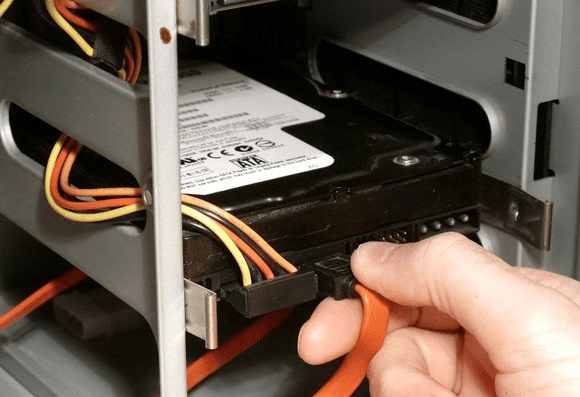
- To install a desktop drive, you'll need a SATA cable and a SATA power cable to connect it to your computer.
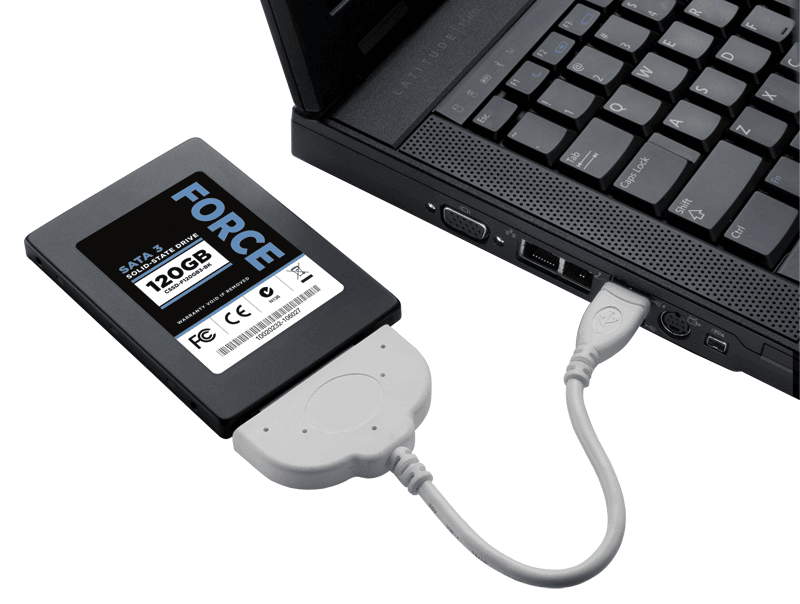
- To convert an external hard drive into an internal one on a laptop without a second drive bay, you need a SATA-to-USB adapter to connect the external drive. If your laptop has a second drive bay, you can install the external HDD or SSD directly on your laptop or connect it via USB port.
2. To clone a hard drive, you'll need to choose a hard drive cloning software, which can save you time and effort.
3. The destination disk will be completely replaced or erased, so it's recommended to back up your files beforehand, to prevent losing your data after cloning.
If the destination disk is a system disk, you need to create a system/disk backup in advance, so you can restore your computer to a normal state if a problem occurs.
The Fastest Way to Clone External HDD to Internal
With increasing awareness of data security, numerous software solutions have emerged to protect sensitive information. Among the top recommendations is Qiling Disk Master Professional, a highly favored tool among millions of users worldwide, praised for its user-friendly interface and seamless operation.
Qiling Disk Master Professional This software allows you to easily clone an external hard drive to an internal one, but its cloning function is much more versatile than that.
- Disk Clone: This software enables you to accurately copy one hard drive to another, allowing you to clone an internal HDD/SSD to an external one or vice versa with just a few clicks.
- Partition Clone: To clone a specific partition instead of a whole disk, you can use this feature to create an exact duplicate of the partition, including its operating system, applications, and data, while leaving the other partitions and data on the original disk intact. This is useful for upgrading or replacing a specific component of your system without affecting the rest of your data.
- System Clone: You can migrate your operating system from a Hard Disk Drive (HDD) to a Solid-State Drive (SSD) without reinstalling Windows and applications. This process is often referred to as a "cloning" or "migration" of the OS. It involves creating an exact copy of the data on the HDD and transferring it to the SSD, allowing you to keep all your files, settings, and installed applications intact.
- Sector by Sector Clone: This software clones existing data on the disk, copying only used sectors. If you want to clone all sectors, whether used or not, try the "Sector by sector clone" option.
To clone an external hard drive to an internal one using Qiling Disk Master, follow these steps. First, connect the external hard drive to your computer using a USB cable.
Step 1. Download and run this hard drive cloning software.
Step 2. To clone the entire hard drive, go to the "Clone" tab and select "Disk Clone".

Step 3. Connect the external hard drive that needs cloning and click "Next" to continue.

Step 4. Select the internal hard disk on your computer as the destination disk, then click "Next".

Note: If you're moving the system from an external disk to an internal one, select the original system disk in your computer as the destination disk. Be aware that the previous system may not boot after cloning.
Step 5. Check the operation summary, then click Proceed to clone the external hard drive to the internal drive.

Step 6. Wait until the process complete 100% and click Finish.
- ★Helpful tips:
- The Pro edition of the software supports both MBR and GPT, system disk and data disk cloning, but the free edition only supports data disk cloning.Standard.
- If your internal disk is an SSD, check the "SSD Alignment" box to improve your SSD's performance.
- This software can be used to clone an internal hard drive to an external hard drive in Windows 11, 10, 8, 7. If needed.
Conclusion
Windows doesn't own a built-Qiling Disk Master Professional Edition allows you to clone an external hard drive to an internal one with ease, helping you quickly get a working computer back. It also offers features like disk-to-disk cloning, automatic backup, file sync, and universal restore, making it a useful tool for various cloning needs.
Related Articles
- Clone an External Hard Drive to Another Easily for Free
- Easiest Way to Clone Hard Drive to SSD without Reinstalling
- How to Clone HDD to External Drive with Freeware in Windows 10/8/7
- Easiest Way to Clone HDD to SSD via USB
- How to Copy Recovery Partition to New Hard Drive in Windows 11/10/8/7?
Learn the key steps, checks, and practical tips for this related guide. - Free Copy SD Card to SD Card in Windows PC [Full Tutorial]
This article will show you how to copy an SD card to another SD card on Windows using a free and powerful tool called Qiling Disk Master Standard, which is a reliable SD card to SD card copier.
Products
Articles & Tutorials
- Data Recovery
- Data Backup
- File Recovery
- File Backup
- File synchronize
- System Backup and Restore
- Disk and Partition Clone
- Technical articles
- Disk Master Help
- Windows Deleted File and Disk Recovery Tutorials
- Windows File and Data Recovery Tutorials
- More Windows Tutorials for Install, Security, Files, and PC Tips
- Windows Boot, Repair, and Recovery Environment Tutorials
- Windows Backup Tutorials
- Windows Restore Tutorials
- Windows Clone and Migration Tutorials
- Windows Server Backup, Recovery, and Management Tutorials
- Windows Disk, Partition, and Storage Management Tutorials