Clone External Hard Drive to Another External Hard Drive Easily
Quick Navigation:
- Why clone an external hard drive to another external hard drive?
- Easiest method to clone external hard drive to another
- Stepwise guide: clone one external hard drive to another in Windows 10 or 11
- FAQs on how to clone an external hard drive
- Verdict
Why clone an external hard drive to another external hard drive?
Many users clone an external hard drive to another for backup copies, adding extra files on the external hard drive, providing a duplicate copy in case the original is damaged or lost. This is similar to backing up to another external hard drive, but not exactly the same.
| Backup external hard drive to another | clone external hard drive to another | |
| Operations | backup to a temporary storage and then restore to another external disk. | directly copy external hard drive to another external hard drive |
| Form | compressed image file | uncompression source file |
| Requirements | a temporary storage | no extra device |
| Data accessible | To ensure the integrity and security of your data, it is recommended to only access or modify your data after restoring the image file. This means that during the imaging process, you should not attempt to interact with your data in any way, as this can potentially corrupt the image or cause data loss. | yes, you can directly access or modify your data |
| Cots time | double | single |
Clonezilla is a free and open-source disk imaging and cloning program that allows users to create a backup of their entire system, including the operating system, settings, and data. It can also be used to transfer a large amount of data quickly, or clone a bootable hard drive and make it bootable, making it a useful tool for troubleshooting and recovery purposes.
Easiest method to clone external hard drive to another
Cloning an external hard drive to another is the simplest way to migrate everything from one hard drive to another, ensuring no data loss and eliminating the need to reinstall Windows and programs.
None of the current versions of Windows have a built-in feature to clone an external hard drive. To clone an external hard drive to another external hard drive, it's recommended to use powerful disk clone software like Qiling Disk Master Standard.
- The system should have a clear and user-friendly graphic user interface (GUI) that is easy to operate, making it accessible to a wide range of users, including those who may not be tech-savvy. This will ensure that users can navigate the system with minimal training or technical expertise.
- Clone data disk from MBR to MBR using the Disk Clone feature.
- To clone a large HDD to a smaller SSD using the Intelligent Clone feature, you can use a cloning software like Qiling Disk Master. These programs allow you to select the source and target drives, and then choose the Intelligent Clone option, which will automatically adjust the cloning process to fit the smaller SSD's capacity.
- Optimize SSD disk performance, such as reading & writing speed.
- This software supports a wide variety of disk brands, including SanDisk, WD, Samsung, Toshiba, Transcend, and others.
- This software offers advanced features including cloning the Master Boot Record (MBR) disk to a GUID Partition Table (GPT), editing partitions, and migrating an operating system to a Solid-State Drive (SSD).
Stepwise guide: clone one external hard drive to another in Windows 10 or 11
Qiling Disk Master Standard clones only used sectors from one hard drive to another, making it suitable for smaller external hard drives.
Before cloning an external hard drive in Windows 10 or 11, ensure you have the necessary preparations.
- Install two external hard drives to your PC, ensuring they're detected by Windows. Prepare necessary connectors, like a USB-to-SATA cable or adapter, if needed.
- To avoid data loss, identify the source external drive and ensure that the destination external drive is empty or contains only data you're willing to overwrite. This will prevent any potential conflicts or data corruption during the cloning process.
To clone an external hard drive, you'll need to use specialized software like Qiling Disk Master. These programs allow you to create an exact copy of the external hard drive's contents, including files, folders, and operating system data.
1. Install and launch Qiling Disk Master Standard, then click Clone > Disk Clone on the main page.

2. In the Source Disk window, select the external hard drive you want to clone.

3. Select another external hard drive to receive all the data on the source disk in the Destination Disk window.

4. To clone the original disk, select the sector by sector clone option, ensuring the target disk is equal to or larger than the source disk. Optionally, enable SSD alignment to optimize SSD performance. Once satisfied, click Proceed to initiate the disk cloning process.
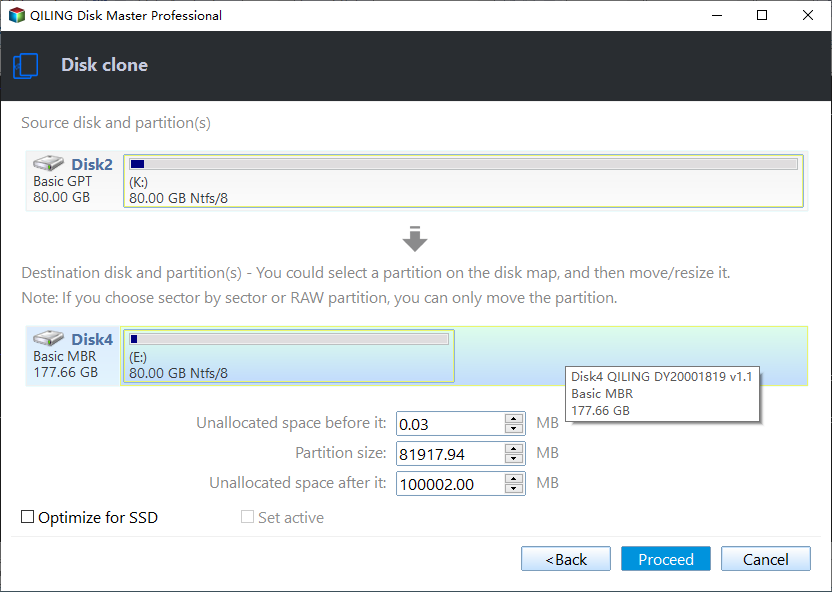
The Edit Partitions feature allows you to extend partition to unallocated space by either adding unused space to all partitions or manually adjusting partition size, with both options supported by the professional version. Additionally, it can be used to convert MBR to GPT or vice versa.
FAQs on how to clone an external hard drive
The following questions are highly relevant to how to clone an external hard drive. Check the answer if you have similar questions.
To backup an external hard drive to another external hard drive in Windows 10, you can use the built-in Backup and Restore feature. Connect both external hard drives to your computer, then go to Settings > Update & Security > Backup. Select the external hard drive as the backup location, and choose the files and folders you want to back up.
1. Open Qiling Disk Master Standard. Click Disk Bacup under the Backup tab.
2. Select the source and destination external hard drive subsequently. Remember to click Next.
3. Click Schedule Backup and enable Daily, Weekly, Monthly, etc. schedule settings. Finally, click Proceed.
To clone a hard drive to another hard drive, you can use a cloning software such as Qiling Disk Master. These software tools allow you to create an exact copy of the original hard drive, including all operating systems, programs, and data, onto the target hard drive. Simply connect the target hard drive to your computer, launch the cloning software, select the source and target drives, and follow the on-screen instructions to complete the cloning process.
Q3. Can I clone large HDD to smaller SSD?
Verdict
Cloning an external hard drive to another external hard drive is a simple way to create a duplicate copy of your files, allowing you to access and modify them without needing to restore an image file. A free disk clone software like Qiling Disk Master can be a helpful tool for this process.
Qiling Disk Master allows for cloning and imaging of disk partitions, including system disks, and supports various disk formats such as MBR and GPT. It also offers the ability to clone OS only, excluding other data on the disk, and is available in both standard and server versions. This feature is particularly useful for server users who may need to clone specific operating system configurations. Additionally, Qiling Disk Master supports disk cloning from one disk format to another, such as from GPT to MBR, and can make the cloned disk bootable. This functionality is available in the professional version of the software.
Related Articles
- How to Clone HDD to External Drive with Freeware in Windows 10/8/7
You can clone hard drive or SSD to external drive easily and boot successfully with the help of the best disk cloning software - Qiling Disk Master Professional. - Top 2 Ways to Copy/Transfer Data from One Hard Drive to Another
This guide explains Top 2 Ways to Copy/Transfer Data from One Hard Drive to Another with clear steps, key checks, and practical tips. - How to Clone Laptop Hard Drive to External Hard Drive Easily
Learn how to Clone Laptop Hard Drive to External Hard Drive Easily with clear steps, key checks, and practical tips. - Clone Hard Drive from Bootable USB with Easy & Free Way
You will how to clone hard drive from bootable USB easily and quickly with a securely boot from this page. - How to Clone Hard Drive via Command Prompt in Windows 10/8/7 Simply
We clone hard drive for different purposes. If you are looking for a simply way to clone hard drive via Command Prompt in Windows 11/10/8/7, read this article intensively. - Tutorials: Free to Copy NTFS Partition in Windows7/8/10
When you want to copy NTFS partition to transfer data between two different drives, you can try the free Qiling Disk Master Standard. It can clone NTFS partition effectively in Windows 11,10, 8, 7.
Products
Articles & Tutorials
- Data Recovery
- Data Backup
- File Recovery
- File Backup
- File synchronize
- System Backup and Restore
- Disk and Partition Clone
- Technical articles
- Disk Master Help
- Windows Deleted File and Disk Recovery Tutorials
- Windows File and Data Recovery Tutorials
- More Windows Tutorials for Install, Security, Files, and PC Tips
- Windows Boot, Repair, and Recovery Environment Tutorials
- Windows Backup Tutorials
- Windows Restore Tutorials
- Windows Clone and Migration Tutorials
- Windows Server Backup, Recovery, and Management Tutorials
- Windows Disk, Partition, and Storage Management Tutorials