Guide | Clone Laptop Hard Drive to External Hard Drive
Case Study: Clone Laptop Hard Disk to External Drive
To clone your laptop hard drive to the external SSD drive and then wipe the laptop hard drive, you can use a cloning software like Qiling Disk Master. These software will create an exact copy of your laptop hard drive to the external SSD drive, and then you can use the built-in disk management tool in Windows (Disk Management) or the Disk Utility app on a Mac to wipe the laptop hard drive. Make sure to back up any important files before wiping the laptop hard drive.
Data stored on a laptop is not always safe due to system failures, malfunctions, and hard drive corruption, which can lead to the loss of important files. To prevent this, it's a good idea to copy the contents of the laptop hard drive as a backup, or consider replacing the laptop hard drive without losing data.
Cloning a laptop to an external hard drive is an effective solution for backing up data and restoring the laptop in case of a hardware failure or other issues. This process creates a bit-for-bit copy of the laptop's hard drive, including the operating system, applications, and data, onto the external hard drive.
- How to Clone Laptop Hard Drive to External Hard Drive
- Clone Hard Drive to External HDD or SSD with Best Software (Steps)
How to Clone Laptop Hard Drive to External Hard Drive
To copy a laptop hard drive to an external drive, the simplest and safest method is to use disk cloning software. This approach is more effective than manual copy and paste, as it can migrate boot files, protected files, and hidden files that cannot be transferred through manual copying.
To copy large amounts of data or transfer an OS to another hard drive quickly and easily, use specialist cloning software that speeds up the process and simplifies the operation, resulting in a bootable cloned hard drive that doesn't require reinstalling Windows.
👉 Qiling Disk Master Professional is a software that allows you to clone a laptop hard disk to an external hard drive, providing a simple and flexible way to back up and duplicate data.
✔ This program is useful for cloning laptop HDD or SSD to a smaller or larger external SSD, utilizing intelligent cloning technology to assist in the process.
✔ This program allows you to edit partitions and assign unused space, making full use of disk capacity, especially when the target drive is larger.
✔ Besides, you can enjoy many convenient features such as cloning the operating system to an external hard drive, cloning a dynamic system volume, and cloning MBR to GPT or vice versa.
Download the trial to proceed:
Clone Hard Drive to External HDD or SSD with Best Software
To copy a hard drive to an external hard drive successfully, you'll need to prepare by ensuring the external drive has enough storage space to hold the contents of the original hard drive. You may also want to back up any important files on the external drive to prevent data loss in case something goes wrong during the transfer process.
✦ Clean your laptop's hard drive by deleting unwanted files, uninstalling unnecessary apps, and running a disk cleanup to remove temporary files, especially if your external hard drive has limited capacity.
✦ Connect an external hard drive or internal HDD/SSD to your laptop using a USB cable or a SATA-to-USB adapter.
✦ The target hard drive will be completely replaced after the cloning process. If you have any important data on it, please back up the external drive beforehand.
✦ To clone a hard drive, download and install the hard drive cloning software on your laptop.
How to clone laptop hard drive to external hard drive (step-by-step):
Step 1. Open Qiling Disk Master, switch to the Clone tab and select Disk Clone to copy the entire laptop hard disk.
If you want to clone only the OS partition, you can choose the System Clone feature.

Step 2. Select the laptop hard drive as the source disk, and then click Next.

Step 3. Choose the external hard drive as the destination and click 'Next' to proceed.

Step 4. Optionally, you can edit partitions, enable SSD alignment or sector by sector clone, and then proceed with the operation.
SSD Alignment: If your target hard drive is an SSD, checking this will speed up the reading and writing speed.
This program copies only used sectors by default, but can also create an intact copy of the laptop hard drive by copying sector-by-sector if sufficient space is available on the target disk, provided the destination disk is equal to or larger than the source disk.
Edit Partitions: Adjust partition size and drive letter on the destination disk.

Note: The Professional edition allows for cloning disks from MBR to MBR, MBR to GPT, GPT to GPT, and GPT to MBR, providing flexibility in disk cloning operations.
How to make the laptop boot from the cloned hard drive
If you want to replace your laptop disk with the cloned hard drive, you can physically swap it out.
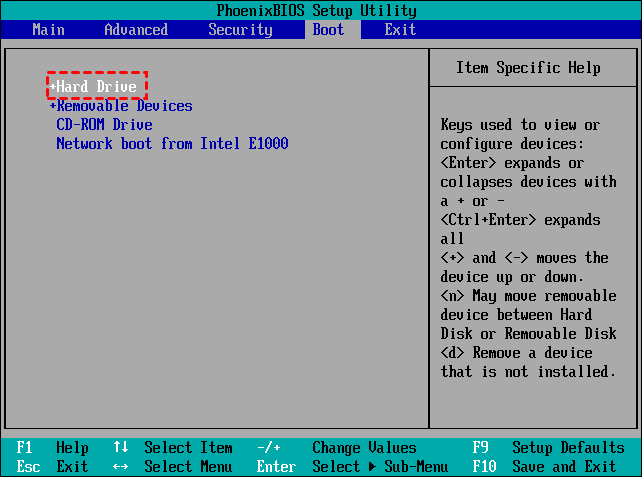
If your laptop has two drive bays, you can keep your old hard drive as a secondary storage by cloning it to a new drive. To do this, restart your PC and enter the BIOS settings by pressing the required key. Choose the cloned hard drive as the first boot option and press F10 to save the changes and exit.
How to remove all the data from the old laptop hard drive
After confirming the cloned hard drive is bootable, you can clean the old hard drive with the Disk Wipe feature in the Tools tab.
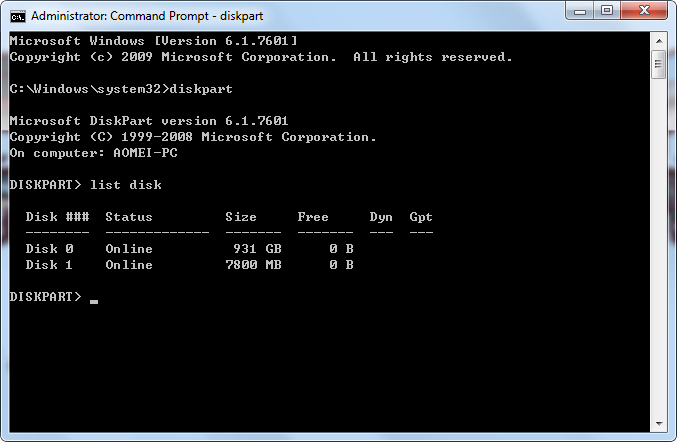
Alternatively, you can also do it with DiskPart.
- Press the Windows key + R to open the Run window, then type "diskpart" and press Enter.
- To display all connected disks, type "list disk" and press Enter in the command prompt window.
- Select the disk you want to wipe from the list, type the command "select disk 1" and press Enter to continue.
- Type "clean all" and press Enter to execute the command. This will prompt "DiskPart succeeded in cleaning the disk" after a while.
Verdict
To copy a laptop hard drive to an external hard drive, consider using a cloning tool like Qiling Disk Master. This process is secure for both backup and hardware replacement purposes, and simplifies the disk cloning procedure.
You can use Qiling Disk Master to not only clone but also regularly backup Windows 10 to external hard drives or other devices, and create a bootable media to rescue your laptop in case of emergencies.
Related Articles
- How to Clone Laptop Hard Drive to Smaller SSD or New Drive
Learn how to Clone Laptop Hard Drive to Smaller SSD or New Drive with clear steps, key checks, and practical tips. - How to Clone HDD to External Drive with Freeware in Windows 10/8/7
You can clone hard drive or SSD to external drive easily and boot successfully with the help of the best disk cloning software - Qiling Disk Master Professional. - Best Way to Clone Windows 10/8/7 to External Hard Drive
This guide explains Best Way to Clone Windows 10/8/7 to External Hard Drive with clear steps, key checks, and practical tips. - How to Clone Hard Drive to SSD in Windows 10/8/7 (Video Tutorial)
HDD to SSD cloning offers a convenient way to upgrade your Windows 11/10 PC without having to reinstall the operating system from scratch. Valuable tips & tricks included. - How to Use Qiling Disk Clone Wizard Correctly?
To use the Disk Clone wizard of Qiling Disk Master, follow this detailed tutorial. The wizard allows you to clone a disk, which means creating an exact copy of the disk, including all files, settings, and applications. - How to Copy or Clone Dynamic Disk in Windows 7, 8,10?
Learn how to Copy or Clone Dynamic Disk in Windows 7, 8,10 with clear steps, key checks, and practical tips.
Products
Articles & Tutorials
- Data Recovery
- Data Backup
- File Recovery
- File Backup
- File synchronize
- System Backup and Restore
- Disk and Partition Clone
- Technical articles
- Disk Master Help
- Windows Deleted File and Disk Recovery Tutorials
- Windows File and Data Recovery Tutorials
- More Windows Tutorials for Install, Security, Files, and PC Tips
- Windows Boot, Repair, and Recovery Environment Tutorials
- Windows Backup Tutorials
- Windows Restore Tutorials
- Windows Clone and Migration Tutorials
- Windows Server Backup, Recovery, and Management Tutorials
- Windows Disk, Partition, and Storage Management Tutorials