Simple Steps to Clone HDD to Smaller HDD/SSD in Windows 11,10, 8, 7
Quick Navigation:
- "Can I clone a larger HDD to a smaller HDD?"
- Choose the best software to clone HDD to smaller HDD on Windows PC
- Preparations before cloning a larger hard drive to a smaller hard drive
- Simple steps to copy larger HDD to smaller HDD in Windows 11/10/8/7
- Summary
- FAQs about cloning large HDD to smaller HDD
"Can I clone a larger HDD to a smaller HDD?"
You want to clone your 500GB HDD with Windows 10 installed to a 250GB HDD, but the new HDD is smaller than the old one. Unfortunately, it's not possible to clone a larger drive to a smaller one, as the new drive won't have enough space to hold all the data from the old drive. You'll need to find another solution, such as resizing your Windows installation or using a different cloning method that can handle the size difference. Would you like me to suggest some alternatives?
Cloning a larger HDD to a smaller one can be a challenge, but it's possible with the right tools and conditions. Since Windows doesn't have a built-in cloning tool, users need to rely on third-party software to perform the task. To make the process smoother, it's essential to choose a reliable cloning tool and ensure the target disk is properly installed on the computer. By using a handy cloning tool, users can successfully clone their HDD and make it bootable, saving time and effort in the process.
Choose the best software to clone HDD to smaller HDD on Windows PC
Cloning a hard drive can be a lifesaver when faced with low disk space warnings, but what if you need to clone it to a smaller drive? The good news is that you can still do this, but only with the right and powerful disk cloning software. With the right tool, you can successfully clone your hard drive to a smaller drive, even if it seems counterintuitive.
Qiling Disk Master Professional is a highly recommended tool for Windows 11/10/8/7/XP/Vista users. It allows you to copy only the used space from one disk to another, making it possible to clone a larger HDD to a smaller HDD or SSD drive, as long as the used space of the source disk is smaller than the total available space of the destination disk.
If you're in a situation where you have a 200GB used space on an old hard drive and a 250GB new hard drive, you can clone the larger HDD to another smaller HDD or solid-state drive using Qiling Disk Master.
Preparations before cloning a larger hard drive to a smaller hard drive
Here are the preparations needed before cloning a plant:
✔Storage space of the smaller disk: To ensure a successful clone, the smaller disk's storage space should be at least the same or larger than the used space of the source drive, so that it can accommodate all the cloned sector data.
✔A complete backup of the smaller disk: Please make a complete backup of the contents on the smaller disk before cloning, as all data on it will be erased during the process.
✔Slim down the source disk: To prepare the smaller HDD/SSD for the cloning process, uninstall any unnecessary applications, delete temporary files, and remove redundant records that are no longer needed on the source disk. This will help make the disk slimmer and more compact, allowing it to fit easily on the smaller storage device, and also make the most of the limited storage space available.
✔A method to connect the smaller disk: If the smaller disk isn't installed on the PC, you can use either an adaptor or an external dock to attach it to your computer.
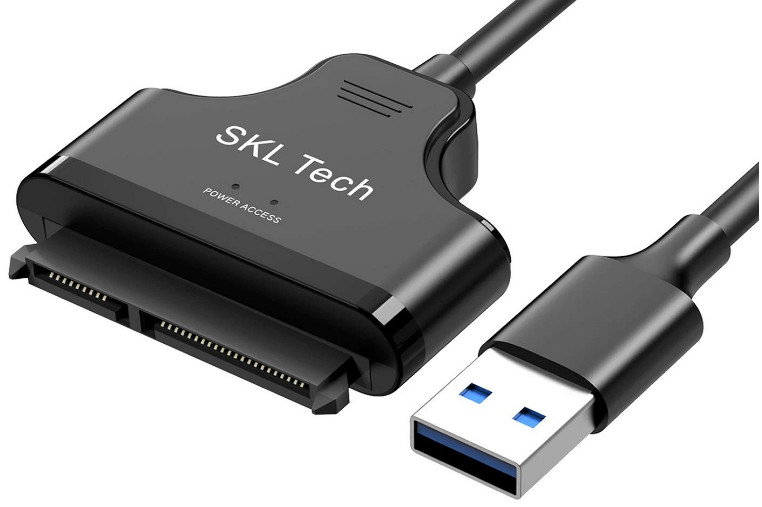
✔A constant power supply: When cloning a hard drive to a smaller one on a laptop, make sure to plug your system into a stable power source to avoid any interruptions during the cloning process, which could result in data loss if the power suddenly cuts off.
✔Boot mode support check: If you plan to clone a system disk from one partition style to another (e.g. MBR to GPT or vice versa), you'll need to change the boot mode in BIOS after cloning so that Windows can boot successfully from the cloned disk. Alternatively, you can set the destination disk's partition style to match the source disk's (MBR or GPT) before cloning.
Simple steps to copy larger HDD to smaller HDD in Windows 11/10/8/7
You can now download the Demo version of Qiling Disk Master Pro and learn how to copy large HDD to smaller HDD on a Windows computer.
Step 1Launch the hard drive cloning software and click "Clone Disk" in the right menu in the main interface..

Step 2Select the source disk you want to clone to the smaller disk, click "Next", and choose the source disk (e.g. disk 1) as an example.

Note: In this window, you have two copying methods. In order to copy a larger HDD to a smaller HDD, please don't choose "Sector by sector Clone" then it only copies the used space of the source disk.
Step 3Select the destination disk (350GB HDD, smaller than 931GB HDD) to contain all data on the source disk. A note on data loss on the target disk will appear, click "Yes" to close it, then click "Next" to continue.

- Note:✎...
- When cloning a larger HDD to a smaller SSD, enabling the "Optimize the performance of SSD" option can enhance the SSD's reading and writing performance.
Step 4You can fit partitions or edit partitions on the target disk, but the first option is unavailable due to the target disk being smaller than the source disk.

Step 5The system partition operation will be performed under PreOS mode, requiring a reboot afterwards. Proceed with the operation. Reboot the system. This will ensure a proper system update and prevent any potential issues.

- Note:✎...
- After cloning a larger hard drive to a smaller HDD/SSD, you'll need to reboot your computer, press the specific key (usually F1, F2, ESC, etc.) to enter the BIOS, access the Boot tab, and move the cloned smaller disk to the top of the boot order list. Once done, you can boot your computer from the destination disk.
Summary
With Qiling Disk Master Professional, you can easily clone a larger HDD to a smaller one and boot your PC from the cloned drive. Additionally, the tool's Migrate OS to SSD Wizard feature allows you to clone only the Windows operating system partition to a smaller HDD or SSD if needed.
After cloning, you can format or wipe the old HDD for reuse, and also use the software to allocate free space, split partitions, and extend the NTFS system partition without rebooting the computer.
FAQs about cloning large HDD to smaller HDD
1. What happens if the used space on the larger drive is larger than the capacity of the smaller drive?
If the larger drive's used space exceeds the smaller drive's capacity, you can either resize the larger drive's partitions to reduce used space or use specialized software that can selectively clone files, excluding unnecessary ones.
2. Is it possible to clone the operating system along with data from a larger drive to a smaller drive?
Cloning both the operating system and data from a larger drive to a smaller one is possible if the used space on the larger drive fits within the smaller drive's capacity. This can be done using Qiling Disk Master, which ensures a smooth migration of the operating system and data to the smaller drive.
3. Can I clone from an HDD to an SSD?
The cloning software enables seamless data transfer between different disk types, such as from an HDD to an SSD or vice versa, preserving all data and system configurations. This ensures a smooth upgrade to new storage without losing any valuable information.
Related Articles
- Fixed: Samsung SSD Clone Failed in Windows 11, 10, 8, 7
This guide explains Fixed: Samsung SSD Clone Failed in Windows 11, 10, 8, 7 with clear steps, key checks, and practical tips. - Seagate Cloning Software: Migrate Data to Seagate Drive Easily
This post will introduce you great and overall Seagate cloning software for Windows 10,8, 7, and show you how to complete disk copy under the help of it. - How to Perform SSD to SSD Migration in Windows 7/8/10?
Learn how to Perform SSD to SSD Migration in Windows 7/8/10 with clear steps, key checks, and practical tips. - Fixed: Transcend SSD Scope Not Working for System Clone
This guide explains Fixed: Transcend SSD Scope Not Working for System Clone with clear steps, key checks, and practical tips.
Products
Articles & Tutorials
- Data Recovery
- Data Backup
- File Recovery
- File Backup
- File synchronize
- System Backup and Restore
- Disk and Partition Clone
- Technical articles
- Disk Master Help
- Windows Deleted File and Disk Recovery Tutorials
- Windows File and Data Recovery Tutorials
- More Windows Tutorials for Install, Security, Files, and PC Tips
- Windows Boot, Repair, and Recovery Environment Tutorials
- Windows Backup Tutorials
- Windows Restore Tutorials
- Windows Clone and Migration Tutorials
- Windows Server Backup, Recovery, and Management Tutorials
- Windows Disk, Partition, and Storage Management Tutorials