How Do I Clone SSD to USB Drive and Ensure Boot?
Quick Navigation:
- Need to clone SSD to USB flash drive
- Best disk cloning software for cloning SSD to USB drive
- Steps to clone SSD to USB drive with Qiling Disk Master
- FAQs about cloning SSD to USB
- Summary
Need to clone SSD to USB flash drive
Computer users are all too familiar with situations that can lead to data loss, such as system crashes, hard drive failures, or accidental deletions. To safeguard against these risks, many users opt to create a duplicate of their SSD, ensuring that their data remains safe and accessible even in the event of a disaster.
Cloning an SSD to a USB drive is a popular method due to the USB drive's affordability, compactness, and portability. Some users even prefer to migrate their SSD to a USB drive and boot from it to free up space on their SSD.
Yes, you can clone a SSD to an external hard drive, and then boot from it. This process is called "cloning" or "imaging" the SSD.
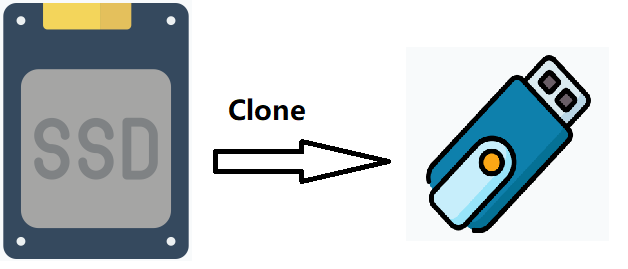
Best disk cloning software for cloning SSD to USB drive
Fortunately, there is a way to clone an SSD to a USB drive using the disk cloning software Qiling Disk Master. This professional software allows for backup, restore, clone, and other functions.
★ The software offers a Disk Clone feature that allows you to easily clone a hard drive to a USB external drive, as well as clone an SSD to a larger one, or clone a USB drive to another.
★ The software has an embedded feature called Partition Clone, which allows you to copy a specific partition instead of cloning the entire drive.
★ Secure boot is ensured after cloning, eliminating the need to worry about boot issues.
Qiling Disk Master has several editions for different consumers, including versions for Windows PC users (supporting Windows 11/10/8/7/Vista/XP) and Windows Server users. To choose the right edition, compare the features and requirements of each version on the edition comparison page.
To move an SSD to a USB drive, download Qiling Disk Master, which provides a step-by-step guide to achieve this. The tool allows you to clone the SSD to the USB drive, making it a simple and efficient process. With Qiling Disk Master, you can easily transfer your SSD's contents to a USB drive, making it a great solution for those who need to upgrade or replace their SSD.
Steps to clone SSD to USB drive with Qiling Disk Master
Qiling Disk Master is easy to use due to its intuitive interface. To clone a hard drive to a USB flash drive, follow these simple steps: before starting, please ensure you are familiar with the software and have a basic understanding of the process. The rest of the process is straightforward, with the software guiding you through each step.
- To clone a SSD to a USB drive, ensure the USB drive is large enough to hold all data on the SSD. This typically involves using a cloning software to create an exact copy of the SSD's contents onto the USB drive, which may require a larger capacity than the original SSD.
- Connect your USB flash drive to your computer and confirm it is detected.
- If the USB drive is not empty, backup the files on it first to avoid losing your data after cloning.
Step 1. To clone a hard drive to a USB flash drive, launch Qiling Disk Master Professional and select "Disk Clone" under the "Clone" tab.

Step 2. Select the SSD as your source disk and click Next.

Step 3. After choosing the source disk, select your USB external drive as the destination disk and click Next.

Step 4. You will then proceed to the Operation Summary page, where you can click the "Proceed" button to initiate the progress.

Cloning an SSD to a USB drive with Qiling Disk Master is a straightforward process that can be completed in just four clicks. Once the cloning process is finished, the cloned USB drive can be used to boot a computer by simply changing the boot order in the BIOS settings.
💡 Useful features you may need
- To clone all sectors on the source SSD, select the "Sector by sector clone" option.
- If the USB drive has a different partition style from the source SSD, clone the GPT disk to the MBR USB drive by clicking "Edit Partitions" and checking "Convert the destination disk from MBR to GPT" to ensure successful boot.
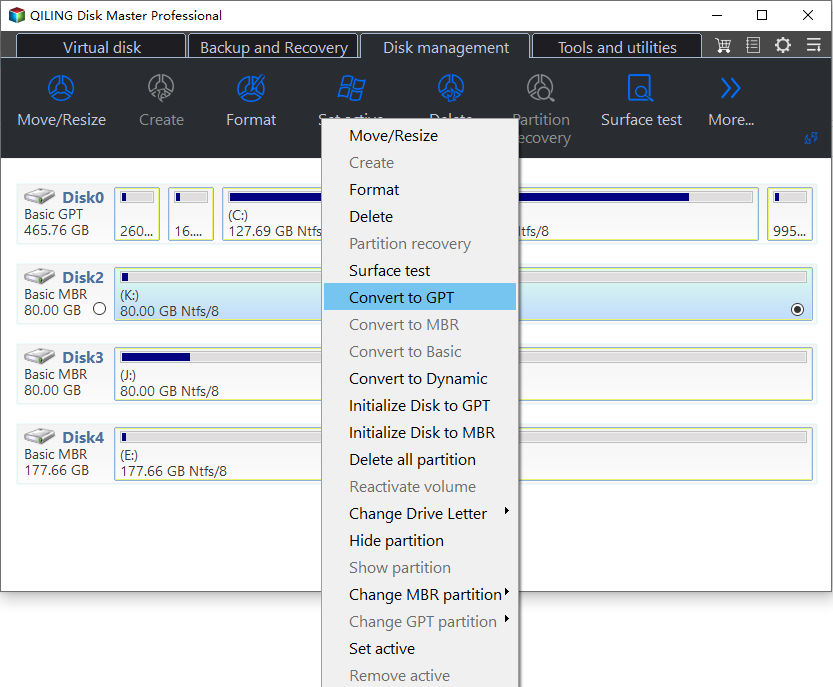
- Qiling Disk Master enables you to create a bootable USB drive that can be used to boot your computer in the event of a boot failure, providing a backup solution for system recovery.

FAQs about cloning SSD to USB
An SSD can be cloned just like a traditional HDD, transferring everything from the old drive to the new drive, including the operating system, applications, files, and settings.
While generally, SSDs (solid-state drives) are significantly faster than USB drives, there are exceptions and variations depending on the specific types of USB and SSD devices.
SSDs generally have a longer lifespan than most USB flash drives due to their higher-quality NAND flash and more advanced controllers, but there are exceptions, such as high-end USB drives designed for durability that may have comparable lifespans to lower-end SSDs.
Summary
You can easily clone an SSD to a USB drive, whether they have the same or different partition styles, and still boot successfully from the cloned USB drive. If the USB drive is larger, you can edit the partition size, either by adding unused space to all partitions automatically or manually adjusting the size to make full use of the space on the destination disk.
Qiling Disk Master is a free backup software that focuses on long-term data protection. It allows you to back up files currently on the disk and changes made later, and also enables you to back up SSD to USB drive. The software offers a daily, weekly or monthly schedule backup option, or you can use the USB plug in feature to back up without needing to connect it to your computer always.
Related Articles
- A Professional ADATA SSD Clone Software: Qiling Disk Master
In this essay, you will find the best free ADATA SSD clone software to clone HDD/ SSD to ADATA SSD with step-by-step guide in Windows 10, 8, 7. - How to Clone Hard Drive to SSD in Windows 10?
Learn how to Clone Hard Drive to SSD in Windows 10 with clear steps, key checks, and practical tips. - Freeware to Clone Hard Drives with Bad Sectors (Bootable)
This post introduces how to clone hard drives with bad sectors on your laptop or desktop PC in Windows 11, 10, 8, and 7. After reading, you will be able to successfully migrate the operating system to an SSD and boot your PC as usual. - Super Easy | How to Clone Windows 10 to External Hard Drive
You can easily clone Windows 10 to an external hard drive using Qiling Disk Copy, a reliable Windows cloning software, which makes the process quick and hassle-free. - Acronis True Image WD Edition Clone Not Working - Try These Fixes
Acronis True Image WD Edition, a program exclusive to WD users, can sometimes cause issues and fail to efficiently clone hard drives. - 4 Best Alternative Cloning Software to Samsung Data Migration (2024 Pick)
Samsung Data Migration is a tool that allows you to transfer data from one Samsung drive to another, but it only supports Samsung drives. To transfer data from one drive to another, regardless of the manufacturer, alternative cloning software can be used instead.
Products
Articles & Tutorials
- Data Recovery
- Data Backup
- File Recovery
- File Backup
- File synchronize
- System Backup and Restore
- Disk and Partition Clone
- Technical articles
- Disk Master Help
- Windows Deleted File and Disk Recovery Tutorials
- Windows File and Data Recovery Tutorials
- More Windows Tutorials for Install, Security, Files, and PC Tips
- Windows Boot, Repair, and Recovery Environment Tutorials
- Windows Backup Tutorials
- Windows Restore Tutorials
- Windows Clone and Migration Tutorials
- Windows Server Backup, Recovery, and Management Tutorials
- Windows Disk, Partition, and Storage Management Tutorials