Copy Boot Drive to Another Drive (HDD or SSD) Safely
Quick Navigation:
- How can I transfer boot drive to another drive?
- Make preparations for cloning a drive
- How to copy boot drive to new SSD or HDD safely
- What to do after moving boot drive to another drive?
- In the end
How can I transfer boot drive to another drive?
Unfortunately, Windows does not have a built-in disk clone software to copy the boot drive to another drive. This can be a time-consuming and complicated process, especially when reinstalling Windows. However, there are third-party software options available that can help copy the boot drive to another drive, such as Qiling Disk Master, among others. These software tools can create a full or partial image of the boot drive and clone it to another drive, saving time and effort.
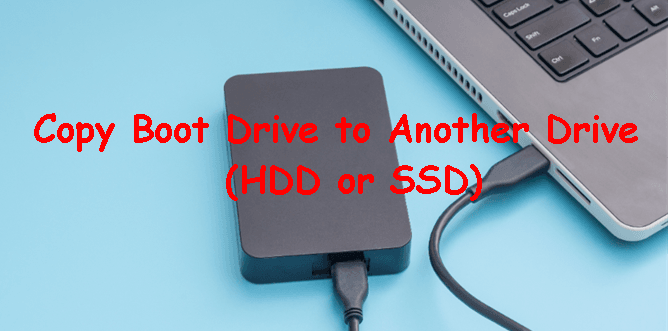
Fortunately, there are many disk cloning software available that can clone your entire hard drive, including the operating system, boot-related system files or drivers, installed programs, and personal data, allowing your computer to boot successfully. Select one and follow its on-screen instructions.
To ensure a smooth cloning process and successful booting of the cloned drive, we recommend using powerful cloning software, such as Qiling Disk Master Professional, and making some necessary preparations.
Make preparations for cloning a drive
To copy Windows boot drive to another drive, make sure to prepare the destination drive by formatting it with the same file system as the original drive. Additionally, ensure the destination drive has enough free space to accommodate the Windows installation. It's also important to select the correct drive to clone in the cloning software, and to choose the correct installation of Windows to clone.
1. Get a new HDD or SSD If you clone your old boot drive to a new drive that's twice or three times its size, your disk may fill up quickly or not improve performance significantly. Additionally, the cloned drive may be unbootable due to missing system files, a hidden system reserved partition, or an EFI partition. If you clone your old boot drive to a new drive that's the same size or smaller, your disk may fill up quickly or not improve performance significantly. Additionally, the cloned drive may be unbootable due to missing system files, a hidden system reserved partition, or an EFI partition.
2. Keep the same disk partition style. It's essential to maintain the same disk partition style as the old disk when upgrading or replacing it. MBR disks are compatible with legacy BIOS, while GPT disks require EFI or UEFI boot mode. If the partition style is changed, the computer may still not be able to boot from the new disk.
👉 here are quick steps for checking partition style:
- Type diskmgmt.msc in the search box and select disk management.
- Right-To check the partition style of your boot drive, click on it, select Properties, then Volume, and finally Partition Style. This will show you whether it's using Master Boot Record (MBR) or GUID Partition Table (GPT).

- If you have a new hard drive or SSD, check if it is MBR or GPT. If both of them are the same, leave them as they are. If not, convert the new drive to match the boot drive's partition style. This ensures consistency and prevents potential issues during booting.
3. Prepare a screwdriver and connector (If your computer only has one slot, you'll need to ensure your new hard drive or solid state drive (HDD/SSD) has a compatible interface, such as SATA, M.2, PCIe, or NVMe. This means checking the type of interface your new drive uses and having a matching cable, adapter, or enclosure ready.
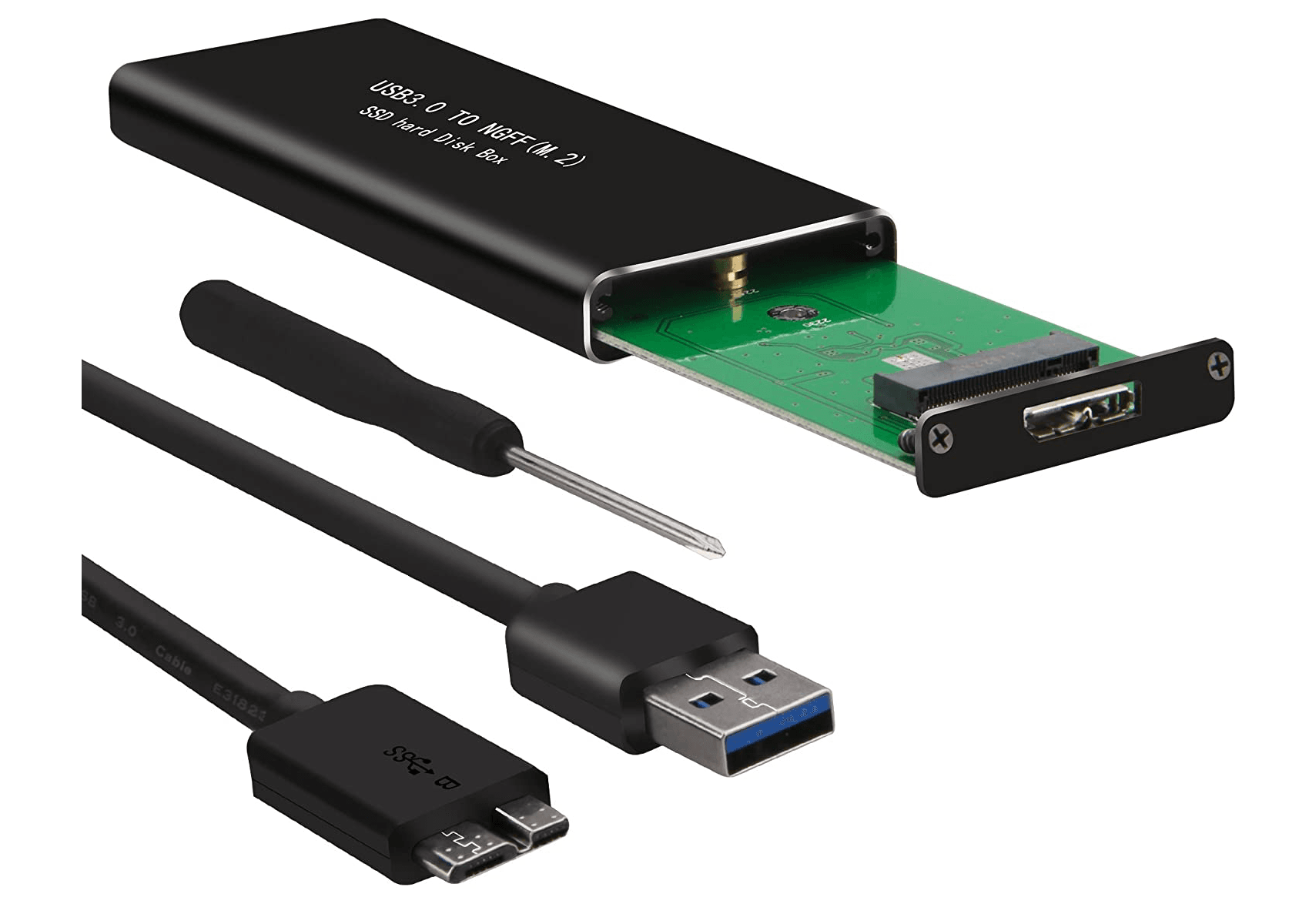
4. Install and initialize new HDD or SSD. To install a new drive into a computer with two slots, simply slide the drive into one of the slots, secure it with screws, and then replace the computer case. Next, access the disk management feature, right-click on the new drive, and select "Initialize Disk". Finally, choose the partition style (MBR or GPT) and click OK.
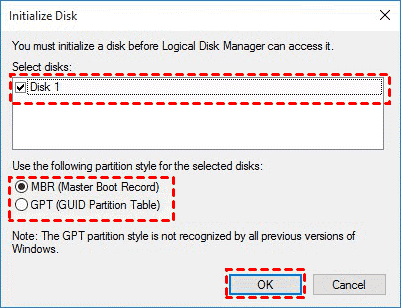
If your computer has only one slot, you'll need to connect your new HDD or SSD using a cable, adapter, or disk enclosure, then plug the other end into a USB port on your computer. Once connected, go to your computer's disk management and follow the steps to initialize the disk.
How to copy boot drive to new SSD or HDD safely
To move the boot drive to another drive in Windows 11/10/8/7, you can use the "Disk Clone" feature of Qiling Disk Master Professional. This feature allows you to clone the entire boot drive, including the operating system, applications, and data, to the target drive, effectively moving the boot drive to the new location.
- Clone HDDs/SSDs and MBR/GPT disk.
- Cloning a hard drive with a different size, such as cloning a smaller disk to a larger one or even cloning a larger HDD to a smaller SSD, requires a few extra steps to ensure a successful transfer. This process typically involves using specialized software, such as Clonezilla or Qiling Disk Master, which can handle the differences in disk size.
- Clone a hard drive with different interfaces, such as cloning an NVMe drive to another NVMe drive, an M.2 SSD to another M.2 SSD, and so on, using a cloning software that supports these interfaces. This allows for a direct and efficient transfer of data from one drive to another, preserving the original drive's performance and functionality.
- Optimize SSD disk performance through the "SSD Alignment" feature.
Here are the steps to copy the boot drive to a new drive or SSD in Windows 10:
Step 1. Launch Qiling Disk Master Professional, click Clone and Disk Clone to start the cloning process.

Notes:
- The Clone feature can only be demonstrated in the trial version, and to directly copy a boot drive to a new hard drive or SSD, you need to upgrade the Pro trial to the full version of Qiling Disk Master Professional.
- If your new drive is a smaller SSD, try the "System Clone" feature in the Pro edition to only move the boot partition in Windows 10 or 11.
Step 2. Select the boot drive containing the operating system as the source disk and click Next.

Step 3. Select the new HDD or SSD as destination disk and click Next.

Step 4. To confirm the operation and clone the boot drive in Windows 10, click Proceed. Additionally, you can click SSD Alignment to enhance the reading and writing speed of SSDs.

Note: Don't check the "Sector by sector clone" feature, as it will clone all sectors of the disk to a larger one, including used and unused space, and also include bad sectors.
👉 The highlight cloning feature
If you're cloning a new hard drive or SSD with a larger size or different partition style than the old disk, you may experience issues with the cloning process. To resolve these issues, you can utilize the "Edit Partitions" feature, which allows you to adjust the partition style and size to match the new disk, ensuring a smooth and complete cloning process.
#1: The cloned drive not show full capacity.
By default, all cloning software makes an exact copy of the source disk, resulting in unallocated space being displayed as extra space in Disk Management, which may not show the full capacity in File Explorer. To resolve this, you can click the "Edit Partitions" feature and select either "Add unused space to all partitions" or "Manually adjust partition size".
- Copy without resizing partitions: It will not resize the partition size.
- Add unused space to all partitions: It will redistribute unallocated space to each partition of the target disk, suitable for its size.
- Manually adjust partition size: The feature allows you to extend unallocated space to any partition on the destination disk you want.
#2: The cloned drive not bootable after cloning.
The main reason for this issue is that the source and destination disks have different partition styles, such as MBR and GPT, and haven't been converted to the same style before cloning. To resolve this, check the "Convert the destination disk from MBR to GPT" or vice versa option in the "Edit Partitions" feature, matching the partition style of the source disk.
What to do after moving boot drive to another drive?
For a desktop computer, you can change the boot order to set the priority for the cloned disk, which will allow it to boot automatically.
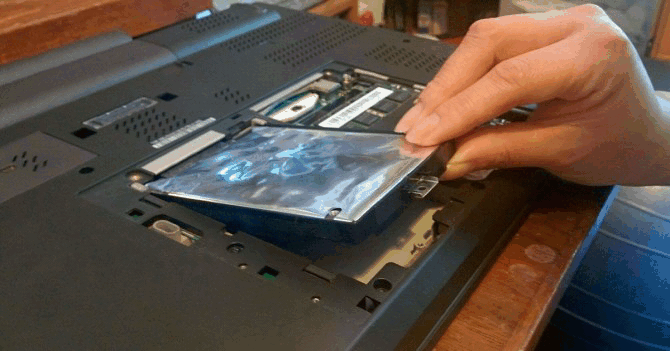
To upgrade your laptop's storage, you'll need to replace the original hard drive with a solid-state drive (SSD). This involves removing the old hard drive and installing the SSD in its place. Be sure to set the cloned hard drive as the first boot option in your laptop's BIOS or UEFI settings to ensure it boots from the new SSD.
Notes:
• If your target disk has a different partition style than the source disk, and it's GPT, change Legacy BIOS to UEFI, and vice versa.
• Wait until your computer can boot from the new drive before formatting the older boot disk.
• If your hard drive is still working well, you can use a solid-state drive (SSD) for your operating system and keep your hard drive for storage. This way, you can take advantage of the SSD's high performance and the hard drive's larger capacity.
In the end
With the help of Qiling Disk Master Professional, you can easily and quickly copy your boot drive to another drive (HDD or SSD) in Windows 11/10/8/7, saving you time and effort and eliminating the need to reinstall Windows from scratch.
Qiling Disk Master can clone a hard drive to a different size, whether it's larger or smaller, and supports cloning and resizing hard drives, as well as cloning MBR disks to GPT and vice versa, and cloning dynamic disks in Windows 7.
This software offers free backup and restore solutions, including disk backup, incremental & differential backup, schedule backup, and creating a bootable USB, all designed to protect your computer with powerful backup features.
Related Articles
- Copy MBR from One Disk to another (SSD/USB) and Ensure Boot
- How-To | Copy Partition to Another Drive on Windows 10, 11
- How to Clone Boot Drive to SSD Securely | Windows 11/10
- How to Clone a Navigation SD Card with a Few Clicks for Windows 11/10/8/7
Learn the key steps, checks, and practical tips for this related guide. - Samsung Data Migration Not Detecting SSD [Fixed]
Samsung Data Migration fails to detect certain Samsung SSDs, but there are simple methods to fix the issue. 1. Check for BIOS updates. 2. Ensure the SSD is not in RAID mode. - Samsung Data Migration Stuck at 0% While Cloning SSD [100% Working]
Samsung Data Migration (SDM) is a software that helps users transfer data from an old hard drive to a new one. However, sometimes it may get stuck at 0, causing frustration and delays.
Products
Articles & Tutorials
- Data Recovery
- Data Backup
- File Recovery
- File Backup
- File synchronize
- System Backup and Restore
- Disk and Partition Clone
- Technical articles
- Disk Master Help
- Windows Deleted File and Disk Recovery Tutorials
- Windows File and Data Recovery Tutorials
- More Windows Tutorials for Install, Security, Files, and PC Tips
- Windows Boot, Repair, and Recovery Environment Tutorials
- Windows Backup Tutorials
- Windows Restore Tutorials
- Windows Clone and Migration Tutorials
- Windows Server Backup, Recovery, and Management Tutorials
- Windows Disk, Partition, and Storage Management Tutorials