Best Free Disk to Disk Clone Software of 2023
Quick Navigation:
- What is Disk Clone Software?
- Why Need Disk to Disk Cloning?
- Best Cloning Software Free to Clone Disk - Qiling Disk Master Standard
- How to Perform Disk to Disk Clone Free in Windows 10/8/7
- How to Boot from the Cloned System Disk Securely?
- Conclusion
What is Disk Clone Software?
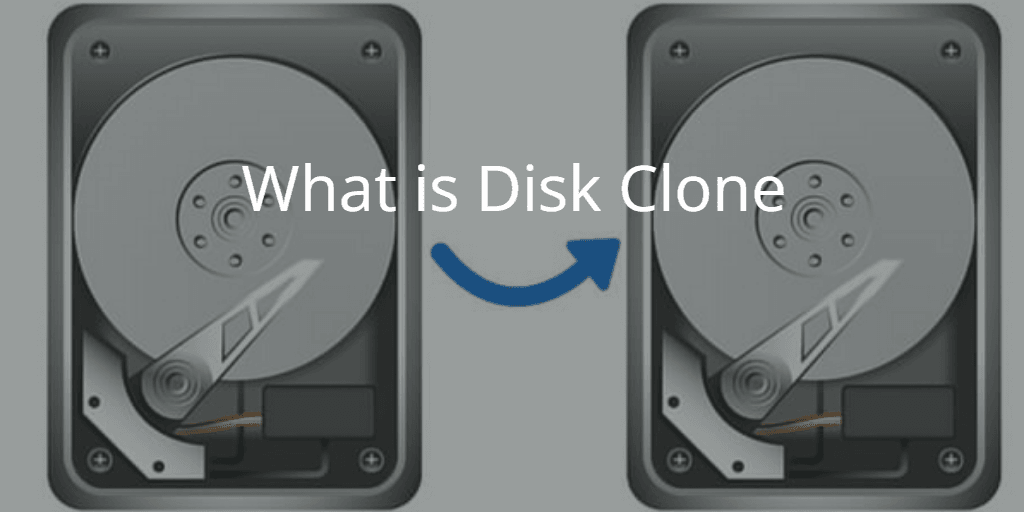
Disk clone software (also called disk copy software) is specialist software that is used to create a 1-to-1 copy of an HDD or SSD to a secondary hard drive, not just for files but its operating system, partition layout, drive letter, customized settings, installed programs, personal data, etc. All contents on the original disk can be transferred to the destination disk, which enables you to boot to the operation system from the cloned drive.
If you are looking to free disk cloning software to migrate data from one hard drive to another, you have landed in the right place. In this article, we will cover the best cloning software that can help you create disk to disk clone free.
Why Need Disk to Disk Cloning?
Disk cloning is very useful in many scenarios, and here are 2 common scenarios.
◑ Upgrade a disk or replace an aging disk with a fresh one. As your computer ages, its performance may begin to decline. This can be due to a variety of factors, including a full hard drive, outdated operating system, or hardware issues. One effective way to breathe new life into your computer is to upgrade or replace its hard drive.
◑ Make a duplicate of your HDD/SSD as a backup. In today's digital age, data loss and system crashes can be devastating. To mitigate these risks, disk to disk copy has emerged as a reliable method for protecting valuable data and system settings. This process involves creating an exact replica of your existing hard drive on a new one, ensuring that all data, settings, and operating system are preserved in the event of a disaster.
Best Cloning Software Free to Clone Disk - Qiling Disk Master Standard
Windows 10 does not have a built-in cloning tool for disk-to-disk cloning. However, there are several third-party software options available that can help you clone your Windows 10 installation to another disk. These software tools can save you time and effort, especially when cloning multiple machines.
When it comes to cloning a disk, having the right software can make all the difference. Among the many options available, **Qiling Disk Master Standard** stands out as a top choice. This powerful tool offers a range of features that make disk-to-disk cloning a breeze.
♪ Intelligent clone: Clone only used sectors by default, which helps clone a larger disk to a smaller disk when the used space fits.
♪ Sector By Sector Clone: Clone every sector on the source disk when you need an exact copy.
♪ SSD Alignment: Improve SSD performance when the destination disk is an SSD.
How to Perform Disk to Disk Clone Free in Windows 10/8/7
With Qiling Disk Master, you can clone data from one disk to another without manually copying files, settings, and applications one by one.
Step 1. Install and launch Qiling Disk Master Standard. Click Clone, and then choose Disk Clone.
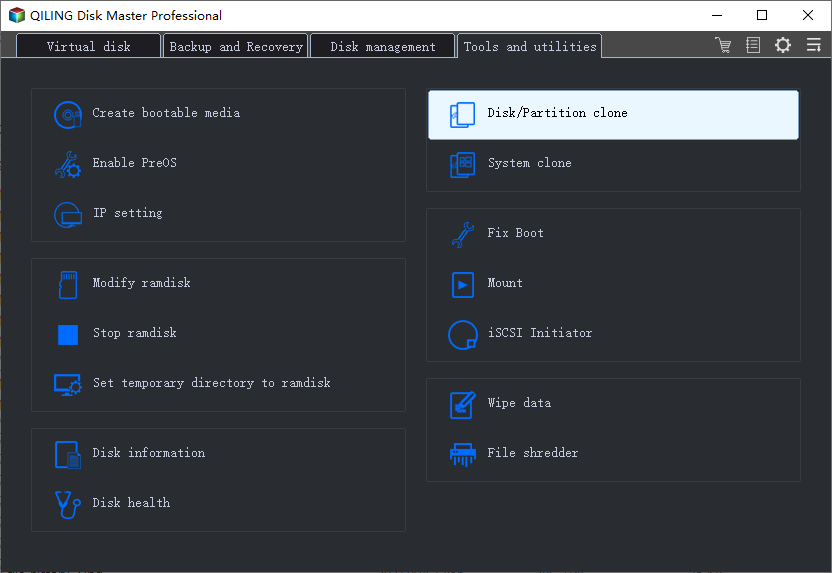
✨ Note: If you want to clone a system disk, upgrade to the **Pro** version of Qiling Disk Master. The free version supports cloning between two data disks, while the Pro version provides the System Clone feature for migrating Windows, boot partitions, settings, and installed applications.
Step 2. Select Source Disk that you wish to clone, and click Next.
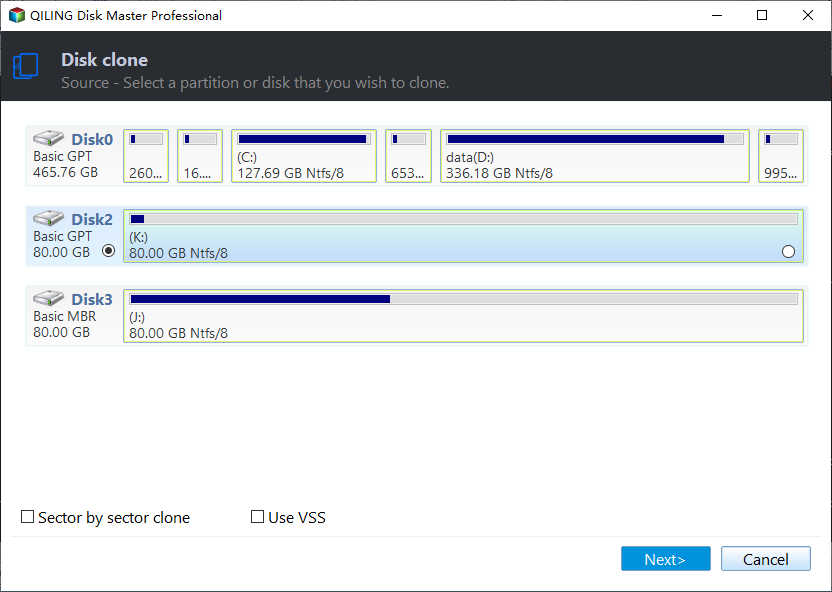
Step 3. Select Destination Disk to save the cloned data, and click Next.
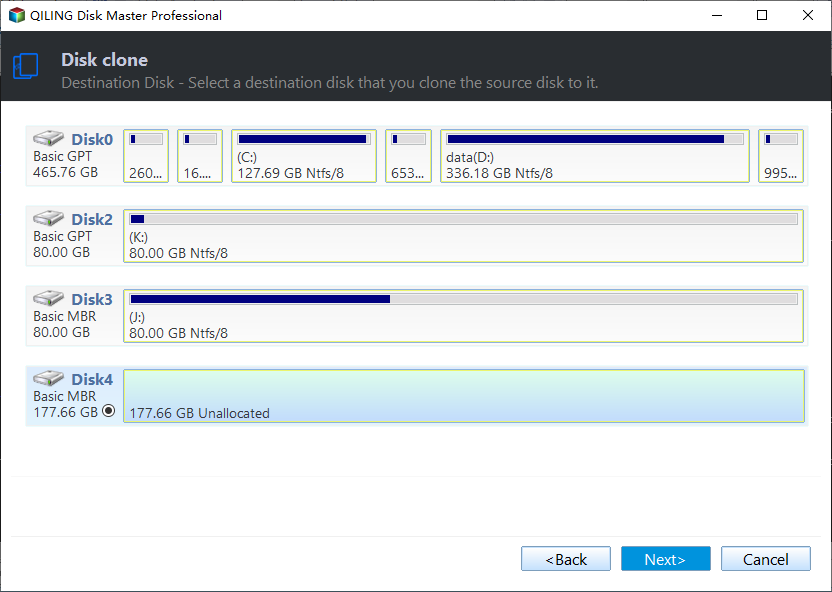
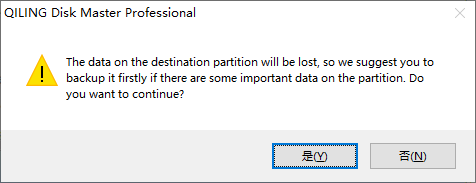
✍Before proceeding with the cloning process, it's essential to note that the destination disk will be overwritten or deleted. To avoid data loss, it's highly recommended to **back up files** ahead of time.
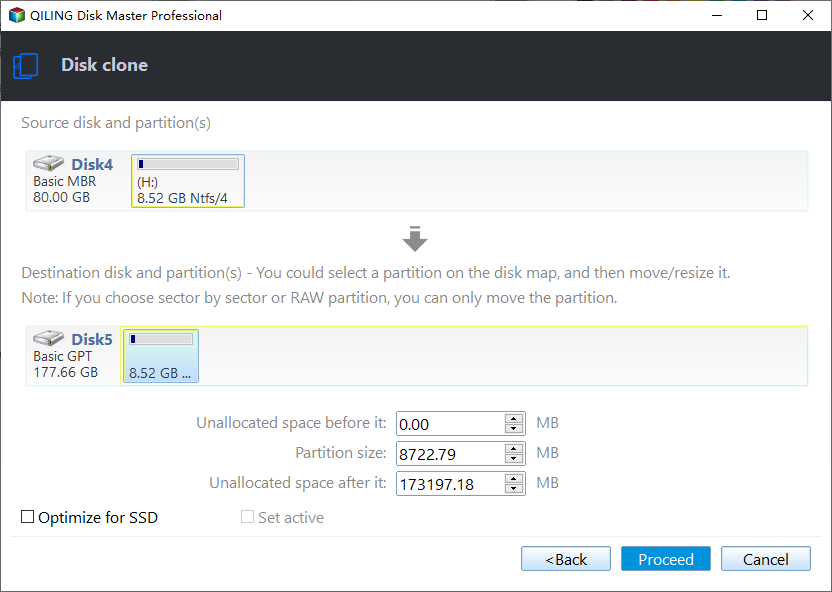
Step 4. When cloning a hard drive to an SSD, it's essential to consider optimizing SSD performance and selecting the correct cloning options.
Step 5. Click Proceed to execute the free disk to disk clone on Windows 10 easily.
✍Notes:
● Before initiating the disk cloning process, it's crucial to verify that the target disk has sufficient space to accommodate the cloned data.
● If you're trying to clone a dynamic disk using Disk Clone, you'll encounter an error message. This is because Disk Clone doesn't support dynamic disks.
How to Boot from the Cloned System Disk Securely?
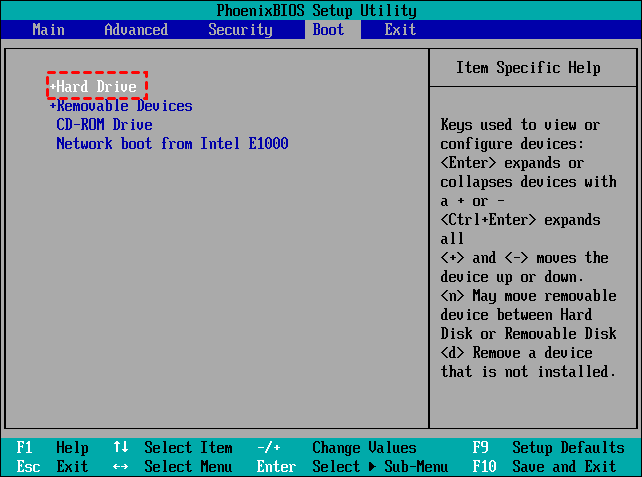
If you've cloned a hard drive that involves the operating system, it's essential to restart your computer and enter the BIOS setup to configure the boot settings.
Conclusion
Disk cloning is a convenient and efficient method of migrating your data from an old disk to a new one. This process allows you to enjoy the benefits of a new hard drive, such as faster performance, quicker boot times, and improved durability.
In short, Qiling Disk Master Standard can help you perform a free disk-to-disk clone for data disks. If you need to clone a system disk or migrate Windows to an SSD, use the Pro edition for bootable system migration.
Related Articles
- Best Free Hard Drive Cloning Software for Windows (Bootable)
Disk clone is the easiest way to migrate hard drive to another HDD or SSD. You can try Qiling Disk Master to clone disk in Windows 11, 10, 8, 7 with securely boot. - Clonezilla Disk to Disk Clone for Windows 11, 10, 8, 7
This guide explains Clonezilla Disk to Disk Clone for Windows 11, 10, 8, 7 with clear steps, key checks, and practical tips. - [Top 3 Free] SSD Cloning Software for Windows 11/10/8/7
This guide explains SSD Cloning Software for Windows 11/10/8/7 with clear steps, key checks, and practical tips. - Freeware to Clone Hard Drives with Bad Sectors (Bootable)
This post introduces how to clone hard drives with bad sectors on your laptop or desktop PC in Windows 11, 10, 8, and 7. After reading, you will be able to successfully migrate the operating system to an SSD and boot your PC as usual.
Products
Articles & Tutorials
- Data Recovery
- Data Backup
- File Recovery
- File Backup
- File synchronize
- System Backup and Restore
- Disk and Partition Clone
- Technical articles
- Disk Master Help
- Windows Deleted File and Disk Recovery Tutorials
- Windows File and Data Recovery Tutorials
- More Windows Tutorials for Install, Security, Files, and PC Tips
- Windows Boot, Repair, and Recovery Environment Tutorials
- Windows Backup Tutorials
- Windows Restore Tutorials
- Windows Clone and Migration Tutorials
- Windows Server Backup, Recovery, and Management Tutorials
- Windows Disk, Partition, and Storage Management Tutorials