Best GPT Cloning Software for Windows 11/10/8/7 – Safe Boot
Brief Information and the Advantages of GPT Disks
GPT disks use the GUID Partition Table, a modern partitioning scheme that replaces the traditional MBR format and is supported by modern personal computer operating systems. They utilize the Unified Extensible Firmware Interface (UEFI) and offer several advantages over MBR disks.
❃ GPT with UEFI replaces the clunky old BIOS with the MBR partition system. The GPT partition has its own unique identifier, a feature that sets it apart from traditional BIOS systems. UEFI, or Unified Extensible Firmware Interface, is an improved version of BIOS that supports hard drives larger than 2TB and speeds up computer startup and shutdown times.
❃ GPT disks are much larger in storage capacity than MBR disk. MBR disks have a size limit of 2 TB per sector due to the 32-bit limit, whereas GPT disks have a much larger limit of over 9 ZB (Zettabytes) per sector, equivalent to a billion Terabytes, due to the 64-bit limit.
❃ GPT disks can support an increased number of partitions, The GPT partition table allows for up to 128 primary partitions, whereas the MBR (Master Boot Record) partition table is limited to 4 primary partitions or 3 primary partitions and 1 extended partition. If a disk has more than 4 primary partitions, the sizes of these partitions may need to be adjusted.
Why Need GPT Cloning Software?

You need GPT cloning software when you want to take advantage of the convenience offered by the GPT format, which is more user-friendly than MBR. With a reliable GPT cloning software, you can easily clone and transfer data from one GPT disk to another, making it a useful tool for system administrators, IT professionals, and users who need to migrate data from one disk to another.
◕ Back up your GPT disks to ensure their safety: To prevent data loss, you can back up your files and data to another storage device, allowing you to easily recover them in case of system crashes, virus attacks, or hardware failures.
◕ Upgrading a hard drive with a larger one or replacing aging disks with new ones can be a great solution when the existing one is out of space or outdated. A GPT cloning software can be a helpful tool in this process, allowing for easy transfer of the system and hard disk.
◕ Clone GPT disk to SSD to get better performance and shorter boot time: SSDs offer better performance than HDDs, providing faster loading times for games, applications, and movies. If your original system hard disk is in GPT partition format, you'll need GPT cloning software to migrate the system and files.
The Safest and Most Reliable GPT Cloning Software
Qiling Disk Master Professional is the best software for cloning GPT disks, offering reliable and comprehensive cloning capabilities for all Windows systems. With its help, you can clone a GPT disk to a new drive bit by bit, ensuring data integrity, and successfully boot from it without reinstalling the operating system.
✽ It supports different disk partition styles. This tool allows you to clone system disks between different partition table types, including MBR to MBR, GPT to GPT, MBR to GPT, and GPT to MBR. It can also be used to directly clone a Windows 10 MBR disk to a GPT disk.
✽ It allows you to clone different hard drives. Clonezilla is a free and open-source disk imaging and cloning software that allows users to clone and backup various types of storage devices, including HDDs, SATA SSDs, NVMe M.2 SSDs, USB flash drives, and SD cards, supporting all major brands.
✽ It enables you to To clone a hard drive of a different size, you can use software that offers an "Intelligent Clone" function, which only copies the used part to another drive, or a "Sector-by-sector Clone" function for a 1:1 copy. This allows you to transfer data from a larger drive to a smaller one or vice versa.
Qiling Disk Master Professional Cloning software Clonezilla is a free and open-source tool that offers faster cloning speeds and is not bundled with adware. You can download it by clicking the button below to install it on your computer.
How to Clone GPT Disk to SSD On Windows 10/11
To clone a GPT disk to an SSD drive on Windows 10/11, start by preparing the larger SSD. This involves ensuring the SSD is properly connected and recognized by the system, and that any existing data on the SSD is erased or backed up. Once the SSD is ready, you can use a cloning software or built-in Windows feature to copy the contents of the GPT disk to the SSD, including all operating system files, applications, and data.
▶ To install the SSD, you'll need a screwdriver. If your computer only has one SSD slot, you may also need a SATA-to-USB cable or an M.2 SATA SSD to USB adapter, depending on the type of SSD you have.
▶ Cloning will overwrite all the content on the target drive, so if your target is a used SSD with some important files on it, please make a file backup first.
Step 1. Launch Qiling Disk Master, navigate to the Clone tab and select Disk Clone to clone a GPT disk, or choose System Clone to clone only the OS to an SSD.

Step 2. Click on the source GPT disk that you want to clone, and click Next.

Step 3. Select the larger SSD as the destination disk and click "Next" to proceed.

Step 4. To adjust the partition size on the destination disk, click "Edit Partitions" in the left corner of the program. This allows you to modify the size of the partitions on the target disk. Additionally, you can click "Add unused space to all partitions" to automatically resize the target disk partitions to match the entire disk size.
NoteWindows 11 requires the system firmware to be UEFI. To be more compatible with Windows 11, if your target disk is MBR partition style, it is recommended to convert the destination disk from MBR to GPT.
Step 5. To accelerate the target SSD, check the option "SSD Alignment" and click "Proceed" to execute the operation.

Safe Boot from the Cloned SSD
After the cloning is complete, shut down the computer, replace the GPT disk with the cloned SSD, and restart to check if it's working properly. If you have multiple slots, enter BIOS by pressing a specific key (e.g. F2, F10, Esc, Del), select the cloned SSD as the first boot option, save the changes, and restart the computer.
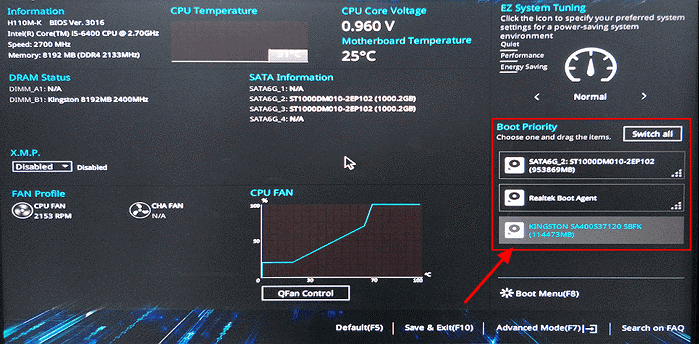
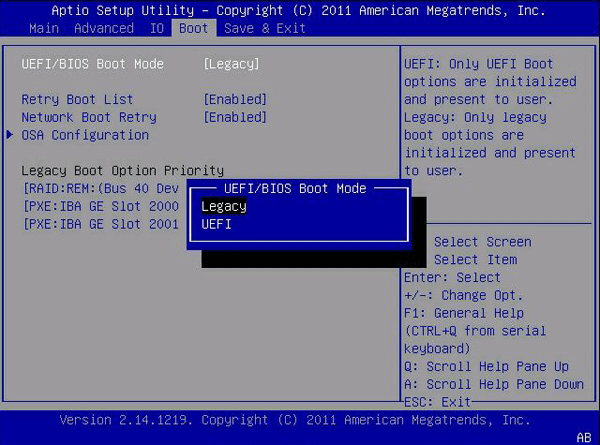
To clone GPT to MBR, you can use the same cloning process. However, GPT and MBR have different boot modes, requiring a boot mode change when restarting the computer. GPT supports UEFI boot mode, while MBR supports BIOS boot mode.
Conclusion
Qiling Disk Master Professional is a user-friendly GPT cloning software that simplifies system and data protection, requiring only a few clicks to operate and resolve partition style conflicts.
You can use this software to clone your hard drive, upgrade M.2 SSD without reinstalling Windows, and save a lot of time and energy. It also integrates other functions such as backup, synchronization, restore, and tools, making your cloning task a breeze.
Related Articles
- Best Way to Clone GPT(UEFI) Disk to Smaller SSD Safely
You can easily clone GPT(UEFI) disk to smaller SSD to enjoy the advantage of GPT disk and gain high performance of SSD. The cloned SSD will remain bootable. - Best UEFI Disk Imaging and Cloning Software
This guide explains Best UEFI Disk Imaging and Cloning Software with clear steps, key checks, and practical tips. - Samsung Data Migration MBR to GPT Cloning (2 Ways Included)
If you are a Samsung SSD user, you must be familiar with Samsung Data Migration. Learn how to clone MBR to GPT SSD with Samsung Data Migration and get the best equivalent from this article. - Repair Corrupt Excel File on Windows 10/11 [Top 4️⃣Methods]
In this passage, you'll learn multiple ways to fix a corrupt Excel file on Windows PCs. The best and easiest solution is to apply Qiling Fixo Document Repair to repair the damaged Excel files.
Products
Articles & Tutorials
- Data Recovery
- Data Backup
- File Recovery
- File Backup
- File synchronize
- System Backup and Restore
- Disk and Partition Clone
- Technical articles
- Disk Master Help
- Windows Deleted File and Disk Recovery Tutorials
- Windows File and Data Recovery Tutorials
- More Windows Tutorials for Install, Security, Files, and PC Tips
- Windows Boot, Repair, and Recovery Environment Tutorials
- Windows Backup Tutorials
- Windows Restore Tutorials
- Windows Clone and Migration Tutorials
- Windows Server Backup, Recovery, and Management Tutorials
- Windows Disk, Partition, and Storage Management Tutorials