Perform Hot Clone on Physical Machine or VMware
What is a hot clone?
Hot cloning is a method that allows you to clone a running computer system, whether physical or virtual, without interrupting the workload or shutting down any running applications. This enables you to create an exact copy of the system and disk while the computer is still in operation.
The snapshot feature is useful for troubleshooting VM issues without taking it offline. It allows you to take a snapshot of your virtual machine, diagnose the cause, analyze it, and find a solution. However, the snapshot only creates a copy of the transaction at the beginning, so any new files or changes made during the cloning process will not be included.
Hot clone vs. cold clone: Which one is better?
Speaking of the clone method, there are two methods, namely, hot clone and cold clone. So which one should we use? What are the differences between them? Check the following contents:
#1: Is the server OS running?
The server's operating system is not running during a cold clone, which is typically done from a boot CD or Windows PE, and occurs when the database is offline.
The server OS is running while running a hot clone, allowing for system or disk cloning within Windows, or creating a disk image and uploading it onto virtual servers while the physical computer is online.
#2: Is it cost-effective?
Using the hot clone method allows employees and managers to continue working without interruption, minimizing lost productive hours and costs, making it a more cost-effective choice compared to the cold clone method.
The hot clone is preferred over the cold clone, and the following section will provide detailed steps on how to perform a hot clone in a physical computer or VMware.
How to perform hot clone in physical computer or VMware
Choosing the clone method requires disk cloning software, such as Qiling Disk Master Professional, which supports this feature. This software allows you to easily clone a system or disk without interrupting any workload, providing advantages such as.
- Clone OS or disk with different sizes: This software clones only used sectors, allowing it to transfer an OS or disk from a smaller drive to a larger one, or vice versa, as long as the used space of the old disk is smaller than or equal to the new one.
- Clone MBR or GPT disk without data loss: It supports cloning a system from GPT to MBR or vice versa, as well as between two MBR or GPT disks, and between two disks, without worrying about data loss.
- Further improve performance of SSD disk: This software optimizes SSD performance by aligning data in 4k blocks, allowing for faster write and read speeds. It can be used to migrate the operating system to an SSD or clone a hard drive to an SSD.
- Multiple disk brands compatible: This software is compatible with all brands of solid-state drives (SSDs), including WD, Samsung, Sandisk, Seagate, Transcend, and others.
To perform a hot clone on a physical computer, download and install the software, which can also be installed on a VMware and used as a physical computer. For server users, you can try Qiling Disk Master Server. This allows you to directly download and install the software, or use it on a virtual machine.
Step 1. Launch Qiling Disk Master on a physical computer or VMware. Then, select Clone and System Clone.

Step 2. Qiling Disk Master will automatically select all boot partitions and boot files. You only need to choose the destination disk for the system partition and click Next.

Step 3. Confirm the source and destination disk information, select the "SSD Alignment" option to optimize SSD performance, and click "Proceed" to initiate a hot clone in a physical machine or VMware environment.
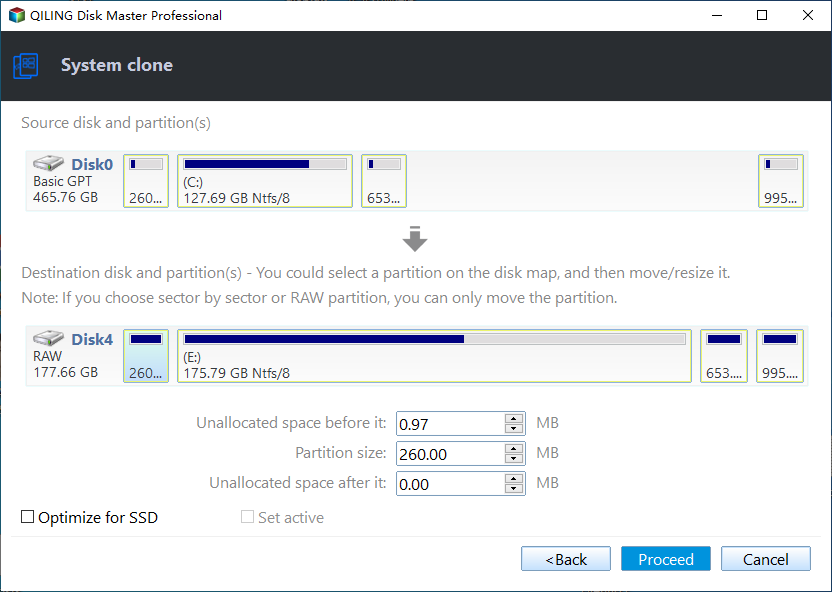
- The sector by sector clone feature allows for the copying of all sectors of the system partition to the destination disk, regardless of whether they are in use or not. The destination disk must be of equal size or larger than the source disk.
- Make full use of disk space: The "Extend" feature is used to expand the system partition by using adjacent unallocated space, and it only appears when the target disk is relatively large. By default, it will be checked in this scenario.
How to boot from new hard drive
Save a copy of your physical machine or VMware to a safe place, checking that it's bootable first.
Step 1. Restart your physical computer and press the manufacturer key, usually, it's F2, F11, ESC, etc., to go to BIOS.
Step 2. Select the Boot tab and set the cloned drive as the first boot option on a physical machine or VMware.

Step 3. Press F10 or another prompted key to reboot. Please wait patiently and see if it can start normally.
Summary
Hot clone can be used in both physical machines and virtual machines, and it is the best solution if you want to clone a system or disk on a running server without interrupting any workload. This can be easily done with a reliable disk clone software like Qiling Disk Master.
A disk cloning software that allows users to clone HDD or SSD, MBR, or GPT disks of different sizes, and also improves SSD performance with its SSD Alignment feature, and extends system partition size using unallocated space in the destination disk.
For advanced users, try Qiling Disk Master Technician or TechPlus.
Related Articles
- Migrate OS with Best System Clone Software for Windows
- How to Perform Partition or Volume to Disk Clone Easily
- 2 Tutorials: Clone Hard Drive to Samsung SSD (Secure Boot)
- How Can I Write a USB Drive Formatted as EXT4 in Windows 11?
On this page, you will learn the detailed answer and steps of how to write to a USB drive formatted as ext4 in Windows 11. And you will also get one of the best tools to help you with the formatting operation. - [Bootable] Clone OS Drive in Windows 11, 10, 8, 7
Here, you'll learn to clone an OS drive to another drive like SSD or HDD quickly in Windows 11, 10, 8, 7. - Clone Smaller SSD Drive to Larger SSD in Windows 10/8/7
If you still have no idea how to clone smaller SSD to larger SSD, luckily, you've come to the right place. Here, you'll learn to use the best disk clone software to get it done without any data loss.
Products
Articles & Tutorials
- Data Recovery
- Data Backup
- File Recovery
- File Backup
- File synchronize
- System Backup and Restore
- Disk and Partition Clone
- Technical articles
- Disk Master Help
- Windows Deleted File and Disk Recovery Tutorials
- Windows File and Data Recovery Tutorials
- More Windows Tutorials for Install, Security, Files, and PC Tips
- Windows Boot, Repair, and Recovery Environment Tutorials
- Windows Backup Tutorials
- Windows Restore Tutorials
- Windows Clone and Migration Tutorials
- Windows Server Backup, Recovery, and Management Tutorials
- Windows Disk, Partition, and Storage Management Tutorials