How to Clone a Hard Drive to Another Hard Drive in Windows 11, 10, 8, 7?
Why clone a hard drive to another hard drive?
Cloning a hard drive is a process that copies all contents, including files, partition tables, and the Master Boot Record, from one hard drive to another, allowing both disks to be used directly with the same operating system and programs running as they would on the source disk.
You might need to clone a hard drive to another hard drive in Windows 10 for various reasons, such as upgrading to a larger storage capacity, transferring data to a new computer, or replacing a failing hard drive with a new one. Cloning a hard drive is a process of creating an exact copy of the entire contents of one hard drive onto another, including all files, programs, and operating system.
When your old hard drive is about to fail, you can clone it to a new hard drive to prevent data loss when it crashes.
• 2. Upgrade to a larger hard drive
When the current hard drive is too small to hold new data, it usually pops out a message saying that the disk is full. At this point, it's time to consider upgrading to a larger hard drive or external storage solution to free up space and continue adding new data.low disk spaceYou can clone the hard drive to a larger hard drive for an upgrade.
• 3. Create a backup
Some users may need to transfer all data to an external hard drive for an entire backup.
• 4. Install the same Windows onto several computers
To simplify the installation process for multiple computers with identical configurations, you can install the operating system and software on one computer first, and then clone the entire system, including the operating system, software, and settings, to the main hard drives of the other computers. This cloning process can be done using specialized software or hardware tools, allowing you to replicate the exact configuration of the first computer to the rest, saving time and effort in the process.
Although SSDs are the norm on the market due to their superior performance, traditional hard drives still have a strong demand as data disks, not system disks. A 2TB hard drive is more affordable than an SSD of the same capacity, and it's generally recommended not to use an SSD as a data disk, as frequent data erasure can be damaging. If you want to restore an SSD's performance, you can refer to a post on secure erasing and restoring it.
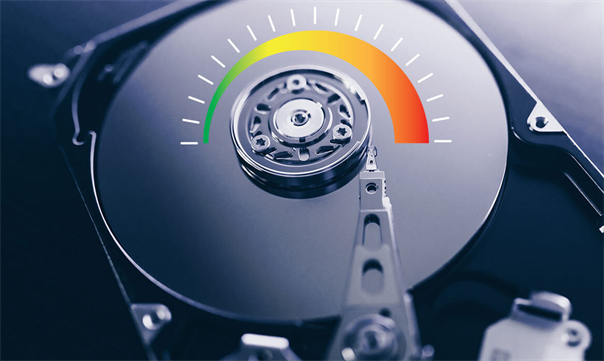
When upgrading or replacing a hard drive, users often debate whether to clone or image it. Cloning is generally the better option, as it is a safer and more user-friendly process, especially when using software like Qiling Disk Master. However, if you encounter issues with the cloning process, such as the Clone Disk Wizard getting stuck or hanging, you may need to consider imaging instead. Nonetheless, cloning remains the preferred method for hard drive upgrades or replacements.
What to prepare before cloning a hard drive?
To clone a hard drive to another hard drive smoothly, prepare the target hard drive by ensuring it has enough free space to accommodate the source hard drive's data. Additionally, ensure both hard drives are connected to the computer and that the cloning software is installed.
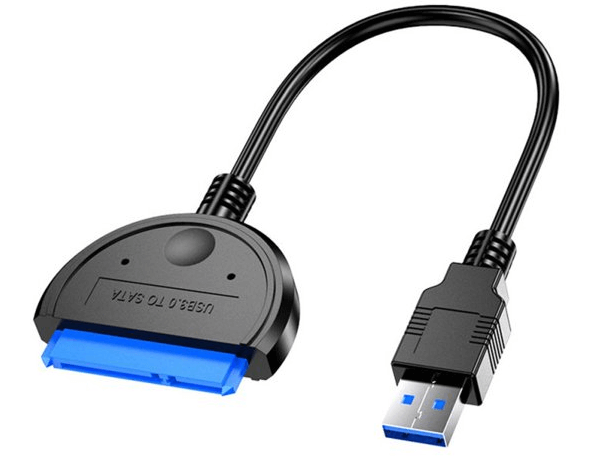
1. Connect the secondary drive: To clone one disk to another, you'll need a secondary hard drive, aside from the source disk. If you have a desktop, installing both drives internally is straightforward. If you're using a laptop with limited drive bays, you may need an external SATA-to-USB adapter, dock, or enclosure to connect the second disk.
2. Check out the space of the destination drive: Generally speaking, the destination hard drive needs to be as large as, or larger than the used space of the source disk, otherwise you'll need to expand it to accommodate the data.free up some disk space To free up space on your source disk and make the used space smaller than the total capacity of the destination drive, you can use the "clone" or "mirror" feature in your operating system or a third-party software. This will create an exact copy of your source disk on the destination drive, including all files, folders, and operating system files.
3. Back up everything important on the destination disk: Before cloning the secondary disk, back up all vital data to a safe location to avoid losing any important information.
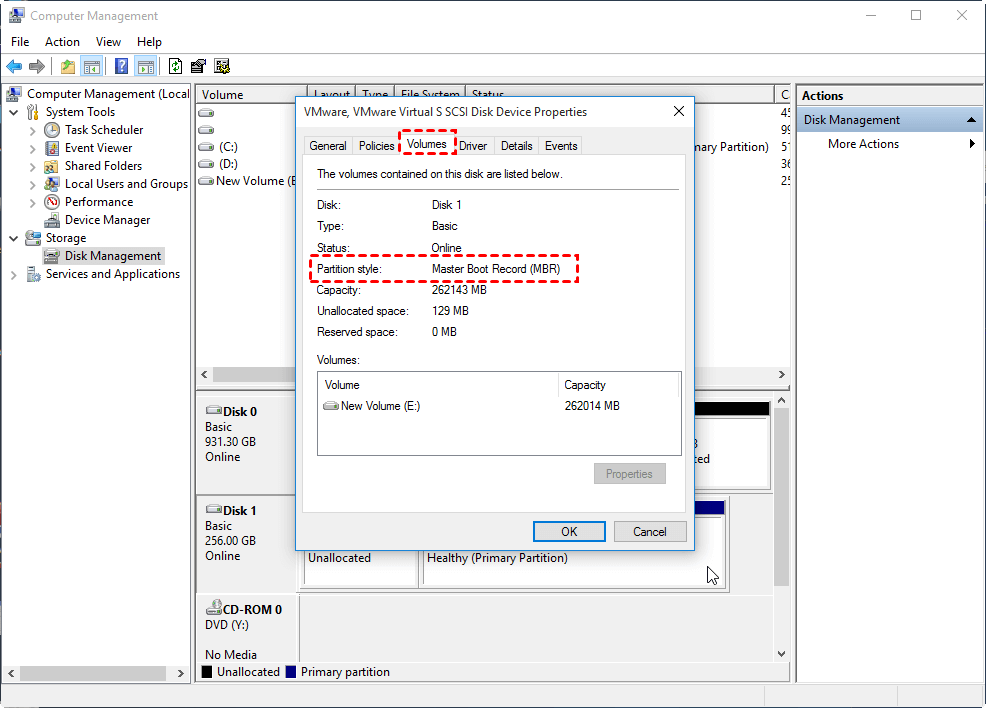
4. Check the computer's boot mode: When copying the system disk to another disk, be aware that their partition tables (MBR or GPT) may differ, requiring a switch between UEFI and BIOS boot modes after cloning to boot the machine from the cloned disk. You can refer to this guidance for more information.how to check MBR or GPT partition style on Windows PCs.
5. Find a reliable and handy disk clone software: When cloning a hard drive to another, using an efficient cloning software is crucial. It can save you time and trouble, and its ease of use is essential to ensure a seamless process, making it foolproof even for those who are not tech-savvy.
Best clone software to clone hard drive to a larger/smaller hard drive
To clone a hard disk to another, using a professional hard drive clone tool like Qiling Disk Master is the easiest way. This software works well on all Windows editions, including Windows 11/10/8/7 (32-bit and 64-bit), and allows you to transfer everything from one hard drive to another without reinstalling, including installed programs, files, and the C drive containing OS. It provides two different disk copying methods to cater to different user needs.
The Best Windows Disk Partition Manager and PC Optimizer
▶ 2 clone methods for different size disks
· Clone Disk Quickly: If your destination hard drive is smaller than the total size of the source hard drive but larger than the used space, you can clone only used sectors from the source to the destination disk, effectively transferring only the actual used data.
· Sector-by-Sector Clone: If your source hard drive is encrypted with BitLocker, this method is ideal for upgrading it to a larger drive. It will clone both used and unused sectors to the target hard disk.
▶ Multiple cloning options when cloning HDD to HDD
Clonezilla is capable of cloning an entire disk, as well as cloning a partition to another drive. It can also perform an OS-only migration, allowing you to transfer your familiar system environment to a new disk.
▶ Partition alignment
Partition alignment is a technique that accelerates reading and writing speeds for both HDD and SSD by aligning the 4K physical sector with the cluster, allowing for faster data storage and retrieval.
Tutorial: clone a hard drive to another hard drive on Windows PC
To clone a hard drive using Qiling Disk Master, follow these steps. First, download and install Qiling Disk Master on your computer.
Step 1. Install and launch Qiling Disk Master Professional, click "Tools" in the main interface, and select "Disk Clone" from the drop-down menu.

Step 2. Select the hard disk that you want to clone as the source disk and click "Next".

The program will then ask you to select the source and destination disk in the next window, or change to "Sector to Sector clone" mode.
Step 3. Select the destination disk to store the data on the source disk, and then click "Next".

Step 4. Here, you can also click the "Settings" button to adjust the partition size on the destination disk, or tick "4k alignment" to optimize performance of SSD.

① Clone without resizing partitions: All partitions from the source disk will be cloned to the target disk with the same original size, as long as the target disk has enough space to accommodate them.
② Fit partitions to entire disk: All partitions will be cloned to the target disk, utilizing its full capacity according to the original partition size proportion.
③ Edit partitions on this disk: You can customize the partition sizes on the target disk to your needs.
Step 5. After returning to the main interface, check the pending operation and click "Apply" and "Proceed" to commit the operation.

If you're cloning a system hard drive to another hard drive, to successfully boot from the destination hard drive, ensure the destination drive is properly set up in the BIOS or UEFI settings as the primary boot device. This typically involves entering the BIOS or UEFI settings, navigating to the boot order section, and selecting the destination drive as the first boot option.
Step 1. To access the BIOS environment, restart your computer and immediately start pressing the "F2" key (or possibly other keys like DEL, depending on your computer model). This will allow you to enter the BIOS settings and make any necessary changes.
Step 2. Change the boot order and set the cloned hard drive as the first boot drive in BIOS.
Step 3. To boot the computer from the cloned hard disk, you would first need to replace the original hard disk with the cloned one. Then, press the power button to turn on the computer. The computer should automatically detect the cloned hard disk as the boot device and boot from it successfully.
Further info: If you want to clone only the C drive and boot-related partitions to another hard drive, you can use the "Migrate OS to SSD/HDD Wizard" feature, which transfers the OS partition to the new drive and allows for smooth booting.

Summary
To clone a hard drive to another hard drive in Windows 11/10/8/7, you can use software that not only transfers all data from the old hard drive to the new one, but also offers additional features such as allocating free space between partitions, recovering deleted data/boot partition, converting system disk between MBR and GPT without deleting existing partitions, and converting dynamic to basic disk without losing data.
If you're cloning a Windows Server hard drive, the Qiling Disk Master Server is the best option for you.
Related Articles
- Full Guide: How to Copy Windows 7 to USB Drive Step by Step
Sometimes, you might want to copy Windows 7 to USB, here we introduce how to copy Windows OS to USB drive using Command Prompt and a versatile partition manager. So you can easily clone Windows to USB and make the USB drive bootable. - Tutorials: Free to Copy NTFS Partition in Windows7/8/10
When you want to copy NTFS partition to transfer data between two different drives, you can try the free Qiling Disk Master Standard. It can clone NTFS partition effectively in Windows 11,10, 8, 7. - Free Copy SD Card to SD Card in Windows PC [Full Tutorial]
This article will show you how to copy an SD card to another SD card on Windows using a free and powerful tool called Qiling Disk Master Standard, which is a reliable SD card to SD card copier. - How to Free up Space on PlayStation 4 [Four methods]?
Learn how to free up space on PS4 in this post if it says there is not enough storage to download or install games. - Clone HDD to SSD vs. Clone SSD to HDD in Windows 7
Whether you want to clone SSD to HDD in Windows 7 or clone hard drive to SSD, you could use the best free disk cloning software to make it. - How to Clone SSD to HDD in Windows 10,8,7 with Secure Boot?
Learn how to Clone SSD to HDD in Windows 10,8,7 with Secure Boot with clear steps, key checks, and practical tips.
Products
Articles & Tutorials
- Data Recovery
- Data Backup
- File Recovery
- File Backup
- File synchronize
- System Backup and Restore
- Disk and Partition Clone
- Technical articles
- Disk Master Help
- Windows Deleted File and Disk Recovery Tutorials
- Windows File and Data Recovery Tutorials
- More Windows Tutorials for Install, Security, Files, and PC Tips
- Windows Boot, Repair, and Recovery Environment Tutorials
- Windows Backup Tutorials
- Windows Restore Tutorials
- Windows Clone and Migration Tutorials
- Windows Server Backup, Recovery, and Management Tutorials
- Windows Disk, Partition, and Storage Management Tutorials