How to Copy Windows 7 from One Computer to another Safely
Can I Transfer Windows 7 from One Computer to Another?
My old computer was originally xp, then I upgraded to WIN7 and now it's finally dead. I want to install the windows 7 disk I bought on my daughter's computer because my computer is xp. How do you transfer the license from one computer to another? I entered the product key on the box, but I got an invalid message. Fair enough, the old computer is still registered, so how do you unregister and then re-register. Thanks!
- Question from answers.microsoft.com
Many users want to copy Windows 7 from one computer to another, but may encounter license problems. The type of license key can affect the transferability of the operating system, with some being transferable and others not. To successfully transfer the operating system, it's essential to understand the specifics of the license key.
About the License Key You Need to Know
Before moving Windows 7, check the license type. OEM licenses are usually tied to the first computer, while Retail and Full licenses are more likely to be transferable under Microsoft activation rules.
- OEM Version: It's a license provided by computer manufacturers that's tied to the first computer where the OS is installed and activated, and is not transferable, even to a new motherboard.
- Retail Version: The software is provided by Amazon or similar platforms and requires activation online through Microsoft servers using the key on the box. It can be transferred, but only once.
- Full Version: This is the version you got from Microsoft directly, which can be transferred to other computers.
Microsoft's rule states that one license can only be installed on one computer at a time, regardless of the license type.
Situations to Copy Windows 7 to New Computer
Many users still use Windows 7 due to familiarity and convenience, and may only need to upgrade their old disk by cloning Windows 7 to a new hard drive. However, there are situations where they need to move Windows 7 to another computer.
- Upgrade an older operating system installation to Windows 7 on another computer.
- Set up a new computer that does not have an operating system installed.
- Replace an old or failing computer while keeping the familiar Windows 7 environment.
- Migrate a Windows 7 installation from a virtual machine or old PC to another computer for testing or continued use.
In these cases, a system image backup plus Universal Restore is safer than manually reinstalling Windows 7 and every program. It keeps the original system, applications, and settings together while helping the restored system boot on different hardware.
Transfer Windows 7 to Another Computer Safely Even Dissimilar
The hardware of old computers is often outdated and not compatible with the latest software and operating systems, making it difficult to find a replacement with the same specifications. Computer manufacturers continuously upgrade their hardware to provide better performance, making it challenging to find a computer with the same hardware as your old one.
Many users replace their computers or migrate their systems to new ones because of data corruption or loss. However, using a powerful backup and restore software like Qiling Disk Master Professional can provide a safer alternative.
- You can create a system image for just the operating system or a disk backup for the entire disk.
- You can create a recovery disk to boot a new computer if it's a bare metal one.
- You can restore a system or disk to different hardware and it will successfully boot from the new computer.
- This software can be used on all Windows systems, including Windows 7, 8, 8.1, 10, and 11, and also offers a server version called Qiling Disk Master Server for server users.
To get started, please download this software on the old computer and then follow the steps below to transfer Windows 7 to new computer without reinstallation.
Part 1. Create System Image for Windows 7
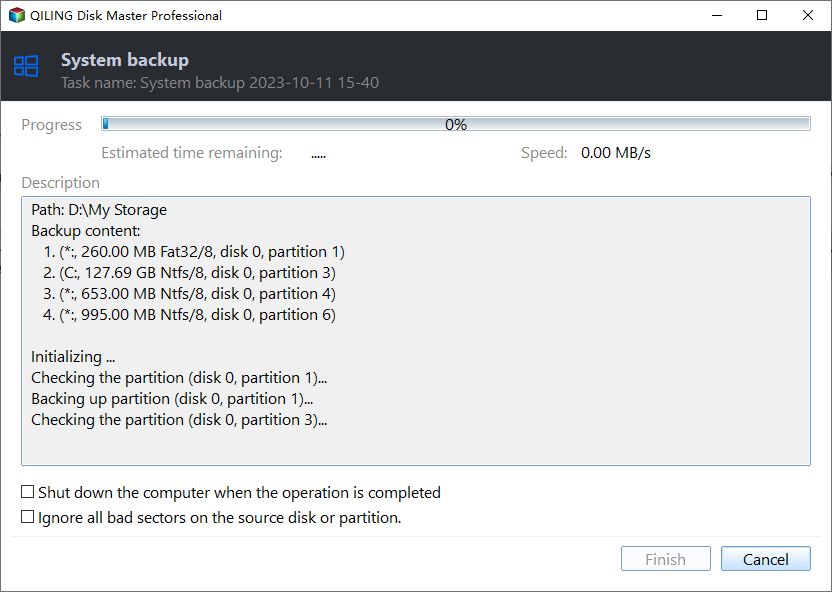
To transfer Windows 7 to another computer, you need to create a system image or disk image, which is essential for system migration.
1. In Qiling Disk Master, click "Backup" and then "System Backup".

2. The system related drive is selected by default, so you just need to edit the task name and choose a destination path to store the backup image, with options to proceed and create a system image in Windows 7.
- Select a local path: It helps you to backup Windows 7 to internal or external drive (HDD or SSD) and USB drive.
- Add Share or NAS Devices: The software enables backing up Windows 7 to a network drive or NAS device by requiring the user to input the network path and select the shared folders on the device.
Part 2. Create a Bootable Device for New Computer
If the new computer doesn't have an operating system or can't boot, you'll need to create bootable media (like a USB drive or CD/DVD with at least 7.16GB capacity) to get it started.
1. Switch to "Tools" and then select "Create Bootable Media".

2. Specify the storage media - USB flash drive, CD/DVD or ISO file - and click "Next" to proceed with bootable media immediately. You can also click "Add Drivers" to add specific drivers to the new computer if needed.

Part 3. Restore Windows 7 Image to New Computer
🔍 Important: Be aware that the selected destination partition (or disk) will be completely overwritten after this process, so it's essential to back up any important data beforehand to avoid losing it.
1. To transfer an operating system to a new computer, connect the bootable device to the new computer and power it on. Press the F8 key, or Del or F2, to enter the BIOS settings. From there, change the boot priority to the bootable device and press F10 to save the changes and exit the BIOS settings. This should allow the operating system to boot from the new device.

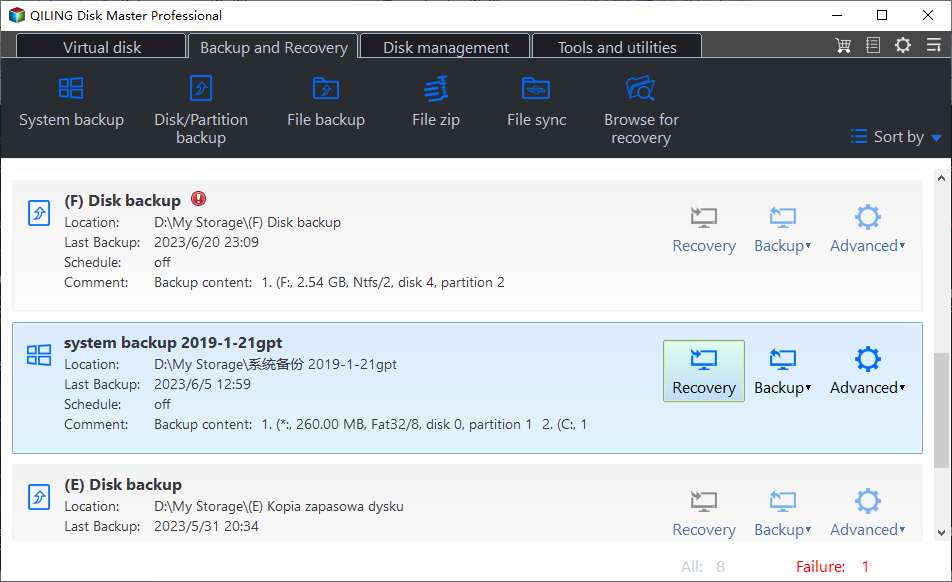
2. After loading files, you will see Qiling Disk Master Professional again. Click "Restore" and "Select Image File" to find the backup image.

3. Select "Restore this system backup" and "Restore to other location", then click Next.
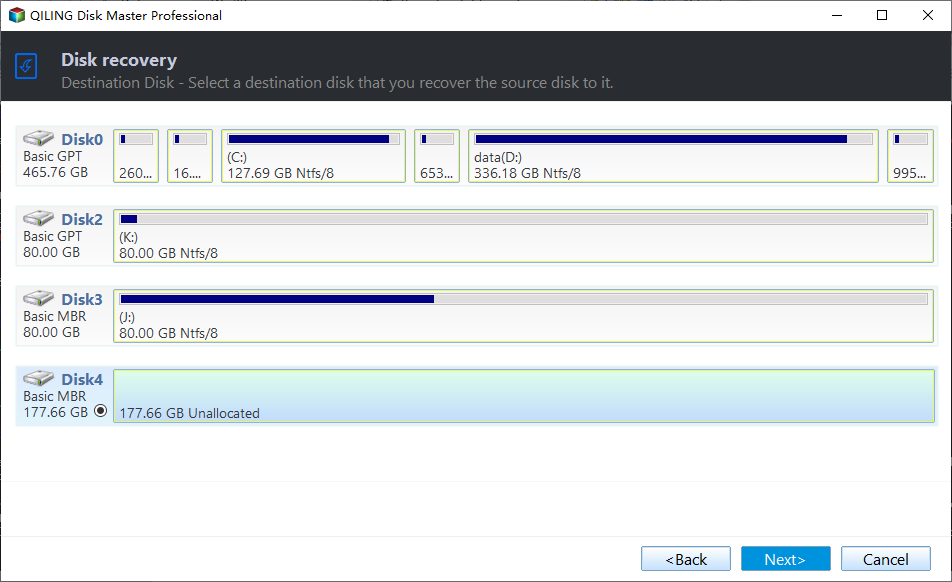
4. To restore the system image on a new computer, select the hard drive on the new computer and click Next.
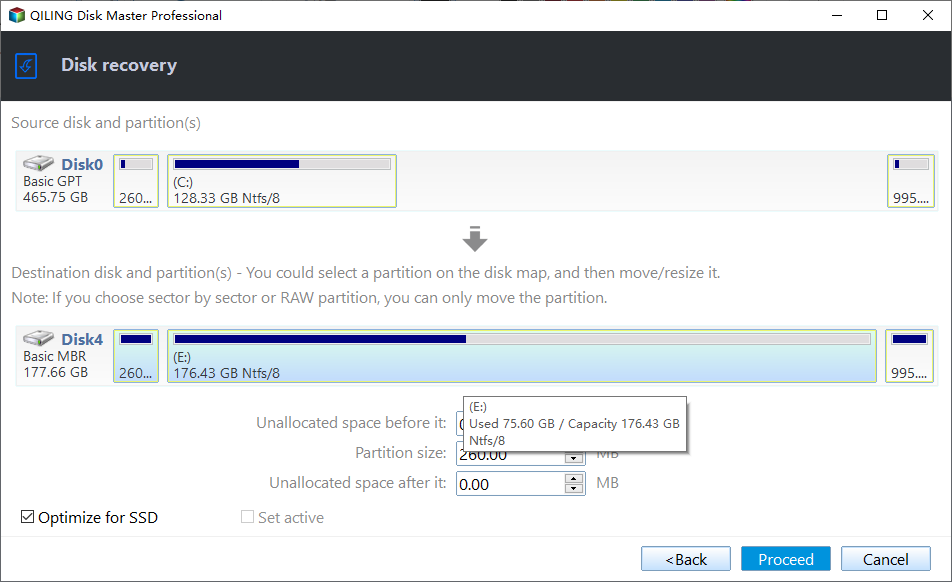
5. To copy Windows 7 from one computer to another, check the "Universal Restore" option and click "Proceed". If you're restoring Windows 7 to a new computer with an SSD, also check the "SSD Alignment" option to optimize its performance.
6. Wait for the process to complete, then shut down the computer, disconnect the bootable media and boot from the new PC.
Things to Pay Attention to After Restoration:
✔ Some drivers, like those for video/sound cards, NICs, and displays, aren't installed by Qiling Universal Restore, but they won't affect system startup, so you can install them manually in Windows after a successful restore.
✔ You need to reactivate Windows after using it on a different computer, and each license key can only be used on one computer at a time.
✔ To restore a system to multiple computers, use Qiling Image Deploy in the Technician or TechPlus edition.
Final Words
You can easily transfer Windows 7 to another computer using Qiling Disk Master Professional, even if the computers are dissimilar, as long as you have a transferable license key. It's essential to have a backup of your system, preferably the latest one, before migrating to ensure a smooth transfer process.
To keep your Windows 7 system safe, it's recommended to schedule a backup and automatically delete old backups to free up space. This way, you can easily restore your system to a new hard drive or computer in case of a disaster. Additionally, you can use this backup to clone Windows 7 to multiple computers.
Related Articles
- Freeware to Backup to Another Computer over the Internet
- 2 Ways: Clone Old Computer to New PC (Bootable)
- Copy User Profile in Windows 7 to Another Computer |3 Solutions
- How to Deal with Hard Disk 1 Quick (303) Error?
This article is written for users like you who want to fix Hard Disk 1 Quick (303) error. Scroll down to learn more. - Does Crucial Have Cloning Software?
This guide explains Does Crucial Have Cloning Software with clear steps, key checks, and practical tips. - Does Hitachi Hard Drive Have Cloning Software?
This guide explains Does Hitachi Hard Drive Have Cloning Software with clear steps, key checks, and practical tips.
Products
Articles & Tutorials
- Data Recovery
- Data Backup
- File Recovery
- File Backup
- File synchronize
- System Backup and Restore
- Disk and Partition Clone
- Technical articles
- Disk Master Help
- Windows Deleted File and Disk Recovery Tutorials
- Windows File and Data Recovery Tutorials
- More Windows Tutorials for Install, Security, Files, and PC Tips
- Windows Boot, Repair, and Recovery Environment Tutorials
- Windows Backup Tutorials
- Windows Restore Tutorials
- Windows Clone and Migration Tutorials
- Windows Server Backup, Recovery, and Management Tutorials
- Windows Disk, Partition, and Storage Management Tutorials