How to Replace HDD with SSD on Desktop in Windows 11/10/7
Quick Navigation:
- Why replace HDD with SSD in desktop?
- How to choose the right SSD for your desktop
- Reliable tool to replace HDD with SSD in desktop
- How to replace HDD with SSD in desktop step by step
- Conclusion
Why replace HDD with SSD in desktop?
Solid-Many people upgrade their hard drive to SSDs on both desktops and laptops, seeking several key benefits. These include faster data access and loading times, improved responsiveness and performance, reduced power consumption and heat generation, enhanced durability and shock resistance, and increased storage capacity and flexibility. Additionally, SSDs often feature advanced security and encryption capabilities, and can be more resistant to physical damage and data loss. Overall, the advantages of SSDs make them an attractive option for users looking to upgrade their storage solutions.
- Better experience. Solid-State Drives (SSDs) offer portability and lower power consumption, and boast faster reading and writing speeds, resulting in quicker load times for operating systems and applications, including games.
- Zero vibration and heat. SSDs are less susceptible to data loss due to their resistance to vibrations and heat, making them a more reliable storage option.
- Strong temperature tolerance. Solid-state drives (SSDs) can operate within a temperature range of -10°C to 70°C, showcasing their robustness.
- Greater compatibility. For advanced users, SSDs can be easily set up as a RAID array, whereas this is more challenging with traditional hard drives.
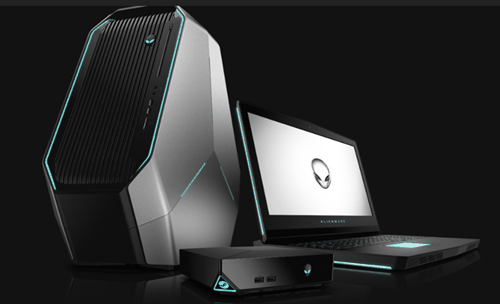
Considering the benefits of switching from a Hard Disk Drive (HDD) to a Solid-State Drive (SSD), it is highly recommended to make the change, whether in a desktop or laptop. If you have the installer disc, you can simply install Windows on the SSD from scratch, or if you're not bothered by the process, it's perfectly fine to do so.
If you want to keep all your personal configurations and installed applications on a Solid State Drive (SSD), the most worry-free solution is to replace your Hard Disk Drive (HDD) with an SSD without reinstalling everything. Before doing so, you may want to know some information to consider.
How to choose the right SSD for your desktop
When considering replacing your desktop's hard drive with a solid-state drive (SSD), it's essential to choose the right one. Before making the switch, ensure the SSD you've purchased is compatible with your desktop. To do this, consider factors such as the SSD's interface type (e.g.
✿ Reasonable disk capacity. Many desktop users choose to move their operating system to an SSD (solid-state drive) while keeping their files on a traditional HDD (hard disk drive), as it allows for faster boot times and improved overall system performance. This approach is often referred to as a "hybrid setup".SSD for OS and HDD for storage If you only install the Windows OS and some essential applications on an SSD, a 500GB SSD is sufficient. However, if you plan to move all your data to the new SSD, a 1TB SSD would be more suitable for the long term.
If you're interested in more advanced properties such as power consumption, SSD's controller, storage memory (NAND flash), or endurance, you can check this link for reference.
If you're still unsure about choosing the right SSD, you can try searching for an SSD specifically designed for your desktop brand, such as a Dell desktop SSD. This can help ensure compatibility and optimal performance.
Reliable tool to replace HDD with SSD in desktop
To replace a traditional hard drive (HDD) with a solid-state drive (SSD), start by connecting the SSD to your desktop. It's recommended to install the SSD in a SATA port or a PCIe slot, as this will ensure it's detected by Windows. Once connected, ensure the SSD is recognized by your operating system. This usually involves entering the BIOS settings and setting the SSD as the primary boot device.
To transfer everything from an HDD to an SSD, you'll need professional cloning software like Qiling Disk Master Professional, which allows you to move everything without reinstalling the OS and programs.
- Two cloning methods for different disk conditions With the default clone method, you can clone your larger hard drive to a smaller SSD as long as the SSD is no smaller than your used space, even if it's smaller than your current HDD. This means you can transfer your data to a smaller SSD without having to worry about running out of space.
- 4K partition alignment for SSD. Qiling Disk Master allows users to align partitions for optimal SSD performance and longevity, enhancing reading and writing speeds.
- Clone and resize partitions. You can resize partitions on the destination disk before starting the cloning process.
- OS migration only. The System Clone feature allows users to transfer their Windows operating system, along with associated boot drives, to a Solid-State Drive (SSD), while leaving other data intact on the original drive. This feature enables users to upgrade their system drive to a faster SSD without affecting other files and programs.
The software includes features like Create bootable media, partition clone, and GPT clone, allowing users to create bootable media, clone partitions, and clone GPT disks. It can be downloaded and tried.
This version of the software has a Clone feature that can be demonstrated, but to execute the operation, an upgrade to the full version is required. The full version can be obtained with a discount.
How to replace HDD with SSD in desktop step by step
1. Launch the Qiling Disk Master Professional software, click on "Tools" and then select "Disk Clone" to proceed with the cloning process.
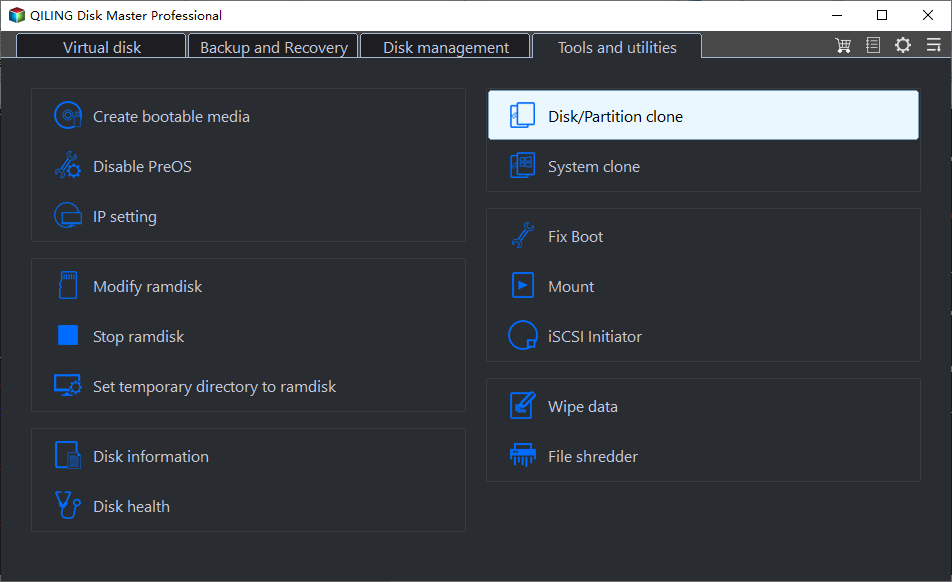
To migrate your OS to an SSD, select System Clone at this step, and then follow the rest of the cloning process as usual.
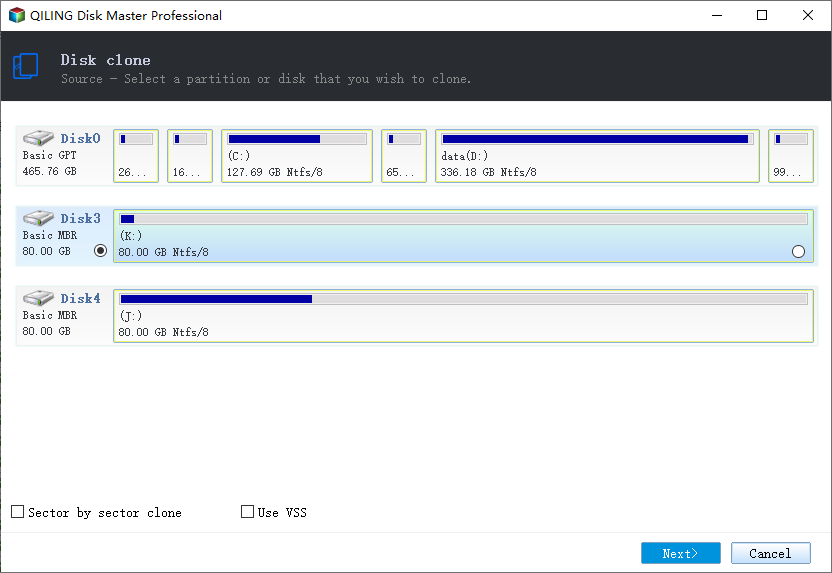
2. Select your current HDD as the source disk.
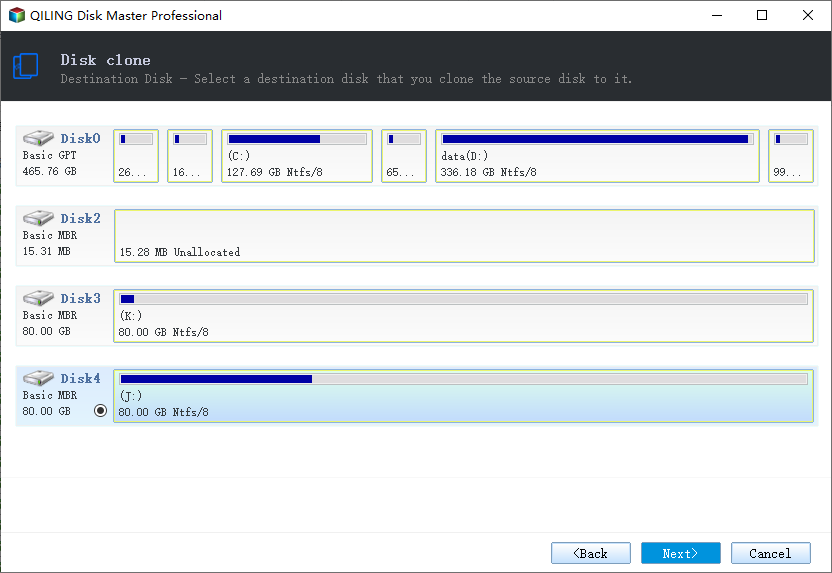
3. Select the SSD as your destination disk.
4. Here you have the option to choose a cloning method. Make sure to select the "Optimize for SSD" box since the destination disk is an SSD, and then click "Proceed".
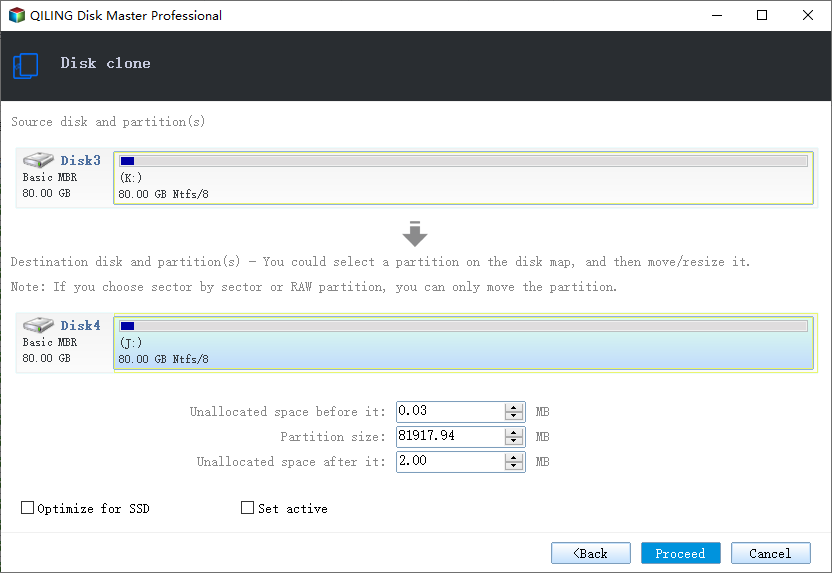
You can use the "Edit Partitions" feature to adjust the partition size on the destination disk, which is more practical and helps resolve two potential issues during the cloning process, allowing you to keep the old partition layout or adjust it as needed.
#1: The cloned drive not show full capacity.
To prevent the cloning software from making an exact copy of the source disk, try the following three options. The last two are available on the Professional version.
👉 Copy without resizing partitions: It will not resize the partition size.
👉 Add unused space to all partitions: The software will automatically redistribute any unallocated space on the target disk to each partition, taking into account the disk's total size.
👉 Manually adjust partition size: It allows you to extend unallocated space to any partition on the destination disk you want.
#2: The cloned drive not bootable after cloning.
The main issue here is that the destination and source disks have different partition styles, specifically MBR and GPT, and the cloning process is not converting them to the same style. To resolve this, you can simply check the option to convert the destination disk from MBR to GPT or vice versa, matching the partition style of the source disk.
MBR and GPT are two different disk types for data storage, which can be checked in Disk Management. Both types have their own disk properties and can be distinguished through this tool. The overall steps to check the disk type are as follows.
- To open disk management, press Win + R to open the Run window, then type diskmgmt.msc and hit OK.
- Then, right-Click on the disk you want to clone and select Properties in the pop-up window.
- In the Properties window, select the Volume tab and confirm the partition style, which can be either MBR (Master Boot Record) or GPT (GUID Partition Table).

- If you want to clone a hard drive, you should check the disk partition type of the destination disk. If it's still MBR, you can clone for free using a bootable USB. However, if you need to clone GPT to GPT, MBR to GPT, or GPT to MBR, you'll need a professional version.
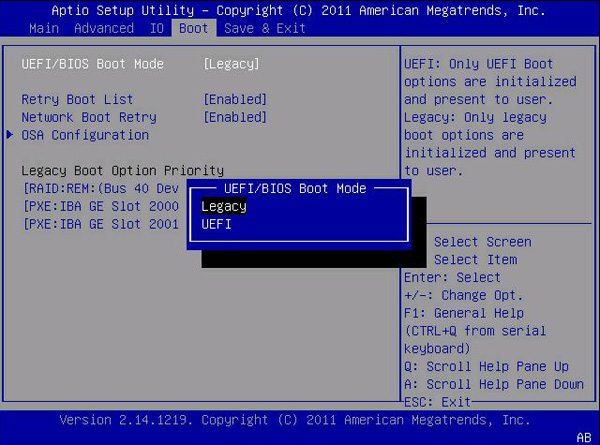
5. To complete the process, shut down your PC. For a more accurate test, consider removing the HDD. Alternatively, you can change the boot order in the BIOS settings. However, if you're cloning from MBR to GPT, you'll also need to switch the BIOS setting from Legacy to UEFI.
Conclusion
Using Qiling Disk Master to replace a HDD with an SSD in a desktop is a straightforward process. While it may not have cloning capabilities, the software is still versatile and can be used for other tasks such as backing up data from a corrupted hard drive, transferring files between laptops and desktops, and performing scheduled system backups and cloud backups. Additionally, incremental and differential backups are also available through Qiling Disk Master.
Related Articles
- [Solved] Black Screen After Cloning Disk
This article will help you solve the problem of Windows 11/10/8/7 black screen after cloning. You won't encounter boot errors if you use the best disk cloning software - Qiling Disk Master. - Clone HDD to OCZ SSD with Free Clone Software
Learn how to Clone HDD to OCZ SSD with Free Clone Software with clear steps, key checks, and practical tips. - Successfully Clone HDD to SSD Including Recovery Partition
Qiling Disk Master, as a professional disk clone software, is able to clone HDD to SSD including recovery partition successfully. - Clone mSATA SSD to mSATA SSD Safely in 5 Steps
In this article, you will learn the best way to clone mSATA SSD to mSATA SSD, and some useful tips to ensure successful cloning. - Free Copy SD Card to SD Card in Windows PC [Full Tutorial]
This article will show you how to copy an SD card to another SD card on Windows using a free and powerful tool called Qiling Disk Master Standard, which is a reliable SD card to SD card copier. - Free Corsair Data Migration Software for Cloning
This guide explains Free Corsair Data Migration Software for Cloning with clear steps, key checks, and practical tips.
Products
Articles & Tutorials
- Data Recovery
- Data Backup
- File Recovery
- File Backup
- File synchronize
- System Backup and Restore
- Disk and Partition Clone
- Technical articles
- Disk Master Help
- Windows Deleted File and Disk Recovery Tutorials
- Windows File and Data Recovery Tutorials
- More Windows Tutorials for Install, Security, Files, and PC Tips
- Windows Boot, Repair, and Recovery Environment Tutorials
- Windows Backup Tutorials
- Windows Restore Tutorials
- Windows Clone and Migration Tutorials
- Windows Server Backup, Recovery, and Management Tutorials
- Windows Disk, Partition, and Storage Management Tutorials