Best Free Kingston SSD Cloning/Migration Software
Quick Navigation:
- Why Need Kingston SSD Migration Software?
- What’s the Best Free Kingston SSD Cloning Software?
- How to Migrate OS and Data to Kingston SSD via Qiling Disk Master
- Transfer Everything to Kingston SSD
- Migrate OS Only to Kingston SSD
- How to Boot from Kingston SSD in Windows 10/8/7
- Conclusion
Why Need Kingston SSD Migration Software?
SSD is short for Solid-The Solid-State Drive (SSD) is a cutting-edge storage device that outshines traditional hard drives in terms of performance and durability. It enables faster booting, quicker loading of applications, and faster shutdowns, making it a popular choice for computer upgrades. As a result, many users are opting to replace their hard drives with SSDs to experience improved system performance.
Kingston SSD Migration Software is necessary when you need to move data from an old hard drive to a new Kingston SSD. This is typically done when upgrading from a traditional hard drive to a solid-state drive (SSD) to take advantage of the improved performance and reliability of the SSD. The software helps to clone the old drive to the new SSD, ensuring that all data, including operating systems, programs, and files, are transferred seamlessly and with minimal disruption. This process is particularly useful when upgrading to a new Kingston SSD, as it allows you to start using your computer with the new drive immediately, without having to reinstall your operating system and applications.
❀ Upgrade disk to Kingston SSD with a larger storage
❀ Transfer data from HDD to Kingston SSD
❀ Migrate OS to Kingston SSD without reinstalling
What’s the Best Free Kingston SSD Cloning Software?
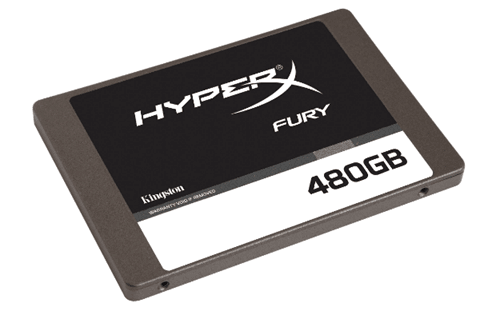
When purchasing a Kingston SSD, you may need a cloning software to assist with the original hard drive replacement or data migration. There are various types of cloning software available, and choosing the right one can be a challenge.
Some Kingston SSDs come with the Kingston SSD migration tool, which includes the Acronis True Image OEM software. This software suite offers a cloning feature that helps migrate the OS to a Kingston SSD. However, users may encounter the Acronis clone disk operation failed error while cloning. If this error cannot be resolved, a free alternative, Qiling Disk Master Standard, can be used instead.
Qiling Disk Master is a free hard drive cloning software for Windows, allowing you to clone your hard drive to another disk, making it a useful tool for upgrading or replacing your hard drive.
◑ Cloning a hard drive of a different size involves creating an exact replica of the original drive's contents on a new drive, even if the new drive is smaller or larger. This process is useful when upgrading or replacing a drive, but requires careful consideration of the size difference to avoid data loss or corruption.
◑ Clone your system disk to a new HDD or SSD without reinstalling the operating system, allowing you to adjust partition sizes and align them for optimal SSD performance, while also creating a backup of your hard drive.
For Windows PC users, Qiling Disk Master Standard is a free option that offers a quicker speed of cloning without any bundled adware. This software can be used to perform a Kingston SSD clone and also provides other powerful features. To transfer data or OS to a Kingston SSD, users can follow the tutorials provided.
How to Migrate OS and Data to Kingston SSD via Qiling Disk Master
Preparations:
▶ Connect the destination drive, Kingston SSD, to your current computer. You may need an external disk enclosure or USB-to-SATA cable. If there are important files on the Kingston SSD, back them up first, as the cloning process will overwrite all data on the destination drive.
Transfer Everything to Kingston SSD
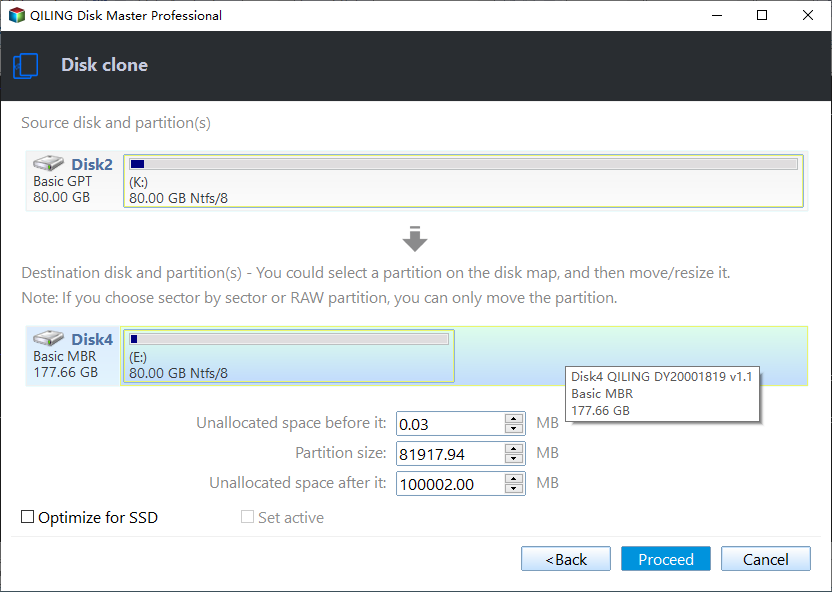
Step 1. Install and start Qiling Disk Master Standard. Click Clone, and select Disk Clone.

Step 2. Select the original hard drive as the source disk for data migration, then click Next.

Step 3. Select the Kingston SSD as the destination path.

Step 4. Check the SSD Alignment option to potentially improve SSD disk writing and reading speed during the hard drive to SSD cloning process, then click Proceed.
Migrate OS Only to Kingston SSD
If you want to migrate the operating system to a Kingston SSD, Qiling Disk Master offers two methods. You can use its free backup and restore features or upgrade to the advanced version for system cloning.
Method 1. Migrate OS to Kingston SSD via Backup and Restore [Free]
Step 1. Click the "Backup" option, then select "System Backup" to create a complete system image.

Step 2. After system backup image has been created, click "Restore" and then click "Select Task".

Step 3. Select the system backup task from the list and click "Next".

Step 4. To restore your system backup and migrate your OS to a Kingston SSD, select the option to restore the system backup and check the box for universal restore, then click next.

Step 5. Select a partition on the SSD as the restoration destination and click "Next".

Step 6. On the Operation Summary window, check the box next to "SSD Alignment" to enhance the reading and writing speed of the destination SSD, then click "Proceed".

Method 2. Migrate OS to Kingston SSD by System Clone [Advanced]
While the free version can be used to complete the operating system migration, upgrading to the professional version offers a more convenient and simpler method. This alternative approach can be compared to the tutorial to determine the preferred method between the two.
Step 1. Select "Clone" -> "System Clone".

Step 2. The source drives (OS drive and boot related drives) are selected by default, and the Kingston SSD is chosen as the destination location.

Step 3. Preview the operation. Select "SSD Alignment", and click "Proceed".
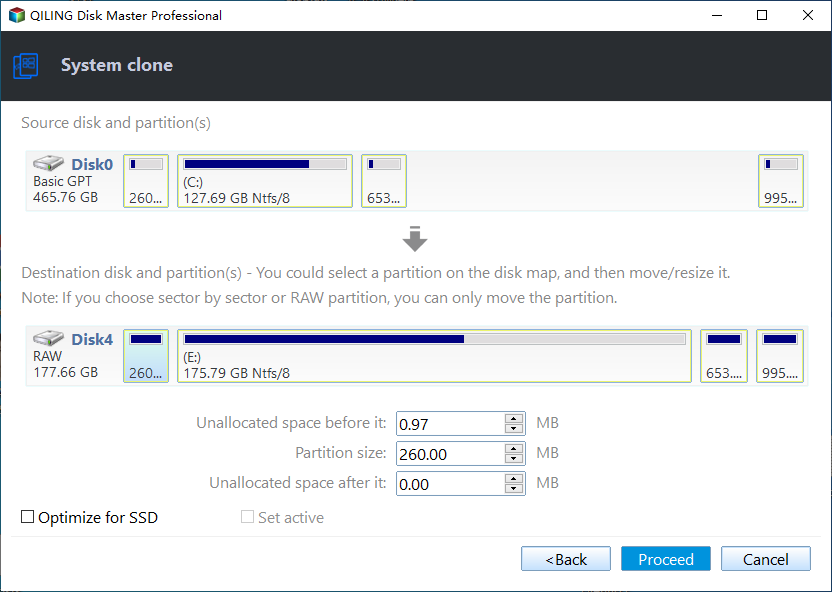
Step 4. Click "Finish" when all the cloning operations have been done.
Tips✍:
If you want to clone all sectors on the source disk, whether used or not, use this option.
How to Boot from Kingston SSD in Windows 10/8/7
After using the Kingston cloning software to migrate the OS, you need to boot from the Kingston SSD by changing the boot order in the BIOS or replacing the old drive with the SSD.
To change the boot order in the BIOS, restart your PC, press the required key to enter BIOS (usually F2, F8, F12, Del), select the SSD drive as the first boot device, and save changes by pressing F10.
Conclusion
To migrate data or OS to a Kingston SSD, use the free Qiling Disk Master software, which offers a user-friendly interface and efficient data transfer. This process is often performed to upgrade a computer's performance or storage capacity by replacing the traditional hard disk with a more efficient SSD, taking advantage of the latter's superior functionality and affordable prices.
This software allows you to clone a drive, including cloning an SSD to a HDD in Windows 10, cloning an external HDD to an internal one, and cloning an NTFS drive. It also has backup and recovery functions, making it easy to restore lost files and documents from backups with just a few clicks.
Related Articles
- Migrate OS to Kingston SSD without Reinstalling | 4 Easy Steps
- Clone HDD to Kingston SSD and Boot Successfully [Verified]
- Best Free SSD Cloning Software for Windows 10/8/7
- New 16TB External Hard Drive Released: Perfect for Storing Large Data Files
A 16 TB External Hard Drive can hold a huge amount of documents, various forms of media, software, and applications. This article will introduce the 5 best 16 TB External Hard Drive and talk about the perks of each one. - How to Transfer OS from HDD to SSD without Reinstalling
The easiest way to transfer OS from HDD to SSD is system cloning. It ensures booting from the target SSD, and eliminates the need of reinstalling Windows. - Full Guide | HP Omen 15-ce0xx RAM and SSD Upgrade
This article shares HP Omen 15-ce0xx RAM upgrade tutorial and offers a guide to upgrading your SSD for better performance.
Products
Articles & Tutorials
- Data Recovery
- Data Backup
- File Recovery
- File Backup
- File synchronize
- System Backup and Restore
- Disk and Partition Clone
- Technical articles
- Disk Master Help
- Windows Deleted File and Disk Recovery Tutorials
- Windows File and Data Recovery Tutorials
- More Windows Tutorials for Install, Security, Files, and PC Tips
- Windows Boot, Repair, and Recovery Environment Tutorials
- Windows Backup Tutorials
- Windows Restore Tutorials
- Windows Clone and Migration Tutorials
- Windows Server Backup, Recovery, and Management Tutorials
- Windows Disk, Partition, and Storage Management Tutorials