Best M.2 NVMe SSD Duplicator: Copy M.2 NVMe SSD in 2 Ways
Quick Navigation:
- About M.2 NVMe SSD
- Why do you need M.2 NVMe SSD duplicator?
- Prime M.2 NVMe SSD cloner you need
- How to clone M.2 NVMe SSD to another one on a Windows PC
- Conclusion
About M.2 NVMe SSD
M.2, M.2 is a specification for internally mounted computer expansion cards and associated connectors, replacing the mSATA standard, with a more flexible physical specification suitable for use in small devices like ultrabooks and tablets.
NVMe NVMe is an open interface specification that enables direct access to non-volatile storage media via a PCIe bus, offering lower latency and higher input/output operations per second compared to SAS-based and SATA-based SSDs.
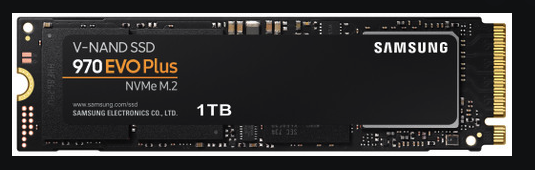
An M.2 NVMe SSD is a type of solid-state drive that has a smaller, more flexible form factor and higher performance compared to traditional SSDs. Examples include the Samsung 970 Evo Plus, Sabrent Rocket Q, and Addlink S70.
Why do you need M.2 NVMe SSD duplicator?
You should clone your M.2 NVMe SSD for regular backup, and upgrade it to a larger drive when it runs out of space. This way, you can quickly go back to work in case of a malfunction.
When you have multiple computers with the same system, using an M.2 NVMe SSD duplicator can save you hours of time that would be spent configuring each computer individually, instead taking just minutes to duplicate the system across all devices.
To clone an M.2 NVMe SSD, the first step is to select a reliable M.2 SSD cloner. This device will be used to copy the data from the original SSD to the target drive, ensuring a seamless and accurate transfer of files, operating systems, and programs.
Prime M.2 NVMe SSD cloner you need
With the right M.2 NVMe SSD duplicator, you can save a significant amount of time and effort. I highly recommend the Qiling Disk Master Professional, which offers numerous benefits, including [insert features here].
✧ Backup and Restore: To recover data, create an image file for the operating system, disk, partition, or files, and then restore the backup image whenever you need it. This allows you to easily recover your system or specific files in case of data loss or corruption.
✧ Clone: You can clone a disk, partition, or even just the operating system using the System Clone feature, making a duplicate of a disk or partition.
✧ File Sync: Synchronize files or folders from one location to another, such as transferring files from one PC to another.
To try Qiling Disk Master, simply click the button below to download and install it on your Windows PC (Windows 11/10/8.1/8/7/Vista/XP supported), or for Windows Server users, download Qiling Disk Master Server.
How to clone M.2 NVMe SSD to another one on a Windows PC
I'll show you how to clone NVMe SSD in two efficient ways separately. You can choose one according to your own situation.
- Situation 1: There is more than one M.2 slot in your computer.
- Situation 2: There is only one M.2 slot in your computer.
Situation 1: There is more than one M.2 slot in your computer.
You can easily clone an M.2 NVMe SSD to another SSD by following these steps:
Note: The destination disk will be completely overwritten. Backup files on the destination disk before you start if you still need the files.
- To clone your SSD, connect it to your computer and ensure it is detected. Then, run Qiling Disk Master, click on the "Clone" option on the left panel, and select "Disk Clone" from the available options.

- To clone the M.2 NVMe SSD to the newly connected SSD, select the M.2 NVMe SSD as the source disk and the newly connected SSD as the destination disk in the cloning software, then click "Next" to proceed.

- To enhance the reading and writing speed of the destination SSD, select the option to align the SSD and confirm the operation by clicking "Proceed".

Situation 2: There is only one M.2 slot in your computer.
To connect a second drive to a laptop with a single M.2 slot, you'll need an M.2 to SATA or M.2 to PCIe adapter. If you don't have an adapter, you can use the backup and restore method to transfer data from the second drive to the primary drive. This involves backing up your data from the second drive, removing it, and then restoring the data from the backup onto the primary drive.
- Connect a USB drive to your computer and create bootable media with Qiling Disk Master.

- Click on the "Backup" button on the left side and select "Disk Backup" to create a backup of the M.2 NVMe SSD on the bootable USB drive, then follow the on-screen instructions to complete the backup process.

- Replace the current M.2 NVMe SSD with the new NVMe SSD and boot your computer from the bootable USB you just created.
- Once your computer boots up, click on "Home" on the left panel of Loaded Qiling Disk Master, find the disk backup task, and select "Restore" from the expanded menu.
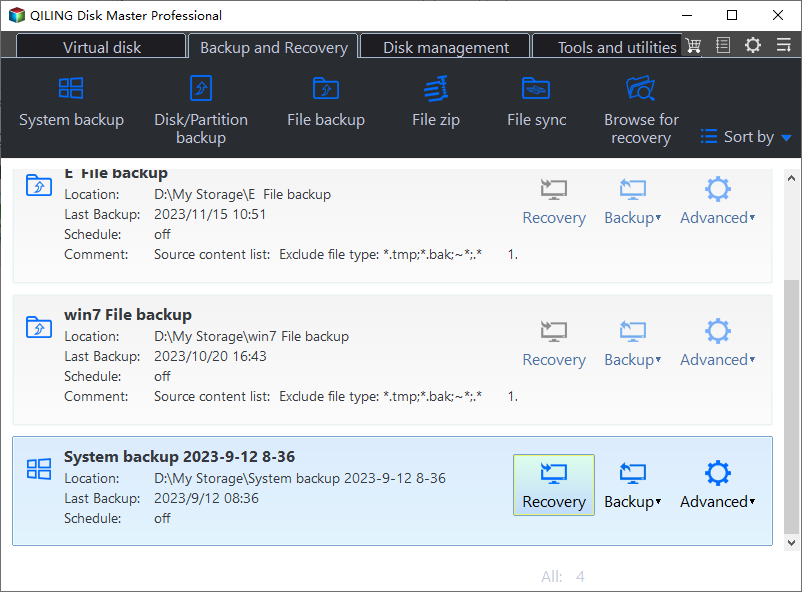
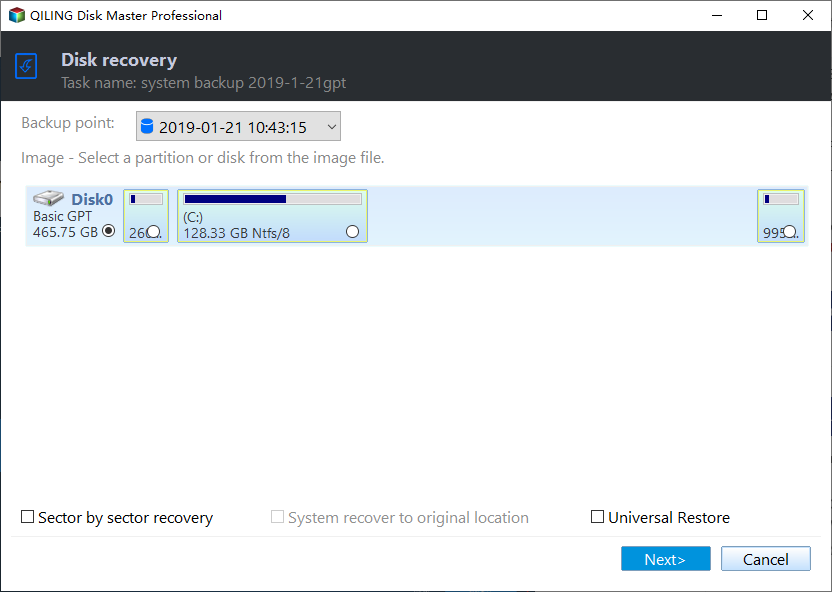
- Select "Restore the entire disk", click on the disk and click "Next".
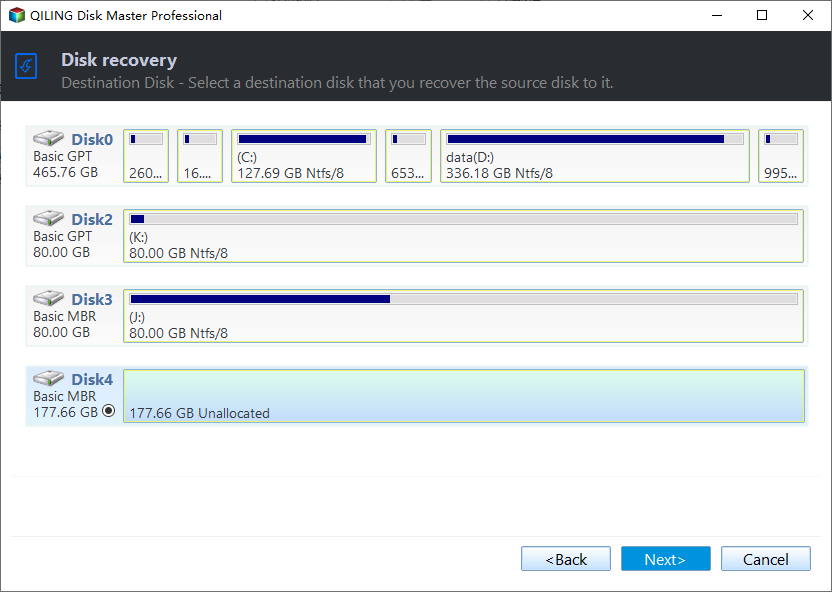
- Select the new NVMe SSD as the destination disk and click "Next".
- To optimize SSD performance, tick the box labeled "SSD Alignment" and confirm the operation by clicking "Proceed".
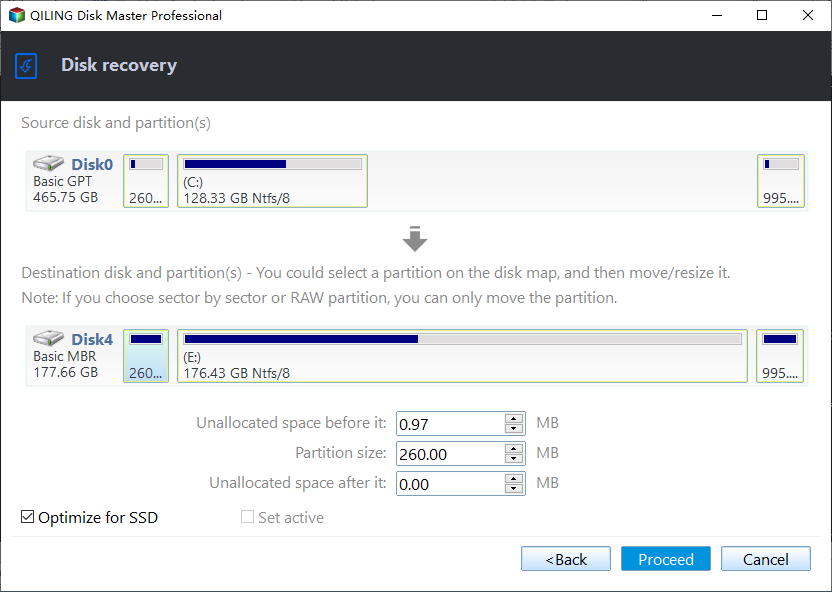
Tips: If you want to use the M.2 NVMe SSD on another computer, you can check the "Universal Restore" option to perform a dissimilar hardware restore.
Conclusion
When looking for an M.2 NVMe SSD duplicator, Qiling Disk Master is a great choice, offering two ways to duplicate an M.2 NVMe SSD to another SSD, while also allowing you to backup multiple drives in Windows 10 and sync a laptop and a desktop.
Related Articles
- How to Clone Windows 10 to NVMe SSD Step by Step Guide
- Free Download The Best Free M.2 SSD Cloner-Qiling Disk Master
- How to Clone NVMe to NVME SSD in Windows (2 Ways Included)?
- eSATA External Hard Drive: Everything You Should Know
In this article, we will discuss what is eSATA external hard drive and its pros and cons. Besides, you can get some recommendations for eSATA external hard drives. - Clone HDD to SSD in Lenovo Laptop for Better Performance
Learn how to Clone HDD to SSD in Lenovo Laptop for Better Performance with clear steps, key checks, and practical tips. - How to Migrate OS from MBR Disk to GPT SSD or HDD? (Bootable)
If you want to migrate OS from MBR disk to GPT SSD or HDD, here you can learn the simplest way to move OS from MBR to GPT disk without reinstalling everything from scratch.
Products
Articles & Tutorials
- Data Recovery
- Data Backup
- File Recovery
- File Backup
- File synchronize
- System Backup and Restore
- Disk and Partition Clone
- Technical articles
- Disk Master Help
- Windows Deleted File and Disk Recovery Tutorials
- Windows File and Data Recovery Tutorials
- More Windows Tutorials for Install, Security, Files, and PC Tips
- Windows Boot, Repair, and Recovery Environment Tutorials
- Windows Backup Tutorials
- Windows Restore Tutorials
- Windows Clone and Migration Tutorials
- Windows Server Backup, Recovery, and Management Tutorials
- Windows Disk, Partition, and Storage Management Tutorials