How to Migrate OS to Smaller SSD Securely | Step by Step
Quick Navigation:
- User case: How to move OS to smaller SSD?
- Why migrate OS to smaller SSD, can you do that?
- Best software to transfer OS to smaller SSD successfully
- How to migrate OS to smaller SSD step by step
- Tips on booting computer from the cloned SSD
- To wrap up
User case: How to move OS to smaller SSD?
To move Windows 7 from your 1TB Seagate HDD to your 240GB Kingston SSD, you'll need to free up space on the SSD to accommodate the operating system and some essential programs. Since you can't fit all 600GB of data from the HDD on the SSD, you'll need to decide what to do with the excess data. One option is to move some of the data to an external hard drive or cloud storage, and then reinstall Windows 7 on the SSD. You can also consider using a smaller version of Windows 7, such as Windows 7 Starter, which requires less disk space.
To move your Windows installation to the SSD, you'll need to clone your existing installation to the SSD, then boot from the SSD and delete the old installation. You can use a tool like Qiling Disk Master to clone your installation. Once you've cloned your installation to the SSD, you can then move some programs over to the SSD by uninstalling them from your old drive, then reinstalling them on your new SSD. Alternatively, you can also use a tool like CCleaner or Disk Cleanup to free up space on your old drive and then move the programs you want to keep to the SSD.
Why migrate OS to smaller SSD, can you do that?
As we all-Replacing a traditional hard drive (HDD) with a solid-state drive (SSD) offers numerous advantages. Unlike HDDs, SSDs have no moving parts and store data in microchips, making them significantly faster, more durable, lighter, quieter, and more power-efficient. These benefits have led many users to opt for SSDs, seeking to upgrade their storage solutions and take advantage of their superior performance.
Most SSDs have smaller capacities than HDDs at the same price, making it impossible to transfer all data from HDD to SSD due to space constraints. In such cases, users often choose to migrate the operating system to a smaller SSD, while using the HDD for storage. However, this approach can still lead to various issues.
To migrate an HDD to a smaller SSD, you'll need a handy system cloning tool. One such tool is a system cloner that can help you transfer your operating system and data to the new SSD, making it easy to upgrade your storage without reinstalling your OS. With a cloner, you can follow a step-by-step process to migrate your OS, making the transition to a smaller SSD seamless and hassle-free.
Best software to transfer OS to smaller SSD successfully
Windows backup utility The first option for most users to migrate the operating system is by backup and restore method. This process involves creating a system image backup using Backup and Restore, storing it on another device, and then restoring the system image to the new SSD. However, this method requires moving the system image twice, making it time-consuming and tedious.
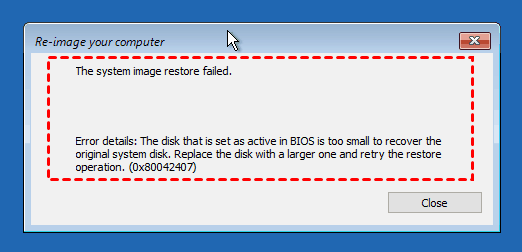
Windows Backup and Restore does not allow system restore to a partition layout smaller than the original disk, resulting in a system image restore failed error.
It's not recommended to use built-in tools for operating system migration. Instead, a professional disk clone software is the best way to go, allowing for a seamless transfer of the OS and all its settings to a new device. Qiling Disk Master ProfessionalThis software can clone an SSD in a single step, ensuring the cloned SSD is bootable.
🔹To transfer the operating system, you'll use the System Clone feature, which will include the OS, boot partitions, personal data, installed programs, and more.
🔹The SSD disk can be smaller because it uses Intelligent Clone features, which only clone the used sectors of the system partition, making it efficient and space-saving.
🔹It can help you further accelerate the reading and writing speed of SSD disk as well as prolong its lifespan.
The software features an intuitive interface that makes it easy for users to understand and navigate, allowing them to quickly get started with its operations. Users can download the software to experience its user-friendly interface firsthand.
The free trial version of the software can only demonstrate the Clone feature, and actual OS migration and booting require an upgrade to the full version, which can be purchased at a discounted rate of up to 20%.
How to migrate OS to smaller SSD step by step
With Qiling Disk Master installed, you can easily migrate your OS to a smaller SSD without reinstalling Windows, or even clone your entire disk to a smaller SSD as long as the capacity is sufficient to hold all your existing data.
The software supports cloning system disks between MBR and GPT, or from MBR to GPT and vice versa, and also supports cloning OS and data. I will now demonstrate how to perform the OS and data migration using this software.
Preparations before migrate OS:
- Install a smaller SSD alongside your existing HDD, or use a SATA to USB adapter if your computer only has one available slot.
- Be sure the smaller SSD can be detected by Windows in your computer.
- If your system partition is larger than your smaller SSD, you need to free up space. You can do this by running Disk Cleanup, deleting large files, or uninstalling unnecessary programs. This will help prevent running out of space.
- If the smaller SSD isn't blank, make a file backup for your essential files.
Steps to clone operating system to smaller SSD:
Step 1. Launch Qiling Disk Master Professional, and choose System Clone or Disk Clone under the Clone tab for a system or complete hard drive migration.

Step 2.Choose the smaller SSD as the Destination Partition and click Next, and the system and system-related partitions will be selected by default.

Step 3. To boost the performance of your SSD disk, check the "SSD Alignment" box, then click "Proceed" to move your OS to the smaller SSD.

- Notes:✎...
- Make full use of disk space: When cloning an OS to a larger drive, this feature is automatically checked to extend the system partition to utilize the unallocated space on the new drive.
- Cloning every part of a disk to an SSD means copying all used and unused parts of the original disk to the SSD, which can be unnecessary and inefficient, especially if the original disk has unused space. This option can be ignored in this scenario, as it would likely fail due to insufficient disk space.
Tips on booting computer from the cloned SSD
- Remove previous hard drive and install the new SSD on your computer to let Windows OS boot from SSD.
- If the computer doesn't boot, try changing the boot settings in the BIOS and attempt to boot from it again.

To migrate your operating system to a smaller SSD, follow these simple steps. Firstly, ensure your new SSD is recognized by your computer and has enough free space to hold your OS.
To wrap up
Unfortunately, the Windows backup utility doesn't allow transferring the OS to a smaller SSD, so professional cloning software is needed. Qiling Disk Master, in particular, supports OS cloning and uses an Intelligent Clone feature that clones only used sectors by default, making it easier to clone the OS to a smaller SSD with secure boot.
This powerful backup utility creates system image backups in Windows, allowing for easy restoration to smaller SSDs, and can even deploy system images to multiple computers with the technician or techplus edition, making it a software worth trying.
Related Articles
- Migrate OS to SanDisk SSD with 4 Steps in Windows 10/8/7
- Best Free Ways to Migrate OS to Crucial SSD in Windows
- Migrate OS to Kingston SSD without Reinstalling | 4 Easy Steps
- How to Transfer Windows 10 from One SSD to Another Easily (2 Ways)
- Move System Reserved Partition to another Drive Safely
Learn the key steps, checks, and practical tips for this related guide. - Top 2 Ways to Upgrade MSI Gaming Laptop Hard Drive to SSD
You can easily upgrade MSI gaming laptop hard drive to SSD without reinstalling in Windows 11, 10, 8, 7 and ensure secure boot.
Products
Articles & Tutorials
- Data Recovery
- Data Backup
- File Recovery
- File Backup
- File synchronize
- System Backup and Restore
- Disk and Partition Clone
- Technical articles
- Disk Master Help
- Windows Deleted File and Disk Recovery Tutorials
- Windows File and Data Recovery Tutorials
- More Windows Tutorials for Install, Security, Files, and PC Tips
- Windows Boot, Repair, and Recovery Environment Tutorials
- Windows Backup Tutorials
- Windows Restore Tutorials
- Windows Clone and Migration Tutorials
- Windows Server Backup, Recovery, and Management Tutorials
- Windows Disk, Partition, and Storage Management Tutorials