Which Is the Best PNY SSD Cloning Software - Acronis or Qiling?
Quick Navigation:
- Overview of PNY SSD
- Why do you need PNY SSD cloning software?
- Acronis True Image or Qiling Disk Master, which one to choose?
- Highlights of Acronis True Image OEM
- Highlights of Qiling Disk Master Professional
- Comparison in disk cloning
- How to clone HDD to PNY SSD via Qiling Disk Master
- Verdict
Overview of PNY SSD
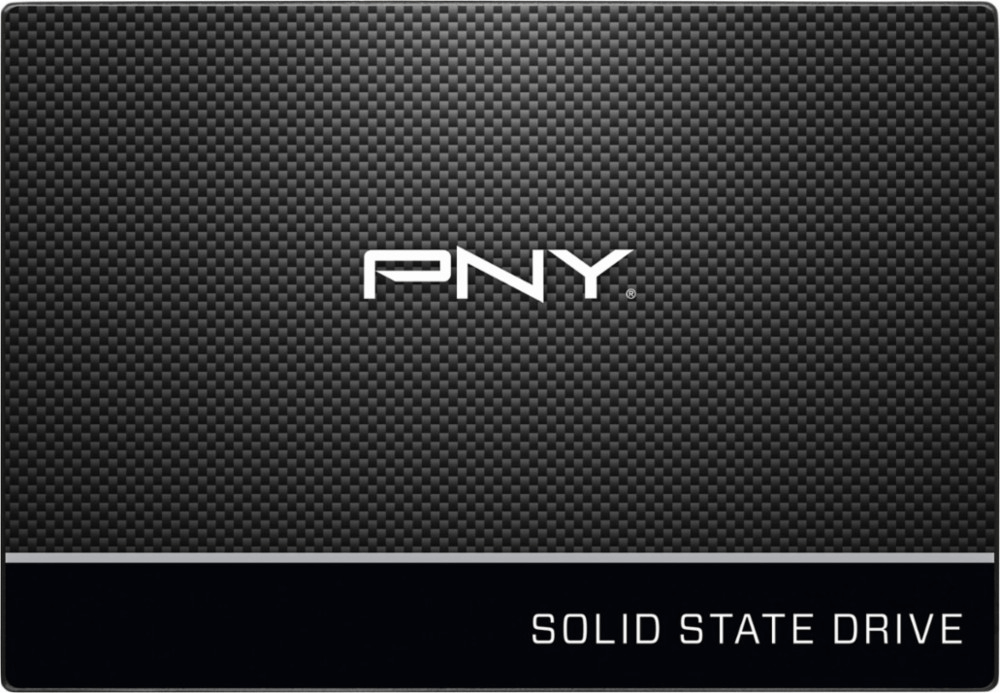
PNY SSDs are popular among computer users due to their fast load and boot speeds, as well as great stability. They come in three categories: Consumer, Client, and Enterprise, each serving a different purpose. PNY SSDs are available in various storage capacities, including 120 GB, 240 GB, 480 GB, and 960 GB, with options like the PNY CS1311 and CS900 suitable for boot drives, and the PNY Elite portable SSD ideal for storing photos and videos.
Why do you need PNY SSD cloning software?
You may look for PNY SSD cloning software if you need to clone or migrate your data to a new PNY SSD, or if you want to upgrade your existing PNY SSD to a larger capacity one, or if you are replacing an old SSD with a new one and want to transfer your data to the new one.
- Upgrading your PC's current HDD to a PNY SSD can significantly improve its speed and performance, making it a worthwhile investment for those looking to enhance their computing experience.
- To resolve this issue, you can clone your existing PNY SSD to a larger SSD, which will allow you to transfer all your data and programs to the new drive without having to reinstall anything. This process involves using a cloning software to create an exact copy of your old SSD onto the new one, ensuring that all your files, settings, and applications are preserved.
To select an appropriate tool for cloning a PNY SSD, consider the following factors: compatibility with the PNY SSD, ease of use, and data integrity features such as cloning, backup, and restore capabilities. Ensure the tool supports the PNY SSD model and has a user-friendly interface.
- The system must remain bootable after cloning.
- If the destination disk is larger than the source disk, the cloning software should be able to adjust the partition size on the destination disk, preventing the issue of leftover unallocated space.
Then, what's the best PNY SSD data migration software you should choose and how to conduct PNY SSD clone exactly?
Acronis True Image or Qiling Disk Master, which one to choose?
In this part, I'll compare two pieces of PNY hard drive cloning software: Acronis True Image OEM and Qiling Disk Master Professional. Learn the details below.
Highlights of Acronis True Image OEM
|
💾 Clone |
Clone basic drives (both MBR and GPT) to other drives, working between hard drives of different sizes. |
|
📂 Backup |
Backup all data, including operating systems, applications, settings, and individual files, to ensure safe storage and retrieval in case of system failures, data loss, or other unforeseen events. |
|
⚙ Other Features |
Protect your computer from ransomware and cryptojacking. |
Highlights of Qiling Disk Master Professional
|
💾 Clone |
You can clone your entire hard drive, including all data, to a new SSD or HDD using the "Disk Clone" feature, which doesn't require reinstalling your OS and applications. Alternatively, you can use "Partition Clone" or "System Clone" to copy a specific partition or just the OS. |
|
📂 Backup |
Create an image file for the operating system, which includes the disk, partition, and files, and also consider including your email account information. This image file will serve as a backup of your entire system, allowing you to restore it in case of a disaster or system failure. |
|
⚙ Other Features |
Synchronize files or folders from one location to another, such as syncing local folders to OneDrive. |
Comparison in disk cloning
|
|
Acronis True Image OEM |
Qiling Disk Master Professional |
|
Platform |
Windows, macOS |
Windows |
|
Supported Partition Type |
MBR, GPT |
MBR, GPT |
|
Disk Clone |
√ |
√ |
|
Partition Clone |
× |
√ |
|
Dynamic Disk Clone |
× |
√ |
How to clone HDD to PNY SSD via Qiling Disk Master
As you see, Qiling Disk Master Professional provides a more comprehensive cloning function than Acronis True Image OEM. It runs well on Windows 11/10/8.1/8/7/Vista/XP. However, if you are running Windows Server operating system, please turn to server cloning software. I'll show you how to clone HDD to PNY SSD in detail. Click the download button to install Qiling Disk Master on your computer now.
Step 1. To clone your PNY SSD, connect it to your computer and ensure it is detected. Then, install and run Qiling Disk Master, and click on the "Clone" option on the left pane, followed by selecting "Disk Clone".

Step 2. Select the current hard drive as the source disk and click "Next".

Step 3. Select the PNY SSD as the destination disk and click "Next".

Step 4. Click "Edit Partitions" and choose "Add unused space to all partitions" if the PNY SSD is larger than the source disk, or use "Manually adjust partition size" to resize partitions and convert the disk type if the destination disk is different from the source disk.

💛 MBR and GPT are two different types of disk structures for data storage. If you're unsure which one your computer uses, you can check the disk properties in Disk Management. To determine which type of disk your computer has, follow these steps:
- To open the Run window, press the Windows key + R. Then, type "diskmgmt.msc" and press OK to open the Disk Management utility.
- Then, right-click on the disk you want to clone and select Properties in the pop-up window.
- In the Properties window, select the Volume tab and confirm the partition style, which can be either MBR (Master Boot Record) or GPT (GUID Partition Table).

- To ensure a smooth transition, verify that the destination disk's partition style matches the source disk's. If both are MBR, no conversion is needed. However, if one is MBR and the other is GPT, select the appropriate conversion option to ensure compatibility.
Step 5. To enhance the performance of your PNY SSD, select the option to enable SSD alignment, which can improve the speed of reading and writing operations. Once you've made this choice, confirm the action and then click Proceed to initiate the process.
Step 6. Replace the current hard drive with the PNY SSD, and you'll instantly get your system and all data back.
💛 Tips:
• The destination disk will be completely overwritten. Backup the destination disk before proceeding if there are important data on it.
• To clone your OS to the PNY SSD, you can perform a "System Clone".
Verdict
If you're looking for a reliable all-in-one PNY SSD cloning software, Qiling Disk Master is the way to go. It allows you to transfer all data from an HDD to a PNY SSD, eliminating the need to reinstall Windows and applications, and can also be used to clone bootable CompactFlash cards and transfer data between Surface Pros.
Related Articles
- The Best Free SSD Cloning Freeware for Windows 10/8/7
- Samsung Data Migration Multiple Partitions Clone with Ease
- Free Clone Hard Drive in Windows 10 to New HDD or SSD
- 6 Best Nintendo Switch SD Card: Everything You Should Know
Learn the key steps, checks, and practical tips for this related guide. - Fix "Windows detected a hard disk problem" in Win 10/7/8
This article illustrates the possible reasons and corresponding solutions to the Windows detected a hard dsik problem in Windows 11, 10, 8, and 7. Let's get started below. - Best Free Alternative to XXClone for Windows 10/8/7
You will find the best alternative to XXClone and XXClone Pro alternative, just see the details to clone hard drive to SSD without losing data in Windows 10, 8, 7.
Products
Articles & Tutorials
- Data Recovery
- Data Backup
- File Recovery
- File Backup
- File synchronize
- System Backup and Restore
- Disk and Partition Clone
- Technical articles
- Disk Master Help
- Windows Deleted File and Disk Recovery Tutorials
- Windows File and Data Recovery Tutorials
- More Windows Tutorials for Install, Security, Files, and PC Tips
- Windows Boot, Repair, and Recovery Environment Tutorials
- Windows Backup Tutorials
- Windows Restore Tutorials
- Windows Clone and Migration Tutorials
- Windows Server Backup, Recovery, and Management Tutorials
- Windows Disk, Partition, and Storage Management Tutorials