The Easiest Way to Replace HDD with SSD in Desktop
Quick Navigation:
- Why not replace desktop HDD with SSD?
- The simplest way to replace HDD without reinstalling Windows
- How to replace SSD with HDD on desktop?
- Conclusion
Why not replace desktop HDD with SSD?
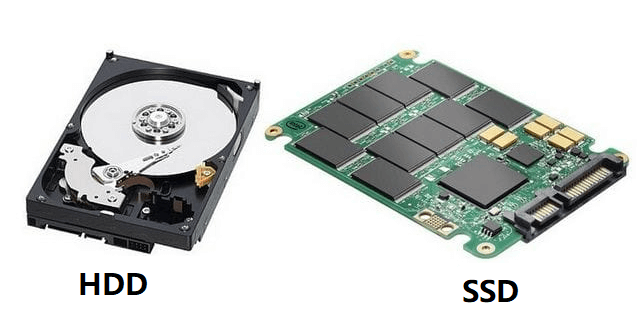
If you're tired of waiting for your computer to boot up quickly or loading games taking forever, it's time to consider upgrading to a Solid-State Drive (SSD). Replacing your original Hard Disk Drive (HDD) with an SSD can make a huge difference, offering several advantages, including faster boot times and quicker game loading. By making this simple swap, you can enjoy a smoother and more responsive computing experience.
► Lower power consumption: The Solid-state Drive (SSD) has no motor, which results in lower power consumption compared to Hard Disk Drive (HDD).
► Faster data access: When a computer's hard disk drive (HDD) is replaced with a solid-state drive (SSD), it boots up and runs applications faster, thanks to the SSD's ability to read data quickly without the need for mechanical parts.
► Without moving parts: SSDs have no moving parts, making them silent and resistant to physical shocks, unlike traditional hard drives that can be damaged by drops or collisions.
The simplest way to replace HDD without reinstalling Windows
To avoid reinstalling Windows and reconfiguring settings, it's recommended to use third-party disk cloning software to clone the original hard drive to the new SSD on your desktop, allowing you to keep all data intact. This approach saves time and energy.
Among various utilities that can copy content on HDD to SSD, Qiling Disk Master Professional is a top option that offers two different copy methods, allowing you to clone hard drive to smaller SSD or clone hard drive with BitLocker encrypted. It also enables you to clone OS-related partitions only or copy specific partitions like Recovery partition to SSD. Additionally, it allows you to align SSD partitions to improve performance and do SSD Secure Erase to recover lost speed.
How to replace SSD with HDD on desktop?
To replace the hard drive without reinstalling Windows and all other applications, prepare by backing up all data, creating a Windows installation media (such as a USB drive or CD/DVD), and making sure the new hard drive is compatible with your system. Next, boot from the installation media, and follow the prompts to install Windows on the new drive.
✐ Select a proper SSD: Choose an SSD that matches your desktop's needs and is at least as large as the used space on your old HDD. If the SSD is too small to hold all your data, consider cloning your OS partition.
✐ Prepare your computer: Turn off your computer, install an SSD on your desktop, and ensure the operating system can detect it.
✐ Prepare your HDD: Defragment the hard drive and remove unnecessary files to reduce the time of the cloning process.
Then, follow the listed steps to clone HDD to SSD in Windows 11/10/8/7.
Step 1. Install and fire up the software. Click "Clone Disk" in the tools page.

Step 2. Select the source disk and choose one way to copy the disk. The recommended method is the first option.
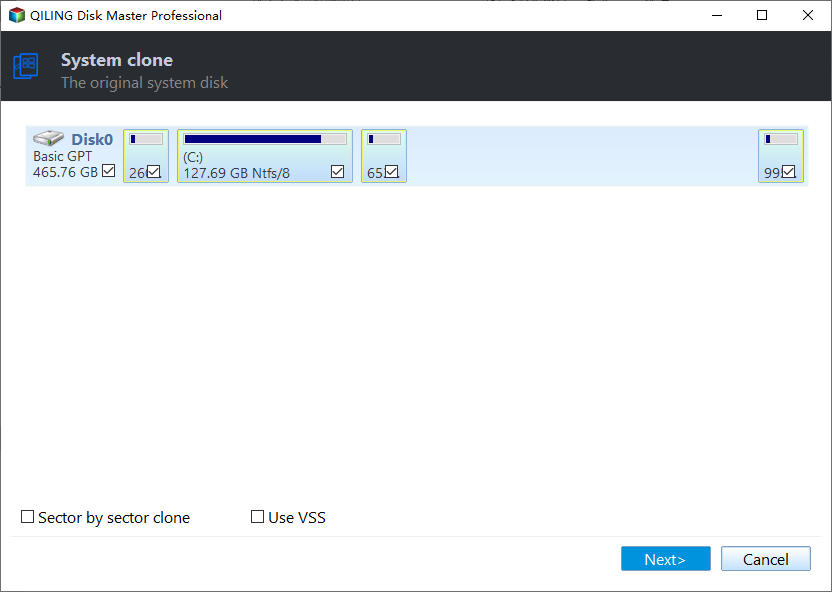
▶ Two ways to copy HDD to SSD:
▪ Disk Clone Quickly This method only copies the used space on the HDD to SSD, allowing adjustments to partition size during the cloning process, making it possible to clone a HDD to a smaller SSD as long as the SSD is larger than the HDD's used space.
▪ Sector-by-Sector Clone: To copy all sectors on the HDD to the SSD, ensure the SSD has a capacity equal to or greater than the HDD's. This method bypasses the options presented in Step 4, as the entire drive will be copied.
Step 3. Select your destination disk.

Step 4. Here you can resize the partition or leave it alone.

PS.: To optimize the performance of an SSD, it's recommended to align its partitions. This can be done by running a command in the terminal, such as `sudo align-efi-partitions` or `sudo align-partitions`, depending on the specific use case and operating system.
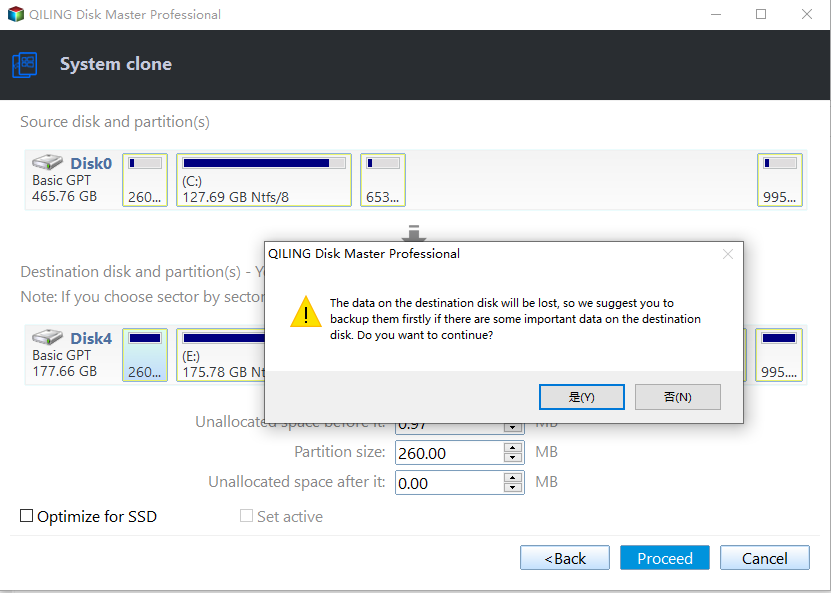
Step 5. You'll return to the main interface. Click Proceed to continue. A warning message will be shown, click "Yes" to proceed with cloning.
✍ Notices:
✐Don't format your old HDD until you've successfully booted from the cloned SSD.
✐ It is also allowed to clone MBR to GPT disk or GPT to MBR through Qiling Disk Master Professional.
✐ Qiling Disk Master Professional is for Windows PCs; for Windows Servers, use its Server edition.
After transferring all data from the HDD to the SSD on the desktop using Qiling Disk Master Professional, you can replace the HDD without reinstalling Windows and applications. You can either get rid of the HDD or keep it to store data. If you choose to keep the original HDD, you'll need to enter the BIOS settings to change the boot order to boot from the cloned SSD.
Conclusion
Replacing a traditional HDD with an SSD on a Windows desktop is a straightforward process, as long as you choose the right SSD and use the correct cloning software. Once upgraded, your desktop will experience a significant performance boost. To maintain the SSD's performance, you can take additional steps to optimize it, ensuring it remains in top shape.
Related Articles
- 7 Easy Ways to Perform Windows Server C Drive Cleanup
The article is a full collection of how to perform Windows Server C drive cleanup in 7 ways and offers one upgrade offer of C drive for users. - How to Clone BitLocker Encrypted Hard Drive [Proven Way]
To clone BitLocker drive in Windows 11/10/8/7, you can use Qiling Disk Master. - How to Clone Large HDD to Smaller SSD without Data Loss?
Use this guide for How to Clone Large HDD to Smaller SSD without Data Loss?, with cloning or migration steps, boot checks, and tips to keep data safe during the move. - [Bootable] Clone OS Drive in Windows 11, 10, 8, 7
Here, you'll learn to clone an OS drive to another drive like SSD or HDD quickly in Windows 11, 10, 8, 7.
Products
Articles & Tutorials
- Data Recovery
- Data Backup
- File Recovery
- File Backup
- File synchronize
- System Backup and Restore
- Disk and Partition Clone
- Technical articles
- Disk Master Help
- Windows Deleted File and Disk Recovery Tutorials
- Windows File and Data Recovery Tutorials
- More Windows Tutorials for Install, Security, Files, and PC Tips
- Windows Boot, Repair, and Recovery Environment Tutorials
- Windows Backup Tutorials
- Windows Restore Tutorials
- Windows Clone and Migration Tutorials
- Windows Server Backup, Recovery, and Management Tutorials
- Windows Disk, Partition, and Storage Management Tutorials