Best Samsung 970 EVO (Plus) Cloning Software in Windows
The issue: Samsung 970 EVO won't boot after cloning
The Samsung 970 EVO SSD is a popular choice among computer users due to its exceptional speeds, reliable reliability, and extensive capacity options up to 2TB, making it a great option for upgrading a laptop to an SSD or replacing a desktop hard drive with one.
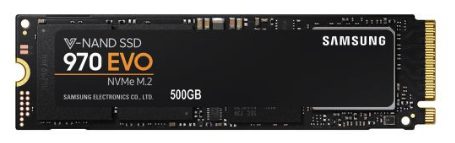
There are various disk clone software available for migrating data from a hard disk drive (HDD) to a solid state drive (SSD), such as Samsung 970 EVO. However, some users may experience boot issues after using these software, as was the case for one user who shared his experience in an online forum.
"I recently cloned my Western Digital HDD to my Samsung 970 EVO using Macrium Reflect. When I change the boot priority in BIOS, I get a blue screen. Not sure what to do or what settings I need to change. Also I am using an ROG STRIX Z370-E GAMING motherboard."
Samsung 970 EVO (Plus) clone software - best of all
To avoid the boot issue, you should use reliable Samsung EVO cloning software, such as Samsung Data Migration, which can migrate OS and data from the old hard drive to a Samsung SSD.
Despite the convenience of Samsung Data Migration, some users encounter issues such as cloning failed, inability to change source disk, and other unexpected errors. Fortunately, there are superior tools available that can help overcome these limitations, offering a more reliable and efficient solution for data migration and cloning needs.
The best disk cloning software, Qiling Disk Master Professional, is a top choice for its impressive features, including.
★ Disk Clone: Cloneit allows you to clone disks of different sizes and types, such as cloning a smaller SSD to a larger one or an IDE hard drive to a SATA drive.
★ Partition Clone: This tool enables you to clone a specified partition. Various file systems are supported, including NTFS, FAT32, exFAT, etc.
★ This software supports all Windows PC operating systems, including Windows 11, 10, 8.1, 8, 7, Vista, and XP, and is compatible with a wide range of disk brands, such as Samsung, SanDisk, WD, Crucial, and PNY.
The cloning process will run in the background, allowing you to use your computer for other tasks while it runs, and you can learn how to use Qiling Disk Master for Samsung 970 EVO cloning in the next part.
How to clone HDD to SSD Samsung 970 EVO easily
To clone an old hard drive to a Samsung 970 EVO, first ensure you've backed up all files on the EVO, as the cloning process will overwrite the destination disk's data. Next, download and install a cloning software such as Qiling Disk Master. Launch the software, select the source and destination disks, and follow the on-screen instructions to complete the cloning process.
Step 1. Connect the Samsung 970 EVO SSD to your computer and ensure it's detected. Next, download and install Qiling Disk Master, which will help you manage the SSD.
Step 2. Run the Samsung 970 EVO migration software, click "Clone" on the left pane and select "Disk Clone".

Step 3. Select the current hard drive as the source disk and click "Next".

Step 4. Select Samsung SSD 970 EVO as the destination disk and click "Next".

Step 5. To enhance the performance of your Samsung 970 EVO, enable SSD Alignment by checking the box next to it, confirm the action, and then click Proceed.
>> Edit partitions: You can resize partitions on the destination SSD as needed.
>> Sector by sector clone: It allows you to clone every sector on the source disk, including unused sectors, which makes editing the size of the destination partitions impossible.

✎ Notes:
▪ To migrate your OS only to a Samsung 970 EVO, please select the "System Clone" feature.
▪ To boot from the cloned SSD, you need to change the boot order in your BIOS settings or replace the original drive with the cloned one. This will allow your computer to start up from the cloned SSD instead of the original one.
Conclusion
Qiling Disk Master is a software that allows users to migrate their operating system and data from an old drive to a Samsung 970 EVO or 860 EVO SSD with ease, eliminating the risk of boot issues after cloning.
Qiling Disk Master offers a range of features beyond cloning, including backup and recovery functions. With it, you can easily back up your hard drive to the cloud and restore your EFI partition in Windows 10, providing peace of mind against data loss.
Related Articles
- How to Clone Windows 10 to NVMe SSD (Step by Step Guide)?
NVMe SSDs can be the perfect upgrade for your Windows 10/11 system and it is now easier than ever to clone Windows 10/11 OS to NVMe drive with a few simple steps. - 5 Solutions to Samsung Data Migration Cloning Failed
Learn how to handle 5 Solutions to Samsung Data Migration Cloning Failed with cloning or migration tips, boot checks, and ways to protect data during the move. - How to Switch Windows 7, 8, 10 from HDD to SSD?
Learn how to Switch Windows 7, 8, 10 from HDD to SSD with clear steps, key checks, and practical tips. - How to Transfer OS from HDD to SSD without Reinstalling
The easiest way to transfer OS from HDD to SSD is system cloning. It ensures booting from the target SSD, and eliminates the need of reinstalling Windows. - How Do I Clone My Windows to External Hard Drive?
This guide explains How Do I Clone My Windows to External Hard Drive with clear steps, key checks, and practical tips. - Best Way to Copy Disk to SSD in Windows 10 (Secure Boot)
This guide explains Best Way to Copy Disk to SSD in Windows 10 (Secure Boot) with clear steps, key checks, and practical tips.
Products
Articles & Tutorials
- Data Recovery
- Data Backup
- File Recovery
- File Backup
- File synchronize
- System Backup and Restore
- Disk and Partition Clone
- Technical articles
- Disk Master Help
- Windows Deleted File and Disk Recovery Tutorials
- Windows File and Data Recovery Tutorials
- More Windows Tutorials for Install, Security, Files, and PC Tips
- Windows Boot, Repair, and Recovery Environment Tutorials
- Windows Backup Tutorials
- Windows Restore Tutorials
- Windows Clone and Migration Tutorials
- Windows Server Backup, Recovery, and Management Tutorials
- Windows Disk, Partition, and Storage Management Tutorials