How to Clone Windows to External Hard Drive
Help! Can I clone Windows to external drive?
You can clone your Windows system to an external hard drive using software like Qiling Backup. These tools allow you to create a bit-for-bit copy of your entire system, including the operating system, applications, and data. This way, you'll have a spare copy of your system on the external hard drive, ensuring that you won't lose any important data in case your laptop fails.
- Question from Hasleo Software
Why need to clone Windows to external hard drive?
Users often have various reasons to clone their Windows operating system to an external hard drive. The primary motivations include backing up their system in case of hardware failure, protecting themselves against malware or software crashes, and creating a duplicate environment for testing or troubleshooting purposes. By cloning their Windows installation, users can ensure business continuity, recover quickly from system failures, and maintain a stable and secure computing environment.
✎ Upgrade the hard drive: The old hard drive will become full after long-term use, which can significantly reduce its performance. To upgrade, it's necessary to clone the old hard drive to a larger one.
✎ Data backup: Cloning Windows to an external hard drive is beneficial for data backup, especially for users with significant files stored on their system disk, as it provides a safe and secure way to preserve their data in case of loss or disaster.
✎ Replace computer: Cloning an operating system to an external hard drive allows users to bypass the time-consuming process of reinstalling on a new computer, while also preserving their personalized settings, making it a convenient option for those who are familiar with their current OS.
How do I clone Windows to an external hard drive safely and easily?
To clone Windows to an external hard drive, I recommend using Qiling Disk Master Professional, a popular cloning tool with a graphic user interface that allows you to complete the process with just a few clicks.
The cloning software offers two methods: Clone Disk Quickly and Sector-by-Sector clone. The former clones only the used space on the hard disk, making it ideal for cloning a 1TB HDD to a 500GB SSD. The latter, on the other hand, clones all sectors on the hard disk, requiring the SSD to be the same size or larger than the HDD.
To clone Windows 10/11 to an external hard drive, please download the cloning software. This software will guide you through the process of creating an exact copy of your operating system on the external drive.
- ★Tips:
- If you only need to transfer your operating system to a new hard drive, you can try the Migrate OS to SSD feature, which will only move the OS partitions to the new drive, leaving the rest of your data on the old drive.
- Before cloning, make sure the external hard drive is connected to the PC and can be recognized by it.
Step 1. To clone a disk using Qiling Disk Master Professional, open the software, navigate to the "Tools" section, and select the "Clone Disk" option. This will initiate the cloning process.

Step 2. Choose the hard disk that you need to clone as the source disk, such as an SSD, and click "Next".

Step 3. Select the destination disk to store the data from the source disk, and then click "Next".

Step 4. You can then check the source and destination disk in the next window or change to "Sector to Sector clone".
Here, you can also adjust the partition size on the destination disk or tick "4k alignment" to optimize the performance of SSD if the target disk is an SSD drive.

Tip: If you want to clone Windows to a smaller drive, the "Clone without resizing partitions" button will be greyed out, and a note about how to boot OS from the destination disk will appear.
Step 5. Click "Proceed" to commit the operation.

▶ Boot Windows from the external hard drive after cloning
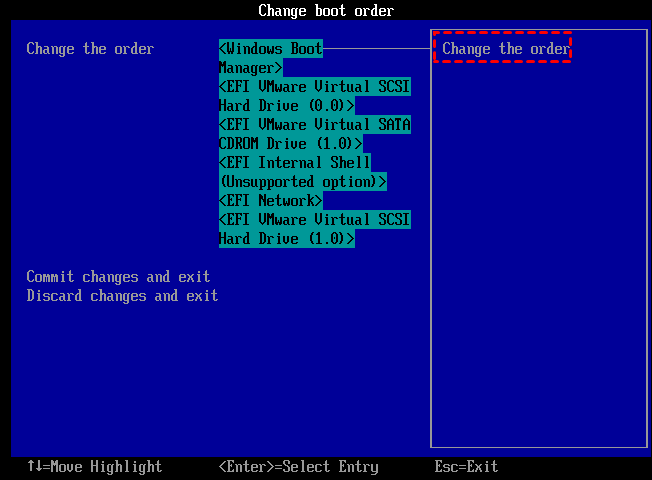
After successfully cloning Windows to an external hard drive, you can change the boot drive to boot Windows from the external hard drive.
1. To access the BIOS menu, restart your computer and constantly press the F2 key (or other keys like Del, F8, F12) as it boots up.
2. To configure the boot order, use the arrow key to select the "Boot" tab. This will display a list of system devices in order of priority, allowing you to reorder them as needed.
3. To prioritize the cloned drive over other hard drives, move it to the top of the boot order list.
4. Save the changes and restart the PC.
Follow up - Migrate Windows to external hard drive
If you need to transfer the system partition to an external hard drive, you can also try the Migrate OS feature, which allows you to move the system partition to the external drive. This can be a useful option if you only need to transfer the system partition and not the entire hard drive.

Conclusion
Cloning Windows to an external hard drive can be easily done using the third-party tool Qiling Disk Master, and if you're looking to clone Windows Server, you'll want to use the Qiling Disk Master Server instead.
Related Articles
- How to Clone Hard Drive to USB Flash Drive in Windows 10, 8, 7?
Learn how to Clone Hard Drive to USB Flash Drive in Windows 10, 8, 7 with clear steps, key checks, and practical tips. - Clone Windows 7/8/10 to USB Drive for Portable Windows Workspace
- SSD Optimization Tips for Windows 10 You May Want to Know
Learn how to Clone Windows 7/8/10 to USB Drive for Portable Windows Workspace SSD Optimization Tips for Windows 10 You May Want to Know with clear steps, key checks, and practical tips. - How to Clone Windows 11 to Another Hard Drive (Bootable)
You can easily clone your Windows 11 operating system to another hard drive using cloning software, which allows you to transfer your OS and data to a new drive with just a few clicks, making it a convenient way to upgrade your system. - Clone HDD to OCZ SSD with Free Clone Software
Learn how to Clone HDD to OCZ SSD with Free Clone Software with clear steps, key checks, and practical tips. - Successfully Clone HDD to SSD Including Recovery Partition
Qiling Disk Master, as a professional disk clone software, is able to clone HDD to SSD including recovery partition successfully.
Products
Articles & Tutorials
- Data Recovery
- Data Backup
- File Recovery
- File Backup
- File synchronize
- System Backup and Restore
- Disk and Partition Clone
- Technical articles
- Disk Master Help
- Windows Deleted File and Disk Recovery Tutorials
- Windows File and Data Recovery Tutorials
- More Windows Tutorials for Install, Security, Files, and PC Tips
- Windows Boot, Repair, and Recovery Environment Tutorials
- Windows Backup Tutorials
- Windows Restore Tutorials
- Windows Clone and Migration Tutorials
- Windows Server Backup, Recovery, and Management Tutorials
- Windows Disk, Partition, and Storage Management Tutorials