SSD Optimization Tips for Windows 10 You May Want to Know
Microsoft has made Windows 10 free to upgrade from Windows 7 or 8.1, and many users are already enjoying it. To get the best performance with an SSD on Windows 10, you can follow an SSD optimization guide.
Way 1. SATA controller runs in AHCI mode
To get better performance from your SSD, set your SATA controller mode to AHCI in your system's BIOS, which works better with SSDs than IDE mode, and follow these steps to change from IDE to AHCI.
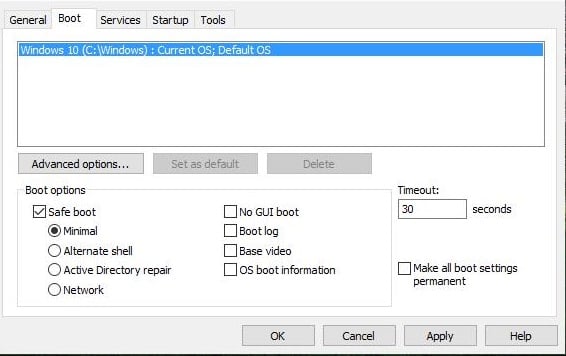
1. Press WIN+R keys and type "msconfig" and then press Enter.
2. To boot your computer in safe mode, go to the Boot tab, select Safe boot, and apply the changes. Then, restart your computer to boot into safe mode.
3. Press a specific key (usually F2 or DEL) to boot into BIOS settings, change the SATA mode from IDE to AHCI, save settings and reboot. If you can't boot into BIOS, try disabling Quick Start and retry.
4. Windows will boot in safe mode this time. Run "msconfig" again, and uncheck the Safe boot option on the Boot tab, then restart your computer.
Way 2. Leave some free space
To extend the lifespan of a solid-state drive (SSD), it uses a wear-balanced algorithm. However, if the SSD is filled up, its performance will slow down. To maintain optimal performance, it's recommended not to format the entire SSD, but rather leave some free space and keep about 25% of the disk free to prevent wear and tear.
Way 3. Do not Defrag
In Windows 10/8, defragmentation is not necessary for SSDs and can have negative effects. Unlike Windows 7, SSDs will not be defragmented by default, but instead, Windows will send a TRIM command on a schedule to delete unused blocks, and manual running of Automatic Maintenance will trigger defragmentation.
Way 4. Disable Hibernate
To disable hibernate mode and free up space on your SSD drive, you can disable the Hibernate function in Windows settings, but the hiberfil.sys file will remain. This is unnecessary for SSD systems, which boot quickly.
To free up more space by disabling Hibernate:
Type the command "powercfg -h off" in an elevated command prompt and press Enter.
Way 5. Disable Disk Indexing
Disabling disk indexing on an SSD can prevent unnecessary writes, making it a good practice to maintain the drive's lifespan.
To optimize SSD on windows 10 by disabling disk indexing:
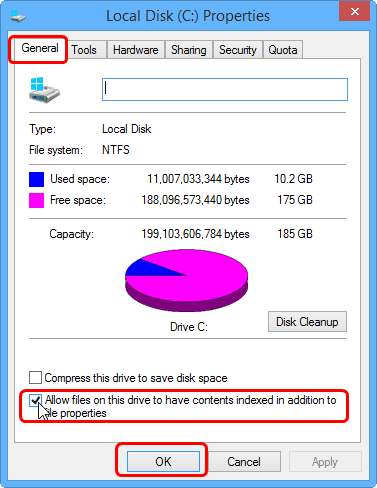
1. To access the properties of a specific drive, you can right-click on it in the "This Computer" window and select the "Properties" option from the context menu. This will open a new window displaying information about the drive, such as its capacity, free space, and file system type.
To disable disk indexing, go to the General tab and uncheck the box that says "Allow files on this drive to have contents indexed in addition to file properties".
Way 6. Disable Superfetch
To optimize Windows 10 for an SSD, disable Superfetch, which can waste time opening and accessing files multiple times. Open "services.msc" and disable "Superfetch" in the pop-up window.
Way 7. Adjust page files
The Paging file can have a mixed effect, depending on the amount of RAM in your computer. If you have enough RAM, it can help improve performance by providing a buffer for programs that run out of memory. However, if you have too much RAM, the Paging file can waste space by storing data that could fit in RAM, making it a trade-off between performance and disk space.
To adjust page file:
1. Right-click on This Computer, and select Properties.
2. To access the Performance section, select "Advanced System Settings" and then click on "Settings" within that section.
4. Select the "Change" button under "Advanced" tab.
5. In the pop-out window, uncheck the option "Automatically manage paging files" and select drive C: from the list.
6. To set a custom size for a window, select "Custom Size" and enter a number for the Initial Size and another number for the Maximum Size. Click "Set" and then "OK" to save the changes.
To install Windows 10 on an SSD, it's recommended to do a fresh install as Windows 10 has built-in SSD optimization. Alternatively, you can use a free software to migrate your OS to the SSD, which will also optimize it automatically.
Related Articles
- How to Migrate Windows 7 to SSD with Excellent Software
Qiling Disk Master can help to migrate Windows 7 to SSD through two means: backup the system drive to an image file, and then restore it to the SSD, or directly clone the system drive to the new SSD. - Two Ways to Migrate Windows 7 to SSD Without Reinstall Windows
You will learn how to migrate Windows 7 from HDD to SSD with built-in Backup and Restore or Qiling Disk Master Professional. It will greatly enhance your computer without reinstalling Windows. - 4 Steps to Create Windows 7 Bootable Clone Disk
You will learn how to create Windows 7 bootable clone of hard drive and make it bootable with best disk cloning software - Qiling Disk Master. - Easiest Way to Clone Hard Drive in Windows 8, 8.1 to New HDD, SSD
This guide explains Easiest Way to Clone Hard Drive in Windows 8, 8.1 to New HDD, SSD with clear steps, key checks, and practical tips. - The Best Free Crucial SSD Data Transfer Software
The best free Crucial SSD data transfer software can transfer data to Crucial SSD and ensure the cloned disk boot securely. Please keep reading. - Step-by-Step Guide for Dell XPS 8910 SSD Upgrade
This tutorial presents how to perform Dell XPS 8910 SSD upgrade step by step and provides the best disk cloning software to help you.
Products
Articles & Tutorials
- Data Recovery
- Data Backup
- File Recovery
- File Backup
- File synchronize
- System Backup and Restore
- Disk and Partition Clone
- Technical articles
- Disk Master Help
- Windows Deleted File and Disk Recovery Tutorials
- Windows File and Data Recovery Tutorials
- More Windows Tutorials for Install, Security, Files, and PC Tips
- Windows Boot, Repair, and Recovery Environment Tutorials
- Windows Backup Tutorials
- Windows Restore Tutorials
- Windows Clone and Migration Tutorials
- Windows Server Backup, Recovery, and Management Tutorials
- Windows Disk, Partition, and Storage Management Tutorials