How to Sector-by-Sector Clone SSD Successfully in Windows 10/8/7?
Quick Navigation:
- What is a sector by sector clone?
- When need sector by sector clone SSD/HDD?
- Best sector-by-sector clone software
- How to sector by sector clone SSD in Windows 10/8/7?
- What if sector-by-sector cloned SSD or HDD not boot?
- Summary
What is a sector by sector clone?
The sector-by-sector clone method copies all sectors from the source disk or partition to the destination location, including blank or logically bad sectors, resulting in an exact replica of the source.
The target HDD or SSD must be at least as large as the source disk being cloned, and any excess space will become unallocated after cloning. Sector-by-sector cloning cannot be done to a smaller SSD.
When need sector by sector clone SSD/HDD?
As explained above, the sector-A sector-by-sector clone will copy all sectors, both used and empty, of the selected disk or partition to another location. This method is particularly useful and necessary in specific cases, such as when a disk or partition is damaged or corrupted, and the only way to recover the data is by copying the entire sector, including the empty ones. It's also useful for cloning a disk or partition for backup purposes, ensuring that all data, including unused sectors, is preserved.
- When a hard drive is encrypted with BitLocker, the regular cloning method can't access the data on it, making it impossible to finish the disk copying task. In such cases, a sector-by-sector clone method can be used to copy the drive without unlocking it, allowing the cloning process to be completed.
- If your system hard disk is on its last legs and about to fail, a good approach is to copy the entire disk sector by sector to a new drive. This allows you to run a recovery operation on the new disk rather than the failing one, making the process much easier and more reliable.
- When you need to copy the deleted data from a source disk to a destination disk, sector-by-sector clone SSD/HDD is a good choice.
Best sector-by-sector clone software
To clone a hard drive or solid state drive sector by sector, you can use a reliable sector-by-sector copy tool. One such tool is Qiling Disk Master, which allows you to create a sector-by-sector copy of your drive. This tool is capable of cloning the entire drive, including all sectors, byte by byte, ensuring that every detail is preserved.Qiling Disk Master ProfessionalThis software is compatible with all versions of Windows, including Windows 11, 10, 8, 7, and also Windows XP and Vista, both 32-bit and 64-bit.
It comes provides the "Sector-byh-Sector Clone" method allows for cloning an entire hard disk or a specific partition to an SSD or HDD, copying sectors sector by sector in Windows PC. This method can be used to clone a whole disk or a certain partition, and its counterpart is a copying solution that clones only used sectors to the destination location. Additionally, when cloning to an SSD drive, this method can be utilized.align SSD partitions The cloning process involves copying the source disk to a new disk, which can be time-consuming. To optimize this process, the cloning software can be configured to read and write data in parallel, allowing for faster data transfer and improved overall performance.
How to sector by sector clone SSD in Windows 10/8/7?
To perform a sector-by-sector clone of an SSD or HDD using Qiling, follow these steps. First, ensure you have the recommended software installed.hard drive cloning tool.
- ★Before you start, please note:
- To ensure a smooth sector-by-sector copy, make sure the destination disk has enough unallocated space to hold all sectors from the source disk. If there isn't enough space, consider deleting or shrinking other partitions to free up some room. This will allow the copy process to proceed without any issues.
- The destination partition/disk should be equal to or larger than the source partition/disk.
- Back up important files on the destination disk because they will be deleted after cloning a SSD or HDD sector by sector.
You can download the Demo Version for a free trial.
Step 1. Install and launch the sector-by-sector clone software. Click "Clone Disk" in the tools page.

Step 2Select the source disk from the list, choose disk 1 (system hard disk), check "Sector-by-Sector Clone" and click "Next".

Step 3Select the destination disk, and then hit on "Next".

Step 4If you're cloning a data disk, ignore this note. Otherwise, you'll receive a note on how to boot your computer from the destination disk.

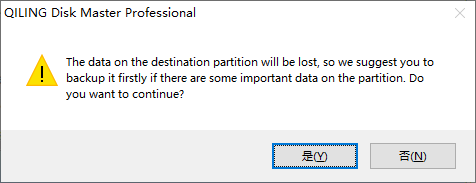
Step 5Click "Proceed" to commit the sector-by-sector cloning operation. in the pop-out data loss warning window, click "Yes".
Step 7 (optional). Boot computer from the cloned SSD or HDD.
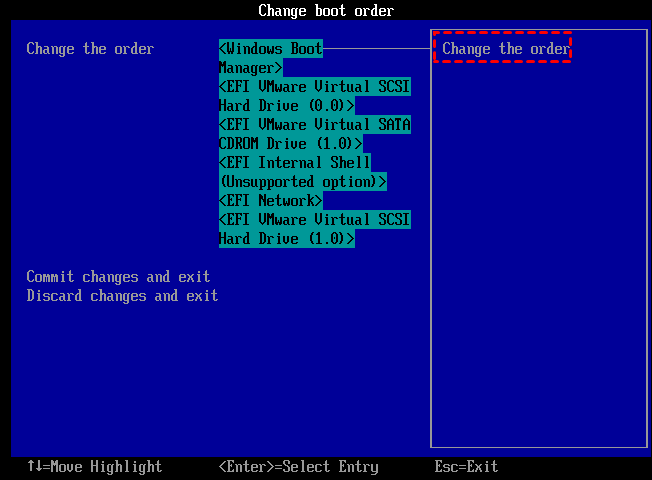
7.1To access the BIOS menu, reboot your computer and continuously press a specific key, usually DEL, ESC, F2, F8, F9, F10, F11, or F12, while it's booting up. This will allow you to enter the BIOS settings where you can configure various options.
7.2In the BIOS tab, use the arrow keys to set the cloned SSD/HDD as the prior boot drive, save the changes and exit, and then restart the computer.boot computer from the cloned disk.
What if sector-by-sector cloned SSD or HDD not boot?
If the cloned SSD or HDD won't boot after the cloning process, it's likely due to issues such as incorrect boot order, corrupted boot sector, or failing hardware, which can be resolved by reseating the drive, checking the boot order, or running a disk check and repair.
1. The source disk has some bad sectors and cannot boot, either.
2. The SSD drive connection cable is loose or damaged.
3. SSD is not set as the first boot drive.
4. Partition style is not compatible with the boot mode, as MBR is used with BIOS and GPT is used with UEFI.Upgrade BIOS to UEFI or switch UEFI to BIOS based on your situation.
5. System partition was not set as an active partition.
6. The cloning process missed some boot-related drives or partitions, such as the system reserved partition, which were not copied to the destination disk.
Summary
With the help of the Qiling Disk Master Professional, you can easily clone SSD/HDD sector by sector, whether cloning an HDD to an SSD or vice versa, even in Windows 10/8/7 environments.
If your disk is of insufficient space for cloning a disk or partition sector by sector, it also provides a workaround method called "Clone Disk Quickly" to only copy used space from one disk to another, allowing you to clone the disk even with limited space.clone large drive to smaller driveIf you want to perform a sector-by-sector clone of an SSD or HDD on a Windows Server computer, try using the built-in Windows feature, Windows Server Backup, to create a backup of the source drive, and then use the Windows Server Backup to restore the backup to the destination drive, effectively cloning the source drive sector by sector.Qiling Disk Master Server.
Related Articles
- How to Copy Recovery Partition to New Hard Drive in Windows 11/10/8/7?
Learn how to Copy Recovery Partition to New Hard Drive in Windows 11/10/8/7 with clear steps, key checks, and practical tips. - How to Switch Windows 7, 8, 10 from HDD to SSD?
Learn how to Switch Windows 7, 8, 10 from HDD to SSD with clear steps, key checks, and practical tips. - How to Transfer OS from HDD to SSD without Reinstalling
The easiest way to transfer OS from HDD to SSD is system cloning. It ensures booting from the target SSD, and eliminates the need of reinstalling Windows. - How to: Solve Samsung Data Migration Cloning Failed 00001 [ffffffff]
This guide explains How to: Solve Samsung Data Migration Cloning Failed 00001 with clear steps, key checks, and practical tips. - How to Clone Hard Drive with Bootable USB | Full Guide
Learn how to clone a hard drive with a bootable USB. Create boot media and copy a disk when Windows cannot start. - How to Clone Samsung SSD to Another SSD on Windows 11/10/8/7
This article provides a step-by-step guide on how to clone a Samsung SSD to another SSD. Two easy methods are presented, utilizing Qiling Disk Copy and Samsung Data Migration Software, to help users transfer their data from one Samsung SSD to another.
Products
Articles & Tutorials
- Data Recovery
- Data Backup
- File Recovery
- File Backup
- File synchronize
- System Backup and Restore
- Disk and Partition Clone
- Technical articles
- Disk Master Help
- Windows Deleted File and Disk Recovery Tutorials
- Windows File and Data Recovery Tutorials
- More Windows Tutorials for Install, Security, Files, and PC Tips
- Windows Boot, Repair, and Recovery Environment Tutorials
- Windows Backup Tutorials
- Windows Restore Tutorials
- Windows Clone and Migration Tutorials
- Windows Server Backup, Recovery, and Management Tutorials
- Windows Disk, Partition, and Storage Management Tutorials