SSD Clone or Clean Install? - Detailed Comparison and Operation
Quick Navigation:
- User Case: Clone Drive vs Fresh Install
- Features and Differences Between SSD Clone or Clean Install
- SSD Clone
- Clean Install
- Better and Safer Way to Clone Windows 10 to SSD
- How to Perform an SSD Clean Install on Windows 10
- Final Words
User Case: Clone Drive vs Fresh Install
You're looking to upgrade your Windows 10 from a HDD to a SSD, keeping the majority of your data on the HDD and using the SSD for your OS and games. You're considering two options: copying everything to the SSD or doing a fresh install of Windows 10 on the SSD. A fresh install might be a better option, but you're looking for a more straightforward approach. You have enough space on the SSD to accommodate everything currently on your HDD.
- Question from PCPARTPIKER
SSDs offer significant performance upgrades over HDDs, with speeds up to 100 times faster. This translates to shorter boot times, faster data transfer, and higher bandwidth, making them a popular choice for upgrading the hard disk and enhancing overall computer performance.
When purchasing an SSD, users often face a decision: to clone their existing Windows 10 installation to the new drive or perform a clean install. This choice depends on several factors, and understanding the differences between the two options can help you make an informed decision. Cloning involves copying the existing operating system and all installed programs to the SSD, preserving the original setup, while a clean install involves reinstalling Windows 10 from scratch, allowing for a fresh start and potentially improved performance. By considering your specific needs and preferences, you can choose the approach that best suits your situation.
Features and Differences Between SSD Clone or Clean Install
Cloning and clean installing a Windows operating system both allow you to configure the OS and other data. However, they serve different purposes and have distinct characteristics. A clean install involves erasing all existing data and settings, requiring you to set up the OS and applications from scratch, whereas cloning creates a duplicate of the existing system, preserving all data and settings.
SSD Clone
Cloning involves transferring all data from the old hard disk to the new one, allowing for a direct use of the new hard disk without reinstallation, including the operating system, programs, data, and more, saving time and achieving 100% replication.
Clean Install
A clean install of Windows OS involves formatting the drive and then reinstalling the operating system using installation media. This process requires reinstalling all drivers and software, and reconfiguring system files and passwords. The benefits of a clean install include removing junk files, old installation files, and temporary files that have accumulated, as well as factory-installed programs and potential damages, errors, and viruses.
Both methods have their own advantages and disadvantages, making them suitable for different purposes.
◈ If your current operating system and software are running smoothly, and system and other files are performing well, an SSD clone is a good option, which can save time and effort.
◈ If you're experiencing issues with your operating system or your old disk has bad sectors or a large number of cache and harmful files, it's recommended to choose a clean install.
Better and Safer Way to Clone Windows 10 to SSD
To clone Windows 10 to an SSD, you need a reliable disk cloning software. Finding a good software is crucial as many users have encountered issues when cloning a hard drive to an SSD, such as the cloned SSD not booting or the cloning process getting stuck.
I recommend using Qiling Disk Master Standard to clone an SSD, as it is an all-in-one software that can transfer data, configuration settings, installed applications, and programs to a new drive, making the process easier and more efficient.
✾ HDD/SSD Clone: This device supports a wide variety of hard drives, including traditional HDDs, SATA SSDs, high-speed NVMe M.2 SSDs, portable USB flash drives, and memory cards like SD cards, among others.
✾ SSD Alignment: Cloning your operating system to a solid-state drive (SSD) can improve its performance and prolong its lifespan, as it allows your computer to access data more quickly and efficiently, reducing wear and tear on the drive.
✾ Secure Boot: You can boot the computer directly from the cloned hard drive.
✾ Intelligent Clone and Sector by Sector Clone: It can clone a hard drive, including used and unused space, to a smaller destination drive, making it possible to clone a large HDD to a smaller SSD. This is done by copying every sector from the source to the destination, not just the used space.
Learn how to clone Windows 10 to an SSD using Qiling Disk Master by following the tutorial below.
Notes✍:
◔ Cloning will completely replace the content on the target drive, so if you're cloning onto a used SSD with important files, please make sure to back up those files before proceeding.
◔ If your computer only has one SSD slot, you may need to get a SATA-to-USB cable or an M.2 SATA SSD to USB adapter, depending on the type of SSD you have, to be able to use it.
Step 1. To start, download and install Qiling Disk Master on your computer, then install the SSD (solid-state drive) on your computer.
Step 2. To clone your Windows 10 system disk to an SSD, launch the free software and navigate to the Clone tab on the left side of the program. From there, select Disk Clone to begin the cloning process.

Tips✍:
✭ Disk Clone will clone your entire system, including the operating system, applications, configuration, and personal files. Alternatively, if you only want to clone the operating system, you can upgrade to the professional edition, which offers the System Clone feature.
✭ The Standard version only supports cloning system disks from MBR to MBR, but the Professional edition supports cloning between different partition types, such as GPT to GPT, MBR to GPT, and GPT to MBR.
Step 3. Select the original HDD you want to clone as the source disk and click Next. Then select the destination HDD where you want to clone the data and click Finish.

Step 4. Select the SSD as the destination path to clone the source disk and click on Next.

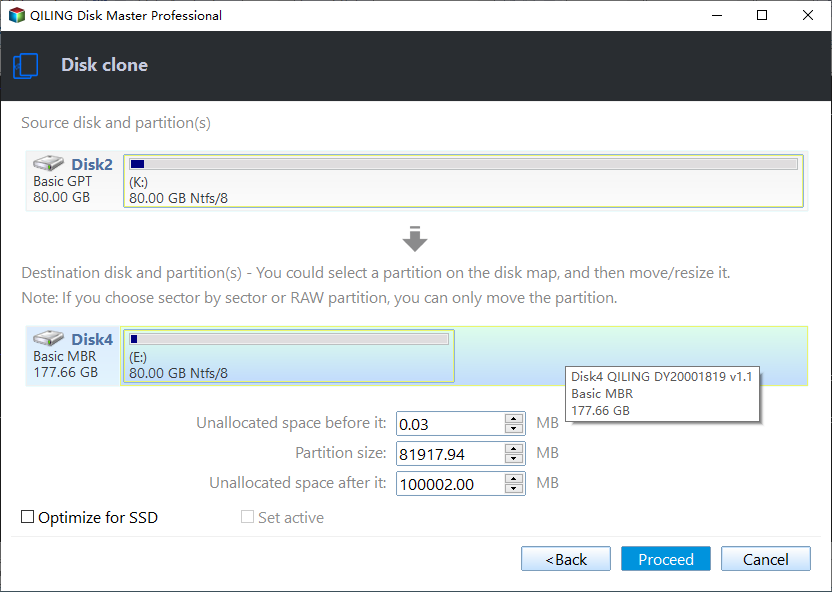
Step 5. To increase the reading and writing speed of the SSD disk, click on "SSD Alignment" in the lower left corner of the program, confirm all other settings, and then click "Proceed".
Tip✍:
Edit Partitions: If the target disk is larger than the source disk, the feature can automatically or manually resize the disk. This feature is available in the professional version.
How to Perform an SSD Clean Install on Windows 10
To clean install Windows on an SSD, start by preparing your system. This includes backing up any important files, disabling BitLocker if it's enabled, and creating a bootable USB drive with the Windows installation media. Next, shut down your computer and connect the SSD to your system.
Preparatory Work:
◉ Backup important files. A clean install will erase the hard drive and start from scratch. If you have important files on your SSD, create a file backup before proceeding.
◉ Prepare a USB drive. The drive's capacity should be large enough (at least 8GB).
◉ Unplug other disks. If your computer has multiple drives, the BIOS may incorrectly identify the bootable USB drive, preventing it from booting.
- Insert the USB flash drive into your PC, then download and run the Windows 10 Media Creation Tool.
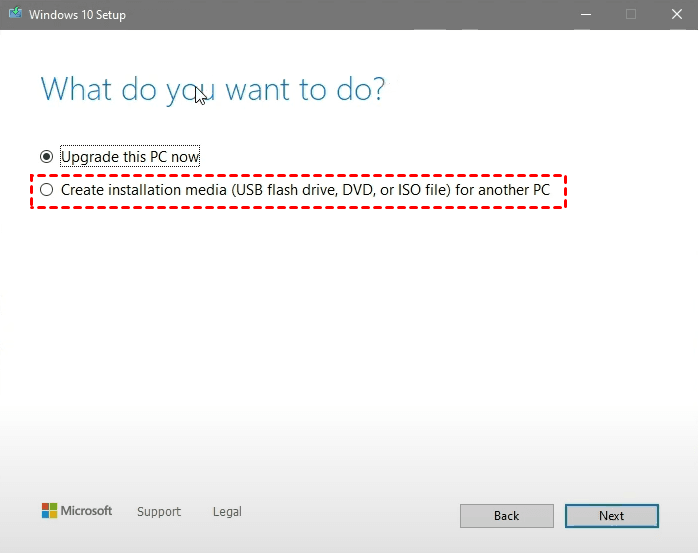
- To create a Windows installation media, run the Windows tool, select "Create installation media (USB flash drive, DVD, or ISO file) for another PC", and then follow the on-screen instructions to complete the installation.
- To upgrade to a solid-state drive (SSD), turn off the computer, open the case and remove the original hard disk drive (HDD). Then, insert the SSD into the drive bay. After restarting the computer, enter the BIOS settings, modify the boot sequence to prioritize the installation media, and let the computer boot from the newly created installation media.
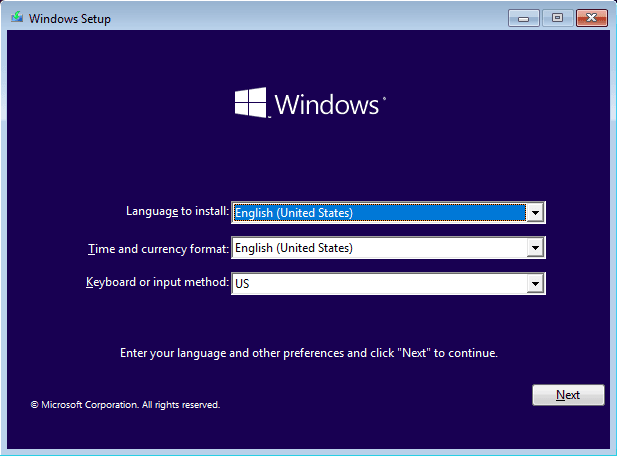
- When your computer boots from the installation media, select the language, time and currency format, and keyboard or input method, then click Next to proceed.
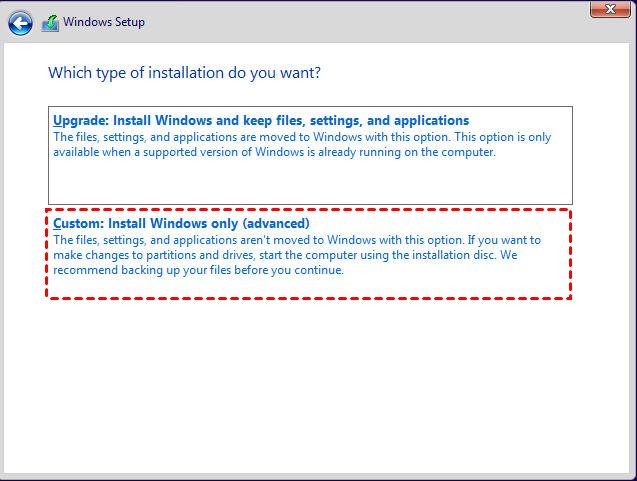
- Click on the Install Now button, accept the license terms, and choose the option to install Windows only (advanced).
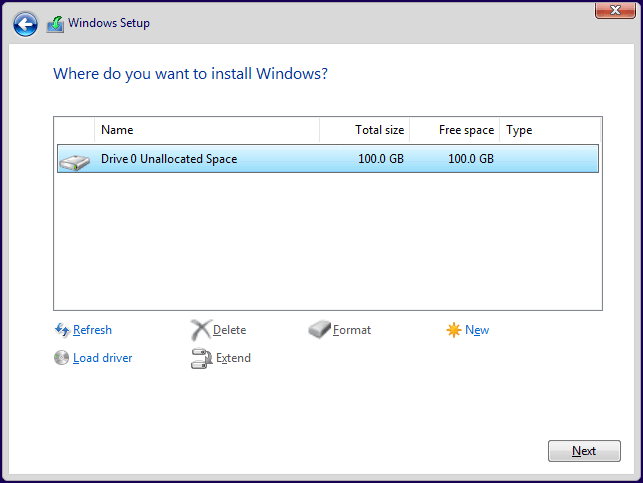
- Select the unallocated space on the new drive and click next to install Windows 10 on the SSD.
Final Words
If your Windows operating system is running smoothly, you can consider cloning it to a new SSD, saving you time and effort. However, if your old disk is plagued by issues that hinder normal operation, a clean install onto the new SSD is likely a better option.
Qiling Disk Master This software not only offers cloning functions but also includes features like backup, synchronization, and recovery, providing comprehensive protection for your computer system and data. The professional edition enables effortless cloning of an OS to an M.2 SSD with minimal effort, making it a valuable tool for system maintenance.
Related Articles
- Top Two Ways to Help You Install Windows 11 to SSD
- Best Practices: Replace Laptop HDD with SSD in Windows 10 or 11
- How to Install an SSD without Reinstalling Windows 11/10/8/7
- How to Clone SSD in Windows 7 Easily for Free
Learn the key steps, checks, and practical tips for this related guide. - How to Clone SSD to New SSD Without Losing (OS Included)
Learn how to Clone SSD to New SSD Without Losing (OS Included) with clear steps, key checks, and practical tips. - Cloned Hard Drive Shows Wrong Size | Fixes Are Here
Fix a cloned hard drive showing the wrong size. Learn why cloned disks show less space and how to extend or resize partitions.
Products
Articles & Tutorials
- Data Recovery
- Data Backup
- File Recovery
- File Backup
- File synchronize
- System Backup and Restore
- Disk and Partition Clone
- Technical articles
- Disk Master Help
- Windows Deleted File and Disk Recovery Tutorials
- Windows File and Data Recovery Tutorials
- More Windows Tutorials for Install, Security, Files, and PC Tips
- Windows Boot, Repair, and Recovery Environment Tutorials
- Windows Backup Tutorials
- Windows Restore Tutorials
- Windows Clone and Migration Tutorials
- Windows Server Backup, Recovery, and Management Tutorials
- Windows Disk, Partition, and Storage Management Tutorials