How to Install an SSD without Reinstalling Windows 11, 10, 8, 7
Quick Navigation:
- Can I install an SSD without reinstalling Windows?
- How to securely install an SSD without reinstalling Windows
- Step 1. Connect or install SSD to your computer properly
- Step 2. Clone hard drive to SSD without reinstalling Windows
- Step 3. Boot from the cloned SSD securely
- What if cloned SSD won’t boot successfully?
- Conclusion
Can I install an SSD without reinstalling Windows?
With the growing popularity of Solid-State Drives (SSDs), many computer users are opting to replace their traditional hard drive boot drives with SSDs for enhanced performance. This can be easily achieved by installing Windows 10 on an SSD using installation media, allowing users to take advantage of the significant speed and efficiency gains offered by SSDs.
A clean install on the SSD means starting from scratch, resulting in a fresh experience, but all customized profiles, settings, files, and apps will be lost. The process may also be prone to errors, taking up a significant amount of time.
💬Yes, it's possible to upgrade an old HDD to a larger SSD without reinstalling Windows. You can clone the existing HDD to the new SSD, then swap the two drives in the system, and finally, boot from the SSD. This process allows you to retain your existing Windows installation and data, making the upgrade seamless and hassle-free.
You can clone your Windows installation to a new SSD using professional disk clone software, which will handle potential issues such as migrating to a smaller SSD and dealing with bad sectors.
Follow the guide below and install SSD without reinstalling Windows 11/10/8/7.
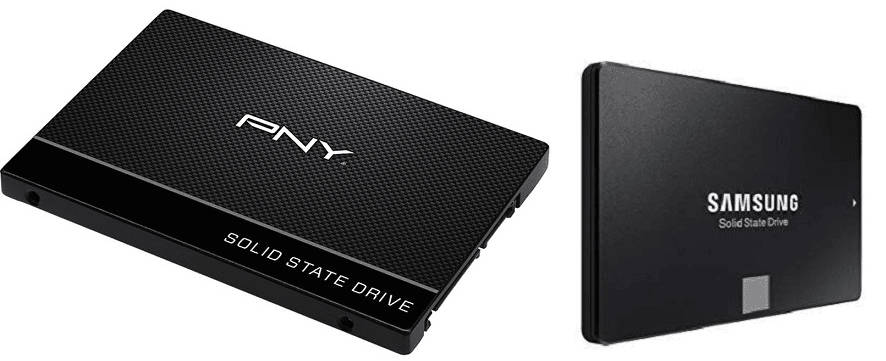
How to securely install an SSD without reinstalling Windows
The process to install an SSD in a laptop without reinstalling Windows and replace a HDD with an SSD on a desktop Windows 10 may vary by computer brand and model. Refer to installation tutorials specific to your brand and model on YouTube or a one-stop tutorial for installing a second hard drive for guidance.
After installing, choosing proper disk cloning software is also important.
Essential tool to upgrade SSD without reinstalling
To migrate a Windows installation and all data files from an old hard drive to a new SSD without reinstalling, you can use a cloning software such as Qiling Disk Master. These tools allow you to create a bit-for-bit copy of the old hard drive, including the operating system, programs, and data, and transfer it to the new SSD.
Video tutorial for your reference:
You can try following the guide to clone your SSD, and if you encounter issues with the cloned SSD not booting, some troubleshooting tips are also available at the end.
Step 1. Connect or install SSD to your computer properly
To install an SSD alongside an old hard drive, you typically need to open the main chassis after powering down the machine. Then, you can install the SSD, usually by screwing it into place, and connect it to the motherboard as necessary. The exact steps may vary depending on your specific system, but generally, you'll need to install the SSD alongside the old hard drive, ensuring they're securely fastened and connected.
- Find the SSD power input interface which is flat type.
- The SSD data input/output interface is the SATA cable, which is a flat, narrower type of cable compared to the power cord.
- Connect the SSD to the corresponding interface and the installation is almost done. Place the SSD inside the chassis and close it.
- Power up the computer, check if the SSD has been detected by Windows. If not, disconnect the SSD and retry. If still not detected, try booting from a Windows installation media and see if the SSD is recognized.
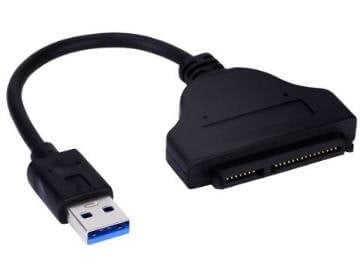
If your laptop has only one slot, you'll need to get a USB-to-SATA cable or an SSD enclosure to connect the SSD as an external drive.
To install a M.2 SSD, ensure your motherboard has a M.2 interface, a horizontal slot about an inch wide labeled "PCIe" or "SATA" or both.
To clone an HDD to an M.2 SSD, you can use a cloning software such as Qiling Disk Master. These programs allow you to create an exact copy of your HDD's contents onto the M.
👉If you want to install a new SSD:
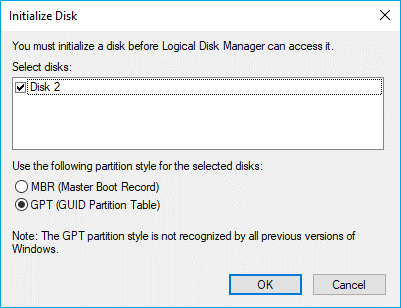
To initialize a brand new SSD, search for "Disk Management" in the Windows search bar, right-click the new SSD, and choose "Initialize Disk" to prepare it for use by Windows.
When it comes to data storage, the partition style is an important consideration. It needs to be compatible with the boot mode of your PC, which is either MBR (Master Boot Record) for Legacy BIOS or GPT (GUID Partition Table) for UEFI.
👉If you want to install an old SSD that already has data on it:
The cloning process will overwrite the target SSD, so it's essential to back up any important data on it before proceeding.
If the SSD's partition style is not compatible with your current boot mode, it's recommended to convert MBR to GPT or vice versa, which can be done using SSD cloning software.
If your computer supports both boot modes, you can switch the boot mode after cloning instead of before. This alternative option allows you to clone the operating system and then change the boot mode to suit your needs.
To check the current partition style of a disk, open the Run window by pressing Win + R, type "diskmgmt.msc", and hit OK to open disk management. Right-click the disk you want to check and select "Properties", then click the "Volume" tab to see the "Partition style".

Step 2. Clone hard drive to SSD without reinstalling Windows
Since Windows lacks the feature, you can choose a powerful disk clone software, such as Qiling Disk Master Professional, which is an easy yet reliable option.
▪ The software supports cloning entire disk, selected partition(s), or only the operating system to a new SSD.
▪ It enables cloning a larger drive to a smaller drive, as long as the smaller drive has enough capacity to hold all the used data.
▪ This software offers an SSD alignment feature, which accelerates your target SSD and prolongs its lifespan.
▪ The default intelligent mode will skip unused sectors and logically bad sectors, so old errors won't be copied over to the new SSD.
The software is user-"Get ready to level up your productivity with our clone features!" Whether you're a seasoned pro or just starting out, our intuitive tools will help you streamline your workflow and achieve your goals. Download our app to explore the power of cloning, and discover how it can revolutionize the way you work.
This version works on all Windows PCs. If you are running Windows Server, please turn to Server edition.
How to upgrade to SSD without reinstalling Windows:
1. To clone your HDD to an SSD, install and run the cloning software, then click "Clone" in the main console and select "Disk Clone" to clone the entire disk or "System Clone" to transfer only Windows to the SSD.

2. Select the current system drive as the source disk.

3. Select the new SSD as the destination disk.

4. If you're cloning a hard drive to an SSD, tick the SSD alignment option to enhance the read and write speed of the target drive, then click Proceed to execute the operation.
If the target SSD is larger or equal-sized, check the box to clone all sectors of the hard drive, including blank and bad sectors.

5. Wait for the process completes and shut down your PC.
✎Useful tips:
After cloning a disk to a larger one, the cloned SSD may not show its full capacity, as the partition size is not automatically adjusted to fit the larger destination disk. To utilize the full disk capacity, use the Edit Partitions feature to try one of the following three practical options:
👉 Copy without resizing partitions: It will not resize the partition size.
👉 Add unused space to all partitions: The tool will redistribute the unallocated space on the target disk to each partition, taking into account the disk's total size.
👉 Manually adjust partition size: The feature allows you to extend unallocated space to any partition on the destination disk you want.
👉 When cloning a hard drive, it's essential to ensure that the source and destination disks have the same partition style, either MBR (Master Boot Record) or GPT (GUID Partition Table). This is because the cloning process will copy the partition table and boot sector from the source disk to the destination disk, and if the partition styles don't match, the destination disk may not boot properly. To avoid this issue, you can convert the destination disk from MBR to GPT or vice versa, depending on the source and destination disk type, so that both disks have the same partition style, allowing for a successful cloning process without losing the operating system or requiring a boot mode switch.
Step 3. Boot from the cloned SSD securely
For PCs with more than one slot, You don't necessarily need to remove the old hard drive immediately. Instead, shut down the computer, then enter the BIOS settings by pressing the specific key (which varies by manufacturer). Once in the BIOS, set the SSD as the first boot option and save the changes.

If your PC successfully boots from the cloned SSD, you can either use the HDD for storage or remove and discard it completely.
For laptops with only one slot, To replace the hard drive with an SSD in your laptop, you'll need to physically swap them out. First, shut down your laptop completely. Then, you can proceed with the replacement.
- Disconnect the SSD carefully. Disconnect all other external connections and remove the battery.
- To open the back cover of a laptop, you typically need to remove the screws that hold it in place. This usually involves using a screwdriver, such as a Phillips head or Torx driver, to loosen and remove the screws. The number and type of screws may vary depending on the specific laptop model, so it's a good idea to consult the user manual or online documentation for specific instructions.
- To resolve the issue, locate the hard drive and use a screwdriver to uninstall it. Once you have access, carefully remove the hard drive.
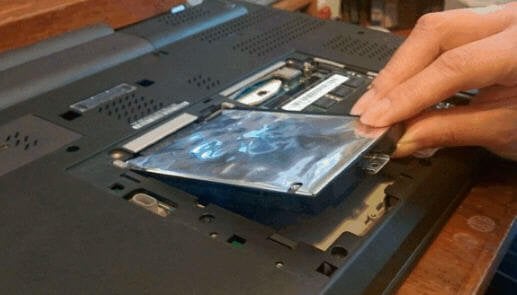
- Install the SSD in the designated slot and connect the interfaces as specified, taking note of the distinct differences between the interfaces to ensure a straightforward and correct setup.
- Close the back cover, re-connect other devices and reboot your PC.
If everything works fine, you can wipe the hard drive for other purposes.
What if cloned SSD won’t boot successfully?
In some cases, a cloned SSD may not boot up normally due to various reasons such as incorrect cloning settings, issues with the target drive's firmware, or conflicts with the system's UEFI firmware. To resolve the issue, users can try re-cloning the SSD with the correct settings, updating the target drive's firmware, or resetting the system's UEFI firmware to its default settings. Additionally, users can also try booting the system from a different drive or a live USB to isolate the problem.
- Cloned SSD is not the boot device. Change the boot order in BIOS to solve.
- Boot with the wrong boot mode. If you've cloned your system to a GPT disk, you should change the boot mode from Legacy to UEFI. This ensures that the system boots correctly from the GPT disk.
- The source disk contains bad sectors You may want to run the built-in Windows utility CHKDSK on your computer to check the integrity of your hard drive. This utility can be used to identify and potentially fix any errors or inconsistencies on the disk, which may be cloned to a solid-state drive (SSD) as part of a disk image or clone. Running CHKDSK can help ensure that your data is safely transferred to the SSD.
The cloned drive can be made bootable by using a tool like Qiling Disk Master, which can clone the original drive and make the cloned drive bootable. Alternatively, users can use the built-in Windows feature, 'Create a bootable clone', or use a third-party tool like Qiling Disk Master to clone the drive and make it bootable.
Conclusion
Installing an SSD without reinstalling Windows is a straightforward process if you follow the instructions carefully. Qiling Disk Master allows you to migrate the entire disk or just the system drive(s) to an SSD with just a few clicks, making it easy to upgrade to an M.2 SSD without reinstalling Windows, or transfer Windows 10 to an M.2 NVMe SSD.
Qiling Disk Master offers complete backup and restore features, including schedule backup, incremental and differential backup, allowing for seamless restoration of system images to new SSDs without boot issues, and even across different computers.
Related Articles
- Replace Laptop HDD with SSD without Reinstalling (with Video)
- How to Reinstall Windows 10 without Losing Data (3 Ways)
- Upgrade Motherboard and CPU Without Reinstalling Windows [Top 3 Ways]
- Top 2 Ways to Backup Installed Programs in Windows 10/8/7
- Easiest Way to Clone Hard Drive or SSD to External Hard Drive
This page introduces you to the easiest way to clone hard drive or SSD to external drive and boot successfully. - How to Migrate Hard Drive to SSD without Reinstalling OS?
You can migrate your hard drive to an SSD without reinstalling your operating system using Qiling Disk Master Professional, which makes the process easy and safe.
Products
Articles & Tutorials
- Data Recovery
- Data Backup
- File Recovery
- File Backup
- File synchronize
- System Backup and Restore
- Disk and Partition Clone
- Technical articles
- Disk Master Help
- Windows Deleted File and Disk Recovery Tutorials
- Windows File and Data Recovery Tutorials
- More Windows Tutorials for Install, Security, Files, and PC Tips
- Windows Boot, Repair, and Recovery Environment Tutorials
- Windows Backup Tutorials
- Windows Restore Tutorials
- Windows Clone and Migration Tutorials
- Windows Server Backup, Recovery, and Management Tutorials
- Windows Disk, Partition, and Storage Management Tutorials