Transfer Everything from C Drive to SSD | Max 4 Steps
Quick Navigation:
- Why transfer everything from C drive to SSD?
- How do I transfer the entire C drive?
- How to replace C drive with larger SSD
- Part 1: Create a system image in Windows 10
- Part 2: Restore system image to larger SSD
- How to transfer C drive to smaller SSD
- Steps to transfer entire C drive to SSD effortlessly
- Conclusion
Why transfer everything from C drive to SSD?
Solid State Drives (SSDs) are smaller, faster, and more power-efficient than traditional hard drives, with no moving parts. They offer faster reading and writing speeds, consume less power, make less noise, and generate less heat. As a result, many users want to transfer their C drive to an SSD and use it as a boot drive.
Below are some common situations:
- Your computer's performance is sluggish, manifesting as prolonged boot times, slow game loading, and other issues.
- Your C drive run out of space.
- Your system crashes and you don't want to reinstall Windows, which is a time-consuming and annoying process, and also risks losing important data.
- ...
How do I transfer the entire C drive?
To transfer everything from the C drive to an SSD, you'll encounter two main challenges. Firstly, you can't manually copy Windows and boot files, which are part of the system partition. Secondly, SSDs are often smaller than HDDs for the same budget. However, you can still copy the Windows installation to the new SSD using either System Backup and Restore or System Clone.
Windows offers users a built-The Backup and Restore (Windows 7) software has the ability to copy Windows and boot files to a new SSD, but this method only works if the new SSD is larger than the original C drive. If the new SSD is smaller, the system image restore will fail.
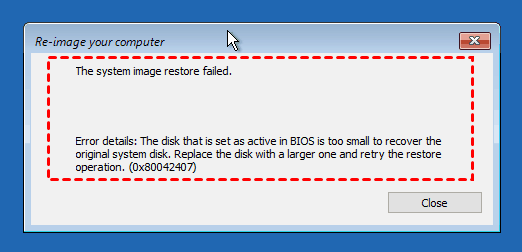
If your new SSD is smaller, you can use SSD cloning software like Qiling Disk Master Professional to transfer everything on the system partition. This software uses an intelligent clone feature that clones only used sectors, making it possible to migrate your OS to the smaller SSD.
How to replace C drive with larger SSD
If your SSD is larger, you can use Windows' built-in backup software, Backup and Restore (Windows 10), to create a system image and save it to the larger SSD. This will allow you to easily restore your system to the larger SSD in case of a failure.
Part 1: Create a system image in Windows 10
Step 1. Go to Control Panel, click System and Security and Backup and Restore (Windows 7) in order.
Step 2. Click Create a system image in the left pane.
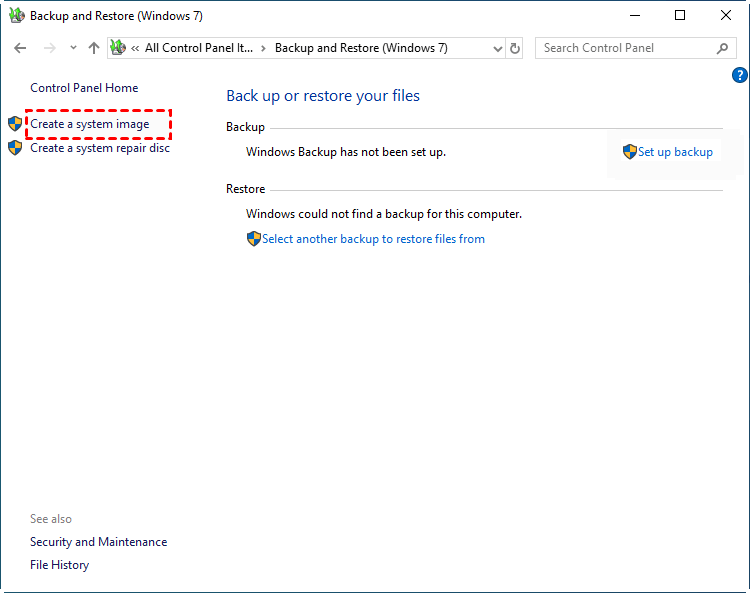
If you're using Backup and Restore (Windows 7) for the first time, you'll see a "Set up backup" option on the right side, which lets you back up files and also includes the option to create a system image backup during the process.
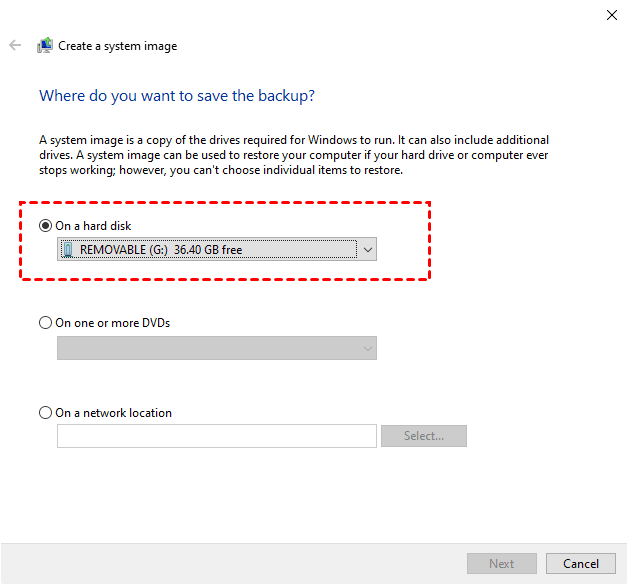
Step 3. Choose the destination location - on a hard disk, DVD, or network location - to save system backup temporarily, then click Next and Proceed.
Part 2: Restore system image to larger SSD
Windows only allows system image restoration in the recovery environment, so prepare a system repair disc or recovery drive to start your computer and connect your backup disk containing the system image, including a larger SSD.
Step 1. Boot your computer from the recovery environment.
- To resolve the issue, you need to create a system repair disc or recovery drive and restart your computer. This will allow you to access the recovery options and potentially fix the problem.
- Press the prompted key to access BIOS, typically F2, F10, F12, Del, ESC, etc.
- To set your bootable drive as the first option, go to the Boot tab and select the drive you want to boot from, then move it to the top of the list. This will ensure that the computer boots from that drive first.
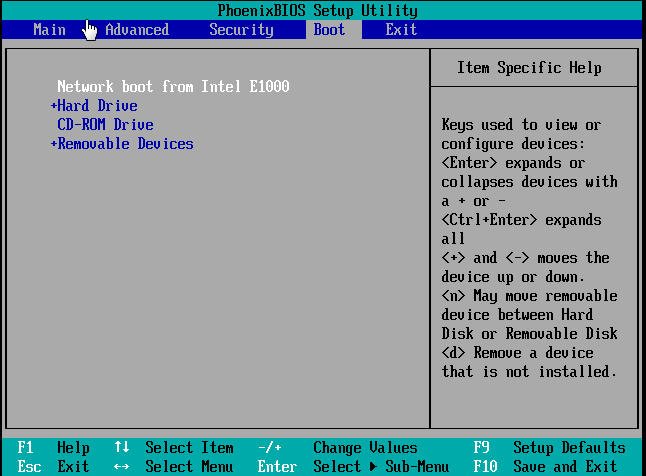
- Press F10 to save changes and boot from the recovery environment.
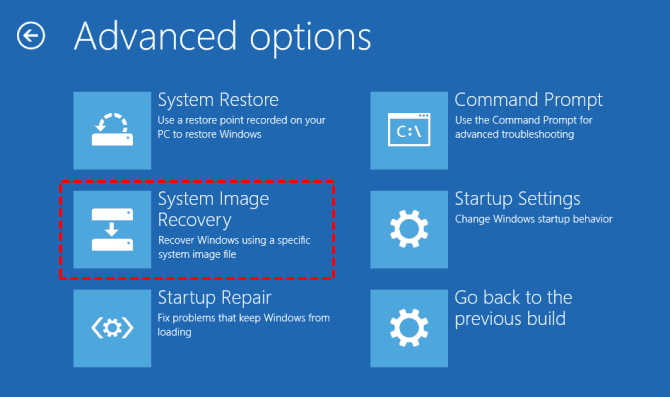
Step 2. On the Windows Setup interface, click Next, then select Repair your computer, Troubleshoot, Advanced options, System Image Recovery, and finally Windows 10.
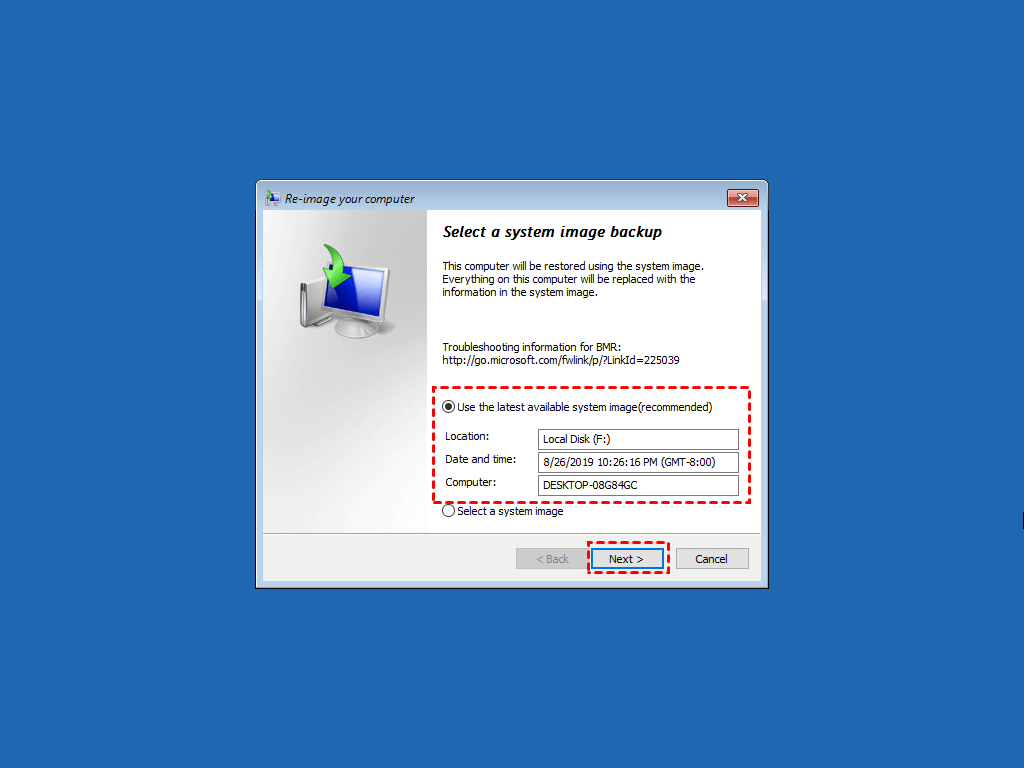
Step 3. In the Re-image your computer window, select the "Use the latest available system image" and click "Next". Then, choose the "Format and repartition disks" option and click "Next", "Finish", and "Yes" to restore the Windows 10 system image to the larger SSD.
How to transfer C drive to smaller SSD
Qiling Disk Master Professional is a powerful SSD cloning software that supports cloning entire C drives to SSDs directly, even if the SSD is smaller, and also offers a System Clone feature for cloning the operating system only.
- Intelligent clone: The intelligent cloning technology allows you to transfer the C drive to a smaller SSD without boot issues by only copying used sectors.
- SSD Alignment: It can speed up the reading and writing of SSD disks.
- Make full use of disk space: For larger SSDs, it can extend the system size by utilizing adjacent unallocated space.
- To clone an OS from a Master Boot Record (MBR) to a GUID Partition Table (GPT) or vice versa without converting the partition style, you can use a tool like Clonezilla or a similar disk cloning software. These tools allow you to clone the entire disk, including the OS, settings, and data, to a new disk with a different partition table style.
Download it to have a try now!
The Clone feature can only be demonstrated in the free trial, but can be fully implemented by upgrading to the full version, which also comes with a 20% off discount.
Steps to transfer entire C drive to SSD effortlessly
Step 1. To transfer your entire C drive to a smaller SSD on a laptop, connect the smaller SSD to your computer, ensuring it's recognized. Depending on your SSD disk interface, you may need an adapter or enclosure to facilitate the transfer.
Step 2. Open Qiling Disk Master. Head to Clone > System Clone.

Step 3. The system drive will be automatically selected, and you just need to choose the smaller SSD as the destination.

Step 4. Confirm your operations. Check SSD Alignment to improve the reading and writing speed of the smaller SSD. Then, click Proceed to transfer everything from C drive to SSD.

- Sector by sector clone: To clone a hard drive, you would need to clone all sectors of it, which requires the target drive to be as large or larger than the original drive.
- Make full use of disk space: Extend the system partition by using adjacent unallocated space, which will be automatically checked when the target drive is larger.
If you're currently using a server system, you may want to consider using Qiling Disk Master Server, which supports all server operating systems, from Server 2003 to Server 2022.
After cloning, shut down the PC, replace the old hard drive with the SSD, and during startup, press a specific key to enter BIOS. Set the cloned SSD as the first boot option, save the changes, and the PC should boot from it automatically.
Conclusion
With the help of Qiling Disk Master, you can easily transfer everything from C drive to SSD in just a few clicks, requiring no profound knowledge or complex operations. This tool can also solve many big headaches, such as cloning OS to a smaller SSD while ensuring secure boot.
Besides System Clone, you can also try Disk Clone to clone the entire disk, or Partition Clone to transfer all files from one partition to another, which can also clone only sectors of a drive, improve SSD disk performance, adjust partition size, etc.
Related Articles
- How to Transfer Files From SSD to HDD in Windows 10 (Easiest)
No matter what files you want to transfer from SSD to HDD, such as personal data, user files, and program files, you can find the solution from this page. After data transfer, you can make full use of the advantages of both SSD and HDD, higher performance and larger capacity. - Top 2 Ways to Copy/Transfer Data from One Hard Drive to Another
Copy or transfer data from one hard drive to another with file copy or disk cloning methods. - Replace Laptop HDD with SSD without Reinstalling (with Video)
You will learn the best practice to replace laptop HDD with SSD without reinstalling Windows 10 or 11, and one-stop wizard for hard drive replacement including video tutorials. - Move Windows 10 Installation to Another Drive (SSD/HDD) Easily
Move a Windows 10 installation to another SSD or HDD and check boot settings after migration. - How to Replace M.2 SSD in PC [Works on Windows 11/10/8/7]
Replacing an M.2 SSD in a PC can be done easily with the help of Qiling Disk Copy, which allows you to transfer data from one M.2 SSD to another without reinstalling Windows OS. This makes the process of upgrading or replacing an M.2 SSD much simpler and more efficient. - How to Replace Old SSD with New SSD on Windows Laptop/PC
This post is a step-by-step guide on how to replace an old SSD with a new one without losing any data, using the professional disk clone software Qiling Disk Copy.
Products
Articles & Tutorials
- Data Recovery
- Data Backup
- File Recovery
- File Backup
- File synchronize
- System Backup and Restore
- Disk and Partition Clone
- Technical articles
- Disk Master Help
- Windows Deleted File and Disk Recovery Tutorials
- Windows File and Data Recovery Tutorials
- More Windows Tutorials for Install, Security, Files, and PC Tips
- Windows Boot, Repair, and Recovery Environment Tutorials
- Windows Backup Tutorials
- Windows Restore Tutorials
- Windows Clone and Migration Tutorials
- Windows Server Backup, Recovery, and Management Tutorials
- Windows Disk, Partition, and Storage Management Tutorials