Best WD Blue SSD Transfer Software for Windows 11, 10, 8, 7
Quick Navigation:
- Overview of WD Blue SSD
- WD Blue SSD Transfer Software from WD Website
- Most Reliable Western Digital SSD Cloning Software
- How to Transfer Data and OS to WD Blue SSD via Qiling Disk Master
- Migrate Everything to Western Digital Blue SSD
- Transfer OS Only to WD Blue SSD by System Clone
- How to Boot from WD Blue SSD in Windows 10/8/7 Securely
- Conclusion
Overview of WD Blue SSD
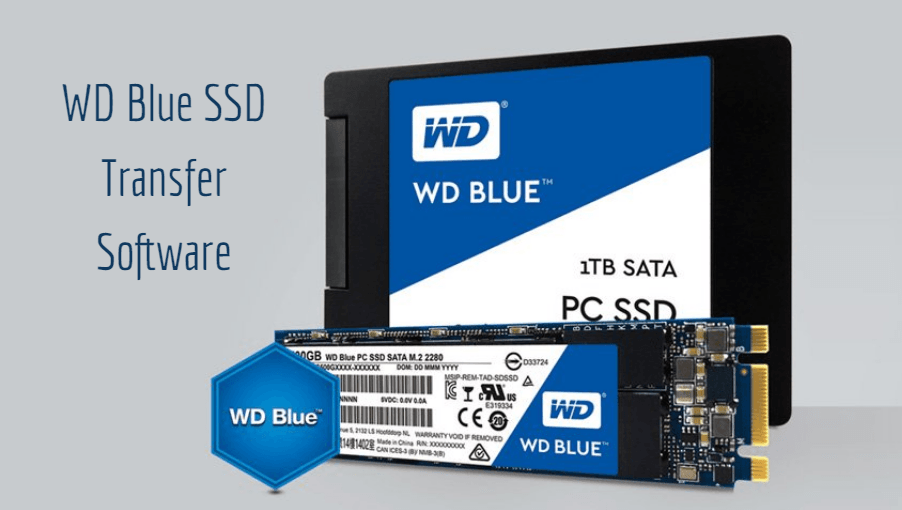
Western Digital is an American computer hard disk drive manufacturer and data storage company, offering the WD Blue SSD as one of its mainstream SSD products. The WD Blue SSD is available in two form factors, including the WD Blue™ SATA SSD 2.5/7mm boxed and the WD Blue™ SATA SSD M.2 2280, making it compatible with a wide range of computers and designed for high-performance computing needs.
☻ A high capacity and enhanced reliability. It can help reduce cell-to-cell interference for enhanced reliability.
☻ Outstanding performance. The technology allows for sequential read speeds of up to 560MB/s and sequential write speeds of up to 530MB/s.
☻ Leading-Edge Reliability. The SSD is designed with no moving parts, which helps prevent data loss in the event of a collision or drop.
☻ 5-Year Limited Warranty. You don't have to worry about upgrading or replacing any drives, as they are already included in the system.
WD Blue SSD Transfer Software from WD Website
Users who rely on Western Digital hard drives often experience issues, with one of the most common queries being whether WD provides cloning software. The answer is no, WD does not come with cloning software, and users need to download the Western Digital SSD cloning software, which is actually Acronis True Image WD Edition, from the WD website.
Acronis® True Image™ WD Edition The software can clone drives and back up your operating system, applications, settings, and all of your data, but users often encounter problems when using it to transfer data. A user reported an issue on the forum, where they were trying to transfer data from one drive to another using the software, but it resulted in a corrupted system. The user was looking for a solution to this problem.
How to transfer to WD Blue SSD?
You're trying to transfer data from your existing 500GB laptop drive to a new 500GB WD SSD Blue using Acronis True Image WD Edition, which you downloaded from the WD site, and you've already confirmed that the WD SSD Dashboard can see your USB-attached WD SSD Blue.
The error message indicates that the Acronis WD Edition software requires at least one Western Digital drive to be installed in your system to run. To fix this, you'll need to install a Western Digital drive, or ensure that a Western Digital drive is already installed in your system. Once this is done, you should be able to run the software without any issues.
- Question from WD Community
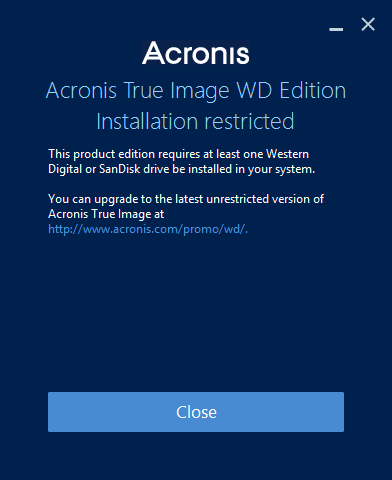
This product version requires a Western Digital drive to be installed in the system, with issues related to the USB cable connected to the WD disk, and other problems such as Acronis True Image not cloning after restart and not recognizing WD HD/SSD.
You're experiencing issues with the Western Digital SSD software clone feature when trying to transfer data or OS to a WD Blue SSD. This can be frustrating. Have you considered using alternative cloning tools, such as Qiling Disk Master, which might provide a smoother experience?
Most Reliable Western Digital SSD Cloning Software
The best Western Digital SSD transfer software is Qiling Disk Master Professional, a convenient and concise disk cloning software for Windows PC that supports Windows 7/8/8.1/10/11/XP/Vista. It is a more reliable choice compared to Acronis True Image WD Edition software, which may encounter problems when used as a primary WD SSD transfer software.
♨ Clone system disk to HDD/SSD without reinstalling OS, supporting a wide range of hard drives including HDDs, SATA SSDs, NVMe M.2 SSDs, USB flash drives, and SD cards.
♨ You can clone all brands and modes of SSDs, including cloning a hard drive to a Kingston SSD, cloning an Intel SSD to another, transferring Windows 10 to a NVMe SSD, and more.
♨ You can use it to erase the disk to protect your private data before disposing of the old hard disk.
♨ To create a bootable USB, start by downloading a bootable media creator like Rufus or Etcher. Then, insert the USB drive into your computer and run the software.
Why not give a try right now? Download it and learn how to transfer your data or OS to WD Blue SSD with just a few clicks.
How to Transfer Data and OS to WD Blue SSD via Qiling Disk Master
Preparations:
¤ To connect your WD Blue SSD to your current computer, you may need an external disk enclosure or a USB-to-SATA cable. If the drive contains important data, back up the files first as the cloning process will overwrite the destination data.
Migrate Everything to Western Digital Blue SSD
Step 1. Install and start Qiling Disk Master Professional. Click Clone, and select Disk Clone.

✨ Tip: If you want to clone a disk without an operating system, such as cloning an external drive or USB drive, you can try using the free disk clone software Qiling Disk Master Standard.
Step 2. Select the original hard drive as the source disk and click Next.

Step 3. Select the WD Blue SSD as the destination path.

Step 4. Check the "SSD Alignment" option to improve SSD disk writing and reading speed during the hard drive to SSD cloning process, then click "Proceed".

Transfer OS Only to WD Blue SSD by System Clone
You can use Qiling Disk Master Professional to perform a System Clone, which transfers the operating system instead of the entire data. This process involves the following steps:
Step 1. Select "Clone" -> "System Clone".

Step 2. The source drives (OS drive and boot related drives) are selected by default, and you only need to select the WD Blue SSD as the destination location for the clone.

Step 3. Preview the operation. Select "SSD Alignment", and click "Proceed".
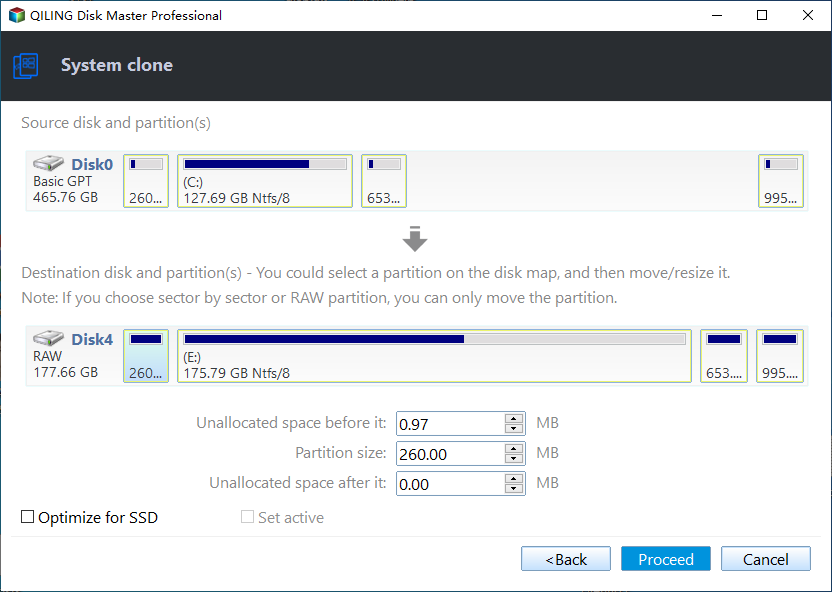
Step 4. Click "Finish" when all the cloning operations have been done.
How to Boot from WD Blue SSD in Windows 10/8/7 Securely
Now that you've successfully migrated the system to a WD Blue SSD, you can verify if the cloned SSD boots properly. To do this, you can either change the boot order in the BIOS or replace the old drive with the SSD. If you need to change the boot order, follow these steps:
- Restart your PC.
- Press the required key to enter BIOS, which is usually F2, F8, F12, or Del, depending on the device.
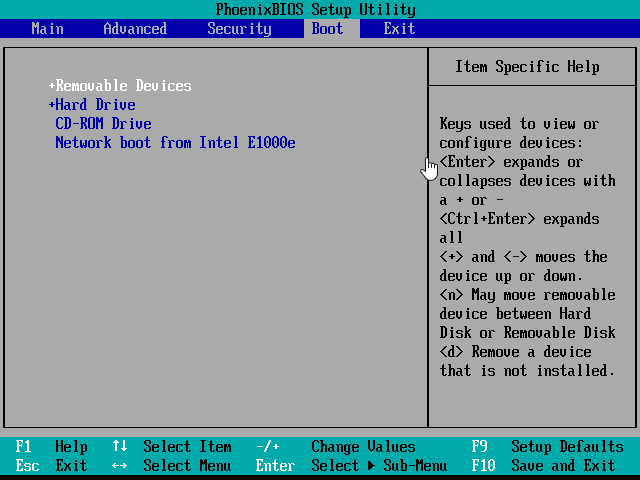
- To change the boot priority to boot from the cloned SSD, click on "Boot" and select the cloned SSD as the primary boot device. This will ensure that the computer boots from the cloned SSD instead of the original drive.
- Finally, press "F10" to save changes and exit.
Conclusion
Qiling Disk Master is a reliable software for transferring data or operating systems to a WD Blue SSD, offering a convenient and problem-free experience. As SSDs become increasingly popular, having a trustworthy migration tool like Qiling Disk Master is essential for a smooth transition.
Qiling Disk Master offers a range of powerful features, including creating backups, restoring files, and synchronizing two hard drives, all of which can be accomplished with just a few clicks.
Related Articles
- Free Western Digital Disk Cloning Software (Securely Boot)
- Best Western Digital SSD Migration Tool to Clone OS or Disk
- Solved: Acronis True Image WD Edition Will Not Clone
- Email Recovery for Gmail, Yahoo, Outlook, Hotmail
Learn the key steps, checks, and practical tips for this related guide. - How to Clone C Drive to External Hard Drive with Best Disk Cloning Software
Cloning the C drive to an external hard drive is a useful process that can be done for various reasons. This article will explain the benefits of cloning the C drive to an external drive and provide a step-by-step solution for doing so. - How to Clone Your Desktop Computer | Easiest Method
Cloning a desktop computer can be useful while upgrading your drives from HDD to SSD or when you are changing your desktop computer. Read the article to learn more.
Products
Articles & Tutorials
- Data Recovery
- Data Backup
- File Recovery
- File Backup
- File synchronize
- System Backup and Restore
- Disk and Partition Clone
- Technical articles
- Disk Master Help
- Windows Deleted File and Disk Recovery Tutorials
- Windows File and Data Recovery Tutorials
- More Windows Tutorials for Install, Security, Files, and PC Tips
- Windows Boot, Repair, and Recovery Environment Tutorials
- Windows Backup Tutorials
- Windows Restore Tutorials
- Windows Clone and Migration Tutorials
- Windows Server Backup, Recovery, and Management Tutorials
- Windows Disk, Partition, and Storage Management Tutorials