How to Fix Accidentally Erased/Deleted Macintosh HD in Disk Utility
Quick Navigation:
- Part 1. What happens if I erase Macintosh HD in Disk Utility?
- Part 2. How do I recover a deleted Macintosh HD?
- 1. How to Restore Accidentally Deleted Macintosh HD Files
- 2. How to fix accidentally deleted Macintosh HD in disk utility
- 3. How to Restore Deleted Macintosh HD with Time Machine Backup
- Part 3. Frequently Asked Questions and Answers for Erased/Deleted Macintosh HD
- Q: Do I need to erase Macintosh HD data?
- Q: I erased Macintosh HD and there is a problem of boot it up. I had to reinstall the macOS mavericks. There was a prohibitory symbol on Macbook in the process of reinstalling macOS.
- Q: How do I add Macintosh HD to Disk Utility?
You accidentally deleted the Macintosh HD, which also erased the macOS, making it difficult to boot your Mac. To fix this, you can try reinstalling macOS from a bootable external drive, or use a recovery mode to restore your Mac to its original settings. If you don't have a bootable external drive, you can also try using the built-in recovery mode to reinstall macOS. If none of these methods work, you may need to visit an Apple Store or authorized service provider for further assistance.
For broader Mac recovery options, see Mac data recovery guidance before reinstalling macOS.
Accidentally deleting Macintosh HD in Disk Utility is a common mistake that can have serious consequences. Before taking such an action, people often don't realize the importance of the Macintosh HD hard drive. Fortunately, there are fixes available for those who have made this error, and understanding the risks and solutions can help prevent further data loss.
Part 1. What happens if I erase Macintosh HD in Disk Utility?
Disk Utility is mac built-The Disk Utility app allows users to perform various disk-related tasks, including erasing external hard drives, even if they've accidentally erased an external drive on Mac. Fortunately, the erased external disk can be restored with a Time Machine backup or using data recovery software. However, erasing the Macintosh HD in Disk Utility is a more serious matter, with different implications.
The Macintosh HD folder is the default storage for files and macOS system data. However, deleting files within this folder can have unintended consequences, such as erasing the entire Macintosh HD drive, which serves as the startup disk. This can lead to a clean slate where all files, data, and applications are removed, and a successful reinstall of macOS is possible. But, in some cases, this can result in errors when trying to boot or reinstall the Mac.
Part 2. How do I recover a deleted Macintosh HD?
1. How to Restore Accidentally Deleted Macintosh HD Files
If your Mac still works fine after deleting files from Macintosh HD, you can use data recovery software or Time Machine backup to retrieve deleted files. Since the deleted files aren't in the trash, you'll need to use a backup or professional data recovery software for macOS.
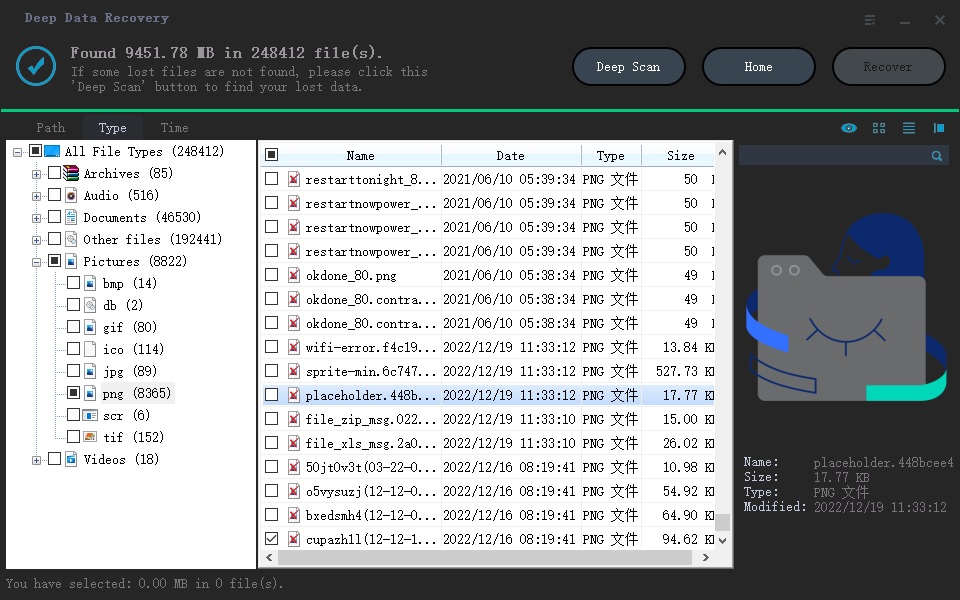
If you haven't backed up your Macintosh HD to Time Machine yet, you can use Deep Data Recovery for Mac to recover files from the drive. This software will scan the drive and allow you to recover almost all daily used file types, including those that have been deleted or erased. To do this, simply follow the steps outlined by the software, which will guide you through the process of recovering your files.
- Download and install Deep Data Recovery for Mac on your Mac, a powerful data recovery software that can recover deleted, formatted or corrupted files from various storage devices, including hard drives, solid state drives, USB drives, memory cards, and more. The software uses advanced algorithms to scan and recover lost data, and offers a user-friendly interface to make the recovery process as smooth as possible.
- Launch the Macintosh HD recovery software for your Mac.
- Click "Start" in the first window.
- In the next window, select Macintosh HD as the drive to scan and click "Scan".
- When finding the wanted files, select them and click "Recover" to save them on your Mac.
#2. Restore Erased Macintosh HD with Time Machine Backup
If you had backed up your Macintosh HD with Time Machine before deleting it, you can restore your files by accident. This makes it much easier to recover the deleted data.
- To access Time Machine settings on your Mac, click the System Preferences icon located on the top left corner of your screen, then select Time Machine from the list of available preferences.
- To access Time Machine, check the box "Show Time Machine in menu bar" in the Time Machine preferences.
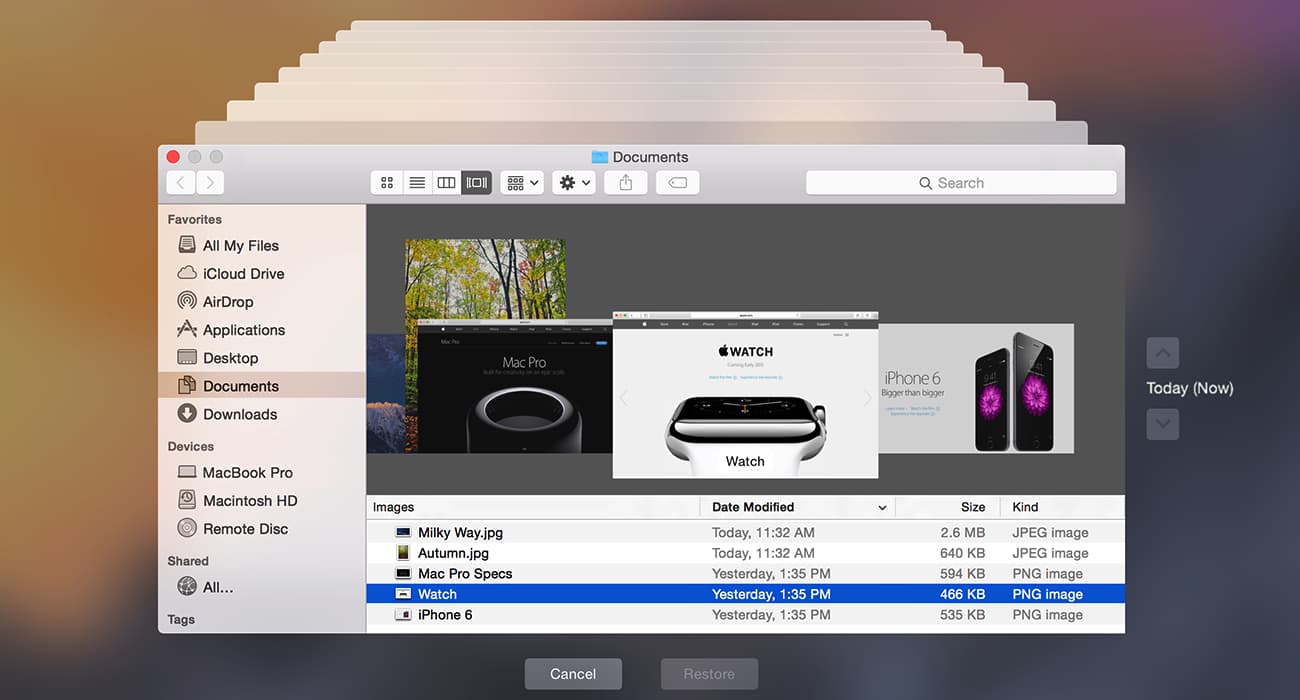
- In the menu bar, click Time Machine and select "Enter Time Machine".
- Scroll up and down to target the files you want to restore to accidentally erased Macintosh HD.
- Select the needed files and click "Restore".
2. How to fix accidentally deleted Macintosh HD in disk utility
Disk Utility can both erase and recover a hard drive, making it a useful tool for Mac users. If you've accidentally erased the startup disk, you can enter Recovery Mode to restore the Macintosh HD. This feature allows you to recover erased data, making it a valuable resource for those who need to retrieve lost files.
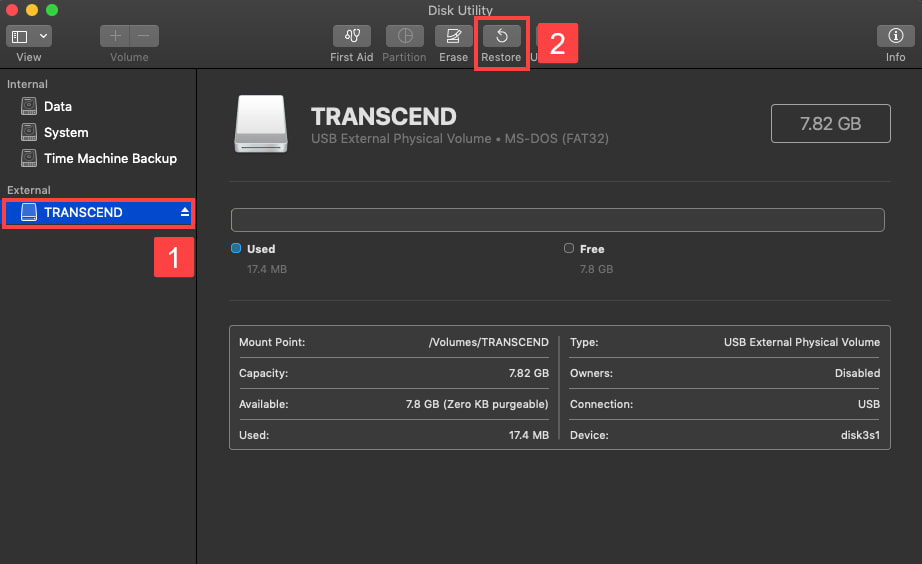
- To reset your Mac, turn it on and hold down the Command (⌘) and R keys simultaneously, then click on Disk Utility.
- To restore your Mac, select the startup disk (usually Macintosh HD or the hard drive named as the system), click "Restore" in the Disk Utility window.
- Once you've selected the Time Machine backup, the restore process will begin. This may take some time, depending on the size of the backup and the speed of your Mac's disk. Be patient and let the process complete.
3. How to Restore Deleted Macintosh HD with Time Machine Backup
If you've erased your Macintosh HD and want to recover it, check if you have a Time Machine backup file. If you do, you can restore the deleted Macintosh HD using the backup file. This should restore everything to its previous state.
- If the Time Machine backup is on an external hard drive, please connect the hard drive to your Mac first.
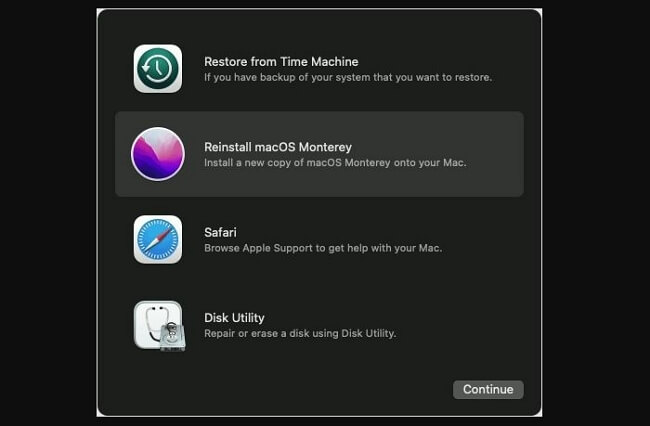
- To reset your Mac, turn it on and hold down the Command (⌘) and R keys simultaneously. This will boot your Mac in Recovery Mode, allowing you to reset your computer to its factory settings.
- Click Restore from Time Machine.
- Select the Time Machine backup to restore the accidentally deleted startup disk on Mac.
Part 3. Frequently Asked Questions and Answers for Erased/Deleted Macintosh HD
Q: Do I need to erase Macintosh HD data?
If you're not experienced in managing macOS, it's best not to erase Macintosh HD data. If you do, you might render your Mac unusable and not know how to reinstall it. Instead, delete files selectively and then use Qiling iClear to clean up junk files. This approach minimizes the risk of data loss and system instability.
Even for those familiar with computers, managing macOS can be a challenge. It's best to avoid attempting anything beyond one's expertise or comfort level.
Q: I erased Macintosh HD and there is a problem of boot it up. I had to reinstall the macOS mavericks. There was a prohibitory symbol on Macbook in the process of reinstalling macOS.
The prohibitory symbol/line through it on Mac means there is a problem with your startup disk. You should use First Aid in Disk Utility or restore macOS with Time Machine backup to fix it before going on the reinstall process.
Q: How do I add Macintosh HD to Disk Utility?
To restart your Mac, hold down the Command (⌘) and R keys simultaneously. This will boot your Mac in recovery mode. Next, select Disk Utility from the Utilities window that appears.
Related Articles
Products
Articles & Tutorials
- Data Recovery
- Data Backup
- File Recovery
- File Backup
- File synchronize
- System Backup and Restore
- Disk and Partition Clone
- Technical articles
- Disk Master Help
- Windows Deleted File and Disk Recovery Tutorials
- Windows File and Data Recovery Tutorials
- More Windows Tutorials for Install, Security, Files, and PC Tips
- Windows Boot, Repair, and Recovery Environment Tutorials
- Windows Backup Tutorials
- Windows Restore Tutorials
- Windows Clone and Migration Tutorials
- Windows Server Backup, Recovery, and Management Tutorials
- Windows Disk, Partition, and Storage Management Tutorials