Best Free Data Recovery for Windows 10
Windows 10 data loss can happen after deletion, formatting, update failure, profile errors, or a drive turning RAW. A good recovery workflow starts with protecting the source drive.
Understand the problem
Do not install recovery software or save restored files to the same partition that lost data. This is especially important for SSDs and system drives.
- Confirm the exact disk, partition, drive letter, file system, boot mode, or Windows version before changing settings.
- Back up or recover important files before formatting, deleting, resizing, converting, reinstalling, or cleaning a drive.
- For boot or installation tasks, check BIOS or UEFI mode, disk style, boot order, and device compatibility first.
Use Windows built-in tools
Check built-in recovery options first.
- Look in Recycle Bin and OneDrive Recycle Bin.
- Check File History and Backup and Restore.
- Search Windows.old after major updates.
- Check another user profile if files disappeared after sign-in.
- Use recovery software when no backup contains the files.
Use Qiling tools for guided steps
 Deep Data Recovery
Recover Windows 10 files from deleted, formatted, inaccessible, or missing locations.
Function. Recover files with Fast Scan
Step 1. Stop writing new data to the Windows 10 partition that lost data. Install Deep Data Recovery on another drive when possible, so the original data area is not overwritten.
Step 2. Launch Deep Data Recovery and choose Fast Scan first. Fast Scan is the first choice for recently deleted or missing files.
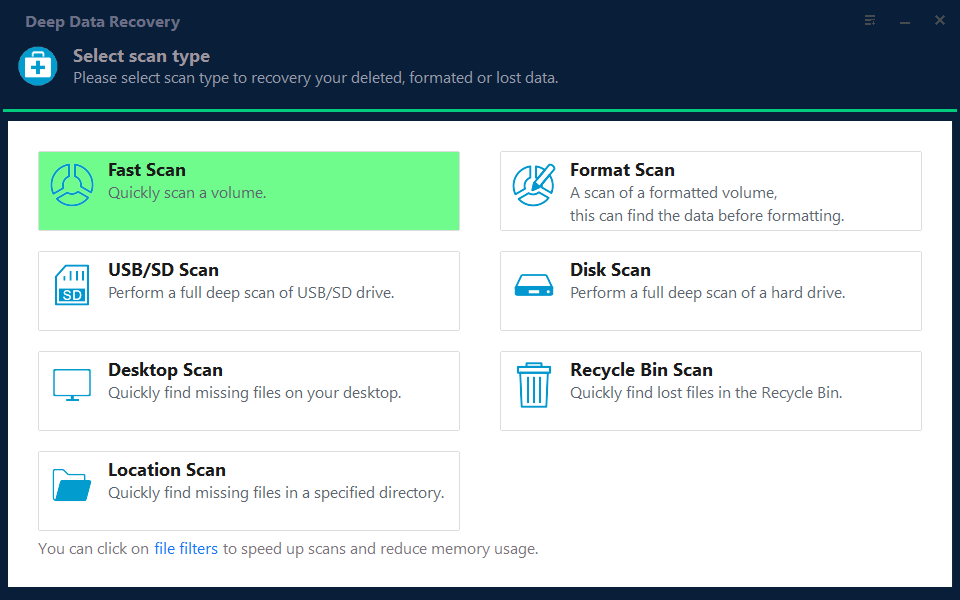
Step 3. Select the Windows 10 partition that lost data as the scan location. If the exact folder is missing or inaccessible, scan the whole partition that originally stored the files.

Step 4. Wait for the scan to complete. Use file type, file name, path, size, and date filters to narrow the result list.
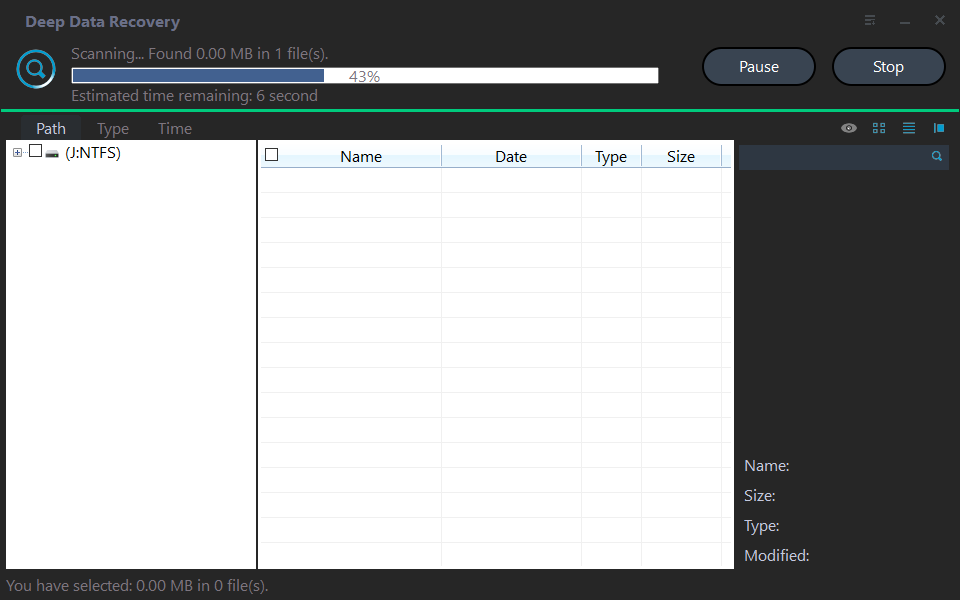
Step 5. Preview the files, select what you need, and recover them to another disk or external drive.

Check the result
Save recovered files to another drive, open them, and compare important documents or photos before cleaning the original disk.
Related Articles
-
Data Recovery
Learn the general workflow for recovering files from Windows drives. -
Recover Deleted Files
Use practical Windows recovery steps before deleted files are overwritten.
Products
Articles & Tutorials
- Data Recovery
- Data Backup
- File Recovery
- File Backup
- File synchronize
- System Backup and Restore
- Disk and Partition Clone
- Technical articles
- Disk Master Help
- Windows Deleted File and Disk Recovery Tutorials
- Windows File and Data Recovery Tutorials
- More Windows Tutorials for Install, Security, Files, and PC Tips
- Windows Boot, Repair, and Recovery Environment Tutorials
- Windows Backup Tutorials
- Windows Restore Tutorials
- Windows Clone and Migration Tutorials
- Windows Server Backup, Recovery, and Management Tutorials
- Windows Disk, Partition, and Storage Management Tutorials