Desktop Suddenly Empty in Windows: Restore Files and Icons
If the desktop suddenly becomes empty, the files may be hidden, moved to another user profile, synced to OneDrive, or deleted after an update or profile issue.
Understand the problem
Do not save new files to the desktop until you know what happened. The Desktop folder usually belongs to a specific user profile and may also be redirected to OneDrive.
- Confirm the target disk, partition, drive letter, file system, and capacity before changing anything.
- Back up or recover important files before formatting, deleting, resizing, converting, or reinstalling Windows.
- For boot-related repairs, check BIOS or UEFI mode, boot order, and disk style before editing system partitions.
Use Windows built-in tools
Check simple causes first.
- Right-click the desktop, choose View, and enable Show desktop icons.
- Open C:\Users and check whether Windows signed in with a temporary profile.
- Check the Desktop folder under your normal user account.
- Open OneDrive and check Desktop backup or online Recycle Bin.
- Use File History or recovery software if files were deleted.
Use Qiling tools for guided steps
 Deep Data Recovery
Scan the original Desktop folder location when desktop files are missing or deleted.
Function. Recover files with Fast Scan
Step 1. Stop writing new data to the Windows system drive or Desktop folder location. Install Deep Data Recovery on another drive if possible.
Step 2. Launch Deep Data Recovery and choose Fast Scan first. Fast Scan can quickly locate recently deleted desktop files.
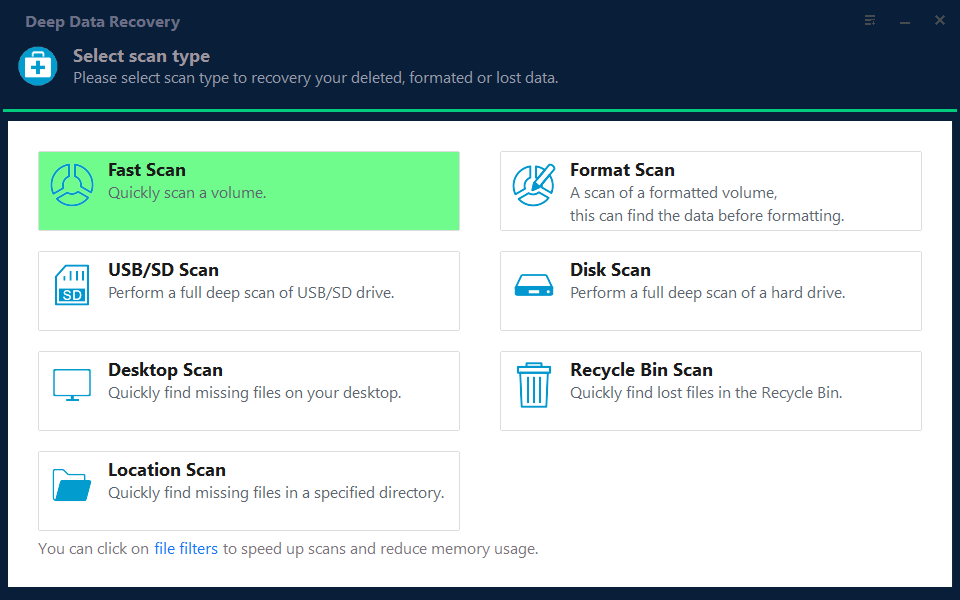
Step 3. Select the Windows system drive or Desktop folder location as the scan location. If the original folder is missing, scan the whole partition where it was stored.

Step 4. Wait for the scan to complete. Use file type, name, date, and path filters to narrow the results.
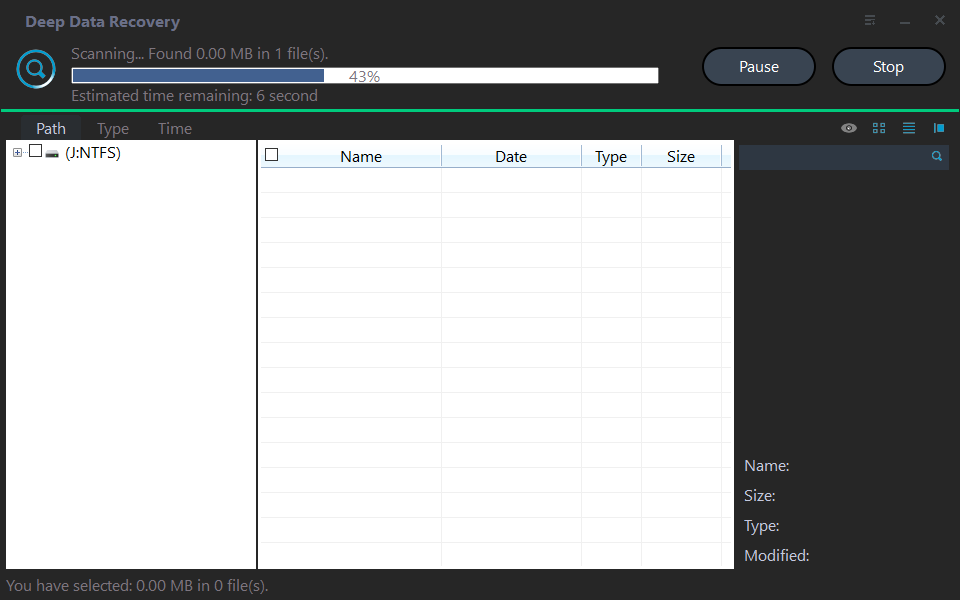
Step 5. Preview the files, select the items you need, and recover them to another disk or external drive.

Check the result
Restore files to another folder first, then copy them back to Desktop after confirming the profile and OneDrive settings are correct.
Related Articles
-
Files on Desktop Disappeared
Fix missing desktop files caused by profile, update, or view setting issues. -
Restore Desktop Icons Windows 10
Restore desktop icons and files after they disappear in Windows 10.
Products
Articles & Tutorials
- Data Recovery
- Data Backup
- File Recovery
- File Backup
- File synchronize
- System Backup and Restore
- Disk and Partition Clone
- Technical articles
- Disk Master Help
- Windows Deleted File and Disk Recovery Tutorials
- Windows File and Data Recovery Tutorials
- More Windows Tutorials for Install, Security, Files, and PC Tips
- Windows Boot, Repair, and Recovery Environment Tutorials
- Windows Backup Tutorials
- Windows Restore Tutorials
- Windows Clone and Migration Tutorials
- Windows Server Backup, Recovery, and Management Tutorials
- Windows Disk, Partition, and Storage Management Tutorials