5 Ways for How to Fix Files on Desktop Disappeared in Windows 11/10/8/7
Files on the desktop disappearing in Windows is a common issue, but there are solutions. You can try the 5 methods mentioned in the article to resolve the problem. If the files are still missing, it's essential to act quickly and use Deep Data Recovery to recover them, as they may be lost forever if not restored promptly.
If desktop files were deleted rather than hidden, this find deleted files on Windows guide can help you continue the recovery check.
Here are five ways to recover deleted files on a Windows desktop: you can use the built-in File History feature, a third-party data recovery software, a USB drive or external hard drive, a cloud storage service like OneDrive or Google Drive, or a professional data recovery service. These methods can help you retrieve deleted files due to accidental deletion, system crashes, virus attacks, drive formats, and other reasons.
- Quick Navigation
- Solution 1: Recover Files on the Desktop Disappeared
- Solution 2: Check Users Folder to Look for Files on Desktop Disappeared in Windows
- Solution 3: Show Hidden Files and Folders
- Solution 4: Search Hard Drive and Look for Files on Desktop Disappeared
- Solution 5: Look for Files on Desktop Disappeared by Switching User Account
Solution 1: Recover Files on the Desktop Disappeared
You can recover files on your Windows 7/8/10/11 desktop that have disappeared using the powerful and user-friendly Deep Data Recovery software. This software has a robust algorithm and a simple interface that helps you get back all the lost files. Its features include the ability to recover deleted files, restore data from formatted drives, and retrieve files from corrupted or damaged storage devices. With its help, you can easily retrieve your lost files and get back to work without any hassle.
Your Effective File Recovery Software
- You can recover files lost due to various reasons such as pressing the delete button, formatting a drive, virus attacks, and OS crashes.
- It helps extract records from drives that are displaying as RAW, deleted, or hidden due to file system issues.
- You can recover files from a formatted drive or partition in Windows or macOS.
Guide for How to Recover Files on Desktop Disappeared
Step 1: Install Data Recovery Software
Before recovering files on a Windows 10 computer with a disappeared desktop, download and install the trial version of Deep Data Recovery software, a standalone and virus-free program.
Step 2: Select Your System Drive
The next screen shows the partitions of the hard disk, including any externally connected storage devices such as USB drives. To recover lost files, navigate to the desired path and click the "Scan" button to initiate Qiling's scanning process.

Step 3: Recover Disappeared Files in Desktop
The time to complete the process ranges from a few minutes to an hour, depending on the size of the selected file format. The software displays files in an orderly fashion, allowing you to pick a folder using the tree to view recoverable data. You can preview contents before retrieving them, mark vital records, and press the "Recover" button. It's essential to choose a different location on your computer and create a new folder for the recovered files. Once the process is complete, you can view the files.

Solution 2: Check Users Folder to Look for Files on Desktop Disappeared in Windows
It's possible to recover deleted files from the desktop after an update by checking a new folder where the files were moved. Updates don't actually delete files, but rather relocate them to a new folder, so the files are still accessible if you know where to look. To find the moved files, follow the steps to access the new folder.
1. Go to "This PC", Click on "Local Disk (C)"
2. Go to Users > User Name > Documents
You can also follow these steps:
1. Click "This PC"
2. Go to Local Disk (C) > Users > Public
Solution 3: Show Hidden Files and Folders
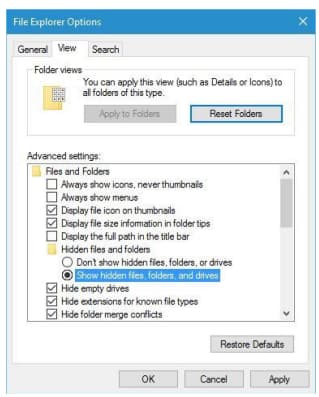
To verify if files disappeared from desktop are there, you can check hidden files and folders. There's a possibility that some folders and files have gone hidden due to OS errors. You can enable viewing hidden files and folders by following certain steps, then search for the missing data or folder on your desktop.
1. To access File Explorer Options, press the Windows key and S at the same time, then search for File Explorer and select the File Explorer Options feature from the list.
2. To show hidden files, folders, and drives in File Explorer, go to File Explorer Options, click the View tab, select Advanced Settings, and then click "Show hidden files, folders, and drives" in the dropdown menu. Click "Apply" to save the changes.
3. After recovering the lost files, you can head back to the desktop to search for the files or folders that you lost. All the recovered data will be found in a folder with the same name.
Solution 4: Search Hard Drive and Look for Files on Desktop Disappeared
You might not be searching for files on the desktop disappeared Windows throughout your hard drive because the hard drive letter has changed, causing essential files to be moved to a different drive, such as the D:Users > your_username folder, or even a different partition.
To search the hard drive for a file or folder, start by opening the File Explorer. In the search box, type the name of the file or folder you're looking for. Press Enter to initiate the search. This will scan the entire hard drive for matches, including files and folders in hidden directories and subfolders.
1. To open File Explorer, select the File Explorer option on your computer. Then, in the left pane of the screen, select "This PC".
2. To find a specific folder or file on your computer, start by typing the name of the folder or file into the search box located at the upper right corner of the screen. This will initiate a search of your computer's files and folders, and the results will be displayed in a list below the search box.
3. Press Enter to allow the computer to search for the file/folder.
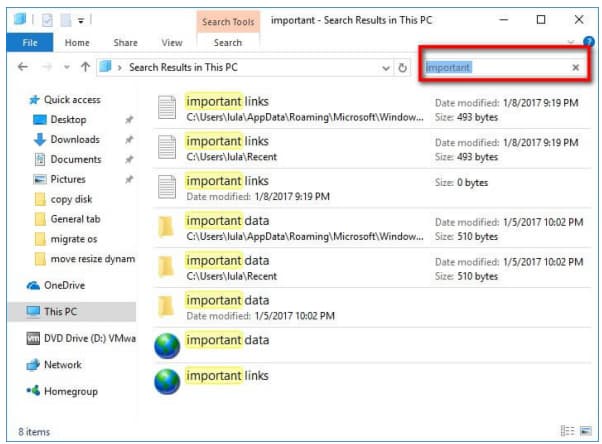
4. Once the search is complete, you can identify the path and head to the location to see if it is the file you are searching for. Keep in mind that the search takes time, as it scans the entire hard drive.
Solution 5: Look for Files on Desktop Disappeared by Switching User Account
When files on the desktop disappear on Windows 10, it's possible they're still there, but hidden due to an operating system upgrade creating a new user account. The old account, which still contains the files, is not set as the default user, so you may need to sign in to access them. To do so, you can follow a series of steps.
1. Click "Start", choose the user icon, and click the "Sign out" option.
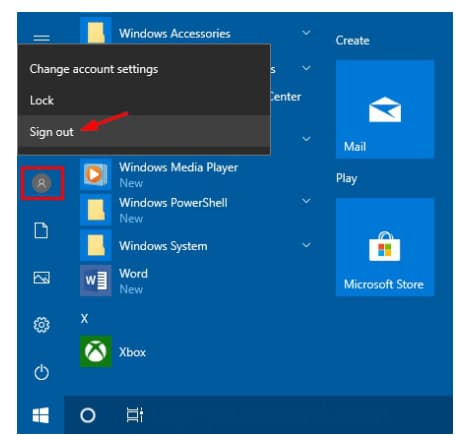
2. In the sign-in screen, login with your old account credentials.
3. After switching, you will see all the files and folders in the new location.
If your files on the desktop have disappeared in Windows, you can try using Deep Data Recovery to recover them. If you have any other useful solutions, feel free to share them with us.
Related Articles
- Fix Kernel Security Check Failure in Windows 10/8/7
- Fix Desktop Icon/Folder/Files Disappeared in Windows 10
- Fix Windows 10 Preparing Automatic Repair Loop
- SanDisk Repair Tool to Perform SanDisk Memory SD Card/USB/HDD/SSD Repair
- [Solved] Deleted File Not Showing in Recycle Bin
- Fix Windows 10 Update Error Code 0x80070002
- [Fix] Convert External Drive to APFS Failed/Greyed Out/Not Available
- Restore Desktop Icons on Windows 10
Restore missing desktop icons in Windows 10 by checking icon settings, tablet mode, Explorer, profiles, and deleted shortcuts. -
Remove Shortcuts from Desktop
Clean desktop shortcuts without deleting the original files or folders. -
Desktop Suddenly Empty in Windows
Restore desktop files and icons by checking view settings, profiles, OneDrive, backups, and scans.
Products
Articles & Tutorials
- Data Recovery
- Data Backup
- File Recovery
- File Backup
- File synchronize
- System Backup and Restore
- Disk and Partition Clone
- Technical articles
- Disk Master Help
- Windows Deleted File and Disk Recovery Tutorials
- Windows File and Data Recovery Tutorials
- More Windows Tutorials for Install, Security, Files, and PC Tips
- Windows Boot, Repair, and Recovery Environment Tutorials
- Windows Backup Tutorials
- Windows Restore Tutorials
- Windows Clone and Migration Tutorials
- Windows Server Backup, Recovery, and Management Tutorials
- Windows Disk, Partition, and Storage Management Tutorials