[Solved] Deleted File/Folder Not in Recycle Bin

The Recycle Bin is a temporary storage for deleted files, allowing users to recover them if needed, until they are permanently deleted by selecting Empty Recycle Bin.
If the file bypassed Recycle Bin, see files deleted from USB not in Recycle Bin for removable-drive cases.
If you accidentally deleted a file and cannot find it in the Recycle Bin, this guide explains why it may happen and what you can do next. The file may have bypassed the Recycle Bin, been deleted from external storage, or been removed after the Recycle Bin was emptied.
- Quick Navigation
- Part 1. Why is Recycle Bin Not Showing Deleted Items?
- Part 2. How to Fix the Problem That Deleted File Is Not In Recycle Bin
- Part 3. How to Recover Deleted Files That are Not in the Recycle Bin
- Part 4. How to Avoid Accidental Loss of Important Files
- Part 5. FAQS
Why is Recycle Bin Not Showing Deleted Items?
Deleted files or folders may not always be found in the Recycle Bin, which can be surprising for many users. This can be due to various reasons, including file system corruption, software conflicts, or specific settings that bypass the Recycle Bin. In some cases, deleted items may be sent directly to the system's storage or external drives, or even permanently deleted without passing through the Recycle Bin.
Delete files from external drives
Since Windows can only detect activity on the local drive, it can't recover files from external drives. However, you can recover deleted files from external hard drives.
Shortcuts as Shift + Delete
The "Shift + Delete" key combination is Windows' default way to permanently remove files, which means they are not sent to the recycle bin and are completely gone. To recover files deleted using this method, click here.
Used CMD to Deleting Files
When you delete a file using the command line, it bypasses the recycle bin and directly clears the items you selected, making it difficult to recover. To recover deleted files, please refer to the article on recovering deleted files using CMD.
Reached Recycle Bin's Maximum Size
When the Recycle bin is full, deleting files will no longer store them in the bin, as it has reached its maximum capacity.
Activated "Don't Move the Files to Recycle Bin"
The "don't move deleted files to recycle bin" option is disabled by default, but if it's accidentally enabled, deleted files won't appear in the Recycle Bin.
Other Reasons
Accidentally emptying the Recycle Bin, deleting items exceeding the maximum limit, removing files being hidden, and more can cause deleted files to not show in the Recycle Bin. To recover deleted files from the Recycle Bin after empty, you can use software such as Disk Drill, Deep Data Recovery Wizard, or Recycle Bin Recovery. These tools can scan your computer for deleted files and restore them to their original location.
If you accidentally delete a file and can't find it in your computer's Recycle Bin, don't panic! You can use various methods to recover and undelete files. These methods can help you retrieve your lost file, and you can get back to work without any further stress.
How to Fix the Problem That Deleted File Is Not In Recycle Bin
When deleting a file, it's usually sent to the Recycle Bin. However, if the file doesn't appear in the Recycle Bin, it can be frustrating and confusing. Fortunately, there are solutions to help resolve this issue.
Ways 1. Check the "Don't Move the Files to Recycle Bin" Option
- Select the "recycle bin" icon on the desktop, right-click, and select "properties."
- Check if this option is selected. If yes, then please cancel it.
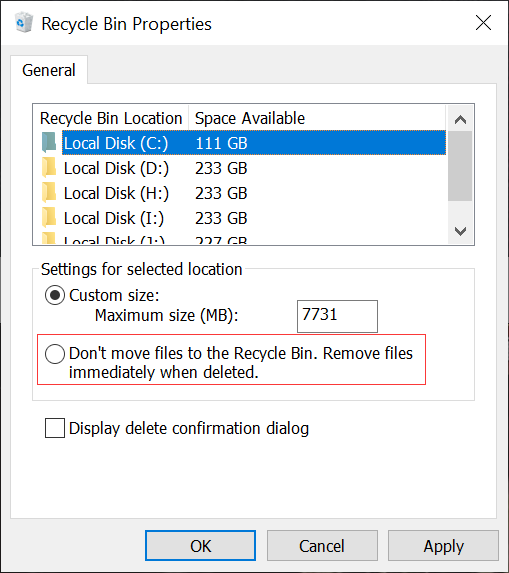
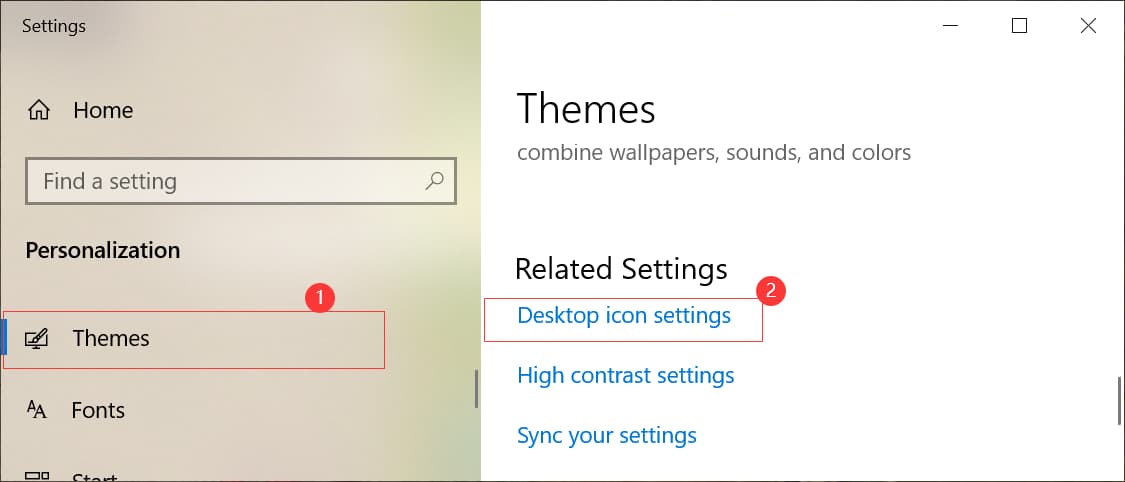
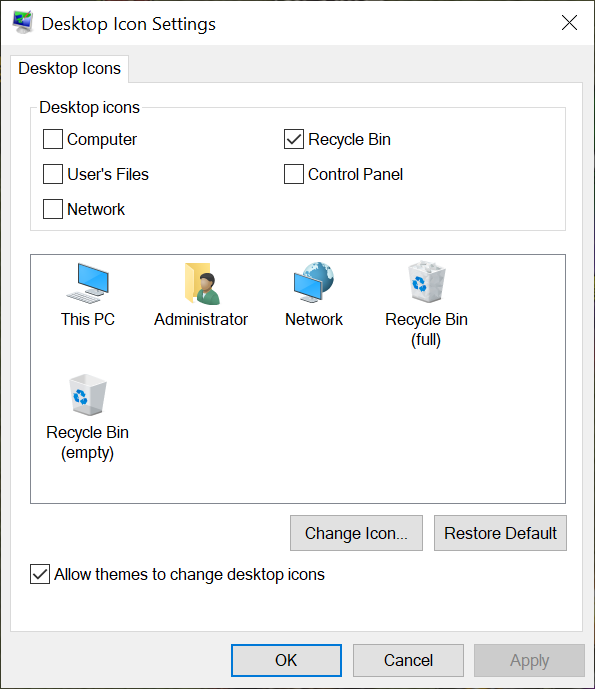
Tips: If you can't find the recycle bin icon on your desktop, you can follow these steps to set it: Right-click on the desktop and select Personalize. In the Personalization window, click on Themes, then click on Desktop Icon Settings.
How to Show Recycle Bin on a Desktop
- Right-click on a space on the desktop and select "Personalize."
- To access the desktop icon settings, select the "Themes" option from the left menu and then choose "Desktop icon settings."
- Click the Recycle Bin check box in the pop-up window and click "OK."
Ways 2. Adjust the "Maximum size" Threshold
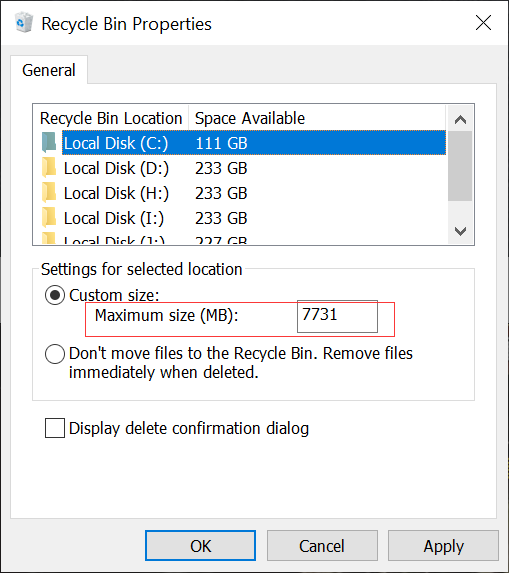
- Open "Recycle bin Properties."
- Go to the settings for the selected location and find the "Custom size" option.
- Set the maximum size for deleted files to a significant value, such as 100M, to prevent large files from being put into the recycle bin.
- Click "OK" to confirm the operation.
Ways 3. Check the "Show Hidden Files" Option
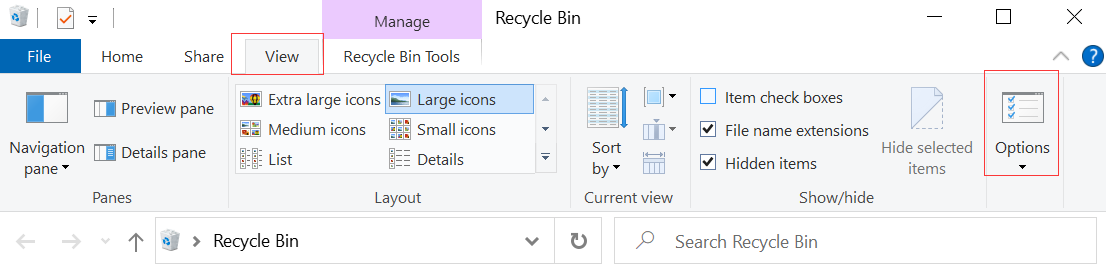
- To access the recycle bin, open it and select the "View" tab from the top menu, then click on "Options."
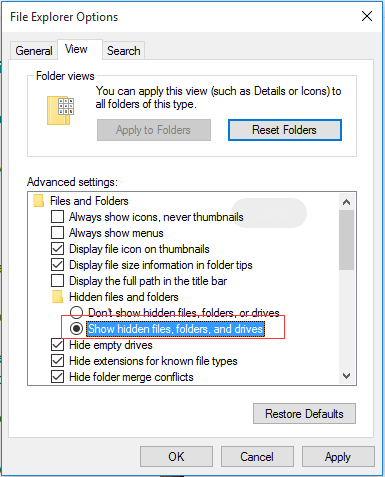
- Switch to the "View" tab in the popup.
- Go to the "Advanced settings" option and choose "Show hidden files, folders, and drives."
- To confirm the deletion, open the recycle bin, click "OK" and then refresh the list with "F5" to check for any remaining deleted items.
Ways 4. Check the Registry
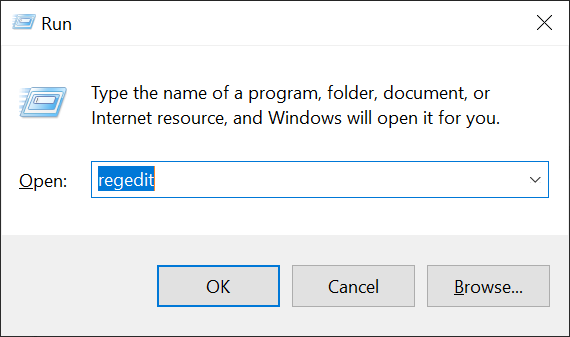
- Simultaneously hit "Windows + R" and type "regedit."
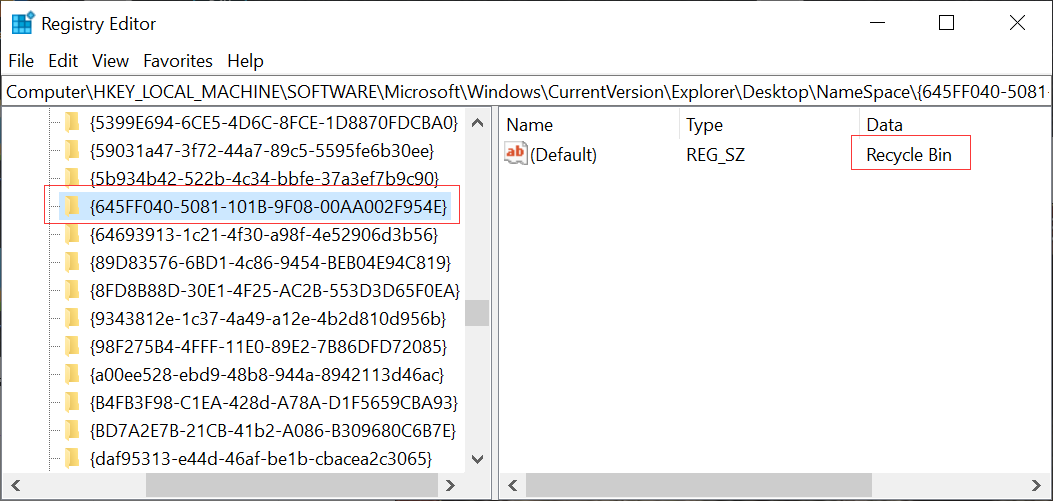
- To access the registry key, go to HKEY_LOCAL_MACHINE\SOFTWARE\Microsoft\Windows\CurrentVersion\Explorer\Desktop\NameSpace in the registry editor.
- Check if a key named "{645FF040-5081-101B-9F08-00AA002F954E}" exists under the "NameSpace". If not, create one by double-clicking "(Default)" in the right panel and setting the "Value data" to the value that specifies "Recycle Bin".
- After deleting items, restart your computer and check the Recycle Bin to see if any items were deleted. Once you've confirmed that everything has been removed, you can empty the Recycle Bin.
Ways 5. Fix Damaged Recycle Bin
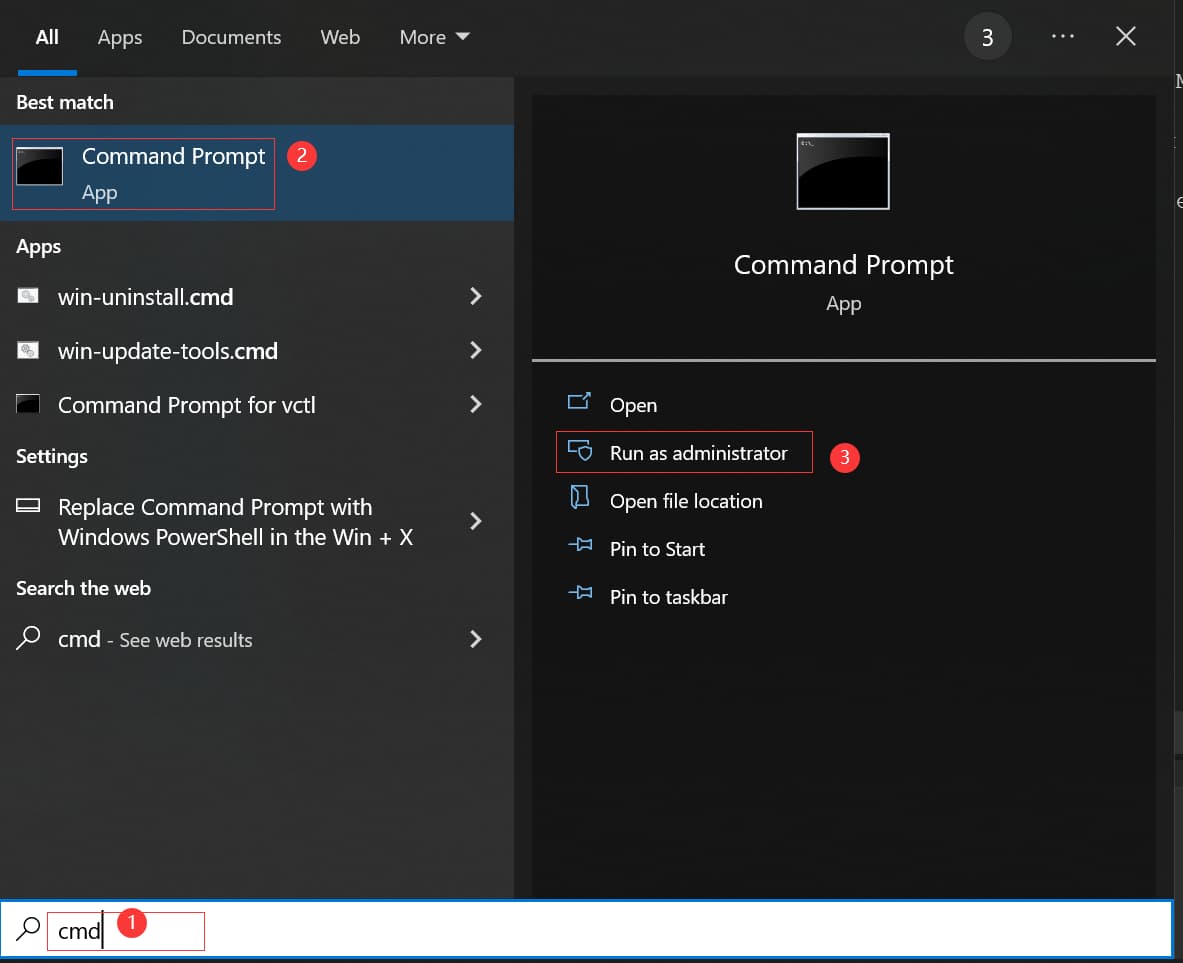
- Hit the window key and type "CMD."
- Select "Command Prompt" and click "Run as administrator."
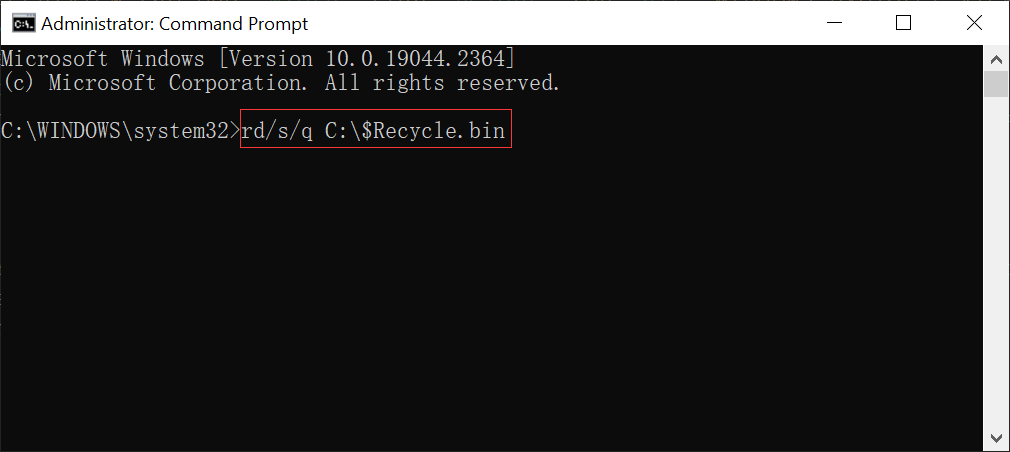
- Type "rd/s/q C:\$Recycle.bin" and tap on "Enter."
- Restart your Windows PC.
If the deleted file is not in the Recycle Bin, it may be that the Recycle Bin is set incorrectly or its fault caused it to be removed permanently. You can try checking the Recycle Bin settings and resetting them to their default settings. If that doesn't work, you can also try using a data recovery software to scan your computer for deleted files and recover them. Additionally, you can try checking the file's properties to see if it was permanently deleted, and if so, you can try using a file recovery tool to recover it.
How to Recover Deleted Files That are Not in the Recycle Bin
Losing important files can be frustrating, especially when the recycle bin isn't showing deleted items. But, they're not necessarily gone forever. In fact, you can recover deleted files using the right methods or tools, even if they haven't been sent to the recycle bin yet.
Ways 1. Recover Deleted Files Not In Recycle Bin with Tool
If you accidentally deleted a file but cannot find it in the Recycle Bin, you can use Deep Data Recovery software to scan the drive and look for recoverable files. Stop writing new data to the same drive before recovery to improve the chance of success.
Your Safe & Effective File Recovery Software
- Your files, including photos, audio, videos, documents, and more, can be scanned and recovered when the original data has not been overwritten.
- Recover files from an USB drive, memory card, disk, and more, be it deleted, formatted, displayed as RAW, access denied, or corrupted, using data recovery software. This software can scan the device and retrieve lost files, even if they've been deleted or formatted.
- Straightforward to use and interactive user interface.
- Download and install Qiling undelete software.
- To speed up the scan, click "Go to settings" and uncheck the file types you don't need to retrieve. This will help the scan process by limiting the amount of data being processed.
- Select the drive where the deleted files were saved and click on "Scan" to start looking for lost data.
- After scanning is complete, you will see a list of recovered files. You can preview them by clicking on "Preview".
- After selecting the required files, tap on the "Recover" option to save the files on your PC.


Ways 2. Restore Recycle Bin Not Showing Deleted Items from Previous Versions
If you know about the previous version feature, you may get help to recover deleted files quickly. It is part of the Volume Shadow service to record file any modification and roll back to any version if needed. Here are the specific steps to use it:
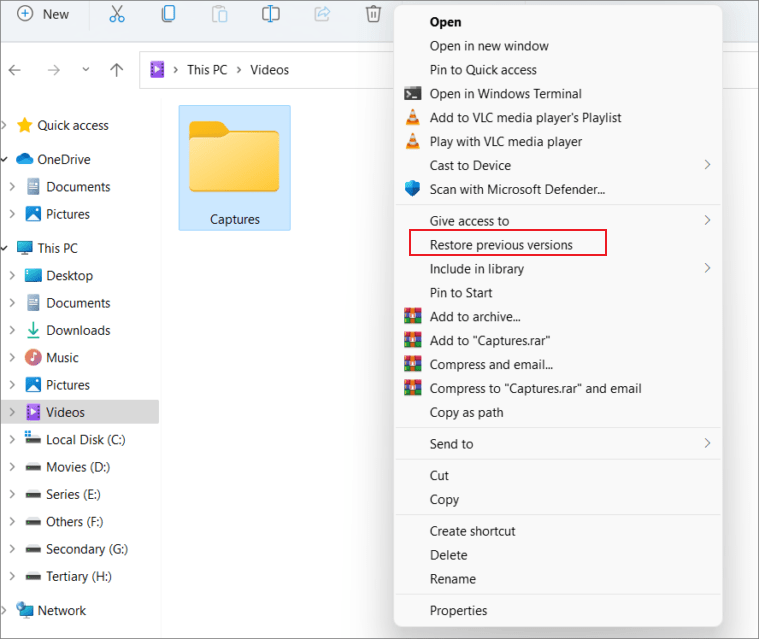
- First, locate the folder from where the file got deleted and right-click on the same.
- To recover deleted items, tap on the "Restore Previous Version" option, which will then display a list of folder versions for you to select from.
- To recover a deleted file, select one from the list of previously deleted files, click "Open" to open the file, and then click "Restore" to restore the file to its original location.
- When you find targets, you can click on the "Restore" option to save deleted files that don't show in the recycle bin.
Ways 3. Retrieve Deleted Files by Windows File Recovery
Microsoft Windows File Recovery utility is a powerful tool that can help you recover deleted files on your computer, but it's a command line interface that may be difficult for novices to use. However, if you accidentally delete some essential items, this utility might be able to help, and we can guide you through the process of recovering permanently deleted files in Windows 11 and 10.
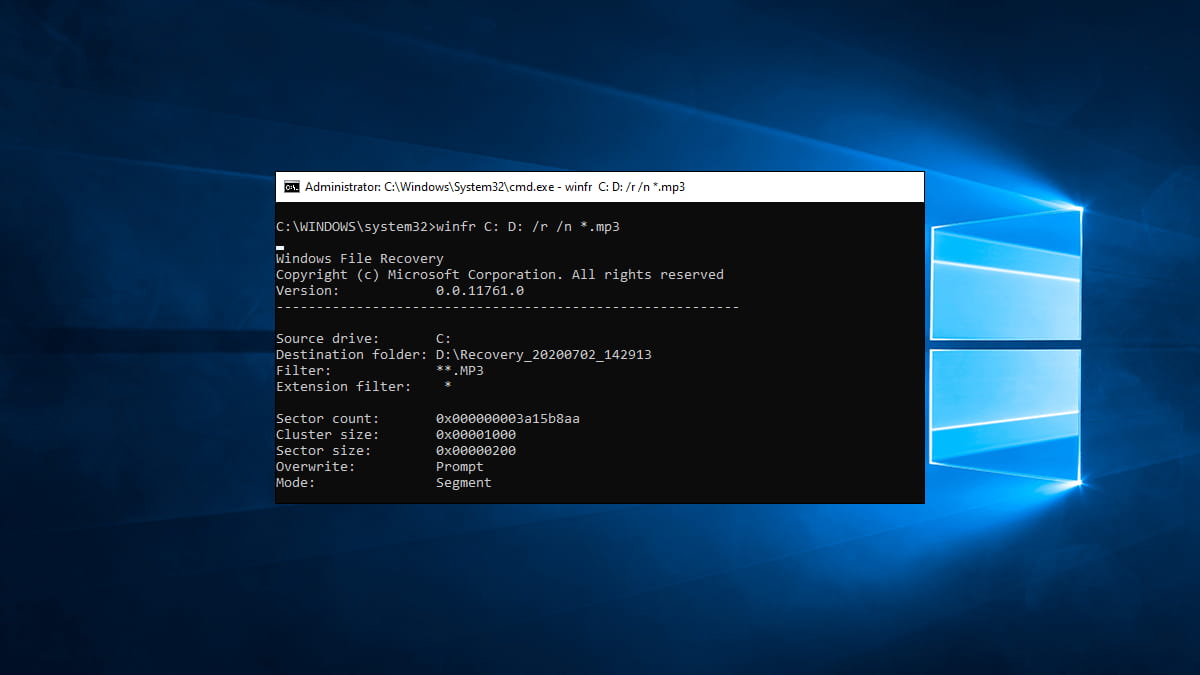
- To recover deleted files on your Windows PC, open the "Microsoft Store" and download the "Windows File Recovery" app.
- To run the Windows File Recovery tool and recover MP3 files from drive C to drive D, type "winfr C: D: /r /n *.mp3" in the command prompt, replacing "C" and "D" with the actual drive letters and file type as needed.
- When the recovery process is finished, you can open drive D to view the recovered files.
Ways 4. Find Deleted Files Are Not In Recycle Bin from Windows Backup
If you're trying to recover deleted files that aren't in the recycle bin on Windows 10/11, the Windows Backup feature can be helpful. This is because Windows Backup periodically creates copies of your files, allowing you to restore them when needed.
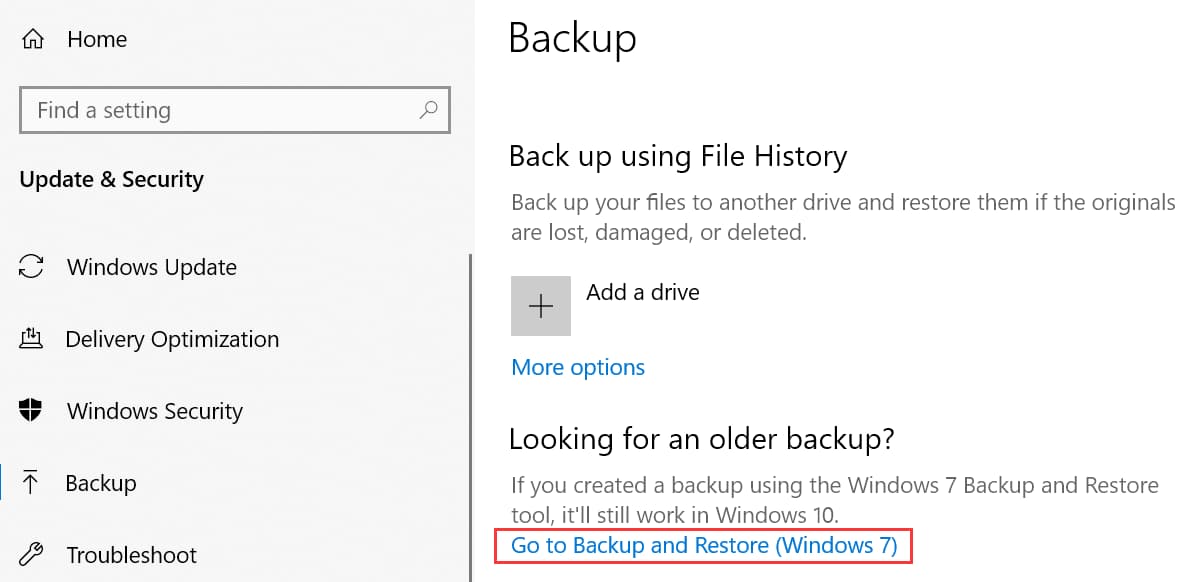
- To open the Settings on Windows, press the "Windows + I" keys simultaneously. This will bring up the Settings window, where you can access various options and settings for your Windows device.
- Select "Update and Security" and the option for "Backup."
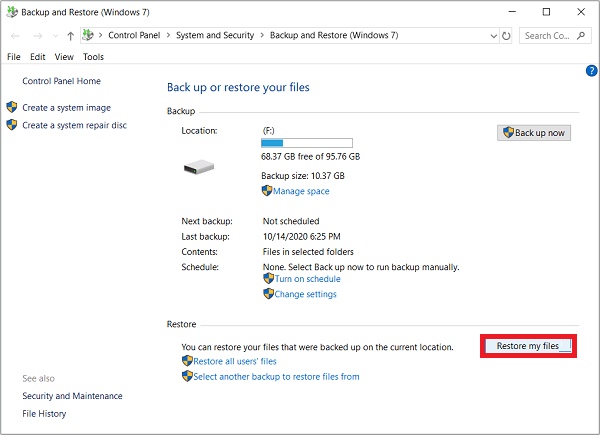
- To access the backup and restore feature in Windows 7, click on the "Start" button, then click on "Control Panel". From the Control Panel, click on "System and Security", then click on "Backup and Restore (Windows 7)".
- To recover deleted files, tap "Restore My Files" and follow the wizard to complete the recovery process.
How to Avoid Accidental Loss of Important Files
Losing important files can be distressing and costly, especially if they don't appear in the Recycle Bin, giving you no chance to regret or recover them. To avoid such a situation, there are some tips you can take to prevent essential data from disappearing, ensuring your files remain safe and accessible.
- 🚫 Try to avoid using the Shift + Del keys when deleting a file, so you have a chance to undo it. This is because Shift + Del permanently deletes the file and bypasses the recycle bin, making it impossible to recover the file.
- 🗑️ To avoid deleted files not appearing in the Recycle Bin, ensure the Recycle Bin is functioning correctly. This can be done by checking the system settings and verifying that the Recycle Bin is enabled and set to store deleted files in its designated location.
- 📤 To set up an automated backup system, you can use a cloud storage service like Google Drive, Dropbox, or Microsoft OneDrive to copy your most important files to a secure location. This way, your files are protected from data loss due to hardware failure, theft, or other accidents.
- 🗃️ Properly labeling your files and keeping yourself organized will help ensure they stay safe.
- ⛱️ Regular system updates and virus scans can help prevent malicious programs from causing harm by deleting or damaging essential files.
Implementing these practices will guarantee the safety of some items, but more importantly, it will provide peace of mind knowing you've done what you can to defend against any data disasters.
FAQS
-
When deleting files, use the Del key or right-click delete to send them to the recycle bin, but avoid using Shift + Del, as it will permanently delete the files without moving them to the recycle bin.
-
Items deleted using Shift+Delete or from a USB drive will not appear in the Recycle Bin, but can be recovered using a tool like Deep Data Recovery.
-
Data recovery software can recover deleted files from a computer's hard drive, even if they don't appear in the Recycle Bin. This is because deleted files are not immediately erased, but rather marked for deletion and remain on the hard drive until they are overwritten by new data. Data recovery software can search for and retrieve these files, even if they have been deleted for a long time. However, the effectiveness of data recovery software depends on various factors, such as the type of file system used, the amount of data on the hard drive, and the condition of the hard drive itself.
-
- To recover lost data, download and install Qiling data recovery software on your Windows 11 or 10 device.
- Choose folders for deleted items to scan.
- Select the items you want to restore, then click the Restore button on the bottom right to save them.
Conclusion
A deleted file may not appear in the Recycle Bin for several reasons, such as permanent deletion, external-drive deletion, a full Recycle Bin, or changed Recycle Bin settings. Follow the methods above to check the settings, search the original location, and recover deleted files as soon as possible.
Related Articles
- Fix Recycle Bin Corrupted in Windows 7/8/10/11
- Fix Can't Find Recycle Bin in Windows 10/11
- Fix External Hard Drive Not Showing
- How to Use Windows Server Backup for Active Directory Backup
Backing up Active Directory is important for Windows Server users. Learn how to back up Active Directory 2008/2012/2016 efficiently in this article. - 3 Ways to Safely Delete Windows 11 Windows.old Folder
This guide explains 3 Ways to Safely Delete Windows 11 Windows.old Folder with clear steps, key checks, and practical tips. - (Top 3 ways) How to Wipe an External Hard Drive on Windows 11
You will learn how to wipe an external hard drive on Windows 11 via built-in tools or with a reliable disk wipe tool. Hope one of either way can satisfy your own needs.
Products
Articles & Tutorials
- Data Recovery
- Data Backup
- File Recovery
- File Backup
- File synchronize
- System Backup and Restore
- Disk and Partition Clone
- Technical articles
- Disk Master Help
- Windows Deleted File and Disk Recovery Tutorials
- Windows File and Data Recovery Tutorials
- More Windows Tutorials for Install, Security, Files, and PC Tips
- Windows Boot, Repair, and Recovery Environment Tutorials
- Windows Backup Tutorials
- Windows Restore Tutorials
- Windows Clone and Migration Tutorials
- Windows Server Backup, Recovery, and Management Tutorials
- Windows Disk, Partition, and Storage Management Tutorials