How to Fix "Convert to APFS" Not Available or Greyed Out
Quick Navigation:
- How to convert external hard drive to APFS?
- #1. Convert to APFS is only available for volumes of a hard drive, not for the whole drive.
- #2. "Convert to APFS" is only available for Mac OS Extended (Journaled) Volumes
- #3. "Convert to APFS" only available for GUID Partition Map
- #4. "Convert to APFS" Only for Mounted Volumes
- Step 1. Recover Trapped Files from the External Hard Drive
- Step 2. Reformat the External Hard Drive to APFS Format
- Frequently Asked Questions for fixing hard drive issues on Mac
- How do I convert my hard drive to APFS on Mac?
- What does it mean when my Mac days this volume is not formatted as APFS?
- How do you fix a read-only external hard drive on a Mac?
If you're having issues converting an external hard drive to APFS on your Mac, you might need to troubleshoot the problem. The conversion process might be greyed out or not available due to compatibility issues with your external drive, or it might not be showing up in the Disk Utility app. To resolve this, you can try reformatting the external drive to APFS, or you can use a third-party software to convert it. Additionally, ensure that your external drive is properly connected and recognized by your Mac. If the issue persists, you may want to consider contacting the manufacturer of your external drive for further assistance.
If the external drive is used across systems, compare APFS conversion with formatting a drive for Mac and PC.
How to convert external hard drive to APFS?
- Connect the external disk with Mac.
- Go to Finder > Applications > Utilities > Disk Utility.
- From the View drop-down menu, select "Show All Devices".
- Right-To convert a drive to APFS, click on the external hard drive that appears in the left panel and select "Convert to APFS" from the options.
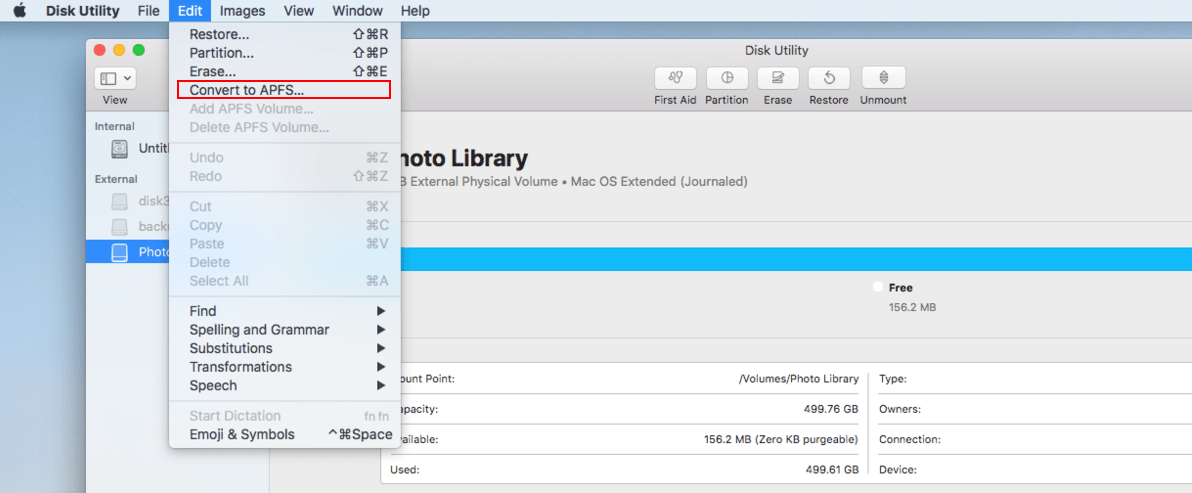
The steps above show the general process for converting an external hard drive to the APFS file system. If the "Convert to APFS" option is greyed out or unavailable, the drive format, partition map, or current file system may not meet APFS requirements. Review the reasons and solutions below before making changes.
#1. Convert to APFS is only available for volumes of a hard drive, not for the whole drive.
The "Convert to APFS" option in Disk Utility works on single volumes, not the whole hard disk, so if you select the entire hard drive instead of a single volume, it will be unavailable.
Solution: Instead of selecting the whole hard drive in the left panel, select each volume one by one under the hard drive to convert to APFS.
#2. "Convert to APFS" is only available for Mac OS Extended (Journaled) Volumes
Apple only converts Mac OS Extended file system format to APFS, so if your hard drive volumes are in a different file system, the "Convert to APFS" option will be greyed out or not available.
Solution: To convert a hard drive to APFS, select the volume you want to convert in the left panel, and check the volume information. If it's not in Mac OS Extended (Journaled), click "Erase" and format it to the correct format.
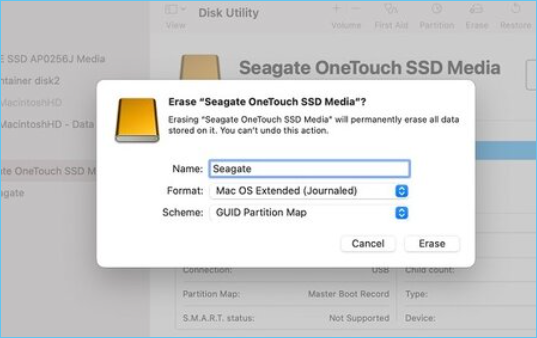
The "Convert to APFS" option does not work when the boot drive is in the Master Boot Record (MBR) format, and it also fails to work when the drive is in MBR format, even if it's not the boot drive.

#3. "Convert to APFS" only available for GUID Partition Map
On a Mac, there are 3 types of schemes for hard drives, but APFS only works with GUID Partition Map. If your external hard drive uses a different partition scheme, you won't be able to convert it to APFS.
Solution: To convert an external hard drive to APFS, you need to ensure it's formatted with the GUID Partition Map scheme. If it's not, you'll need to erase the drive by clicking "Erase" before proceeding. This will allow you to successfully convert the external hard drive to APFS.

#4. "Convert to APFS" Only for Mounted Volumes
If the external hard drive you want to convert to APFS can't be mounted, it likely contains errors or corruption that prevent macOS from recognizing the volume, making conversion impossible.
Solution: The only workable way to use an unmounted hard drive is to format it to APFS. To format the external hard drive, you have two steps to follow.
Step 1. Recover Trapped Files from the External Hard Drive
To avoid losing files on an external hard drive, first restore the trapped files by using a data recovery tool like Deep Data Recovery for Mac. This will save the files to a new location on your Mac, and also fix any corrupt videos or images.
- Connect the external hard drive with your Mac.
- Download and install the free Mac data recovery software, then launch it.
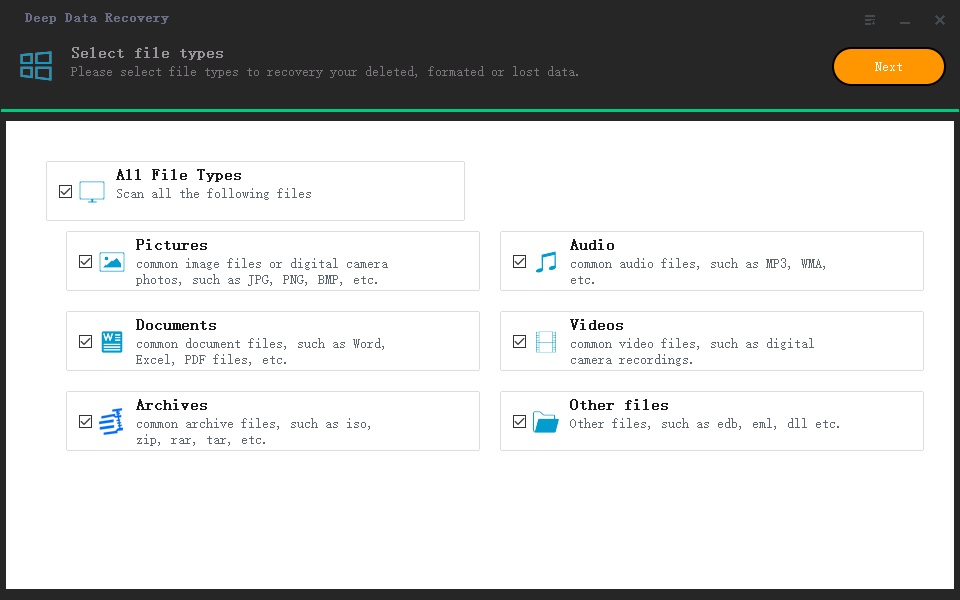
- In the first window, select all file types and click "Next".
- In the next window, click "Scan" beside the drive letter which represents the external hard drive.
- Wait for the scanning process to finish, then select file types in the result window to open and preview recoverable files.
- To recover files on your Mac, select the needed files and click "Recover" to save them to a new destination on your Mac's internal hard drive, preventing potential data loss issues.
Step 2. Reformat the External Hard Drive to APFS Format
- Go to Finder > Applications > Utilities > Disk Utility.
- To erase an external hard drive, click on it in the left panel and select the "Erase" option.
- In the next window, name the hard drive, select APFS as the format and GUID Partition Map as Scheme, then confirm by clicking "Erase".
Frequently Asked Questions for fixing hard drive issues on Mac
How do I convert my hard drive to APFS on Mac?
The process of converting a hard drive to APFS on a Mac depends on its current file system. If the hard drive is in a healthy state, you can simply convert it using the Disk Utility app. However, if the hard drive is in a failing or corrupted state, you may need to use a more advanced method, such as using a third-party tool or reformatting the drive.
- If your hard drive is HFS+(Mac OS Extended) and the Scheme is GUID Partition Map, you can convert it to APFS by going to Finder, then Applications, then Utilities, and finally Disk Utility, right-clicking on the hard drive and selecting "Convert to APFS".
- If your Mac hard drive isn't mounted or is in an unusual state, you can resolve the issue by formatting it to APFS using Disk Utility. To do this, go to Finder, then Applications, Utilities, and finally Disk Utility. Select the hard drive from the left panel and click "Erase". Choose Mac OS Extended as the format and GUID Partition Map as the scheme, then confirm the formatting.
What does it mean when my Mac days this volume is not formatted as APFS?
This error occurs when trying to upgrade macOS, specifically to High Sierra or later, and indicates that the drive is using an old format. To resolve this, the Mac hard drive needs to be formatted to APFS for system updates and to take advantage of faster data writing and reading speeds.
How do you fix a read-only external hard drive on a Mac?
If an external hard drive on a Mac becomes read-only, there are several possible reasons, including the file system being NTFS, which is not compatible with macOS, or access permission being denied, or formatting errors on the external hard drive. Fortunately, there are three methods to fix this issue, and for more detailed instructions, you can check out the full guide on how to resolve the read-only external hard drive on Mac.
- Convert NTFS to APFS or HFS+
- Right-click on the external hard drive > Get Info > check "Ignore ownership on this volume".
- Open Disk Utility, select the external hard drive, and click "First Aid" to fix formatting errors.
Related Articles
- Fix Windows 11/10 Keeps Freezing Up Randomly
- External Hard Drive Not Showing Up
- Free Data Migration Software: Easily Migrate OS or App in Windows
Here comes free data migration software for Windows 10, 8.1, 8, 7, enabling you to transfer system, data, apps from one hard drive to another, from HDD to SSD. - 3 Reliable DBAN Alternatives to Completely Wipe Hard Drive
This guide explains 3 Reliable DBAN Alternatives to Completely Wipe Hard Drive with clear steps, key checks, and practical tips. - Wipe Hard Drive for Clean Install Windows 11 Safely and Easily (3 Ways)
You will learn 3 easy ways to wipe hard drive for clean install windows 11. You can choose to use the built-in tool, installation media or free third-party tool based on your own needs. - How to Increase C Drive Space in Windows Server 2003 without Data Loss?
You can increase Server 2003 (R2) C drive space using Diskpart utility or Qiling Disk Master Server.
Products
Articles & Tutorials
- Data Recovery
- Data Backup
- File Recovery
- File Backup
- File synchronize
- System Backup and Restore
- Disk and Partition Clone
- Technical articles
- Disk Master Help
- Windows Deleted File and Disk Recovery Tutorials
- Windows File and Data Recovery Tutorials
- More Windows Tutorials for Install, Security, Files, and PC Tips
- Windows Boot, Repair, and Recovery Environment Tutorials
- Windows Backup Tutorials
- Windows Restore Tutorials
- Windows Clone and Migration Tutorials
- Windows Server Backup, Recovery, and Management Tutorials
- Windows Disk, Partition, and Storage Management Tutorials